Unity Asset Store sale checklist: buy what you need, not what you own
Unity Asset Store sale tips: plan what each project needs, search the assets you already own, check compatibility and licensing, then download, index and back up.
Sales are when Asset Store libraries grow fastest, and when duplicates are easiest to buy. The pattern is familiar: a pack looks perfect in its screenshots, it is cheap for a few days, and months later you find the same kind of asset in a package you already owned. That was one of the reasons I started Asset Inventory: packages hide their contents, so it is easy to pay for something you already have.
This checklist covers the steps before, during and after a sale. It does not predict dates or discounts. It is about making each purchase count.
Before the sale: write down what each project needs
Start from your projects, not from the sale page.
- List the gaps per project. A modular sci-fi interior, footsteps on snow, a flat icon set: write down what is actually missing.
- Note the constraints next to each item. Unity version, render pipeline, art style and target platform decide whether a pack fits at all.
- Split the list into needed now and nice to have. Only the first part is a shopping list. The second part is where sale money disappears.
- Set a budget per project, not per sale. It is easier to say no to a bargain when it has to come out of a specific project.
Search what you already own, by content
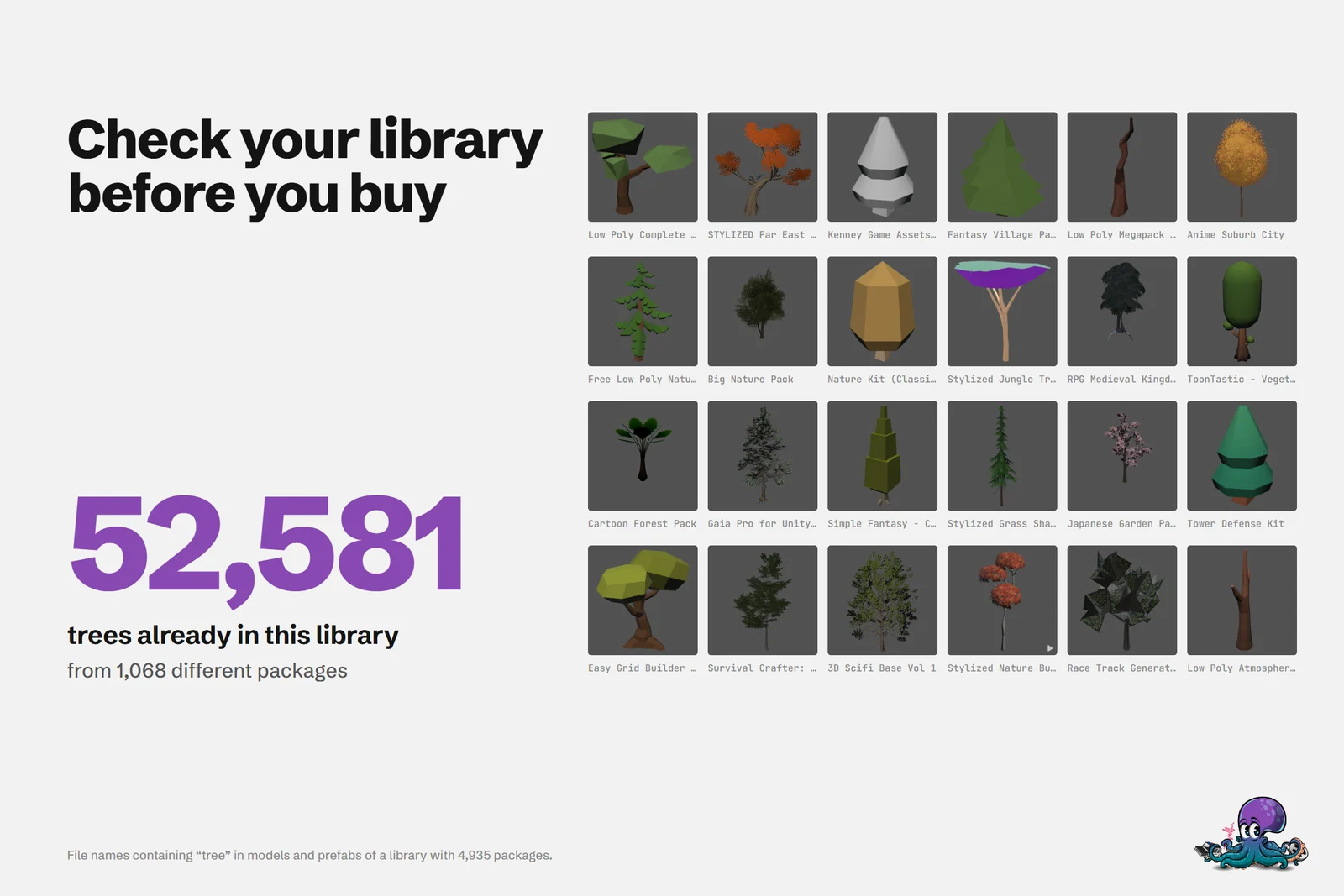
This step saves the most money, and it is the one the Package Manager cannot do: its search matches package names, not the files inside packages. In the real library on the cover image, a search for models and prefabs with tree in their file names returns 52,581 results from 1,068 different packages. Whoever owns that library does not need another tree pack for a prototype, but the package list would never tell them.
With Asset Inventory, search the index before you add anything to the cart:
- Search by file name and narrow the results by type, such as Models or Prefabs, and by size, color, publisher or package tags.
- Judge results by their previews, and listen to sounds directly in the results, since selecting an audio file plays it.
- With optional AI captions, which can run on a local model, you can search by what an image shows. The manual’s example: a model named Car_11 is found by searching for ambulance.
- Older purchases you never downloaded are not indexed yet. Download them first, or let the Download & Index New Asset Store Packages action fetch, index and delete them again. If you bought something in the last 14 days and might still return it, wait with that action, because downloading gives up the easy refund.
The use case on checking your library before buying shows this search step by step.
Check free catalogs before paying
Some needs do not require a purchase at all. Asset Inventory searches free online catalogs next to your own library: Poly Haven and ambientCG for CC0 models, materials and HDRIs, NVIDIA SimReady, Game-icons.net, Google Fonts and NASA 3D Resources as local catalogs, and Openverse, Wikimedia Commons and Smithsonian 3D as online sources. Sketchfab and Pixabay need an API key.
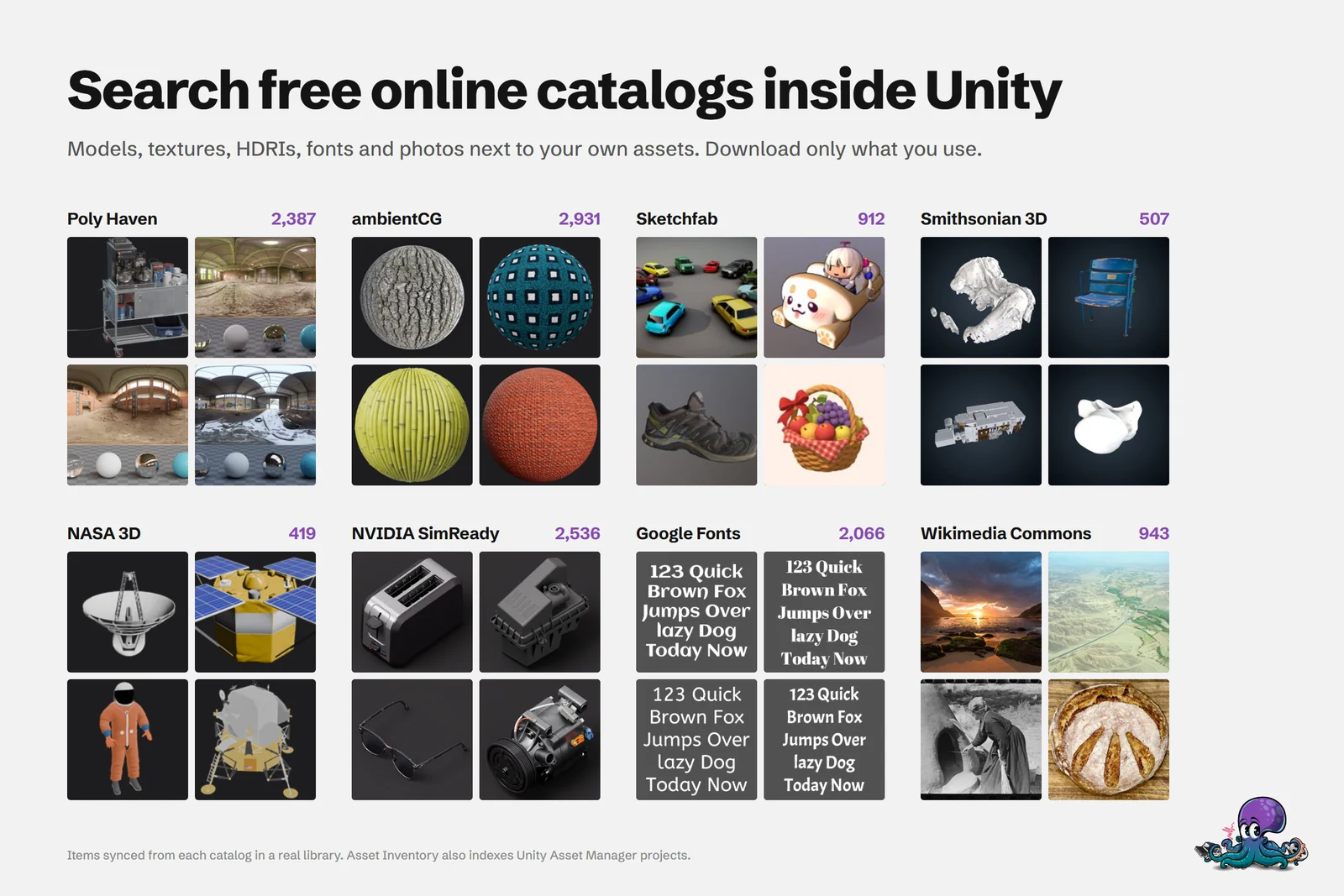 Free online catalogs, searched next to the assets you already own.
Turn them on under Settings > Remote Catalogs; Turn on recommended free sources enables Poly Haven and ambientCG. A catalog stores metadata and previews, not the asset files. When you download or import an item, Asset Inventory records its source and license with it. Licenses differ per source, from CC0 to CC BY to NASA’s own guidelines, so read the terms of each item before you ship it.
Free catalogs will not replace a cohesive, stylized art pack, but for materials, HDRIs, fonts and icons they are worth checking first.
Check compatibility before it goes into the cart
- Unity version. Check which Unity versions the publisher supports and when the package was last updated. A pack that kept up with recent Unity releases is a safer bet than one that stopped years ago.
- Render pipeline. If you work in URP or HDRP, check that the pack supports your pipeline or plan time for conversion. Asset Inventory detects the SRP support packages that publishers include and can run Unity’s Render Pipeline Converter after an import in URP 14 or newer, but it is still better to buy a pack that matches your pipeline.
- Compare with what you own. Asset Inventory’s package filters cover update date, Unity version and render pipeline support, so you can see how the packs you already own compare.
- Deprecation risk. Any package can be deprecated later, and a disabled package can no longer be downloaded. When I counted my own library in early 2024, 313 of about 1,940 Asset Store packages were deprecated and 29 were disabled. That is not a reason to skip a purchase, but it is a reason to back up what you buy. Asset Inventory highlights deprecated and disabled packages in its package list.
Understand the license before you buy
Most Asset Store packages use the Standard Unity Asset Store EULA, but not all of them. In the same real library, 3,971 packages use the Standard EULA and 23 use a non-standard EULA, and others carry open licenses: 17 CC-BY-4.0, 5 MIT, 3 CC0-1.0, 3 Apache-2.0 and 2 BSD-3-Clause.
- Editor tools are licensed per seat. Unity’s EULA FAQ says to buy and assign a seat for each person in your project where an Extension asset is installed. Asset Inventory is an Extension asset too, so a team of three that all use it needs three seats.
- Single entity or multi-entity. A single-entity license covers an individual or a team within one legal company. If you share assets with contractors, subsidiaries or affiliates, the FAQ points you to the multi-entity license.
- Attribution. CC BY content requires credit. Note it when you buy or download, not the week before release.
Asset Inventory shows the effective license of each package with source links, flags entries that need review and can export a license report for a project. I am not a lawyer, and the report is a starting point to review, not a legal guarantee.
Check what you already paid and what you got for free
Open Tools > Asset Inventory > Orders to load the order history of the Unity account signed into the Editor. You can search by invoice number, order ID, package or publisher, filter by status and currency, and export the orders as CSV or JSON. Paid totals keep currencies separate. In Advanced mode, package details show the recorded Purchase Price next to the Current Price, and bulk totals use the prices from your orders rather than today’s store price.
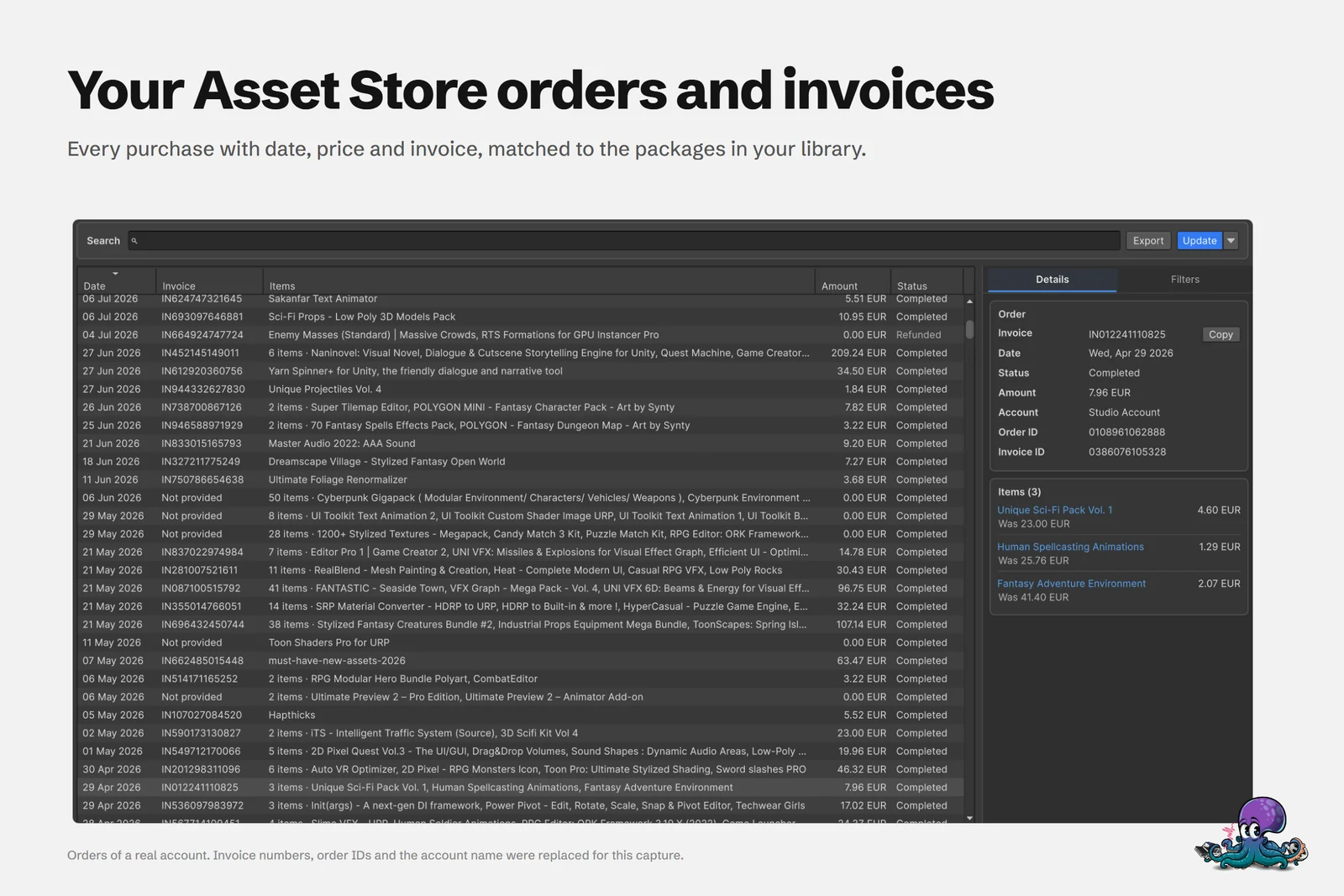 Orders of a real account in Asset Inventory. Invoice numbers and order IDs were replaced for the capture.
Bundles and some publishers grant free or discounted access to other packages, usually linked in the description, and the Asset Store does not make those easy to spot. Asset Inventory’s freebie scanner checks the descriptions of your purchases for links to other packages and lists the candidates. Verify each one on the Asset Store website and claim it there; the price only shows correctly once the page has fully loaded.
After you buy: download, index, tag and back up
- Decide about refunds first. Unity’s Asset Store EULA lists automatic refunds within 14 days of purchase only for products that have not been downloaded, among other conditions. Study the screenshots, videos and documentation, and download once you are sure.
- Download. Use the Package Manager or the download actions in Asset Inventory. When you select several packages, Asset Inventory shows their total compressed size before you start.
- Index. Press Run Actions under Settings. The new packages appear in the package list, and their files become searchable.
- Tag. Tag the new packages with the project or purpose you bought them for, so they show up in that project’s saved searches.
- Back up. Turn on Enable Package Backups under Settings > Backup and select the new packages, so the version you bought stays available even if the package changes or disappears later.
- Reclaim space if needed. Once indexed, a package can be deleted from the cache and stays searchable. Asset Inventory downloads it again on demand when you import something from it. The article on the Asset Store cache location explains the trade-offs.
By the next sale, everything you bought is indexed, tagged and backed up, and checking your library before you buy is a single search.
Frequently asked questions
How do I avoid buying Unity assets I already own?
Search your library by content before you buy, not only by package name. The Package Manager searches package names, while Asset Inventory searches the files inside every indexed package, so a search for trees shows every tree model you already own, with previews.
Can I get a refund for an Asset Store purchase?
Unity's Asset Store EULA lists automatic refunds for requests within 14 days of purchase when the product has not been downloaded, along with other conditions. Other refund requests within 14 days are at Unity's discretion, so download a new purchase only once you are sure you want to keep it.
How many licenses do I need for an Asset Store editor tool?
Unity's EULA FAQ says to buy and assign a seat for each person in your project where an Extension asset is installed. A single-entity license covers an individual or a team within one legal company; the multi-entity license is meant for sharing with contractors, subsidiaries or affiliates.
Where can I see what I paid for my Asset Store assets?
Asset Inventory's Orders window, under Tools > Asset Inventory > Orders, loads the order history of the Unity account signed into the Editor. You can search invoices, packages and publishers, see recorded purchase prices per package and export orders as CSV or JSON.
Find any Unity asset you own. Import only what you need.
Keep reading
 Use case
Check if you already own an asset before you buy
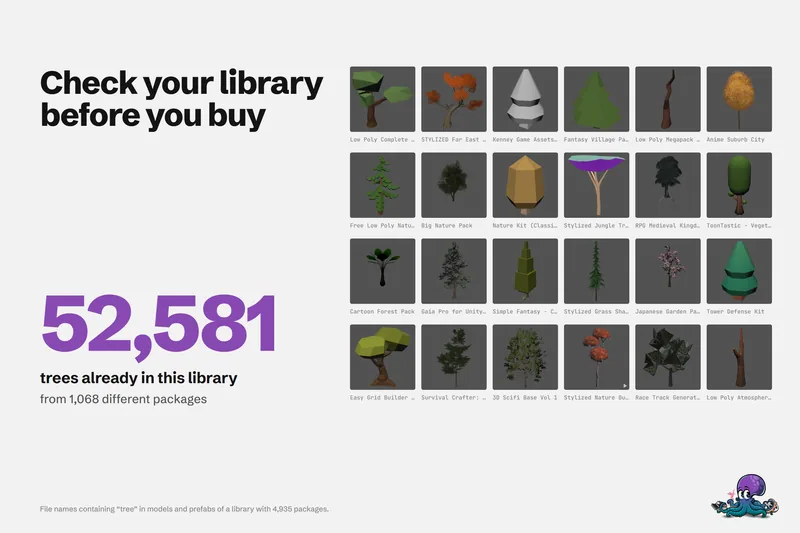
One real library holds 52,581 files with tree in their name. How to search what you own, find badly named files, check free catalogs and unclaimed freebies, and see what you paid before you add to the cart.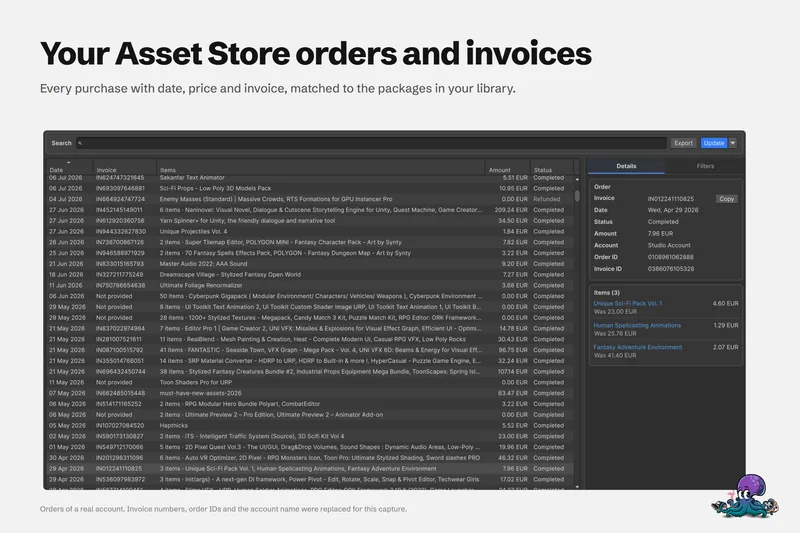 Use case
Find your Unity Asset Store orders and invoices in one place
The Orders window loads the order history of the Unity account in your Editor, searches it by invoice, order, package or publisher, exports CSV or JSON, and records what you actually paid for each package.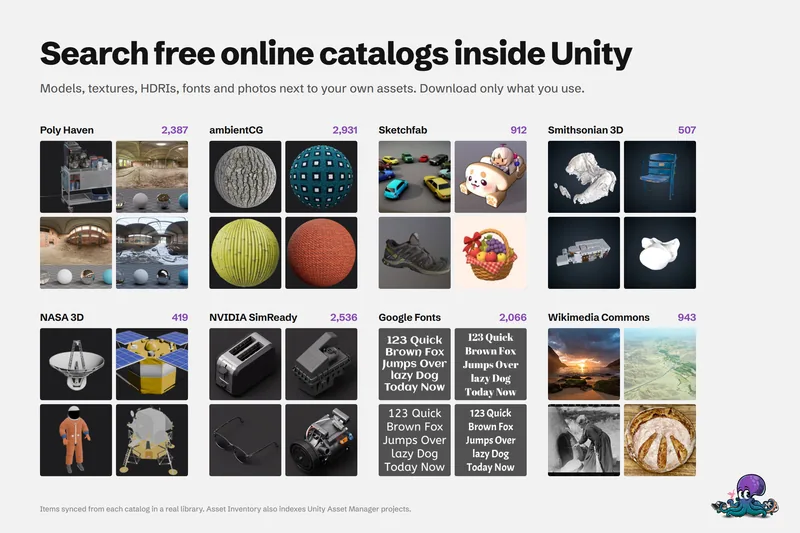 Use case