I Bought a Unity Humble Bundle. Then I Had to Find Anything in It
A Humble Bundle full of Unity packages and ZIP archives is hard to browse. How to index every download once, then search, preview and import single assets in Unity.

I love a good Humble Bundle. A collection of Unity environments, sound effects, models, textures, and tools for the price of a few coffees? Of course I clicked Buy.
Then I opened the download page.
There were dozens of files. Some were Unity packages, some were ZIP archives, and a few had extra folders or multiple versions tucked inside them. After downloading everything, my carefully acquired asset library looked less like a creative toolbox and more like digital storage I would someday have to excavate.
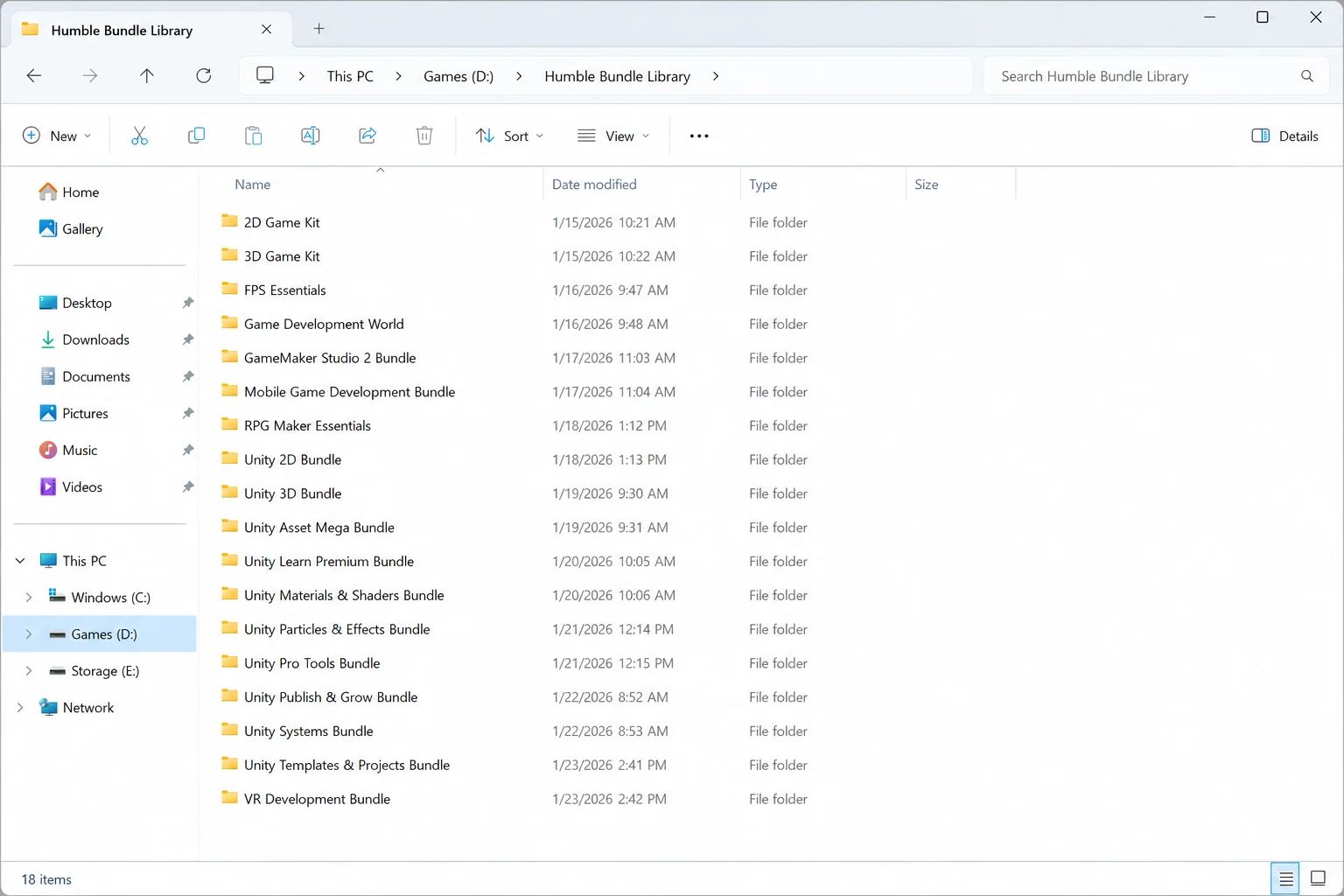 The bundle after downloading: packages and archives, no way to see what is inside.
That was the real problem. I owned the assets, but I could not meaningfully browse them.
If I needed, say, a medieval wooden door, I had to remember which bundle it came from, guess which archive contained it, unpack that archive, and often import a full package into a temporary Unity project. Then I waited for Unity to process it, clicked through folders, decided it was not the right door, and repeated the whole ritual.
Audio was worse. A package name such as “Fantasy Ambience” tells me almost nothing about the individual rain loops, tavern sounds, or forest beds buried inside it. The bargain felt great at checkout. Finding something useful later did not.
One folder, one index
Asset Inventory changed that workflow in a way that felt almost suspiciously simple.
I created one folder on my drive called Humble Bundle Library and downloaded everything into it. Same for my audio files, textures and so on. I did not rename files, flatten the hierarchy, or sort packages by publisher. I left the nested folders and archives exactly as they arrived.
In Asset Inventory, I opened Settings, expanded Additional Folders, clicked the plus button, and selected that folder. The setup wizard scanned the hierarchy and detected the Unity packages, media files, and supported ZIP, RAR, and 7z archives it found.
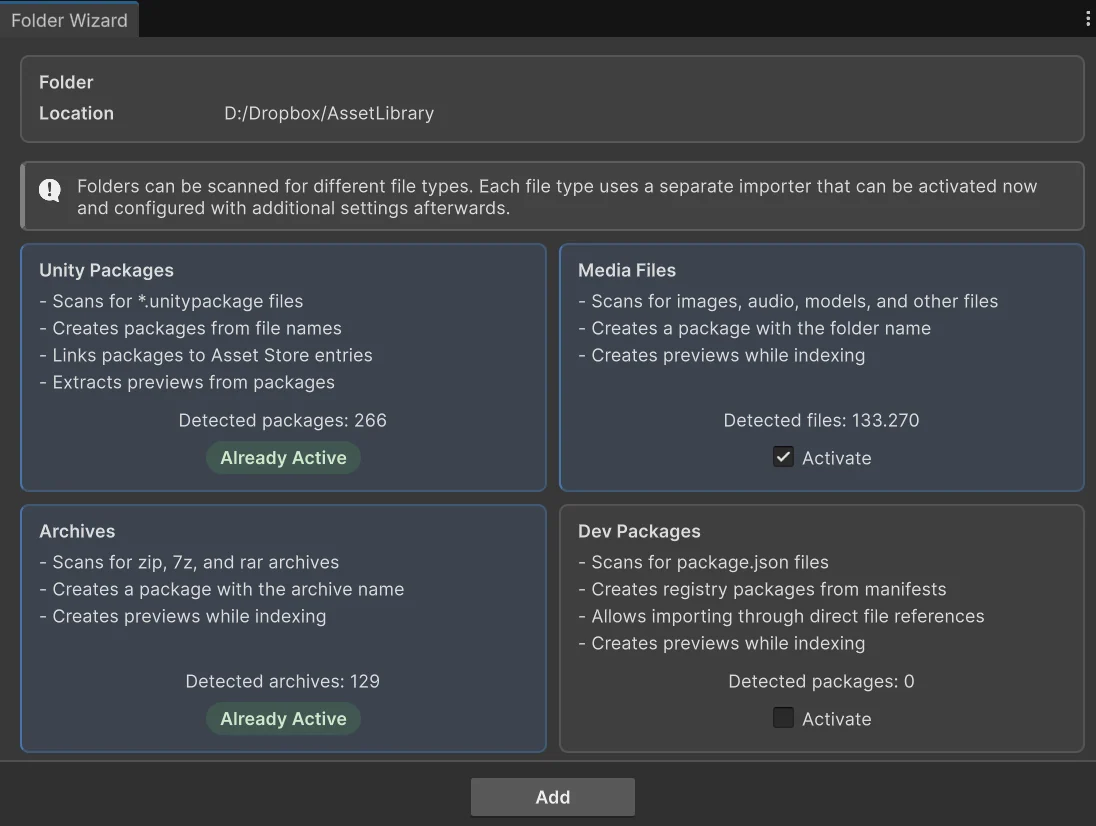 The folder wizard shows what it found before anything is indexed.
Then I ran Index Additional Folders using its play button. I could also have included it in the normal Run Actions workflow. That was my contribution: point at the folder, click index, wait.
Behind the scenes, Asset Inventory handles the tedious part. It opens archives as needed in its own cache, examines their supported contents, records file names and metadata, and creates previews while indexing. For supported visual asset types, its custom preview pipeline can produce clear, consistent previews that are far more useful than judging an asset by a filename alone.
Crucially, I did not have to unpack every download by hand or import every package into a sacrificial Unity project. Asset Inventory did the inspection without filling my current project with content I might never use.
From a pile of downloads to a library
When indexing finished, the bundle stopped being a pile of downloads. It became part of my local Asset Inventory catalog.
I could search across it alongside my other Unity assets, filter the results, browse thumbnails, inspect individual files, and work backward to the package they came from. Instead of asking, “Which archive might contain a wooden door?” I could search for doors, compare the results visually, and bring in only the asset I actually wanted.
The biggest improvement was not storage. All those files were already on my drive. It was access. The bundle finally felt like something I owned and could use, rather than a collection I had purchased and forgotten.
The setup, step by step
Since publishing the original story, I have been asked for the exact steps often enough that they deserve their own list:
- Create one folder for bundle downloads, for example Humble Bundle Library, and download every file of the bundle into it. Keep the structure as it arrives; nested folders and archives are fine.
- In Asset Inventory, open Settings, expand Additional Folders and add the folder with the plus button.
- Let the wizard detect what is inside. Unity packages, media files and ZIP, RAR and 7z archives are recognized. For loose media, the wizard can turn the folder itself, or each first- or second-level subfolder, into a package so results stay grouped sensibly.
- Run Index Additional Folders, or keep it checked so it runs with Run Actions. Indexing can be stopped and resumed, and it only processes what is new.
- Optionally link packages to their Asset Store pages. Many bundle packages carry their Asset Store ID already. For the others, Link to Asset Store with the store URL loads the name, description, rating and screenshots.
From then on, the bundle shares one search with everything else you own: Asset Store purchases, registry packages, other folders and archives, and even free online catalogs.
Make the bundle’s sounds findable
Bundles are often heavy on audio, and audio is where file names fail hardest. Selecting a sound in the results plays it right away, with Auto-Play and Loop next to the playback controls, and the Length filter separates two-second effects from four-minute music tracks.
If you want to go further, Asset Inventory can describe sounds with a local AI model and add tags such as the sound source, mood or instrument, so “tavern crowd” finds a file named amb_int_04.wav. Find Similar Sounds… then lists sounds that resemble the one you picked, from the packages you enabled for it. Both are optional and run against a local Ollama or LM Studio connection, so nothing leaves your machine. The sound effects guide covers the setup.
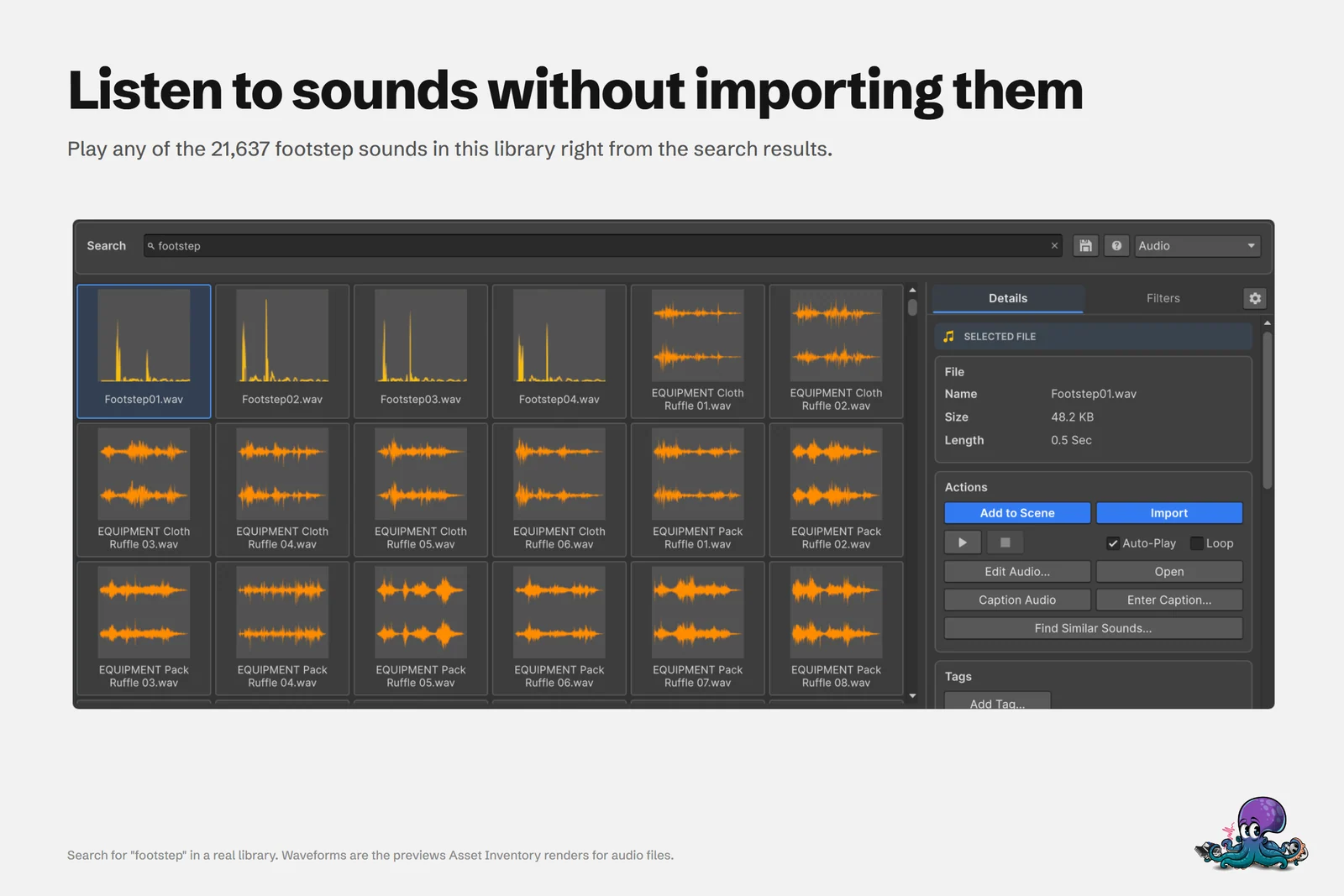 Sounds from every indexed package in one result list, played on selection.
Import one asset, not the whole bundle
Finding the wooden door is half the job. When I import it, Asset Inventory analyzes its dependencies (mesh, materials, textures) and copies exactly those files into my project, into a folder of my choice. In one real example, a single house prefab arrives as 18 files and 33.7 MB instead of a 497 MB package. That keeps projects small and compile times short, which matters even more with bundles, where you rarely want more than a handful of assets from each package. The details are in the guide on importing single assets with their dependencies.
When the next bundle arrives
That is what I now do with every Unity bundle: download it into the same folder, run the index again, and get back to making things. Because indexing is incremental, the second bundle takes only as long as its own content.
Because an asset is only valuable when I can find it, preview it, and put it to work.
Discover Asset Inventory or browse more use cases.
Frequently asked questions
Do I have to unpack the ZIP, RAR or 7z files from a bundle first?
No. Add the download folder under Additional Folders and Asset Inventory indexes Unity packages, media files and ZIP, RAR and 7z archives where they are, extracting into its own cache only when it needs to.
Can bundle packages show Asset Store details like descriptions and ratings?
Yes. Many packages carry their Asset Store ID and are linked automatically. For the rest, paste the Asset Store URL under Link to Asset Store to load the name, description, rating and more.
What happens when I buy the next bundle?
Download it into the same folder and run Index Additional Folders again. Indexing is incremental, so only new content is processed.
An earlier version of this article was published on Medium.
Find any Unity asset you own. Import only what you need.
Keep reading
 Use case
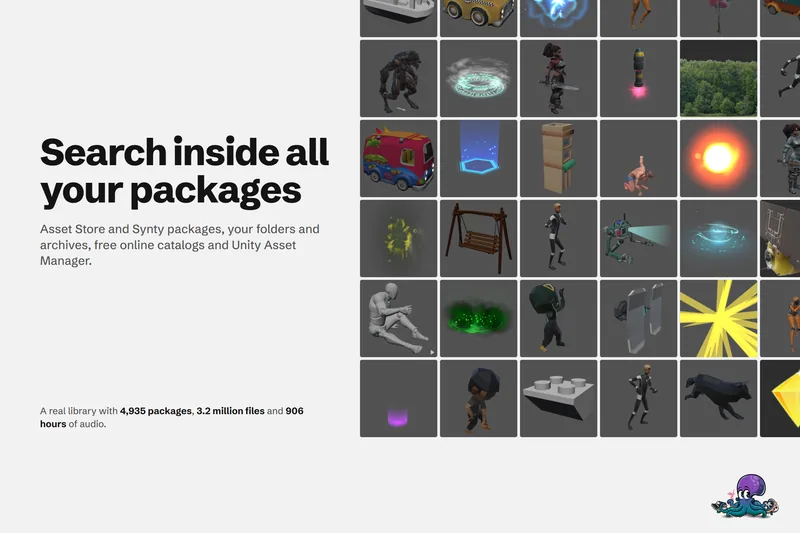
Search inside every Unity package you own
The Package Manager searches package names. Asset Inventory indexes every file in every package you own, with filters, saved searches and Unity Search integration, so you search for the asset itself.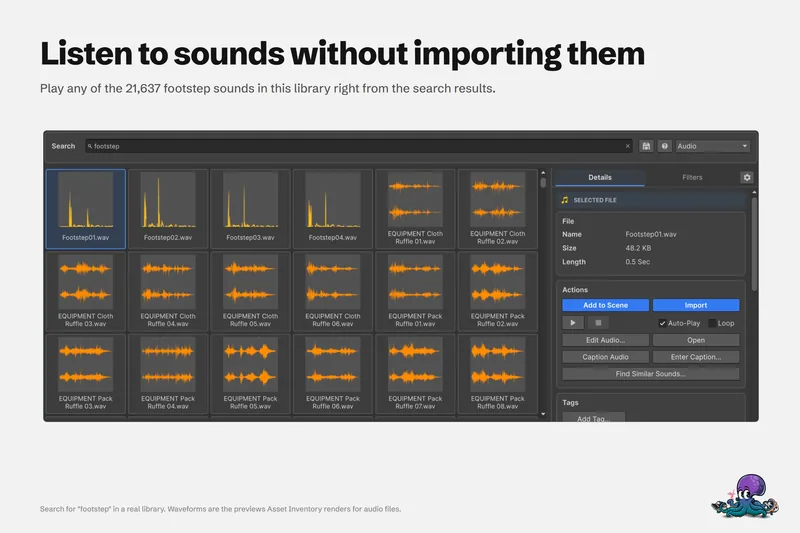 Use case
Search your whole Unity sound effects library without importing
Package names say little about the sounds inside. Search every audio file you own by name and length, listen in the results, trim before import, and let a local model caption, tag and match sounds.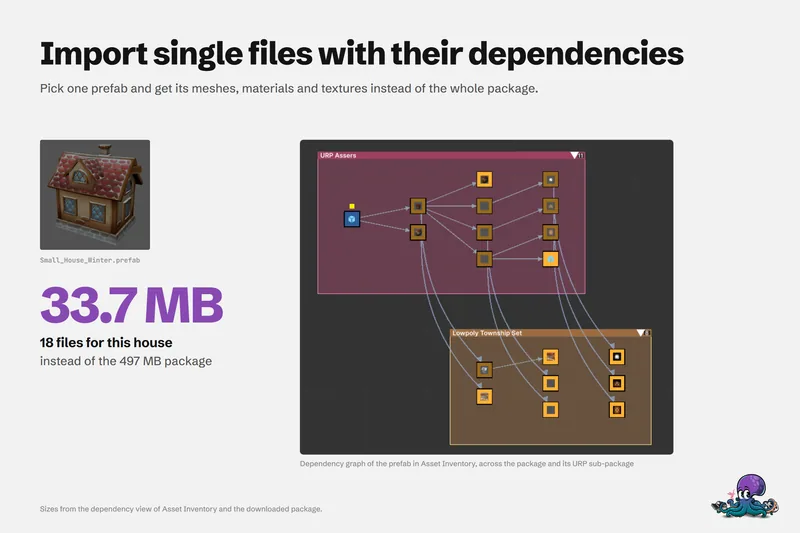 Use case