Create a license report for the assets in your Unity project
Create a Unity asset license report: find which packages your project uses, review each license and export third-party notices in Markdown with sources and hashes.
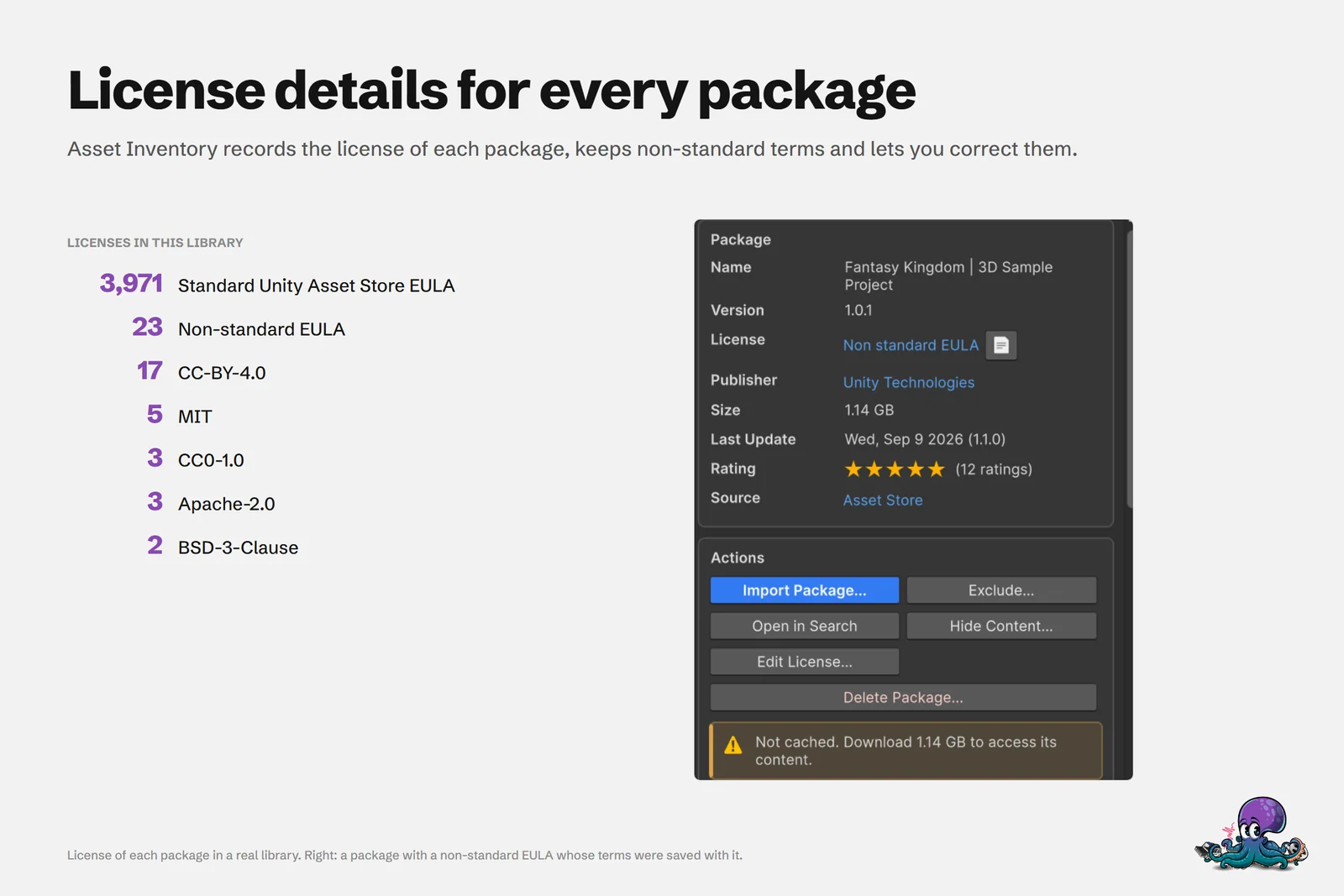
Shipping a game, a client app or an enterprise build comes with two questions: which third-party assets are in it, and under which terms. In a small project you might remember. In a library like the one behind these guides, memory is not an option: 3,971 packages under the Standard Unity Asset Store EULA, 23 under non-standard EULAs, plus 17 CC-BY-4.0, 5 MIT, 3 CC0-1.0, 3 Apache-2.0 and 2 BSD-3-Clause packages. The few that typically ask for attribution or a copy of the license text hide among thousands of standard entries.
Asset Inventory answers both questions inside the Editor. Reporting identifies the packages behind your project files, package details show each license with its agreements, and the license export turns the result into a third-party notices file.
Find out which packages your project uses
Open the Reporting tab. It scans the whole project and tries to identify the package each file came from.
- A version shown in bold means the package was identified with 100% confidence, version included. Registry packages always fall into this group.
- Assets imported with Unity 2023 or newer carry their origin in their meta files, which lets Asset Inventory pin the exact package version.
- Identified and unidentified files are listed separately, so you can see how much of the project is accounted for.
- Select any asset in the Project window, and Reporting shows its package in the info box.
This also answers the everyday version of the question, “where did this texture come from”, without searching your downloads.
Review the license of every package
Package details show the effective license as a read-only value, with links to its source or to saved terms when they exist. Additional required agreements are listed with it, and Needs review marks information that still needs attention. Asset Store metadata fills in licenses automatically, and a license you choose by hand is kept when the package data refreshes.
To correct a license, use Edit License… in the package’s actions, or the license picker in Package Data. The picker offers common licenses, such as the Standard Unity Asset Store EULA, CC0-1.0, CC-BY-4.0, CC-BY-SA-4.0, MIT, Apache-2.0, BSD-3-Clause, OFL-1.1 and the Unity Companion License, plus licenses already in your catalog and the package’s alternatives. Advanced… opens the full Package License editor for alternative licenses, required agreements and conditions.
Two details help in audits. Saved agreement revisions keep the terms under which you acquired an asset. And when a package offers alternative licenses, Reporting can record which one applies to the current project without changing the choice for every other project.
Export a third-party notices file
- Open Reporting and choose Export….
- Choose License Export to cover every package the current project uses.
- To narrow the scope, select packages, files or folders and use Export Selected… instead. It covers the selected packages and the packages that own the selected files, including files in selected folders.
- Review unresolved entries and project-specific choices before you rely on the file.
The result is a Markdown file titled “Third Party Licenses”. For each package it lists the license, the required agreements with their links, the SHA-256 of the saved agreement document and the date it was retrieved. Project files without an identified package are counted, so a gap in the report is visible instead of silent. The hash and date identify exactly which version of each agreement the report refers to.
Keep proof of purchase next to the terms
Audits often ask for invoices as well as licenses. The Orders window under Tools > Asset Inventory > Orders loads the order history of the Unity account signed into the Editor. It searches by invoice number, invoice ID, order ID, package or publisher, and exports the shown orders as CSV or JSON. The guide to Asset Store orders and invoices covers it in detail.
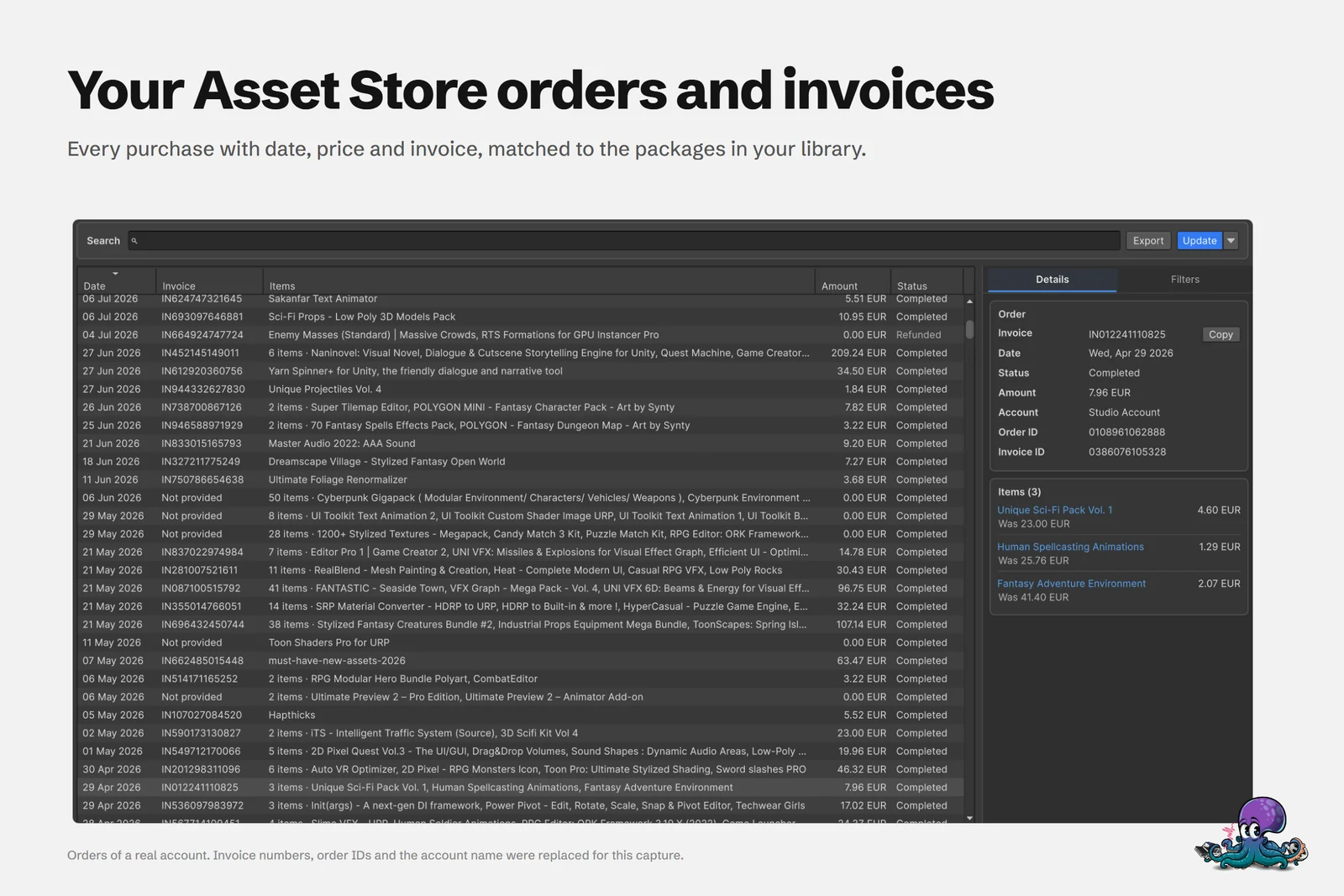 Orders of a real account, matched to the packages in the library. Invoice numbers, order IDs and the account name were replaced for this capture.
What the report does not do
- It is not legal advice. It reports what Asset Inventory has recorded and marks what is unknown. Whether an obligation applies, and how to meet it, is your call or your legal team’s.
- It does not guess. Reports distinguish unknown license information, so review those entries and the unidentified file count before you ship.
- Only bold versions are certain. Other matches are the best identification available, so check them for content imported with older Unity versions.
- Search has no license filter. In the Packages list, License is a sortable column, which puts packages with the same license next to each other.
Free assets from online catalogs follow the same rule: Asset Inventory records the source and license when you download them, as described in free asset catalogs in Unity. See the Reporting documentation for every export option.
Frequently asked questions
How do I find out which Asset Store packages my Unity project uses?
Open the Reporting tab in Asset Inventory. It scans the project and identifies the package each file came from, and a bold version means the match is certain. Selecting an asset in the Project window shows its package.
Can I generate a third-party notices file for a Unity project?
Yes. In Reporting, choose Export... and then License Export. It writes a Markdown file titled Third Party Licenses with each used package's license, agreements, links, a SHA-256 of the saved agreement and its retrieval date.
Is the license report legal advice?
No. It collects the license information Asset Inventory has recorded and marks what is unknown or needs review. Check unresolved entries and the terms themselves before you rely on it.
Why are some files listed as unidentified?
The scan can only match files to packages it can trace. Registry packages are always identified, and assets imported with Unity 2023 or newer carry their origin in their meta files. Files the scan cannot match are counted as unidentified in the report.
Find any Unity asset you own. Import only what you need.
Keep reading
 Use case
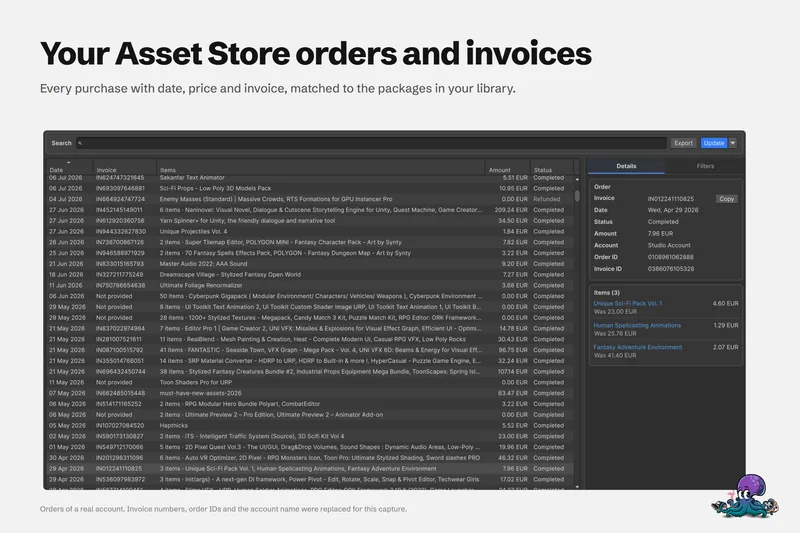
Find your Unity Asset Store orders and invoices in one place
The Orders window loads the order history of the Unity account in your Editor, searches it by invoice, order, package or publisher, exports CSV or JSON, and records what you actually paid for each package.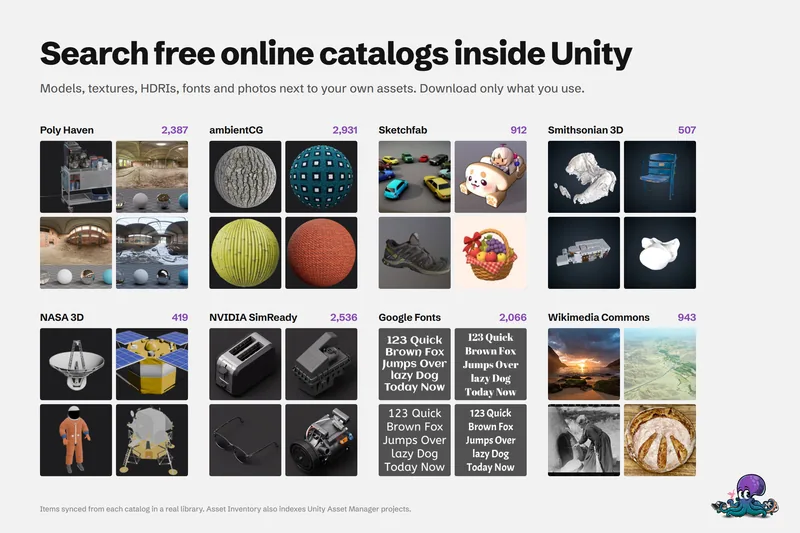 Use case
Search free asset catalogs inside Unity, next to the assets you own
Search free online catalogs such as Poly Haven and ambientCG in the same window as your purchases. Catalogs store metadata and previews only, and you download or import just the items you choose. Use case