Share your Unity asset library as a website
Export Unity asset list, previews and package pages as a static website with file search that producers, artists and clients can browse without Unity.
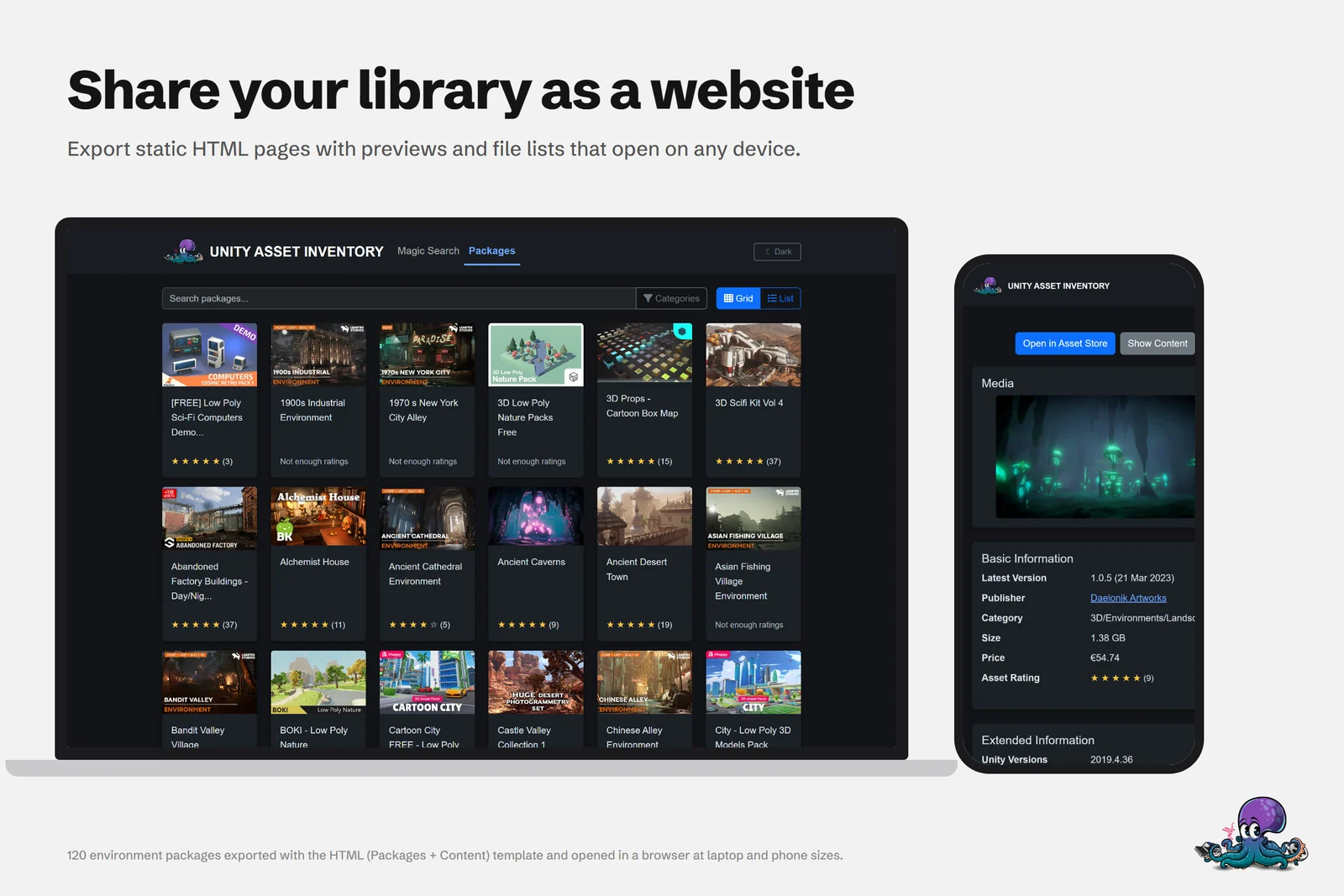
Your asset library is useful to more people than the ones who open Unity. A producer wants to know whether you already own a fitting environment before approving a purchase. An artist wants to browse props without installing an Editor. A client wants to see what a prototype could be built from. Asset Inventory exports the catalog as a static website: package pages with covers, ratings and details, plus a file search with previews, opened in any browser on a laptop or phone.
The cover shows 120 environment packages exported with the bundled HTML (Packages + Content) template. Nobody viewing the result needs Unity or Asset Inventory.
What the exported website contains
The full HTML export includes a serverless file search with filters, paging and previews: it runs in the browser on exported data files, so no database or backend is involved. A package view lists every exported package and opens its details. Both HTML templates come with light and dark themes and a toggle between them.
| Template | What viewers get | Good for |
|---|---|---|
| HTML (Packages + Content) | Package pages plus a file search with filters, paging and previews | Browsing individual models, textures and sounds |
| HTML (Packages) | The package grid and details, without the file search | A lighter overview of what you own |
| Markup (MD) | The packages as Markdown | Wikis and project documentation |
Export the site
- Click Run Actions first so the catalog and previews are current.
- Open Reporting and choose Export… to export the whole catalog. To publish a subset, such as only environment packages, select those packages in Packages and export from there; package exports work one by one or in bulk.
- Pick Template Export and choose a template, for example HTML (Packages + Content).
- Choose the configuration for where the site will live: local folders while you test, or the paths and URLs of your server.
- Run the export and open the result through a web server to check it.
Host it on a web server or CDN
The pages load their data files with browser requests, so serve the export from a web server, even a simple local one for testing. Opened straight from disk, browsers block those requests, and the page says so instead of showing results. Any static host works: an intranet server, shared web hosting or object storage behind a CDN.
The full template links file previews from Asset Inventory’s Previews folder instead of copying them, which is why it always exports next to that folder. When the site moves to a server, the previews have to go with it, or the configuration’s image path has to point at a CDN that serves them. Configurations keep these environments apart: local folders while you test, a server path or CDN URL once deployed. Relative paths and CDN URLs both work, including static hosting on Amazon S3 with CloudFront.
Plan for the previews, because they are most of the upload. As a rule of thumb, previews take about 200 MB per 30,000 files when they are not upscaled, so a site covering selected packages is far lighter than one covering a library of 3.2 million files. HTML (Packages) skips file previews entirely. The previews and descriptions also show other people’s work that you licensed, so publish the site where your team or client can reach it rather than on the open web.
Spreadsheets, Markdown and team overrides
The same export window covers other formats when a website is not what people need:
- CSV Export writes package metadata to a single file for Excel and other spreadsheet tools.
- Markup (MD) turns the package list into Markdown for documentation.
- Overrides creates
.overrides.jsonfiles that keep tags and categories consistent when a whole team indexes the same packages, as described in sharing one library with a team. - License Export writes package licenses and agreements as Markdown; see license reports for your project.
Build your own format with Scriban templates
A template is a set of files processed by Scriban, a small template language. Files of type .html, .js, .csv, .txt and .md get their placeholders replaced, with variables such as packages, package, packageFiles, dataPath, imagePath and pageSize. A package_details.html file becomes one page per package.
An optional descriptor next to the template can inherit from another template and move or delete files. The bundled HTML (Packages) template works exactly that way: it is the full template without the file search. In Advanced mode you can create and extend templates, and template development mode exports again automatically when you change files. Keep your own templates in a dedicated folder set under Settings/Locations > Custom HTML Templates, because updating Asset Inventory replaces its installation folder. The reporting documentation lists every descriptor property.
Publish updates automatically
An export is a snapshot: new purchases, tags and previews appear only after the next export. A custom action turns refreshing the site into one click:
- In Settings > Actions, create an action, for example “Publish Catalog”.
- Add a Template Export step with the template and an export folder.
- Add an FTP Upload step that uploads that folder to your server, plus one for the previews if the site does not load them from a CDN. Connections support FTP, FTPS and SFTP and are managed under Settings/Locations; passwords are stored encrypted and are only readable on your machine. An FTP Delete step before the upload can clear the remote folder first.
- Define the export folder once with a Set Text Variable step and reuse it as
$namein the following steps. - Run the action with the Play control beside it, or include it in the selected actions so the same Run Actions click that updates the index also publishes the site.
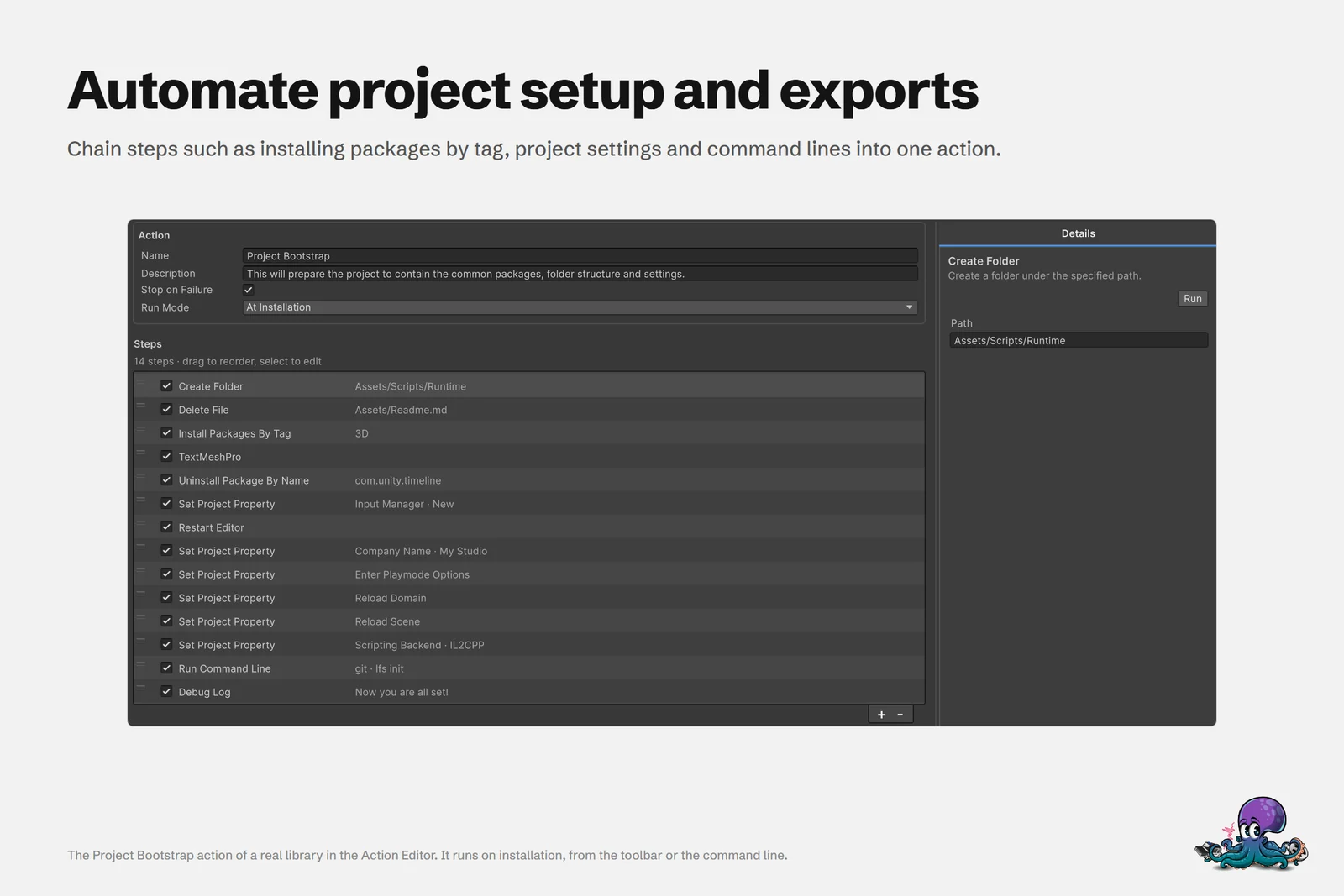 Actions chain ordered steps; a publishing action pairs Template Export with FTP Upload the same way.
A script or coding assistant can do the same through the exportHTML and runAction tools on Unity 6.3 or newer, with a dry run before anything is written. For more step types and run modes, see automating project setup.
Frequently asked questions
Do viewers need Unity to browse the exported library?
No. The export is a static website with its own data and preview files, and the file search runs in the browser. Host it on any web server or CDN and share the link.
How do I keep the exported website up to date?
The export is a snapshot, so export again after the catalog changes. A custom action with a Template Export step followed by FTP Upload rebuilds and publishes the site in one run.
Can I export my Unity asset list to Excel instead?
Yes. CSV Export writes package metadata to a single file for Excel and other spreadsheet tools. The same export window offers Markdown, license reports, JSON overrides and your own Scriban templates.
How large is the HTML export?
Most of it is preview images. As a rule of thumb, previews take about 200 MB per 30,000 files when they are not upscaled, so exporting selected packages or using the package-only template keeps the site small.
Find any Unity asset you own. Import only what you need.
Keep reading
 Use case
Use one Unity asset library across your team and all your computers
Index once and use the catalog everywhere: SQLite on a network drive for light use, MySQL or MariaDB when several people work at once, shared tags through override files, and a static website for people without Unity.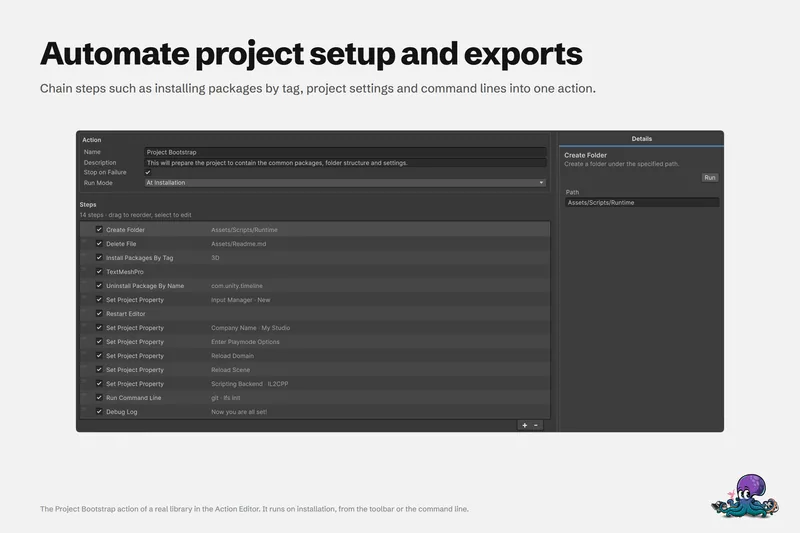 Use case
Automate Unity project setup with reusable actions
Custom actions create your folder layout, copy shared files, set project properties and define symbols, and install the packages you always use. Set one to At Installation and every new project offers to set itself up, in any supported Unity version. Use case