Organize every Asset Store purchase in one library
Organize Unity Asset Store assets with your custom packages, folders and archives in one list inside Unity: tags, update status, hiding, metadata and bulk actions.
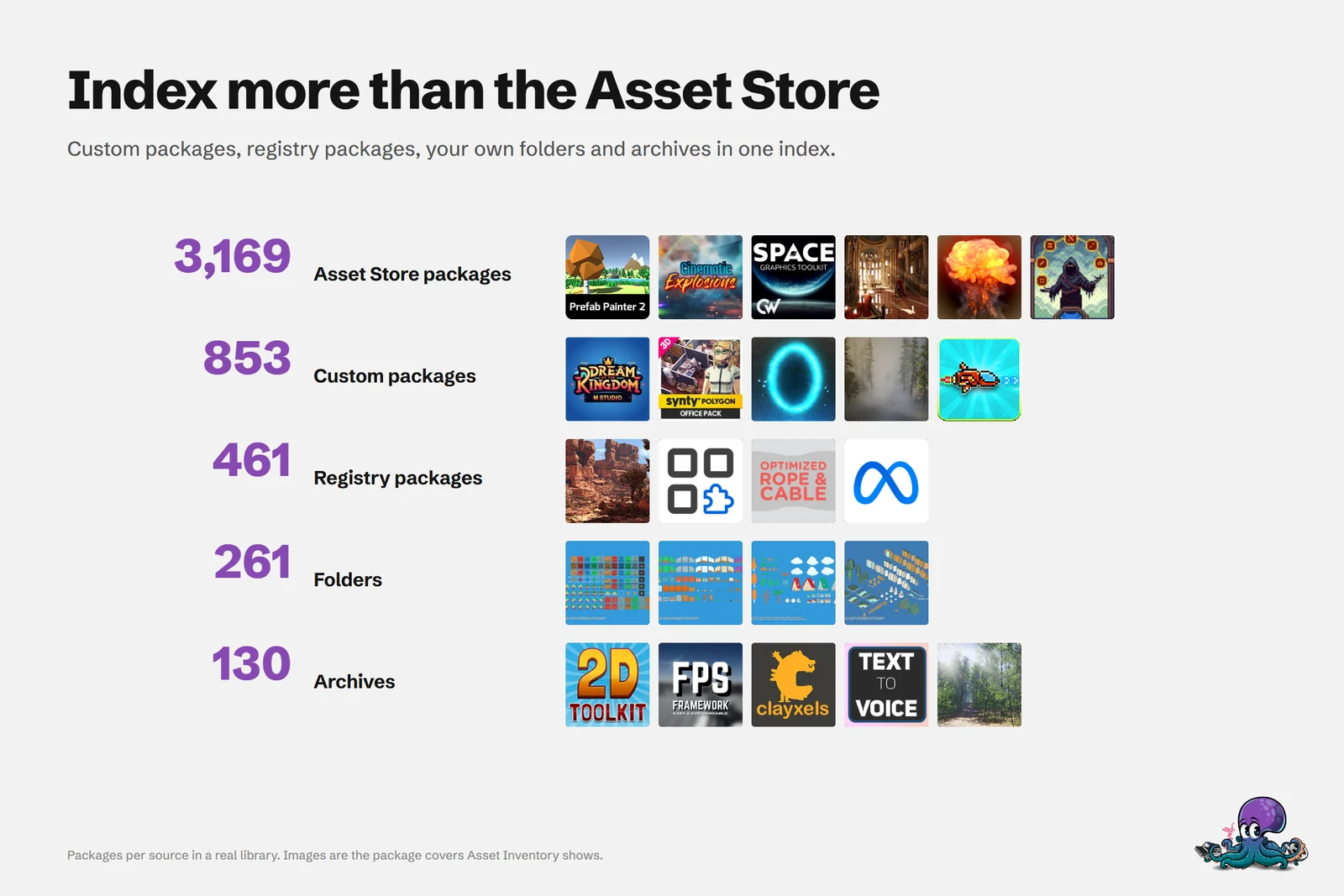
After a few years of sales, bundles and freebies, a Unity asset library is spread out: Asset Store purchases in Unity’s cache, publisher downloads and Humble Bundle archives in a downloads folder, registry packages, texture folders, maybe a Unity Asset Manager project. The Package Manager’s My Assets view covers the Asset Store part. Its labels can only be created on the Asset Store website, and custom packages, folders and archives have no place in it.
Asset Inventory puts every source into one list inside Unity. The library on the cover holds 3,169 Asset Store packages, 853 custom packages, 461 registry packages, 261 folders and 130 archives, all tagged, filtered and updated the same way. Standalone managers such as AssetHoard and general media organizers such as Eagle can catalog files too, from outside the Editor; Asset Inventory keeps the list next to import, update and backup. The comparisons with the Package Manager, AssetHoard and Eagle go into detail.
One list for every source
The Packages view shows everything Asset Inventory knows about:
- Asset Store purchases of the Unity account signed into the Editor
- Registry packages from the Unity registry, custom registries and GitHub
- Custom packages from publisher sites and bundles, and packages downloaded with the Synty Importer
- Folders of media files or whole Unity projects, and ZIP, RAR and 7z archives
- Online catalogs such as Poly Haven and ambientCG, and Unity Asset Manager projects with their collections as sub-packages
To fill it:
- Run Fetch Asset Store Purchases. Every purchase appears as a package, even before its content is indexed.
- Run Fetch Asset Store Details to load publisher, pricing and screenshots.
- In Settings, add your own download folders under Additional Folders.
- Press Run Actions to index what you selected.
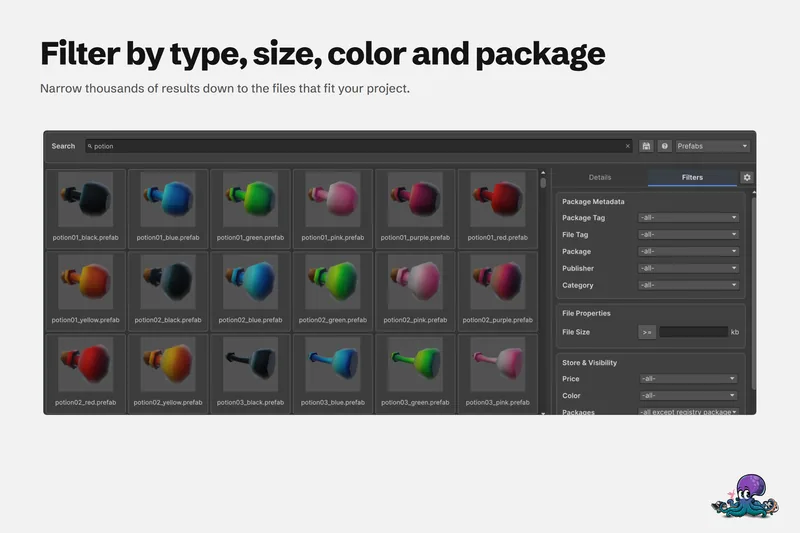
Show the list as rows or a grid, grouped by category, publisher, state or tags. Right-click a column header to add or remove columns; the Media column shows package images right in the list. Filters cover update date, purchase date, price, size, Unity version, render pipeline support, publisher, category and tags, and double-clicking a package shows its files in the search.
Tags with colors and hierarchy
Labels you set on the Asset Store come along as tags. On top of that, you add local tags to packages or to individual files, in bulk when several items are selected. Local tags stay on your computer and are not synced back to the store.
The Tag Management window, opened through the small cog wheel, creates, colors, renames and deletes tags and assigns hotkeys. Drag a tag onto another to build a hierarchy, such as Nature under Environment. Deleting a tag also deletes its descendant tags and their assignments, so read the confirmation.
Tags feed the rest of the tool: group the package list by tag, filter by Package Tag or File Tag, or type pt: and ft: tokens in the search. For teams, .overrides.json files in a central location keep tags and categories the same for everyone who indexes it.
Updates, deprecation and backups
Asset Store and registry updates share one list, with an update strategy per package. Registry packages can follow the recommended version, the latest stable compatible one, the latest compatible one, or be updated manually. Deprecated and disabled Asset Store packages are highlighted by default, and a Deprecation filter lists the affected ones. When a package still waits for indexing or a newer version was downloaded, an indicator in the version column tells you to run the actions again.
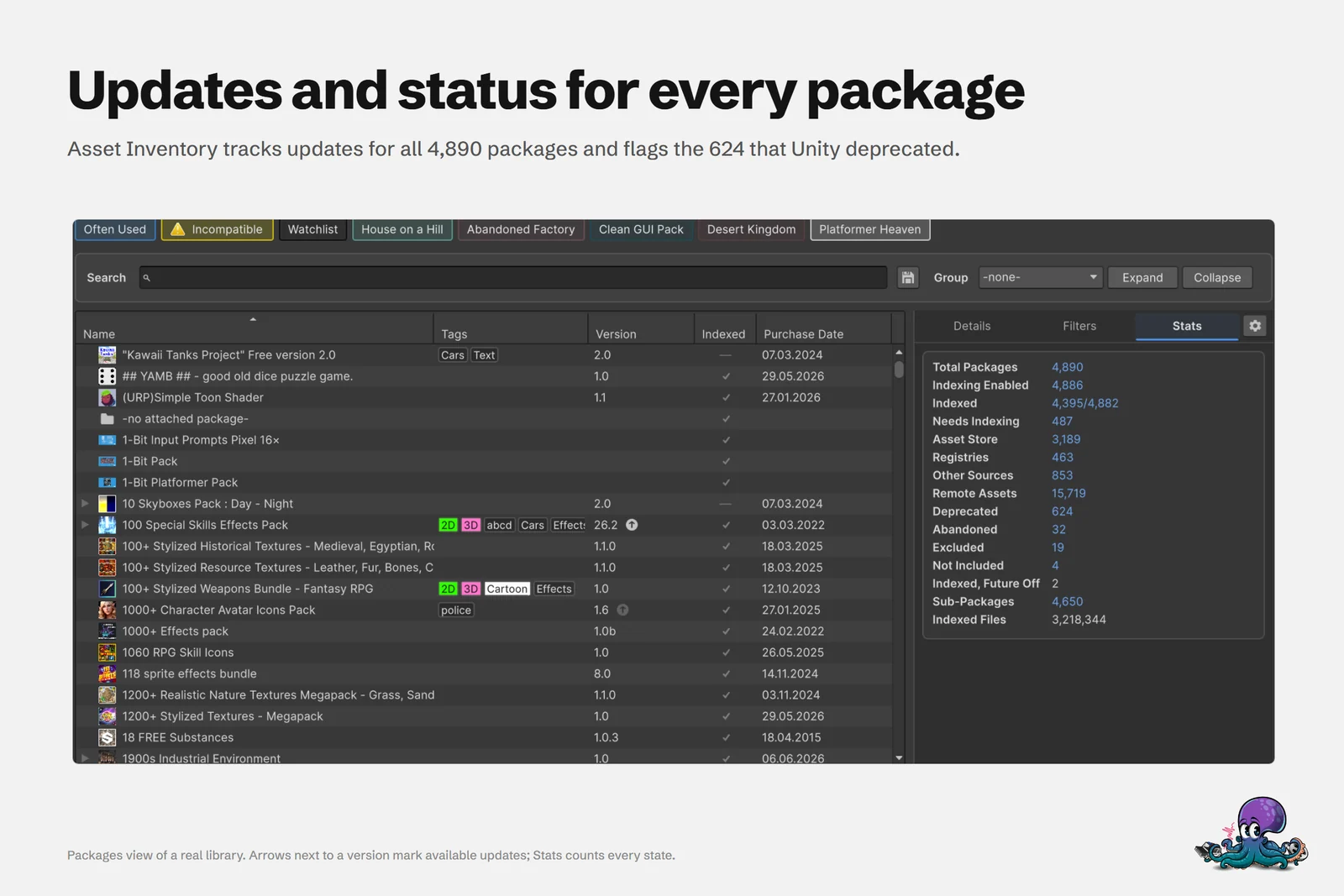 Arrows next to a version mark available updates; the Stats panel counts every package state.
Deprecation is also a reason to keep copies. With Enable Package Backups under Settings > Backup, Asset Inventory keeps several versions of the packages you choose, and the version label turns into a dropdown to import an older one. See backing up Asset Store packages.
Hide what you never use
- Exclude removes a package from the list and from search results. The Excluded maintenance view brings it back.
- Do Not Index keeps a package listed but skips its contents in future runs; Remove Indexed Content clears what was indexed before.
- Hide Content hides chosen files, folders or extensions of one package. Its include mode works the other way round and keeps only what you select, useful for huge packages where a few files matter.
- The Hidden Files filter shows hidden files again for review.
Hiding content makes searches faster, not slower.
Fill in missing metadata
Packages from outside the store often arrive with little more than a file name. Four ways fill the gaps:
- Link to Asset Store: paste the store URL, verify it and connect. Name, description, rating and more load and stay current.
- Edit Data… for manual entry, including a custom preview image.
- Custom fields for text, numbers, checkboxes, selection lists, links, dates or lists, optionally limited to one source such as archives.
- Files next to the package: a
.icon.pngsets the cover, and an.overrides.jsonoverrides any metadata and adds tags.
The Humble Bundle article shows this with a real bundle.
Saved searches and workspaces per project
Saved searches organize the file side of the library. Each keeps a phrase and its filters, stays live as new packages are indexed, and is best named after what it finds. Workspaces group them, so every project sees its own set, and the package list has saved searches too.
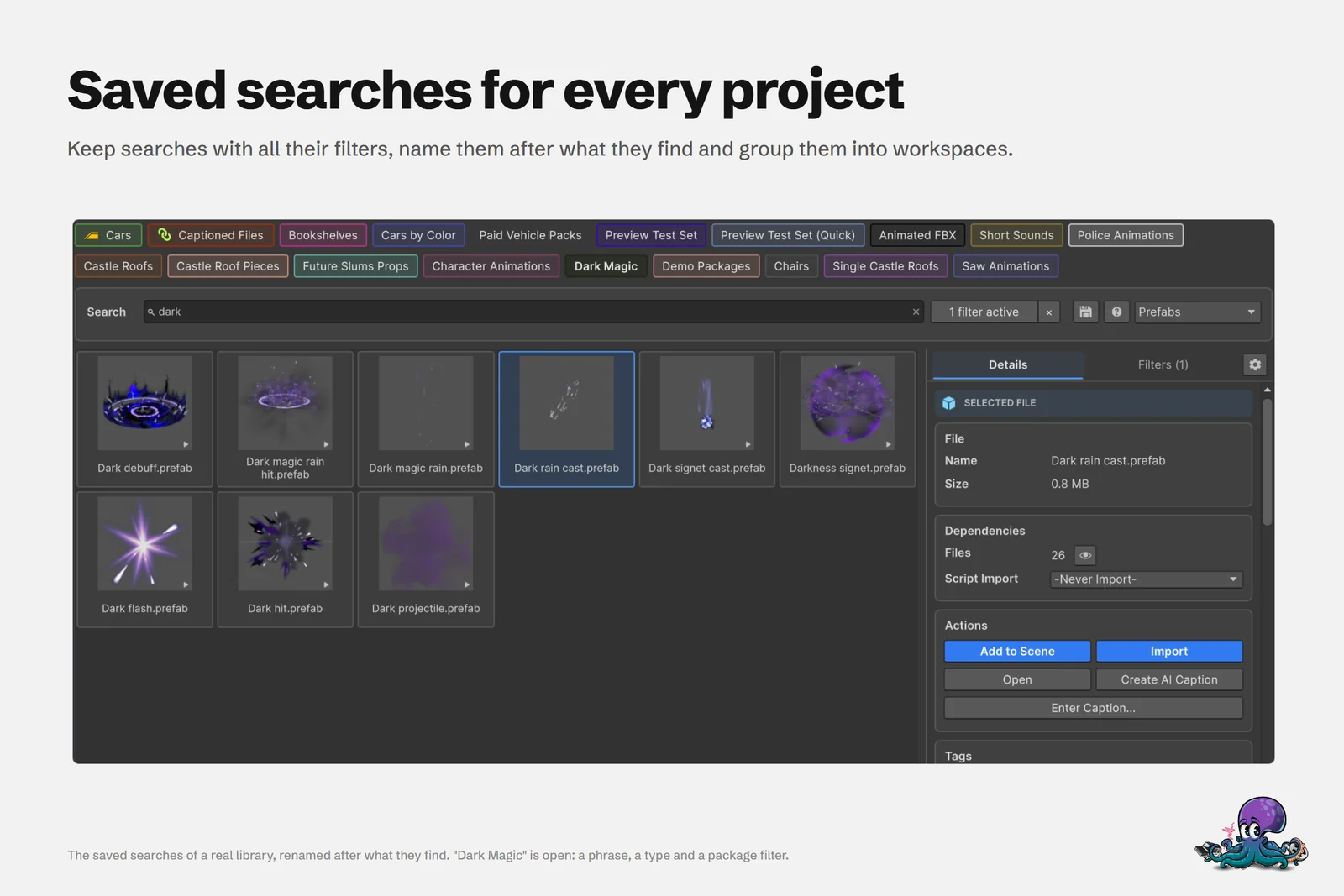 Saved searches of a real library, named after what they find.
Bulk downloads, imports and new projects
Select several packages and Asset Inventory shows their total compressed size before you download them in one go. Interrupted transfers offer Resume Download, Restart Download and Discard Interrupted Download. Imports work in bulk too, interactive or automatic, into a custom root folder so /Assets stays tidy. A built-in exclusion list handles packages that must live in the root.
A new project can then start with your usual set of packages:
- Tag the packages you want in every project, for example Starter.
- In the Actions section of Settings, create a custom action and add the Install Packages By Tag step for that tag. Tag names match regardless of case.
- Set its run mode to At Installation. After you install Asset Inventory into a new project, a dialog offers to run it.
One Asset Store reviewer, chapp007, sums the tool up as the “First asset to import to any new project”. More recipes are in automating project setup.
Frequently asked questions
Can I tag Asset Store assets inside Unity?
Yes. Asset Inventory imports your Asset Store labels as tags and adds local tags on top, with colors, hotkeys and nesting. Local tags stay on your computer and are not synced back to the Asset Store.
Can I manage packages that are not from the Asset Store?
Yes. Custom packages from publisher sites and bundles, Synty Importer downloads, registry packages, media folders, ZIP, RAR and 7z archives, online catalogs and Unity Asset Manager projects appear in the same list.
How do I hide packages I never use?
Exclude removes a package from the list and from search results. Do Not Index keeps it listed but skips its contents, and Hide Content hides chosen files, folders or extensions inside one package.
Can I install the same starter packages in every new project?
Yes. Tag them, then create a custom action with the Install Packages By Tag step and set its run mode to At Installation. After you install Asset Inventory into a new project, a dialog offers to run it.
Find any Unity asset you own. Import only what you need.
Keep reading
 Article
How to organize Unity Asset Store downloads: six approaches compared
Labels, folders, spreadsheets, standalone apps, a cloud DAM or an index inside Unity: what each approach is good at, where each one stops, and a practical setup for a large Asset Store library.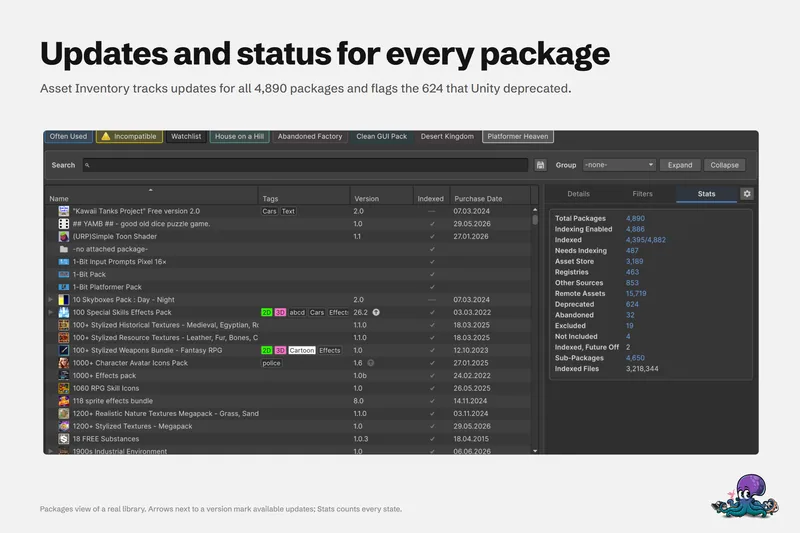 Use case