Trim, fade and normalize audio without leaving Unity.
A free audio editor inside Unity. Trim, cut silence, fade, normalize to a peak or LUFS and make seamless loops for one clip or a folder, saved as new WAV files.

Drag a selection and read its exact start, end and length below the waveform. Zoom with Ctrl or Cmd and the mouse wheel, and loop the selection before you save.
Trim Silence cuts dead air at the start and end, shortens long pauses or splits a recording into one file per sound, at a threshold you control.
Open several clips or folders, apply the same settings to all of them, check the result with Analyze and save every copy in one pass.
“…this asset is better than the others. So this is definitely a must-have.”
“Amazing asset from a wonderful Dev. Thank you!”
Fix the clip where it lives.
Most audio edits a game needs are small: cut the silence before a footstep, shorten a voice line, soften the click at the end of a cut, even out a pack of sounds. Audio Tools makes them inside the Editor, for one clip or a whole folder, without exporting to another program and importing the result again. It is free, works in projects that use FMOD, and powers sound playback and Edit Audio in Asset Inventory.
Precise selection
Drag a selection on the waveform and see its exact start, end and duration. Zoom, pan, and move the playhead by single samples from the keyboard.
Trim Silence
Trim the start and end, shorten long pauses inside a clip, or split a recording into separate files, with margins you set before and after each sound.
Many clips at once
Open several clips or whole folders, review every file with Analyze, and save all copies or replace all WAVs in one pass.
Fades with curves
Fade in and out with editable curves. Fades shorten automatically to fit the selected region.
Peak or loudness
Normalize to a target peak or to a loudness in LUFS measured per ITU-R BS.1770, set volume up to 200 percent, and see clipping before you save.
Seamless loops
Crossfade the end of a clip into its start with an equal-power or linear curve, and hear the loop repeat sample-accurately before saving.
Clean up and reverse
Remove DC offset, cut low rumble with a high-pass filter, or reverse a sound, all previewed from the original samples.
Output your way
Save 16-bit, 24-bit or 32-bit float WAV, mix to mono or keep one channel, change the sample rate, and keep the source's import settings.
Non-destructive and safe
Every change previews from the original samples, Unity Undo covers your settings, and replaced WAVs are backed up so you can restore them.
Opens what Unity opens
Load WAV, MP3, OGG, AIFF and supported FLAC files. MP3 encoder padding is removed, so timing matches the encoded audio.
Works in FMOD projects
When Unity audio is disabled for FMOD, playback, waveforms, editing and WAV export run through FMOD automatically.
Editor-only, free, with source
Nothing ships in your build, the source code is included, and four skill files guide coding assistants through edits.
Pick the job. See how it works.
Each guide takes one everyday audio fix, shows the steps inside Unity on a real clip, and what you get back.

Trim audio clips in Unity without leaving the Editor
Unity cannot trim an audio file on its own. Open the clip in Audio Tools, select the part you need on the waveform, loop it, and save a numbered WAV copy next to the original.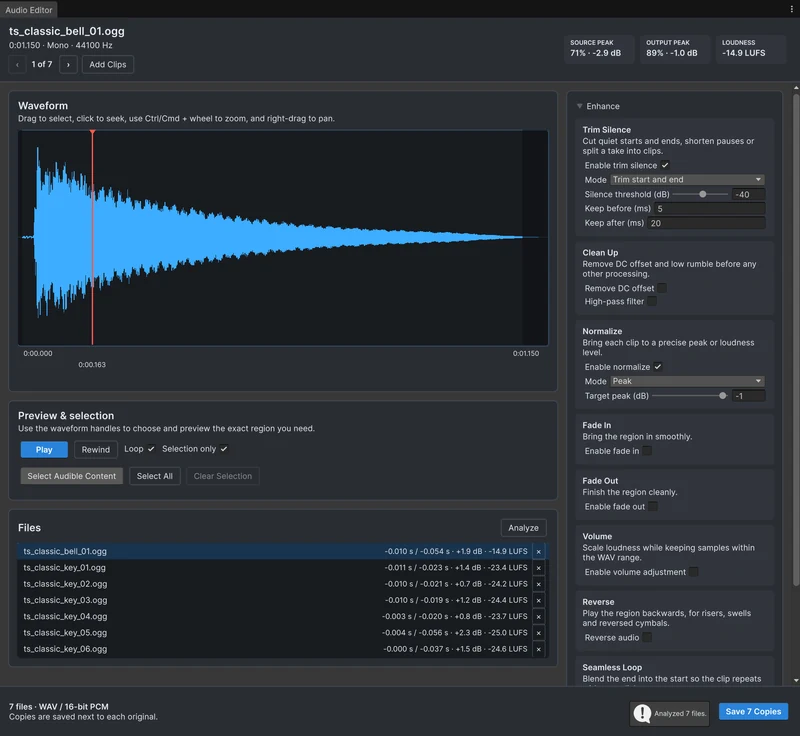
Process many audio clips at once
A sound pack needs the same fixes on every file: cut the silence, match the level, maybe mono and a new format. Open the clips or folders together in Audio Tools, apply the settings once, check them with Analyze, and save every copy in one pass.
Remove the silence that makes sounds play late
Many sound files start with a few hundred milliseconds of silence, and in a game that reads as lag. The Trim Silence card cuts it at the start and end, shortens long pauses inside a clip, and works on a whole folder in one pass.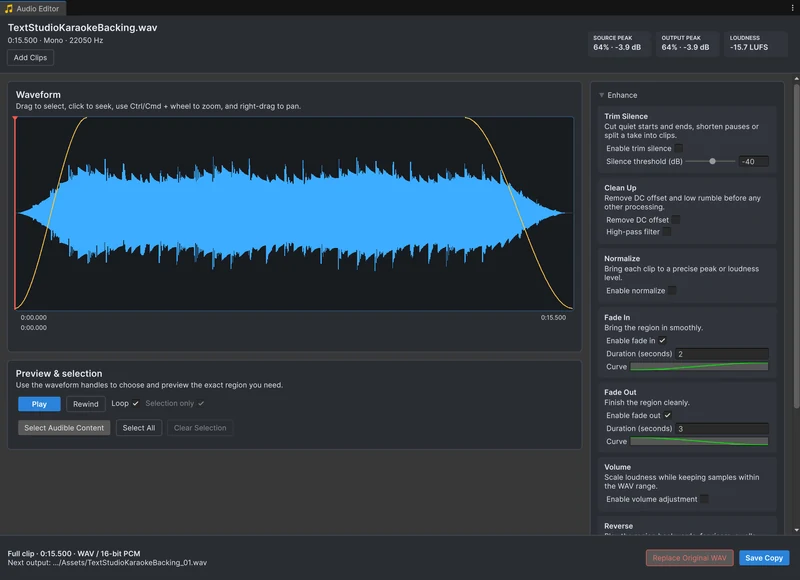
Bake fades into clips and remove clicks and pops
A fade in code changes volume while the game runs; a baked fade fixes the file itself. When each one is right, why hard cuts click, and how to bake a fade with a curve in Audio Tools.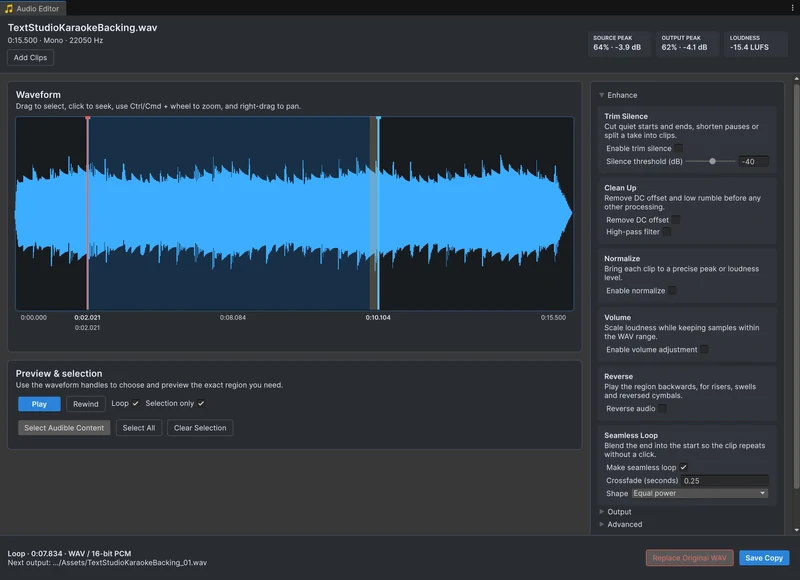
Make seamless audio loops in Unity
A loop that clicks or pauses at the seam ruins ambience and engine sounds. Trim the silence, crossfade the end of the clip into its start with an equal-power or linear curve, listen to the loop repeat sample-accurately, and save it.
Normalize audio clips to a peak or loudness level
Unity's Normalize setting only works together with Force To Mono, and the Audio Normalize Effect never touches your files. Audio Tools normalizes clips to a peak or to a loudness in LUFS, for one file or a whole folder, and shows the result before you save.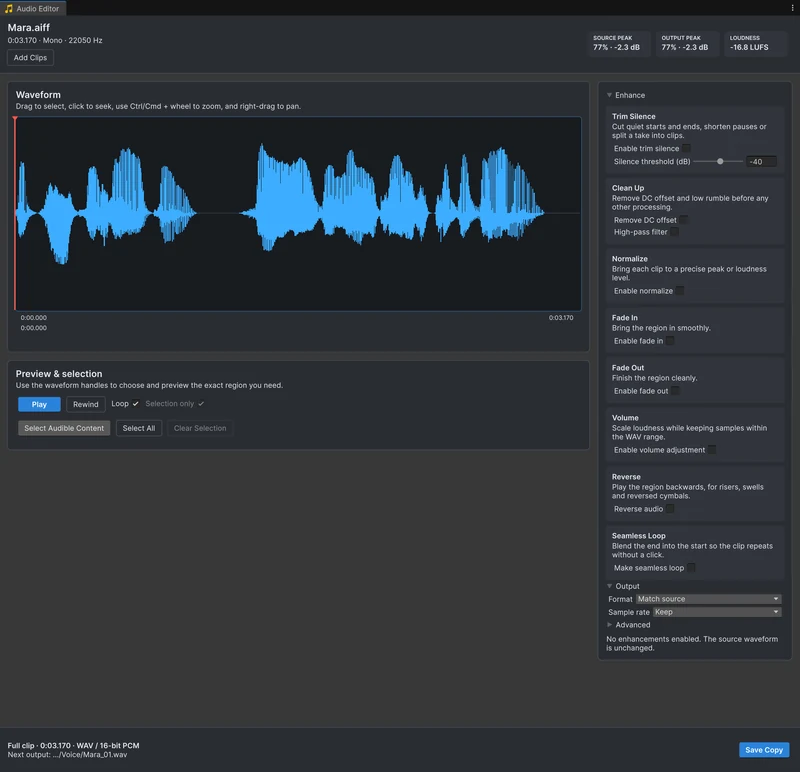
Convert MP3, OGG and FLAC files to WAV inside Unity
Audio Tools opens WAV, MP3, OGG, AIFF and supported FLAC files and saves WAV in 16-bit, 24-bit or 32-bit float, so a conversion is one save away. When a WAV source helps, and when it only makes the repository bigger.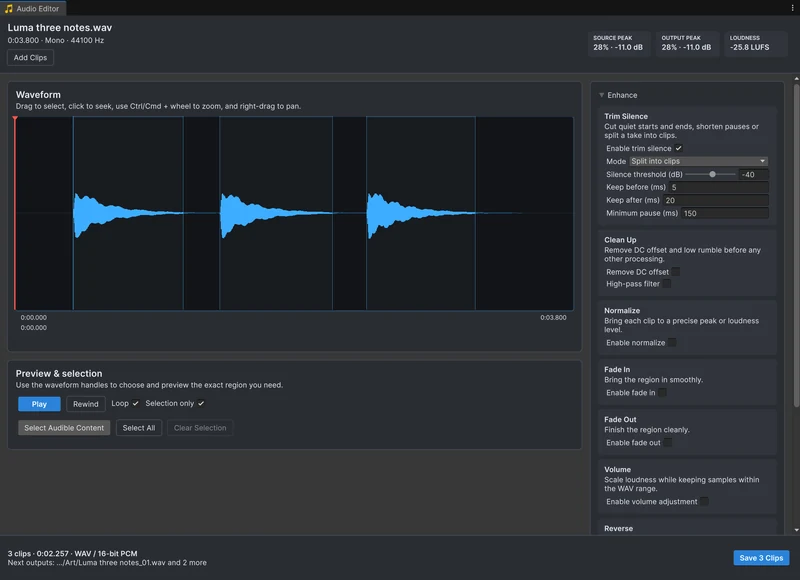
Cut one recording into separate sounds or voice lines
Recording sessions, sound packs and voice takes often arrive as one long file. Split them at the pauses into one file per sound with a single save, or select each take by hand, with the original left as it was.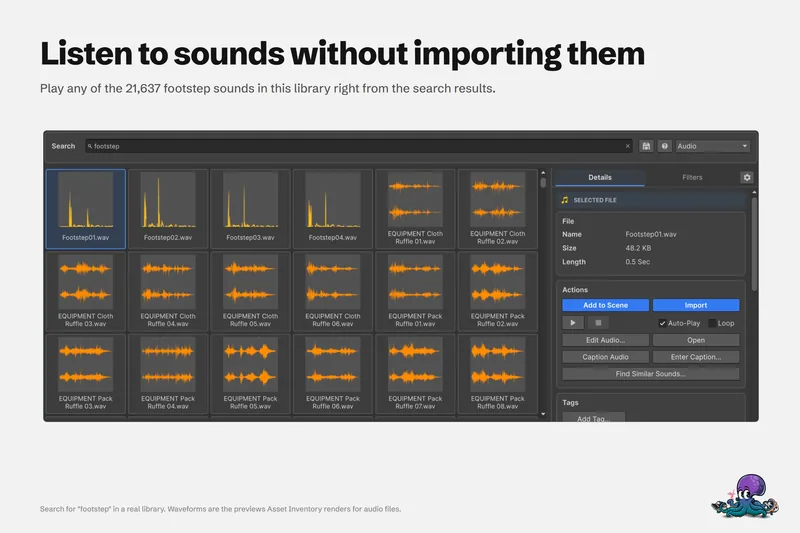
Trim Asset Store sounds before they enter your project
Sound packs are big and you often need one file, or part of one. Asset Inventory finds and plays the sound inside the package, and its Edit Audio... button opens Audio Tools so only the part you keep is imported, as a WAV.Preview and edit audio clips when FMOD replaces Unity audio
FMOD recommends disabling Unity's built-in audio, and Unity's docs say clip previews are then unavailable. Audio Tools notices and uses FMOD for playback, waveforms, editing and export, without touching your project settings.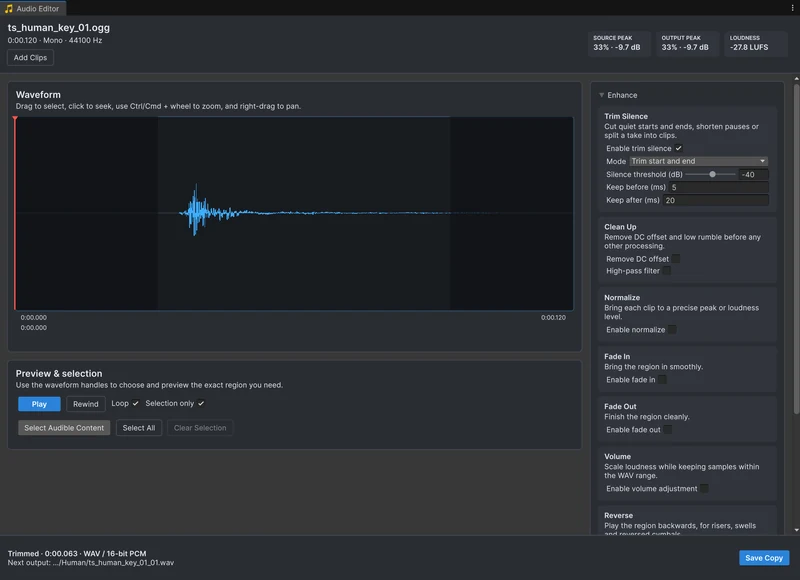
Prepare typewriter and UI sounds for Text Studio
A typewriter effect plays a sound for every character, so a few milliseconds of silence or a click at the end add up fast. Trim, level and fade short sounds in Audio Tools, then use them in a Text Studio Typewriter Audio Set.Real workflows. Real Unity output.
The quickest audio fix is the one you make in Unity.
Audacity is the deeper editor, and AudioClip Editor is an established batch tool. Audio Tools is the free choice inside the Editor, from a single trim to a whole folder of clips.
| Capability | Audio Tools | Audacity | Unity built-in | AudioClip Editor |
|---|---|---|---|---|
| Edit without leaving Unity | YesRight-click a clip, save next to it | NoExport, edit and import again | PartlyTimeline trims playback; AI Assistant edits by prompt | YesEditor window |
| Precise selection | YesWaveform, zoom to 32x, single-sample steps | YesFull waveform editor | PartlyTimeline clip handles | PartlyWaveform trim; zoom not listed |
| Silence | YesTrim edges, shorten pauses or split | YesTruncate Silence, also inside clips | PartlyAI Assistant trims start and end | PartlyAutomatic start and end trim |
| Fades | YesEditable curves, previewed live | YesFade effects and envelopes | PartlyTimeline ease in and out only | YesCurve fades |
| Level | YesPeak or loudness (LUFS) | YesPeak and loudness (LUFS) | PartlyNormalize only with Force To Mono | PartlyNormalize, method not stated |
| Many clips at once | YesClips and folders in one pass | PartlyMacros in 3.7, not yet in 4.0 | NoOne clip per edit | YesMulti-clip batch |
| Seamless loops | YesCrossfade loop with preview | PartlyCrossfade by hand | PartlyAI Assistant, by prompt | NoNot listed |
| Original file | YesNew WAVs; replaced files backed up | YesExports a new file | YesTimeline never writes; AI makes a new clip | YesBackups to restore |
| Effects and repair | PartlyHigh-pass, DC offset, reverse | YesNoise reduction, EQ and more | NoNone | NoNone listed |
| Price | YesFree, source included | YesFree and open source | PartlyTimeline free; AI Assistant uses Unity AI credits | PartlyUS$15 |
Facts about other products come from their own documentation and store listings, checked November 11, 2026. AudioClip Editor is the Asset Store tool by Gradient Overload. The comparison pages explain each row and say where the other tool is the better choice.
Articles and field notes
November 11, 2026Prepare audio files for Unity: editing and import settings checklist
Good game audio starts before the import settings: trim the silence, fade the cuts, set the level, pick a sensible source format. Then choose load type and compression for each kind of sound. A checklist for both halves.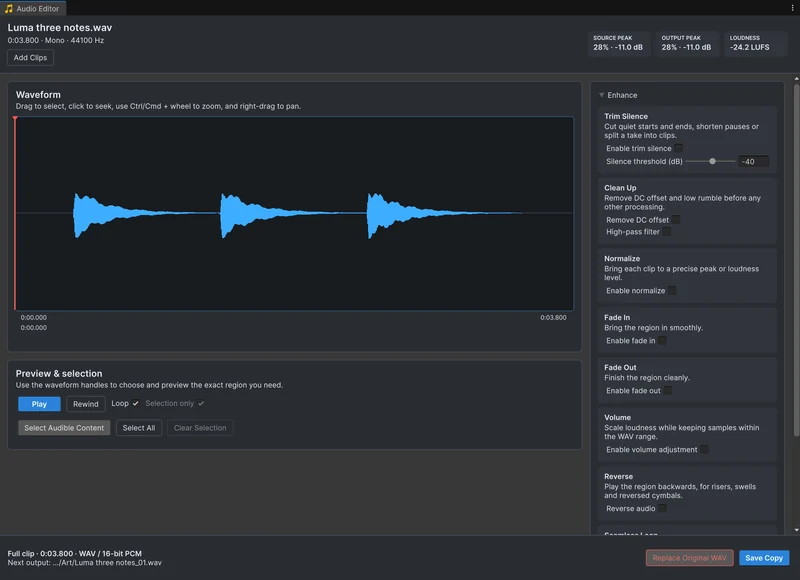 October 10, 2026
Why sound effects play late in Unity
A late sound has one of a handful of causes, and the most common one sits in the file, not in Unity's settings. Check them in this order: silence in the file, the output device, the DSP buffer, loading, decoding and timing in code.November 2, 2026Why MP3 loops have a gap in Unity
An MP3 loop that plays perfectly in a music player can stutter in a game. The reason is encoder delay and padding, which gapless players remove and plain decoders keep. How it works and four ways to get a seamless loop in Unity.Frequently asked questions
Is Audio Tools free?
Yes. Audio Tools is free on the Unity Asset Store and includes its source code. If you own Asset Inventory, it is already installed with it.
How do I trim an audio clip in Unity?
Right-click the clip in the Project window and choose Edit Audio, drag across the waveform to select the part you want to keep, then choose Save Copy. Unity's import settings cannot trim a file, and Timeline only trims playback inside a Timeline.
Can it remove silence automatically?
Yes. The Trim Silence card trims silence at the start and end, shortens long pauses inside a clip, or splits a recording into one file per sound, at a silence threshold you set.
Can I edit many clips at once?
Yes. Select several clips or folders and choose Edit Audio, or drag them onto the editor. The same settings apply to every file, Analyze shows what will change, and one button saves all the copies.
Can it make seamless loops?
Yes. Make seamless loop crossfades the end of a clip into its start, 0.25 seconds by default, with an equal-power or linear shape. The saved loop is shorter by the length of the crossfade.
Does it normalize loudness?
Yes. Normalize has a Peak mode and a Loudness (LUFS) mode that measures integrated loudness per ITU-R BS.1770, with -23 LUFS and a -1 dB peak ceiling as defaults.
Which audio formats can it open and save?
It opens WAV, MP3, OGG, AIFF and supported FLAC files and saves WAV as 16-bit PCM, 24-bit PCM or 32-bit float. Match source keeps 24-bit and float sources at their depth and saves everything else as 16-bit. There is no MP3 or OGG export.
Will it overwrite my original file?
No. Copies are new WAV files that keep the source's import settings. Replacing WAVs in your project asks for confirmation and backs up every original, and Restore Replaced Files under Advanced puts them back.
Does it work with FMOD?
Yes. If Unity audio is disabled because the project uses FMOD for Unity (FMOD Core 2.02 through 2.04), Audio Tools plays, draws, processes and exports clips through FMOD automatically. There is nothing to configure.
Does Audio Tools add anything to my build?
No. It is an editor tool without runtime code, so nothing from it ships with your game.
Which Unity versions are supported?
Unity 2022.3 or newer. It is tested up to Unity 6.7 on Windows and macOS.
Fix your next clip without leaving Unity.
Free on the Asset Store with full source code, and already included if you own Asset Inventory.