Why sound effects play late in Unity
Leading silence, DSP buffer size, load type and compressed decoding all delay sounds in Unity. How to find which one you hit and how to fix it.
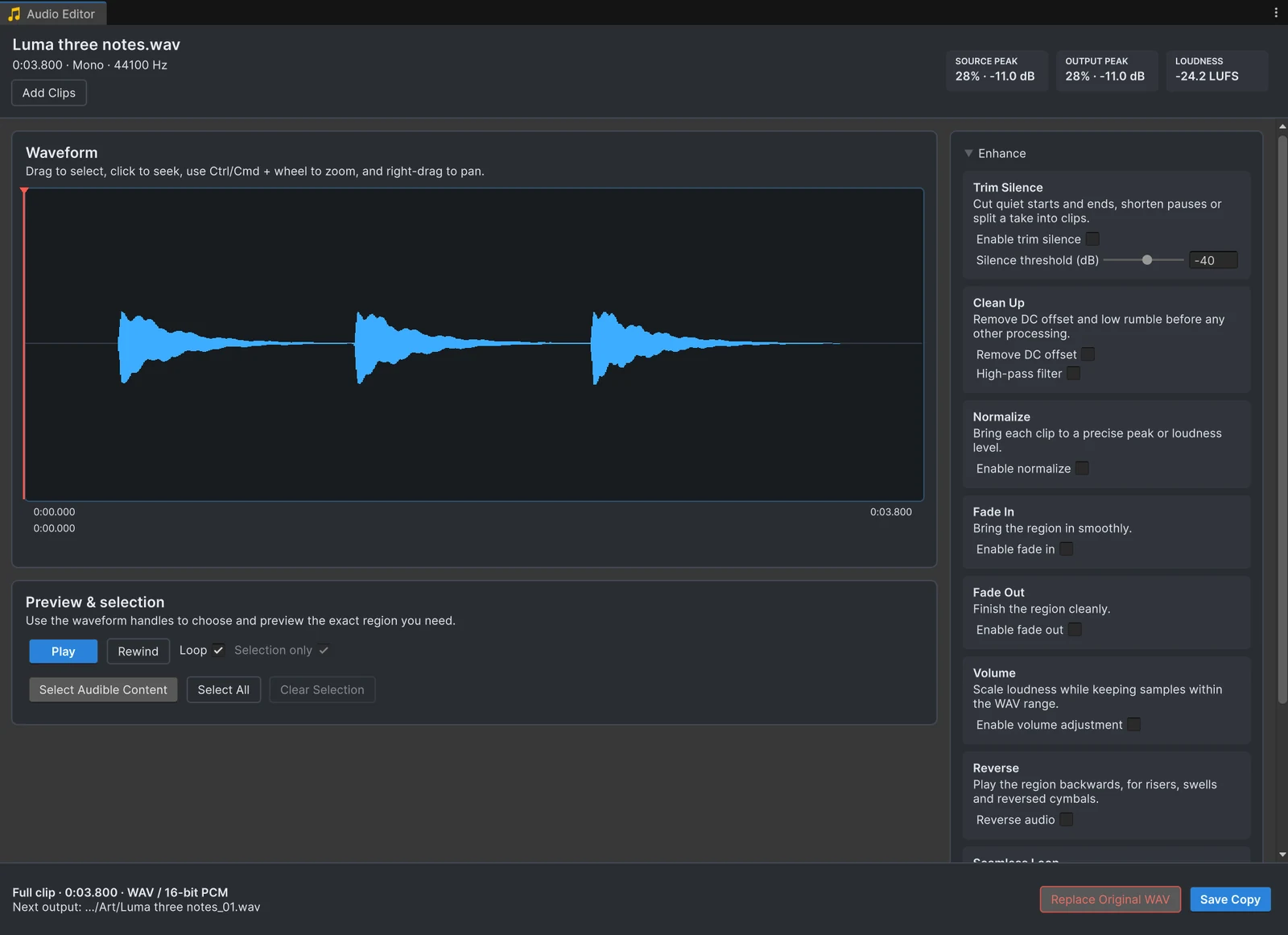
The most-viewed Unity Discussions thread about this, “Sound is played with a delay”, has about 48,000 views. Its answers talk about Bluetooth headphones and buffer sizes, and they are right that both can matter. What almost nobody suggests is opening the sound file and looking at it. In my experience that is the first thing to check, because it is the one cause no setting can fix.
Here are the causes in the order I would check them.
1. Silence at the start of the file
Sound files often start with silence. Libraries leave handles for editing, recording sessions start before the performer does, and exports from a DAW begin at the start of the region rather than the first sound. The file on this page, Luma three notes.wav, starts with 0.4 seconds of silence. At 60 frames per second, that is 24 frames between the button press and the sound.
Unity plays the file from its first sample, so the audible part arrives exactly as late as the silence is long. To check, open the clip in a waveform editor and look at the start. In Unity, right-click it, choose Edit Audio to open it in Audio Tools, and enable Trim Silence: the waveform dims the silence that will be cut. Save a trimmed copy and the delay is gone. For a whole pack, open the folder and press Analyze to see how much silence every file loses. The silence guide has the details.
2. The output device
Bluetooth headphones and speakers buffer audio before playing it, which adds a delay of their own that no game setting removes. If a sound seems late, test with wired output before changing anything in the project. On phones and tablets, output latency also differs between devices, so check timing on the hardware you ship to.
3. DSP Buffer Size
Project Settings > Audio > DSP Buffer Size sets how much audio Unity mixes at a time. Unity’s documentation describes the options like this:
- Best Latency: audio responds faster but uses more system resources.
- Good Latency: a balance between latency and performance.
- Best Performance: the system runs more efficiently, and audio has a slight delay.
- Default: the default buffer size.
For games where sounds follow input closely, such as rhythm and action games, try Best Latency and watch the CPU cost on your target devices.
4. Loading
If Preload Audio Data is off for a clip, Unity loads it when it is first played. Unity’s documentation warns that this can cause playback delays on larger files, and recommends calling AudioClip.LoadAudioData before playback instead. For sounds that must react instantly, keep preloading on, or load them while a level starts.
5. Decoding
Compressed clips have to be decoded. With Decompress On Load, that happens once when the clip loads, which Unity recommends for small compressed sounds to avoid decompressing during gameplay. Compressed In Memory decodes while playing, which Unity says has a slight overhead, especially for Vorbis. Streaming reads and decodes from disk as it plays, which suits music, not sounds that must start instantly. The preparation checklist lists sensible load types for each kind of sound.
6. Timing in code
AudioSource.Play starts the sound with the next audio update. That is fine for most effects, but not when sounds must line up exactly with music or each other. For that, schedule them against the audio clock:
double startTime = AudioSettings.dspTime + 0.1;source.PlayScheduled(startTime);Unity’s documentation calls PlayScheduled the preferred way to stitch clips together, and SetScheduledEndTime stops a scheduled clip at an exact time.
A quick checklist
- Open the clip and look at the start of the waveform. Trim any silence.
- Test with wired output.
- Try Best Latency in the audio project settings.
- Keep Preload Audio Data on for instant sounds, or load clips ahead of time.
- Use Decompress On Load for short, frequent sounds.
- Use
PlayScheduledwhen sounds must line up exactly.
Most of the time, step 1 is the whole fix. It is also the only one that changes the sound for every place in the game that plays it.
Frequently asked questions
Why is there a delay when I play a sound in Unity?
Check the file first: many sound files start with silence. Then check for Bluetooth output, the DSP Buffer Size in the audio project settings, whether the clip is preloaded, and its load type. Each adds delay in a different way.
What does DSP Buffer Size do?
It sets how much audio Unity mixes at a time. Best Latency makes audio respond faster at the cost of more CPU work, Best Performance does the opposite. Default lets the platform decide.
How do I make a sound play at an exact time?
Use AudioSource.PlayScheduled with a time based on AudioSettings.dspTime. Unity describes it as the preferred way to stitch clips, and it is the basis for rhythm and music timing.
Does Preload Audio Data affect latency?
Yes. If it is off, Unity loads the clip when you first play it, which can delay larger files. Leave it on for sounds that must react instantly, or call AudioClip.LoadAudioData ahead of time.
Trim, fade and normalize audio without leaving Unity.
Keep reading
 Use case
Remove the silence that makes sounds play late
Many sound files start with a few hundred milliseconds of silence, and in a game that reads as lag. The Trim Silence card cuts it at the start and end, shortens long pauses inside a clip, and works on a whole folder in one pass. Article
Prepare audio files for Unity: editing and import settings checklist
Good game audio starts before the import settings: trim the silence, fade the cuts, set the level, pick a sensible source format. Then choose load type and compression for each kind of sound. A checklist for both halves.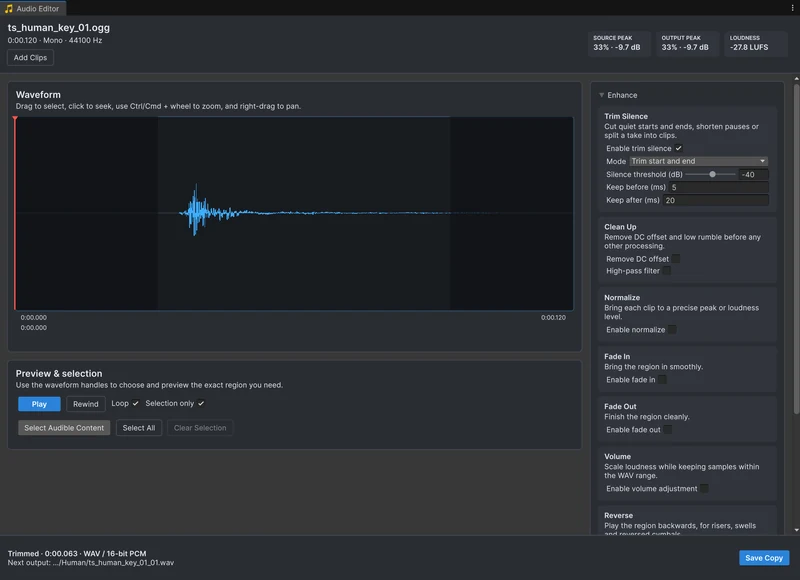 Use case