What you can do with Audio Tools
Everyday audio fixes Audio Tools handles inside Unity: trim clips, cut silence, add fades, normalize levels, make loops and process whole folders at once.

Trim audio clips in Unity without leaving the Editor
Unity cannot trim an audio file on its own. Open the clip in Audio Tools, select the part you need on the waveform, loop it, and save a numbered WAV copy next to the original.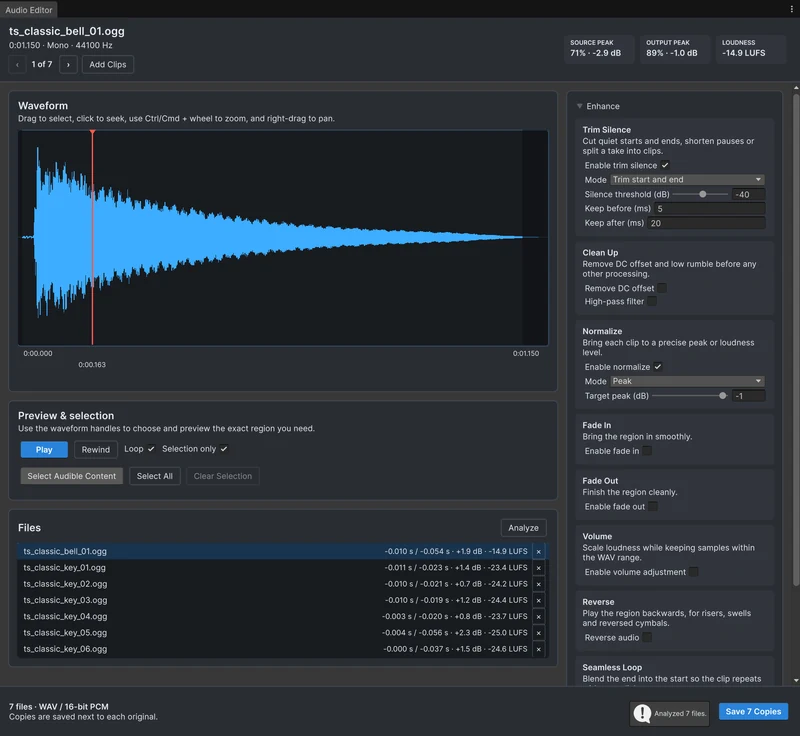
Process many audio clips at once
A sound pack needs the same fixes on every file: cut the silence, match the level, maybe mono and a new format. Open the clips or folders together in Audio Tools, apply the settings once, check them with Analyze, and save every copy in one pass.
Remove the silence that makes sounds play late
Many sound files start with a few hundred milliseconds of silence, and in a game that reads as lag. The Trim Silence card cuts it at the start and end, shortens long pauses inside a clip, and works on a whole folder in one pass.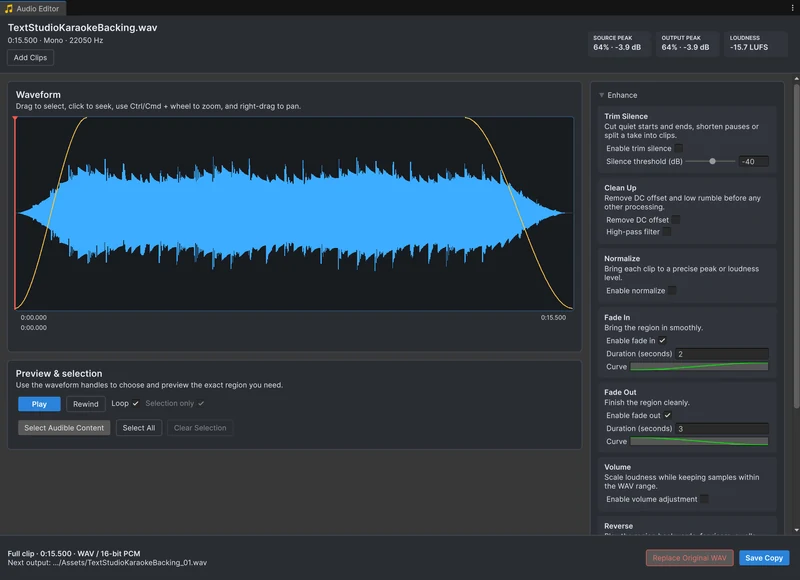
Bake fades into clips and remove clicks and pops
A fade in code changes volume while the game runs; a baked fade fixes the file itself. When each one is right, why hard cuts click, and how to bake a fade with a curve in Audio Tools.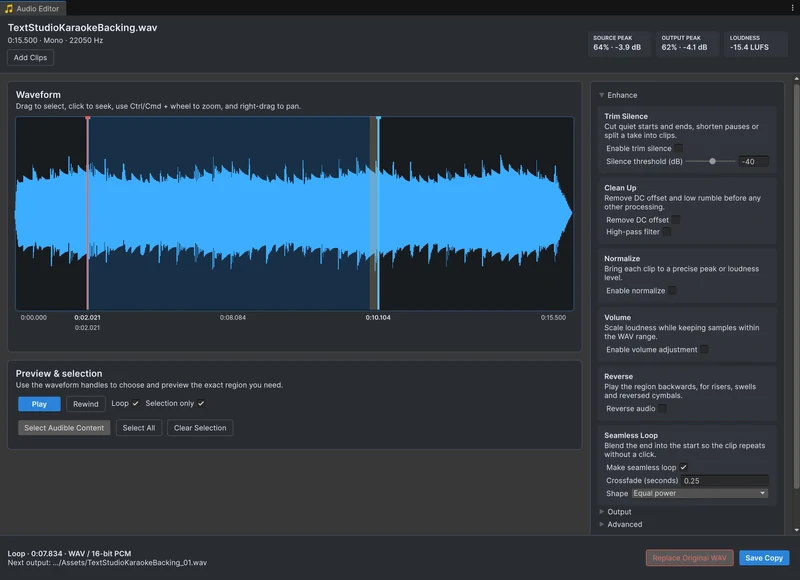
Make seamless audio loops in Unity
A loop that clicks or pauses at the seam ruins ambience and engine sounds. Trim the silence, crossfade the end of the clip into its start with an equal-power or linear curve, listen to the loop repeat sample-accurately, and save it.
Normalize audio clips to a peak or loudness level
Unity's Normalize setting only works together with Force To Mono, and the Audio Normalize Effect never touches your files. Audio Tools normalizes clips to a peak or to a loudness in LUFS, for one file or a whole folder, and shows the result before you save.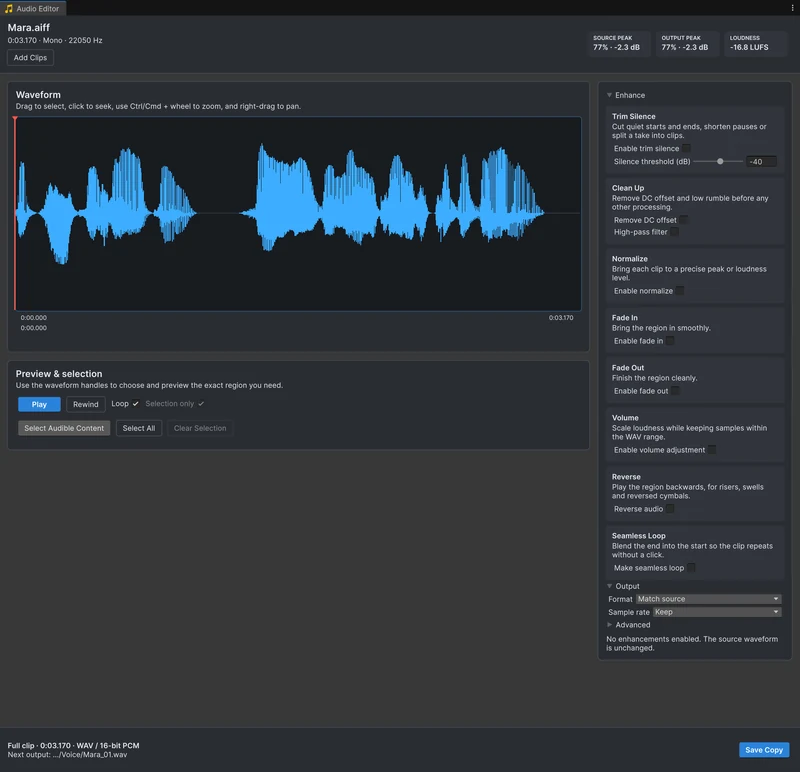
Convert MP3, OGG and FLAC files to WAV inside Unity
Audio Tools opens WAV, MP3, OGG, AIFF and supported FLAC files and saves WAV in 16-bit, 24-bit or 32-bit float, so a conversion is one save away. When a WAV source helps, and when it only makes the repository bigger.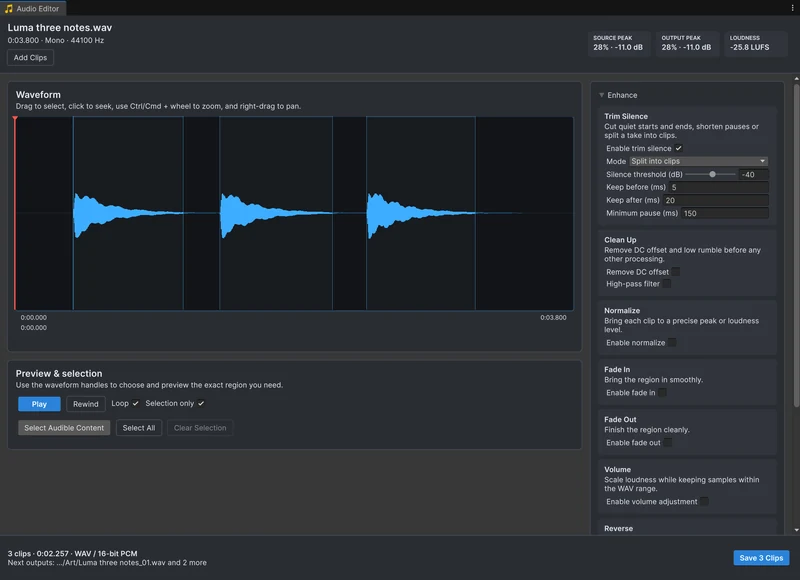
Cut one recording into separate sounds or voice lines
Recording sessions, sound packs and voice takes often arrive as one long file. Split them at the pauses into one file per sound with a single save, or select each take by hand, with the original left as it was.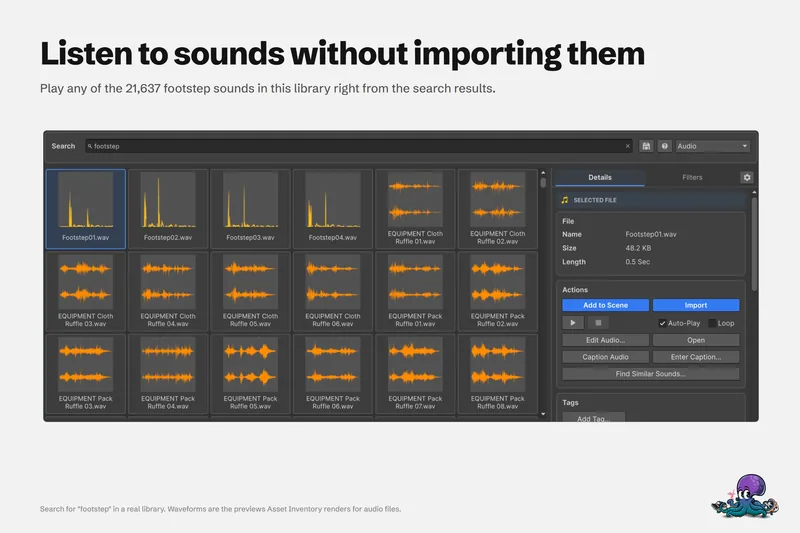
Trim Asset Store sounds before they enter your project
Sound packs are big and you often need one file, or part of one. Asset Inventory finds and plays the sound inside the package, and its Edit Audio... button opens Audio Tools so only the part you keep is imported, as a WAV.Preview and edit audio clips when FMOD replaces Unity audio
FMOD recommends disabling Unity's built-in audio, and Unity's docs say clip previews are then unavailable. Audio Tools notices and uses FMOD for playback, waveforms, editing and export, without touching your project settings.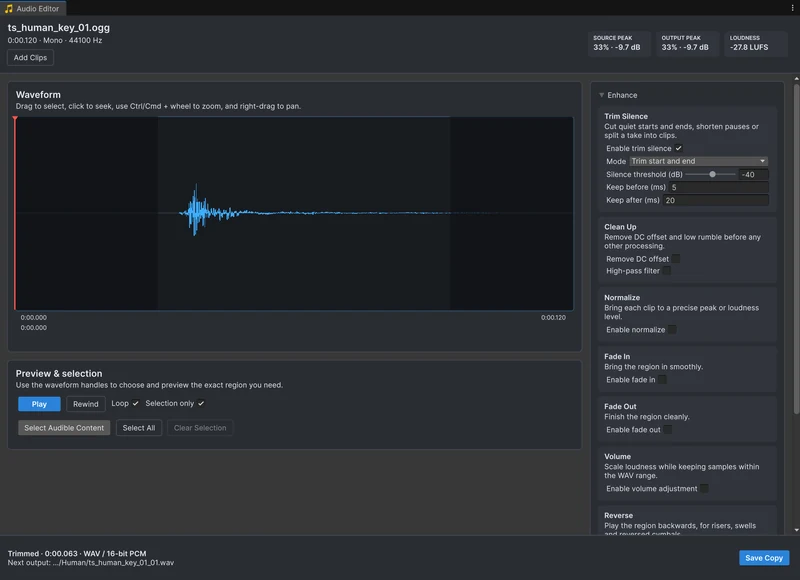
Prepare typewriter and UI sounds for Text Studio
A typewriter effect plays a sound for every character, so a few milliseconds of silence or a click at the end add up fast. Trim, level and fade short sounds in Audio Tools, then use them in a Text Studio Typewriter Audio Set.Start with the fix you need today
Most audio edits in a game project are small and come up at the worst moment: a footstep lands late, a voice line has a cough at the end, a cut clicks, a loop has a seam, a pack of sounds sits at ten different levels. Each one used to mean exporting the files to an audio editor, fixing them and importing them again. Audio Tools makes these fixes inside the Unity Editor.
- If a sound is too long or has the wrong part in it, start with trimming a clip or splitting a recording into separate clips.
- If sounds feel late or start with dead air, start with removing silence.
- If a cut clicks or a sound needs to come in softly, start with fades.
- If a loop has a click or a gap at the seam, start with seamless loops.
- If levels are uneven, start with normalizing to a peak or loudness.
- If a whole pack needs the same fixes, start with processing many clips at once.
- If a file is in the wrong format, start with converting to WAV.
What Audio Tools is
Audio Tools is a free editor extension for Unity. Select one or more audio files or folders in the Project window and choose Edit Audio, or open Tools > Audio Tools > Audio Editor. You select a region on the waveform, preview silence trimming, fades, normalization, loops and clean-up without touching the originals, and save the results as new WAV files that keep their import settings.
It is editor-only, so nothing from it ends up in your build. It needs Unity 2022.3 or newer and is tested up to Unity 6.7 on Windows and macOS. Projects that disable Unity audio for FMOD work too, and if you own Asset Inventory, Audio Tools is already installed with it.