Process many audio clips at once
Open a folder of sounds in Unity, trim their silence, normalize them to one level, check every file with Analyze and save all the copies in one pass.
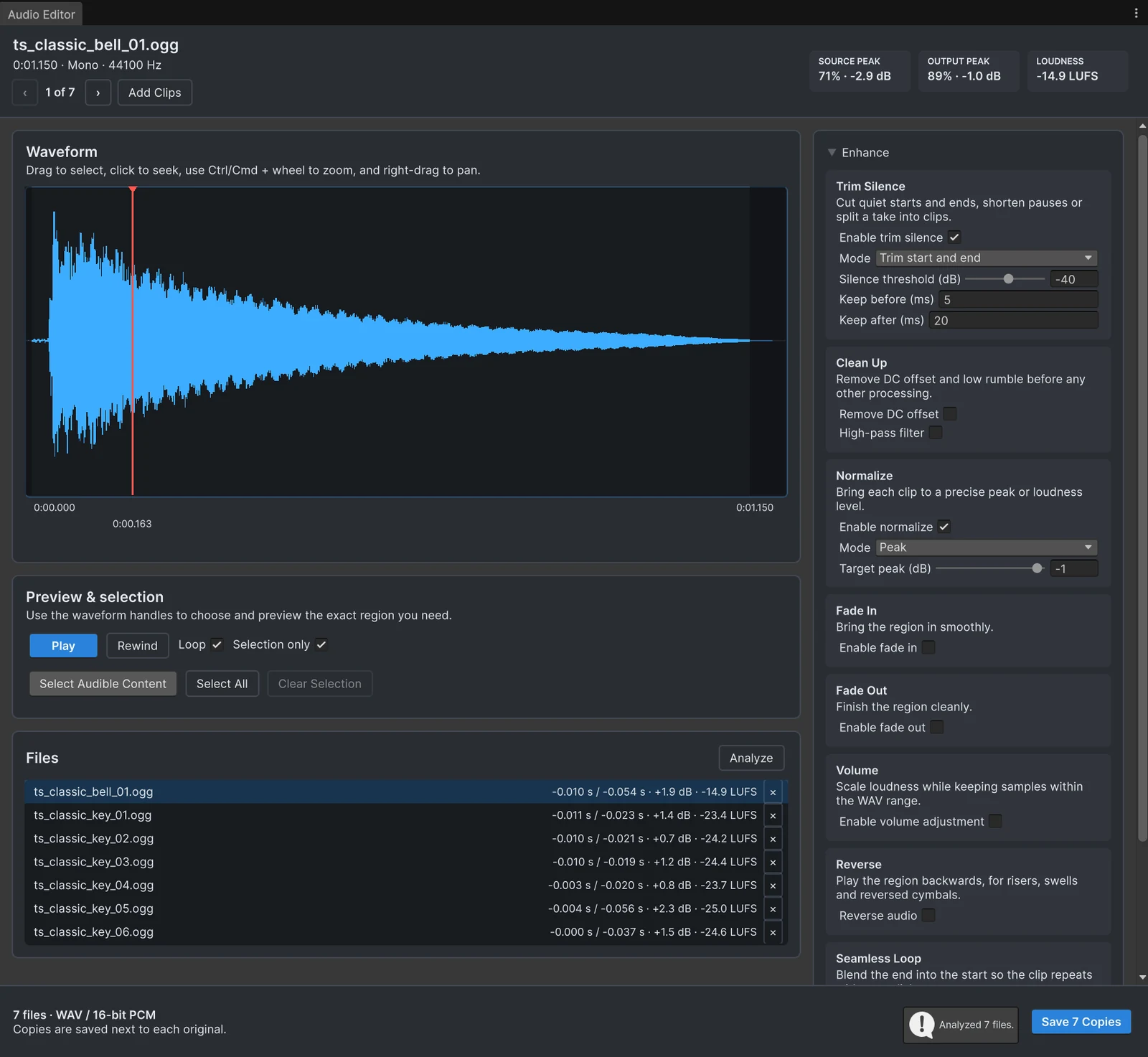
One sound effect with dead air at the start is a quick fix. A pack of 80 footsteps with dead air, uneven levels and stereo files that should be mono is an afternoon, unless you can fix all of them at once. Audio Tools opens several clips or whole folders in the same editor, applies one set of settings to every file and saves all the copies in one pass.
Open the files
- Select several clips or folders in the Project window and choose Edit Audio.
- Or drag several files or folders onto the Audio Editor.
- Already working on one file? Add Clips in the header adds the clips selected in the Project window, or asks for a folder.
The header shows where you are, such as “3 of 12”, with arrow buttons to move between files; Page Up and Page Down do the same from the keyboard. A Files list shows every open file.
Set it up once
Everything in the Enhance panel applies to all open files:
- Trim Silence cuts the silence at the start and end, or shortens long pauses. See removing silence.
- Normalize brings every file to the same peak, or to the same loudness in LUFS, which is usually what a pack needs. See normalizing.
- Clean Up removes DC offset and low rumble with a high-pass filter.
- Fades soften the edges of every file.
- Output sets the format (Match source, 16-bit PCM, 24-bit PCM or 32-bit float), the channels (for example Mono (mix) for positional 3D sounds) and the sample rate.
Each file keeps its own selection, so you can still exclude a bad take at the end of one file without affecting the others.
Check before writing
Press Analyze in the Files list. Audio Tools measures every open file with the current settings, how much silence would be removed, how much gain normalization applies, the resulting loudness and whether anything clips, and writes nothing. Outliers stand out in the list: a file that gains 18 dB was probably recorded too quietly, a file that loses two seconds of silence may have been cut wrong at the source.
Save every copy
The primary button names what it does, for example Save 12 Copies. It writes a new WAV for every file that has not yet been saved with the current settings, and you can cancel a long run. Copies go next to each original by default, or into one folder you choose under Output > Save copies to, and every copy keeps its source asset’s import settings, such as load type, compression and platform overrides.
When every open file is a WAV in your project, Replace writes over the originals instead, for example Replace 12 WAVs. Audio Tools asks for confirmation and keeps a backup of every original, and Restore Replaced Files under Advanced puts them back.
Packs from the Asset Store
Sounds you bought often arrive as large packages. With Asset Inventory, which includes Audio Tools, you can find and play them before importing anything, and trim the one you need on the way in. See trimming Asset Store sounds before import.
Frequently asked questions
Can Audio Tools batch-process audio files in Unity?
Yes. Select several clips or folders and choose Edit Audio, or drag them onto the Audio Editor. The settings apply to every open file, and one button saves a copy of each.
Does each file keep its own selection?
Yes. Settings such as Trim Silence, Normalize and Output apply to all open files, while each file keeps its own selection. Page through the files with the arrow buttons in the header or Page Up and Page Down.
Can I see what will change before saving?
Analyze measures removed silence, gain, loudness and clipping for every open file without writing anything, so you can spot outliers before saving.
Is Audio Tools the only free batch audio editor for Unity?
No. Lyte Audio Editor, for example, is free and lists folder batch processing. The comparison of free audio editors shows what each one does.
Trim, fade and normalize audio without leaving Unity.
Keep reading
 Use case
Remove the silence that makes sounds play late
Many sound files start with a few hundred milliseconds of silence, and in a game that reads as lag. The Trim Silence card cuts it at the start and end, shortens long pauses inside a clip, and works on a whole folder in one pass. Use case