Convert MP3, OGG and FLAC files to WAV inside Unity
Save any audio file Unity can load as a 16-bit, 24-bit or 32-bit float WAV, mix it to mono or resample it, for one file or a folder, inside Unity.
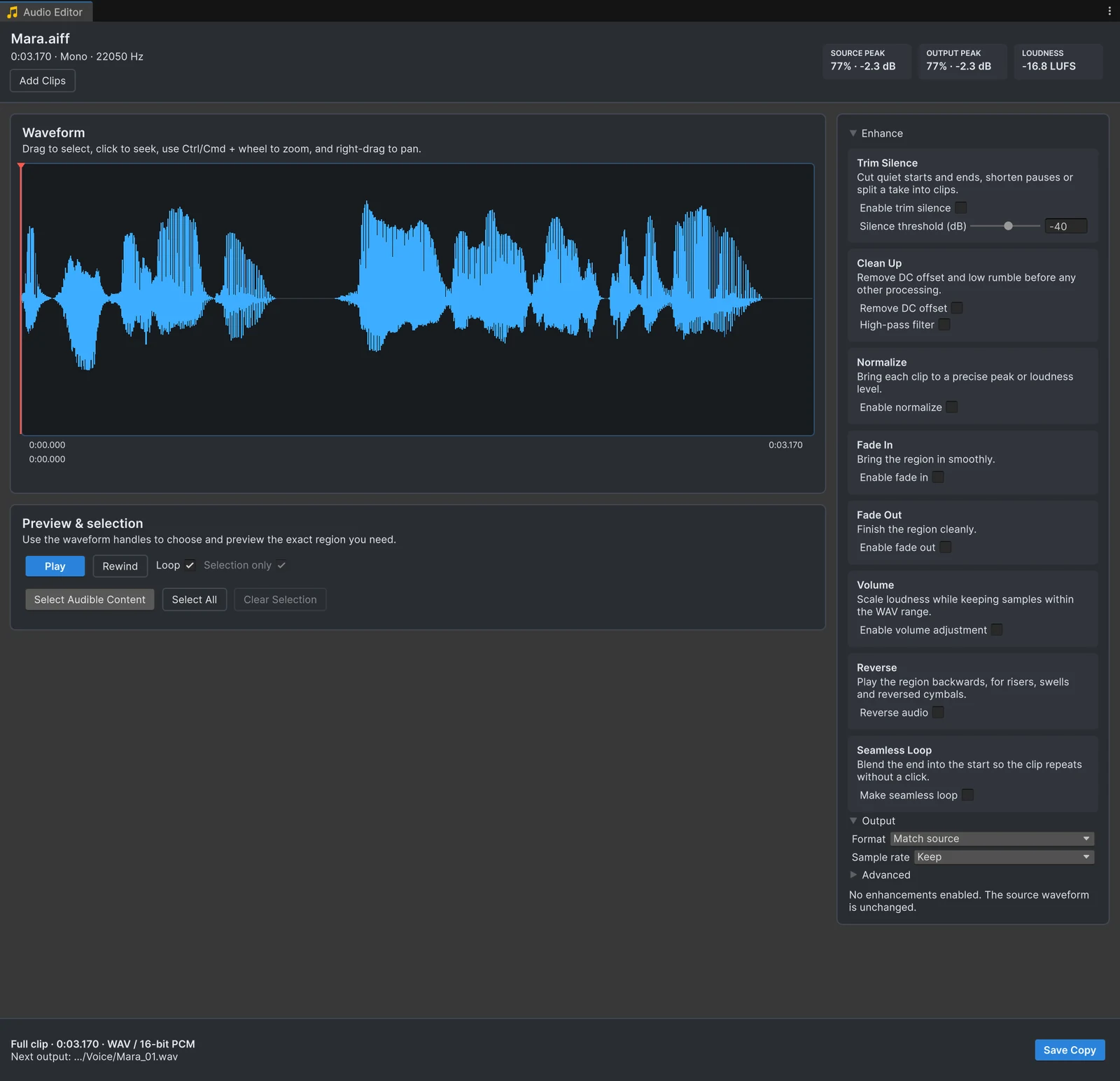
Most of the time you can import audio in whatever format it came in. Unity decodes the file and re-encodes it with the compression format set in the import settings, so a build does not care whether the source was a WAV or an MP3. A few situations still call for a new file: an MP3 that fails to import, a loop with a gap at the loop point, a stereo source for a positional sound, or a file you are going to edit further.
Convert a file
- Open the file with Edit Audio, by dragging it onto the Audio Editor, or with Browse File… if it is outside the project.
- Leave the selection empty to keep the whole file, or trim and process it first.
- Set the Output section: Format, Channels and Sample rate.
- Press Save Copy for a file in the project. For a file from outside, Import WAV saves it into your project and Save As WAV… writes it anywhere you choose.
The footer always shows what will be written: the format and the path of the next output file. Copies are numbered, so theme.mp3 becomes theme_01.wav next to the original, and a copy of a project asset keeps that asset’s import settings.
Output options
- Format: Match source (the default) keeps 24-bit and 32-bit float sources at their depth and writes everything else as 16-bit PCM. 16-bit PCM, 24-bit PCM and 32-bit float force a depth.
- Channels: Keep, Mono (mix), Left channel or Right channel. Mono suits positional 3D sounds; a single channel rescues a stereo recording where one side is noisy.
- Sample rate: Keep, or a rate from 48000 down to 11025 Hz, for example to match other sounds in a set or to reduce the size of voice prompts.
Audio Tools writes WAV only. It does not export MP3 or OGG.
Reasons to convert
- Loops. MP3 encoders add silence at the start and padding at the end. Audio Tools reads the LAME and FFmpeg gapless headers and removes that padding while decoding, so the WAV copy starts and ends where the music does. The article on MP3 loop gaps explains the details.
- Import errors. Some MP3 files fail to import with FSBTool errors, and Unity Discussions answers recommend converting them to WAV.
- Further editing. Every time you edit and save a lossy file, quality drops a little more. A WAV source stops that.
- Consistency. Some teams keep all sources as WAV and leave compression to Unity’s import settings. Open a folder, set the Output section once and save every copy in one pass, as the batch guide shows.
Reasons not to convert
A WAV is several times larger than an MP3 or OGG of the same sound, and that size lives in your repository even though the build uses Unity’s compressed version. Converting a lossy file to WAV also does not bring back quality the MP3 already lost. If a file imports, plays and loops correctly, keep it as it is.
Choose the build format in the import settings
What ships in your game is decided in the import settings, not by the source file. Short sounds often use PCM or ADPCM, longer sounds and music Vorbis, and each platform can override the choice. The checklist for preparing audio covers load types and compression per kind of sound.
Frequently asked questions
Does Unity prefer WAV or MP3?
Unity re-encodes every audio file on import with the compression format you choose, so the source format mostly affects quality and file size in your repository. WAV is lossless, which makes it the better source for editing and for loops.
Will converting MP3 to WAV improve quality?
No. A WAV made from an MP3 contains the MP3's audio, losses included. It helps because further edits stop adding losses and because MP3 encoder padding no longer affects loops.
Which bit depth should I choose?
Match source, the default, keeps 24-bit and 32-bit float sources at their depth and saves everything else as 16-bit PCM. Choose 24-bit or 32-bit float for masters you will edit again. Unity compresses on import either way.
Can I convert a whole folder?
Yes. Select the folder or several files in the Project window and choose Edit Audio, set the Output section once, and save all the copies in one pass. Audio Tools does not export MP3 or OGG.
Trim, fade and normalize audio without leaving Unity.
Keep reading
Why MP3 loops have a gap in Unity
An MP3 loop that plays perfectly in a music player can stutter in a game. The reason is encoder delay and padding, which gapless players remove and plain decoders keep. How it works and four ways to get a seamless loop in Unity.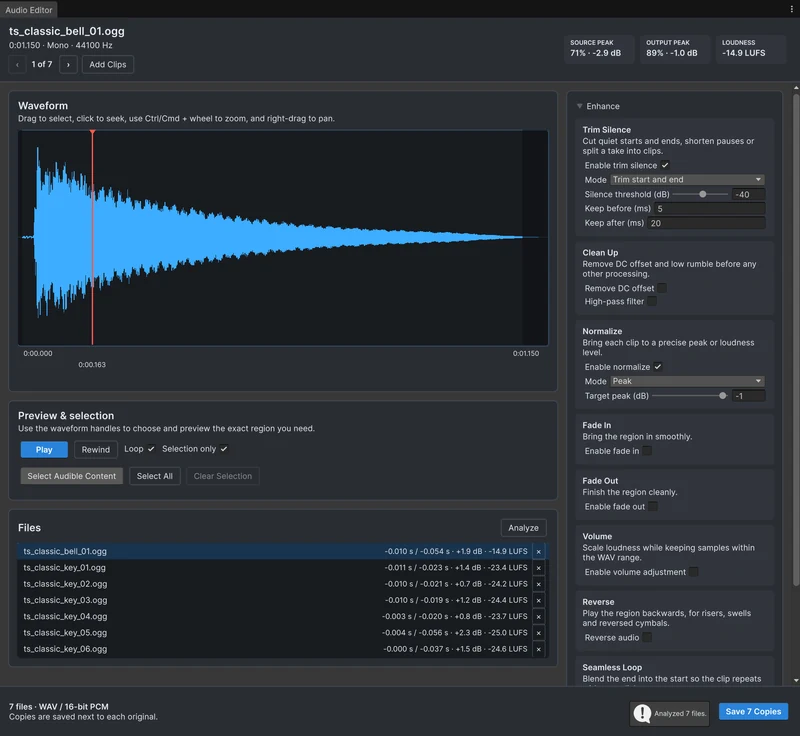 Use case
Process many audio clips at once
A sound pack needs the same fixes on every file: cut the silence, match the level, maybe mono and a new format. Open the clips or folders together in Audio Tools, apply the settings once, check them with Analyze, and save every copy in one pass. Article