Remove the silence that makes sounds play late
Leading silence makes sound effects feel late. Trim it at a threshold you set, shorten long pauses, and do it for one clip or a whole folder at once.
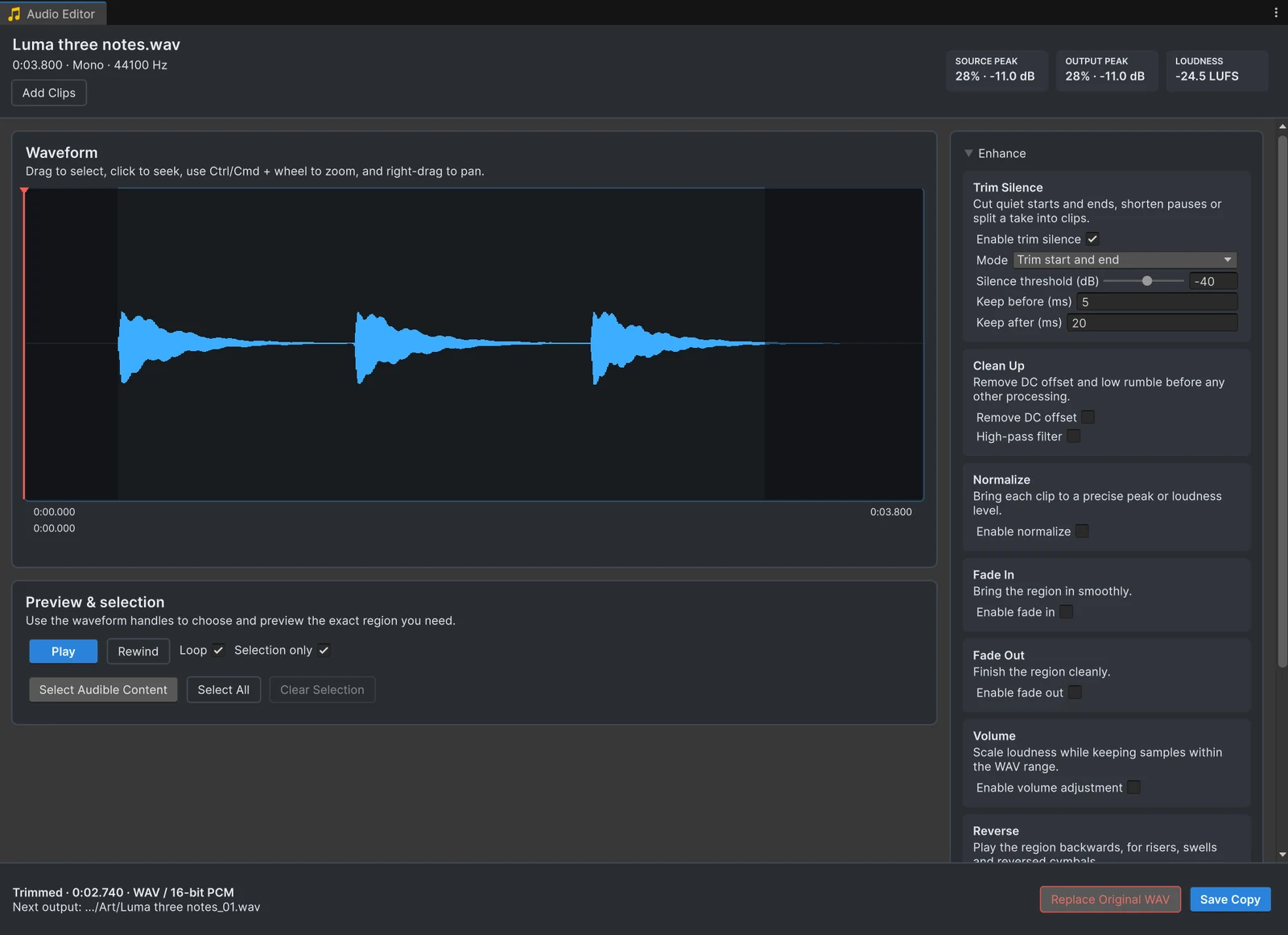
You press the button, and the click arrives a beat late. Before you blame Unity’s audio system, look at the file. Sound effects from libraries, recording sessions and asset packs often start with silence: room to breathe for editing in a DAW, but in a game every millisecond of it is delay. The sample file on this page, Luma three notes.wav from the Text Studio samples, starts with 0.40 seconds of silence and ends with 0.68 seconds more.
Why leading silence feels like lag
When your code calls Play, Unity starts the clip on time. If the first 300 milliseconds are silent, the player hears the sound 300 milliseconds later, which is 18 frames at 60 frames per second. Forum threads about delayed sounds usually suggest audio settings first, and those can matter too. The silence in the file is the cause that no setting can fix, and it is the quickest to check: open the clip and look at the start of the waveform.
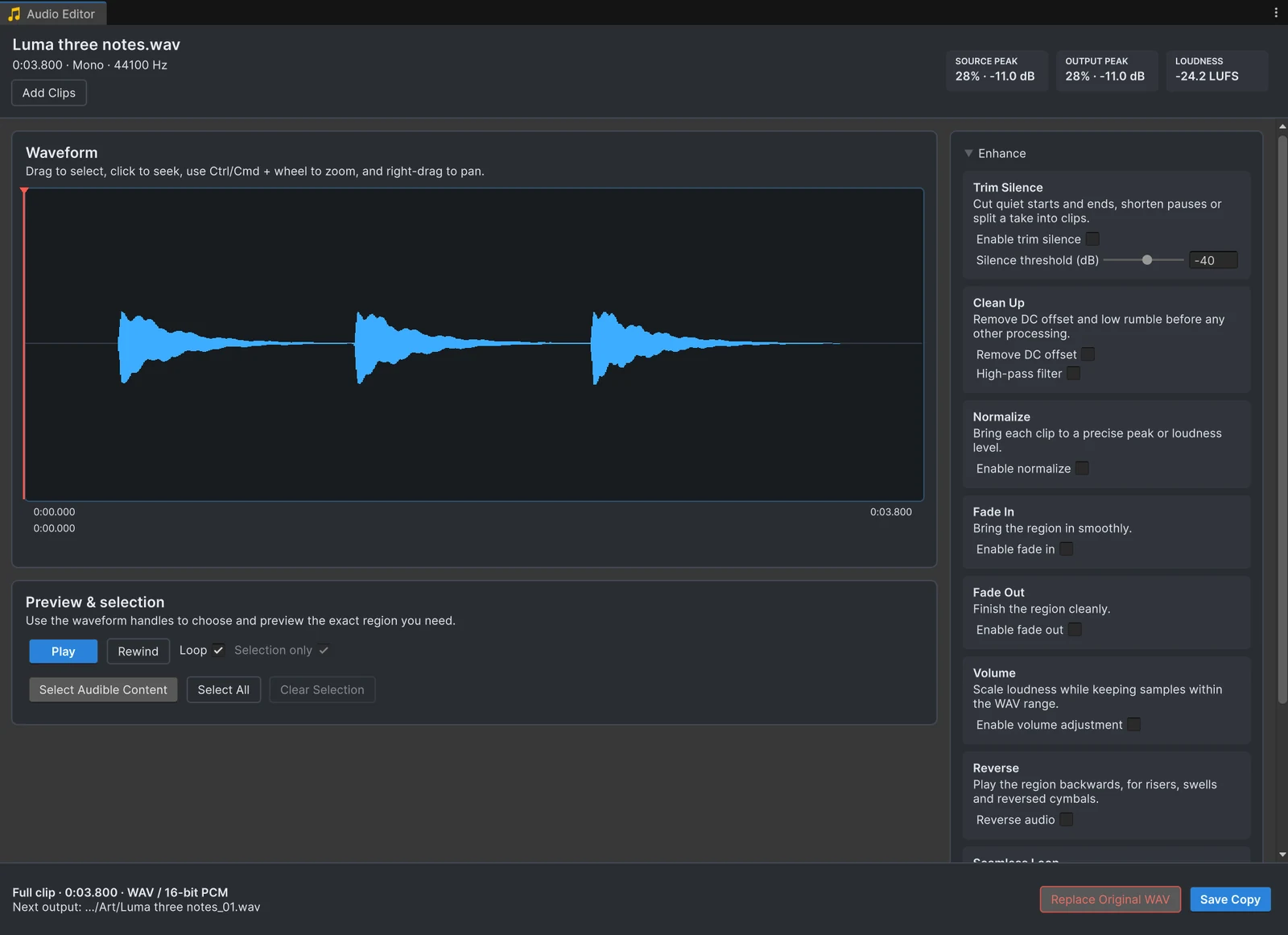 Before: about 0.4 seconds of silence before the first note, and a long quiet tail.
Trim the start and end
- Open the clip with Edit Audio from the Project window context menu.
- In the Trim Silence card, turn on Enable trim silence and keep the mode Trim start and end.
- Adjust Silence threshold (dB) if needed. Anything quieter counts as silence; raise it for a noisy recording, lower it to keep a soft attack.
- Keep before (ms) and Keep after (ms) leave a small margin around the sound, 5 ms before and 20 ms after by default, so attacks and tails are not cut too tight.
- Press Space with Selection only on to hear exactly what will be saved.
The waveform dims the silence that will be cut, so you see the result before anything is written, and the footer shows the new length: with the default settings, the 3.8-second example becomes 2.74 seconds. The trim is part of the preview like every other effect: turn it off and the clip is back as it was.
Save a tight copy
Press Save Copy to write the trimmed sound as a new WAV next to the original, numbered _01, _02 and so on. The copy keeps the original’s import settings. If you replace a WAV in your project instead, Audio Tools asks first and keeps a backup, and Restore Replaced Files under Advanced puts the original back.
A cut that lands in the middle of a waveform can click. The margins usually prevent that; if a trimmed sound still clicks, add a very short Fade In or Fade Out, as the fades guide explains.
Shorten long pauses
Switch the mode to Shorten pauses to tighten a recording without cutting it apart. Every pause longer than Minimum pause (ms), 300 ms by default, is shortened to Shorten pauses to (ms), 100 ms by default, and the waveform shades the pauses that will be removed. This suits UI voice prompts, tutorials and placeholder dialogue. For acted voice lines, pauses are often part of the performance, so listen before you save.
To turn a recording of several sounds into separate files instead, use the third mode, Split into clips, described in the splitting guide.
A whole pack at once
Silence is rarely a problem of one file. Select several clips or a folder in the Project window and choose Edit Audio, enable Trim Silence once, and press Analyze to see how much silence each file loses before anything is written. One button then saves every copy. The batch guide shows the whole workflow.
Tails matter for loops
A silent tail does not delay anything, but it breaks a loop: the sound ends, the silence plays, then the loop starts again. Trimming the tail fixes loops of WAV and OGG files, and the seamless loop guide covers loop points that still click. MP3 files have an extra problem at both ends, which the article on MP3 loop gaps explains.
Frequently asked questions
Why does my sound effect play late in Unity?
Often the file starts with silence, so playback begins on time but the audible part arrives later. Other causes are the DSP buffer size, a load type that delays loading, and Bluetooth output. The article on late sounds goes through each one.
How quiet counts as silence?
You set it with the silence threshold in the Trim Silence card. Raise it to cut a noisy tail, lower it to keep a soft attack or reverb tail. Keep before and Keep after leave a few milliseconds around each sound.
Can it remove pauses in the middle of a clip?
Yes. The Shorten pauses mode shortens every pause longer than the minimum pause to the length you choose, 100 ms by default. Trim start and end leaves pauses alone, which is usually right for voice lines.
Can I trim the silence of many files at once?
Yes. Open several clips or a folder in the Audio Editor, enable Trim Silence once, check the result with Analyze, and save all the copies in one pass.
Trim, fade and normalize audio without leaving Unity.
Keep reading
 Article
Why sound effects play late in Unity
A late sound has one of a handful of causes, and the most common one sits in the file, not in Unity's settings. Check them in this order: silence in the file, the output device, the DSP buffer, loading, decoding and timing in code.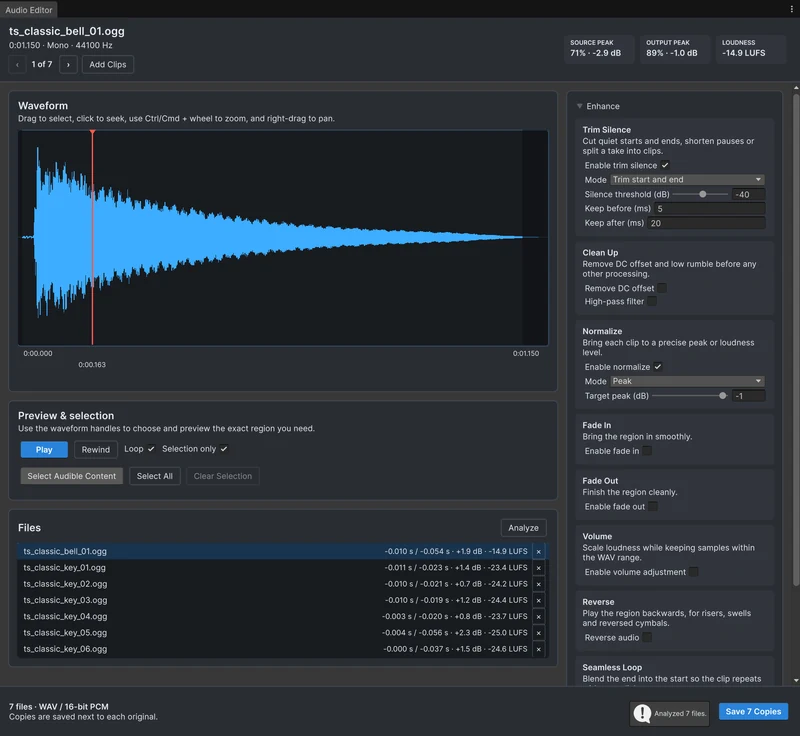 Use case
Process many audio clips at once
A sound pack needs the same fixes on every file: cut the silence, match the level, maybe mono and a new format. Open the clips or folders together in Audio Tools, apply the settings once, check them with Analyze, and save every copy in one pass.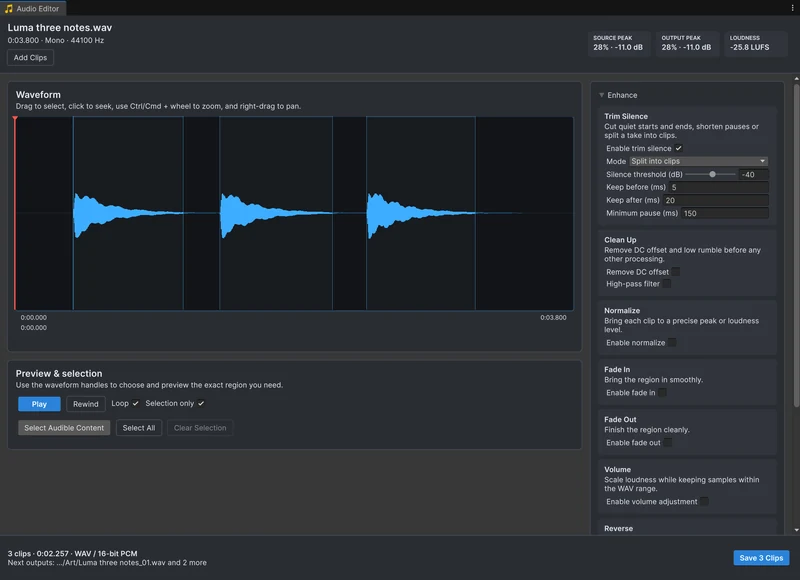 Use case