Trim Asset Store sounds before they enter your project
With Asset Inventory, Audio Tools trims sounds from your Asset Store packages before import, so only the part you need lands in your project.
A fantasy ambience pack can hold hundreds of files, and you need the distant thunder in one of them, maybe only its last four seconds. Importing the whole pack to get there clutters the project with files you will delete again. Asset Inventory solves the first half: it indexes the sounds inside your Asset Store packages so you can search and play them without importing anything. Audio Tools solves the second half, because it is built into Asset Inventory.
Find and play the sound first
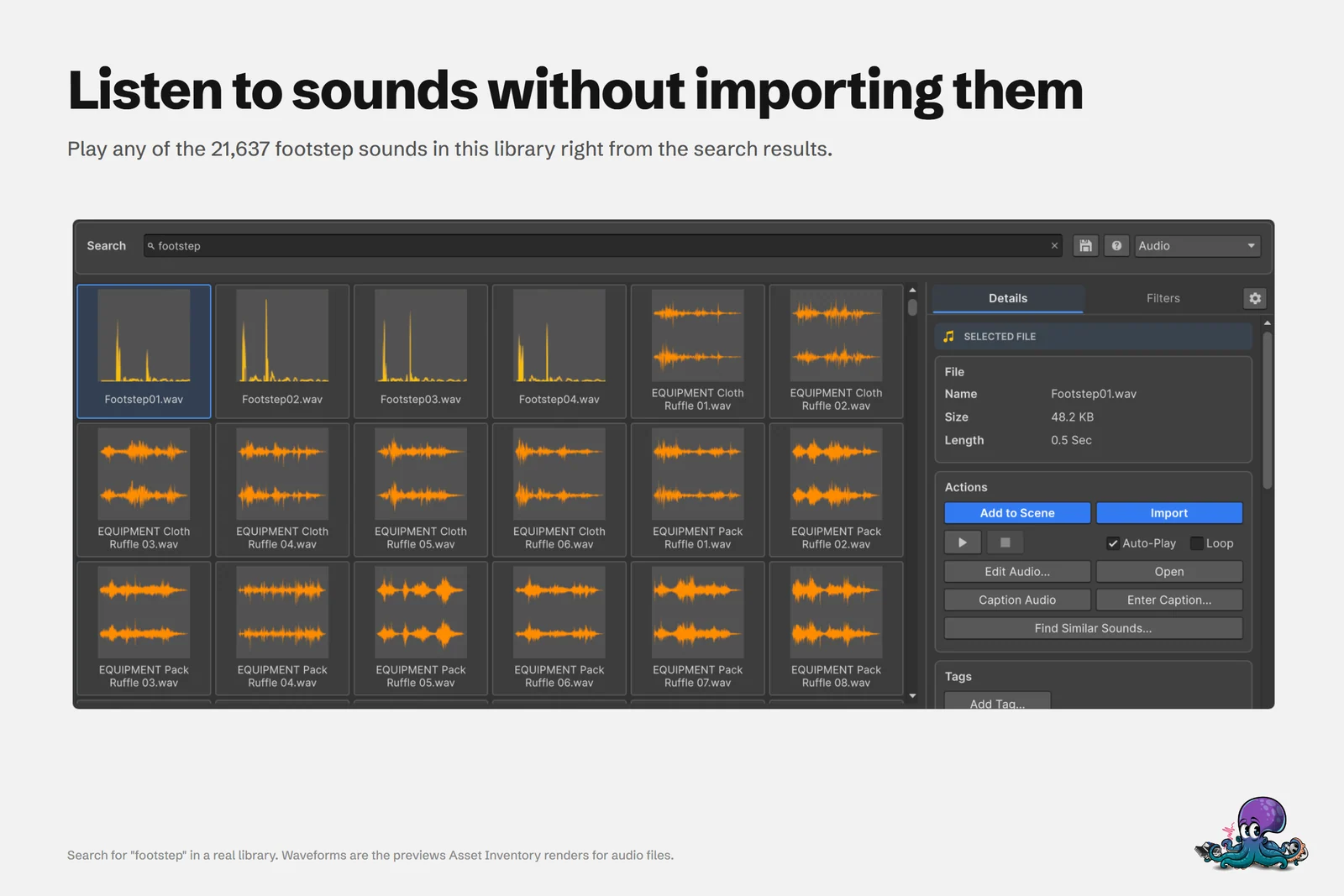
Once your packages are indexed, set the Asset Inventory search type to Audio and search by name, folder or caption. Select a result and it plays, with Auto-Play, Loop and scrubbing in the details panel. Filters such as length narrow the list, and nothing enters your project while you listen. The guide to searching a sound effects library covers search, filters and AI captions.
Trim it before import
In the details of the selected sound, press Edit Audio…. The sound opens in the Audio Tools editor, the same one described in the trimming guide:
- Select the part you need on the waveform, or enable Trim Silence to cut the silence at both ends.
- Add short fades, normalize to a peak or loudness, make a seamless loop or change the format, and listen with Selection only and Loop.
- Import the result into your project as a WAV file.
Only the edited sound is written to your project. The package itself stays untouched in your library, so you can come back and cut a different part later.
When to import unchanged
If the sound is already right, use Import or drag it straight into the Project window, the Hierarchy or the Scene view. Asset Inventory imports it in its original format, by default into Assets/ThirdParty with the package’s folder structure.
Audio Tools is free on its own as well, so the same editor is available in projects without Asset Inventory.
Frequently asked questions
Do I need to import the whole sound pack to use one sound?
Not with Asset Inventory. It indexes the sounds inside your packages, plays them in the search results and imports only the file you pick, or only the part of it you keep in Edit Audio.
Is Audio Tools included with Asset Inventory?
Yes. Asset Inventory installs Audio Tools and uses it for sound playback and for Edit Audio before import. Audio Tools is also available on its own for free.
In which format are trimmed sounds imported?
Sounds imported through Edit Audio are always saved as WAV files. Use Import or drag the sound into the Project window to bring it in unchanged.
Trim, fade and normalize audio without leaving Unity.
Keep reading
 Use case
Trim audio clips in Unity without leaving the Editor
Unity cannot trim an audio file on its own. Open the clip in Audio Tools, select the part you need on the waveform, loop it, and save a numbered WAV copy next to the original. Use case