Making the arena film: more than 60 LED boards in one Unity scene
How the 50-second LED Studio arena film is built: 65 boards on one clock, a power-on cascade, kinetic honeycomb panels, glitches from code and one cue for the show.
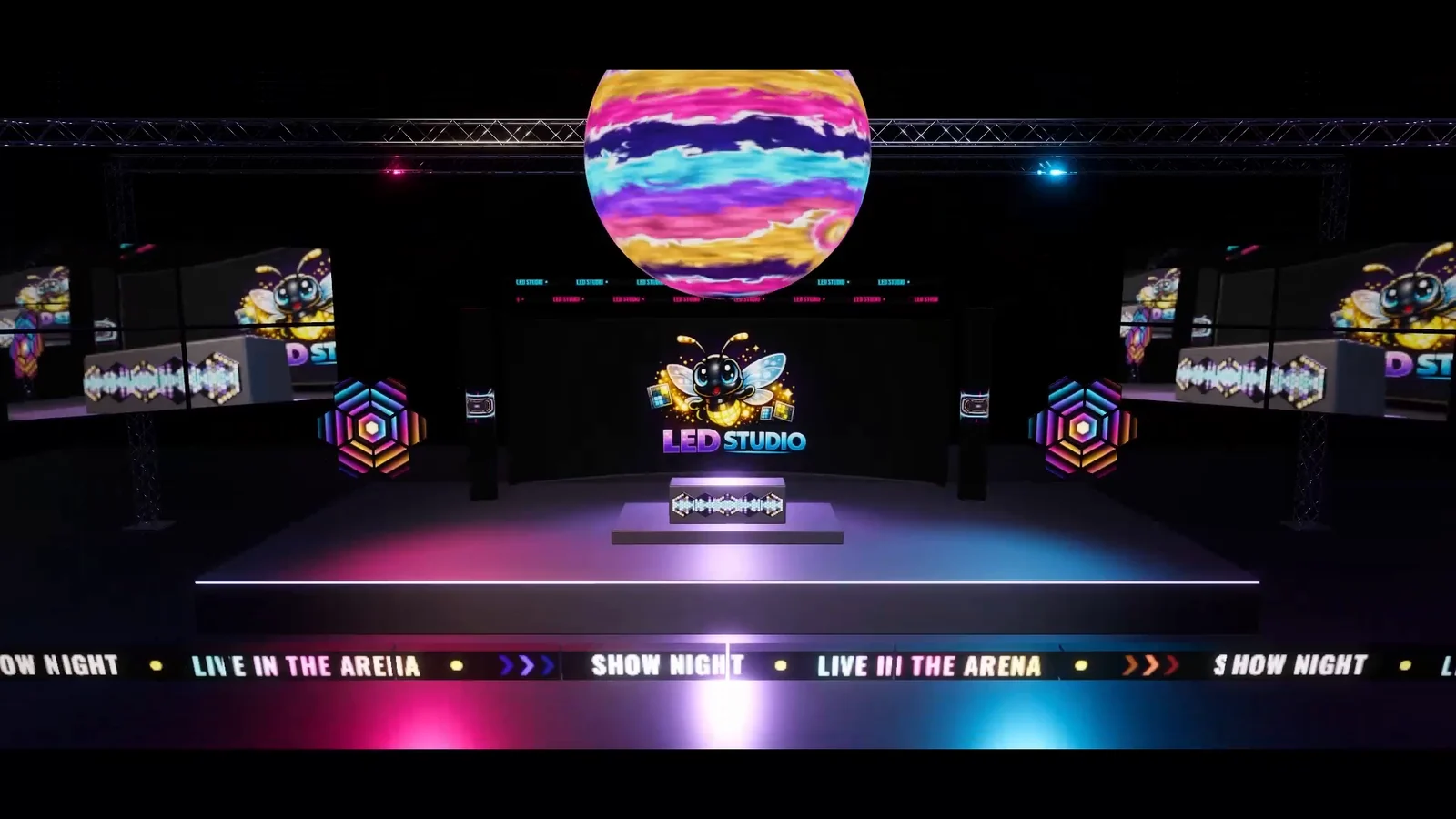
The arena film is a run of about 50 seconds through a concert and sports arena: concourse signs, a stage show, a basketball game and a brand finale, all on LED boards. It is not edited footage but one Unity scene, the Arena Showcase, playing itself in Play Mode. The Arena Showcase scene ships with LED Studio 1.7.0, in Examples/05_ArenaShowcase.
This article walks through how it is built: which LED Studio features each shot uses, and how one show script drives more than 60 boards.
The scene at a glance
- 65 boards. 41 are flat, 22 curved, one wraps a corner and one is a sphere. Six board groups combine panels into larger displays.
- 41 content sources. 14 text, 11 video, 10 image, 3 render texture, 2 timer and 1 score source.
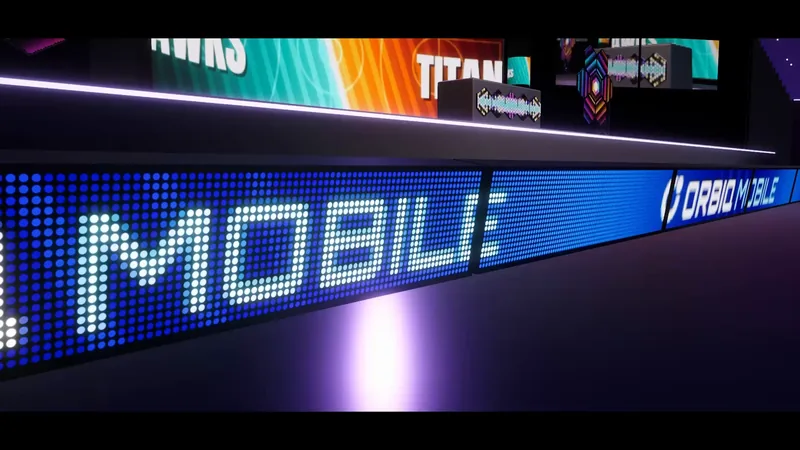
- One clock. Every board uses the sync group “Show”, so playlists, scrolling text and flicker stay in phase across the venue.
- Two scripts.
LedArenaShowDriverholds the show logic,LedArenaShowDirectorthe camera. The director plays 18 shots, 51.6 seconds in total, and sends each shot’s cue to the driver.
Concourse signs in every emitter shape
The film opens in the concourse, where the signs show off LED Studio’s emitter shapes. Most use round Circle emitters, the merchandise sign uses Square, the bar sign Hex, and the street food menu LCD RGB subpixels, which get a close-up of their own. A welcome board cycles a playlist, and an info totem runs a countdown from a Timer source.
The next shot, captioned “Wear, flicker and dead pixels”, holds on a ramen sign with five inline defect entries: dead emitters, flicker, color drift, a line failure on generated rows and a cabinet outage on scattered cabinets. Nothing in its content is damaged; the defects belong to the board.
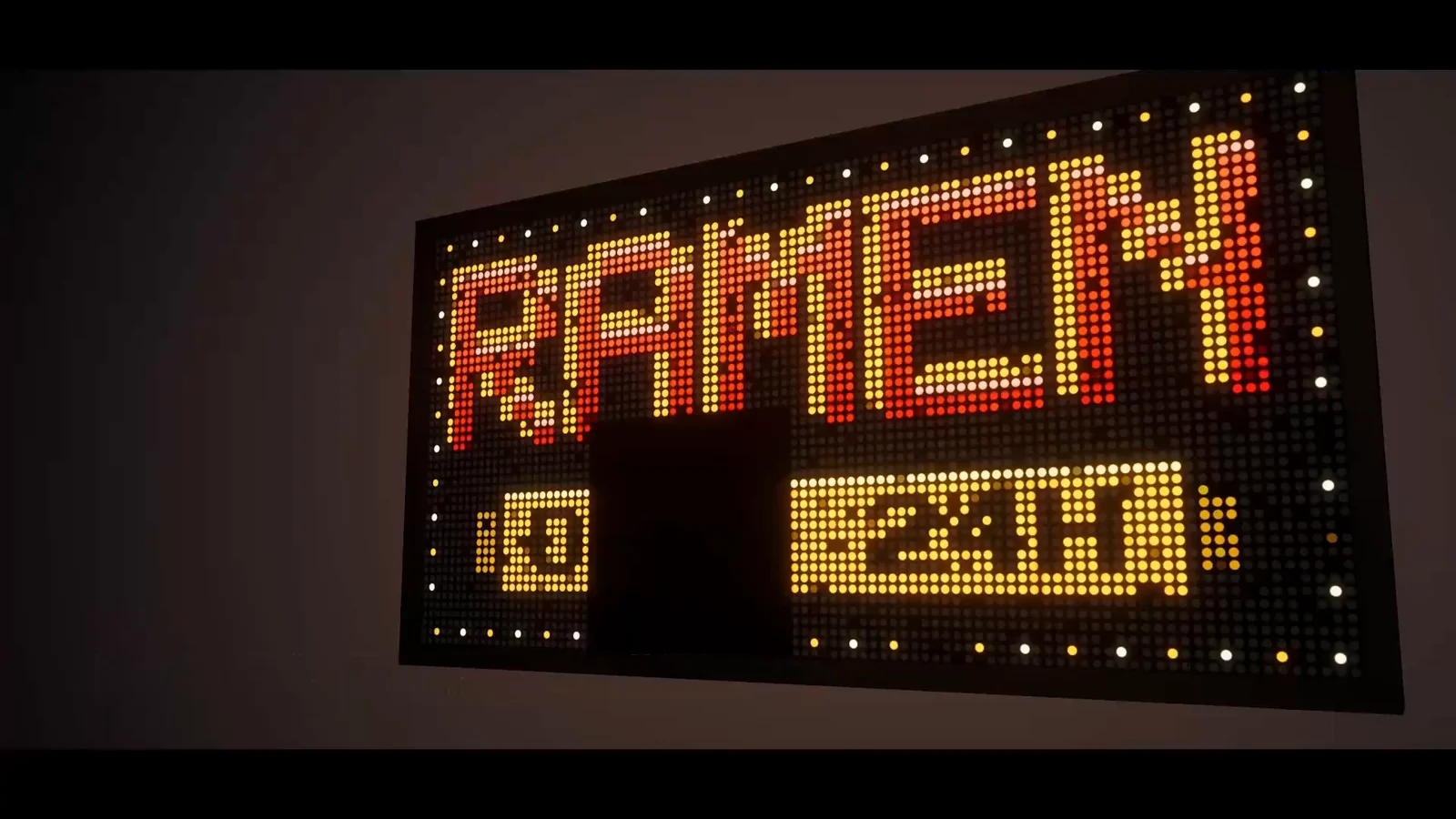 The RAMEN sign with its 24H row and a border of white and yellow dots: scattered emitters are dark, and one whole cabinet in the lower row is out.
A power-on cascade from one brightness value
The film starts with 57 arena boards dark. In the tunnel shot, the director sends the power_on cue, and the boards switch on in a wave that spreads from a cascade origin at 24 meters per second. Each board waits for its distance to the origin divided by that speed, then ramps up over 0.55 seconds with a short overshoot that, as the code comment puts it, reads like real panels powering on.
All of it runs through the emitter settings. The driver remembers each board’s emitter parameters at the start and scales their brightness during the ramp:
LedEmitterParams emitter = state.Emitter;emitter.BrightnessMultiplier = state.Emitter.BrightnessMultiplier * factor;state.Board.SetEmitter(emitter);From LED Studio 1.7.0, Emitter Brightness can go all the way to zero while unlit diodes stay visible, so a dark board still looks like hardware, and emitter changes at runtime apply without restarting the content. The same code produces the flashes later in the film, when brightness briefly swells to 1.9 times.
Curved walls, columns and tubes
The arena shots, captioned “Light up the whole arena”, show the larger shapes. The hero wall behind the stage is a curved board of 512 x 192 emitters with a 64-degree sweep, 16 x 6 cabinets and a Stepped front frame. Two LED columns are closed 360-degree cylinders, two LED tubes are vertical wraps around a 9 cm radius, and the long arena ribbon is made of 16 curved panels of 128 x 20 emitters in a Radial board group. Ten courtside panels stand in a row along the court.
Kinetic honeycomb panels that keep their picture
Two Spatial board groups, one on each side of the stage, hold seven hexagonal boards each, placed by the Honeycomb arrangement with a 35 mm gap. At the start of the film, the driver parks every panel above and beside its slot, tilted at an angle. On the hex_assemble cue, each panel flies back to its rest position over 1.8 seconds with a slight overshoot, staggered panel by panel.
The picture stays put on each panel while it moves. Since LED Studio 1.6.0, spatial groups can move, rotate and scale their panels while keeping content attached, and Automatic mapping preserves each panel’s content in Play Mode, so the honeycomb assembles with its image already in place. The film’s caption: “Panels fly in and keep their picture”.
A spherical orb and a ring
Above the stage hangs the center-hung orb, a Sphere board of 768 x 384 emitters with both poles closed. Around the center-hung rig runs a ring, a 360-degree curved board of 640 x 36 emitters that shows a concert message first and the game score later.
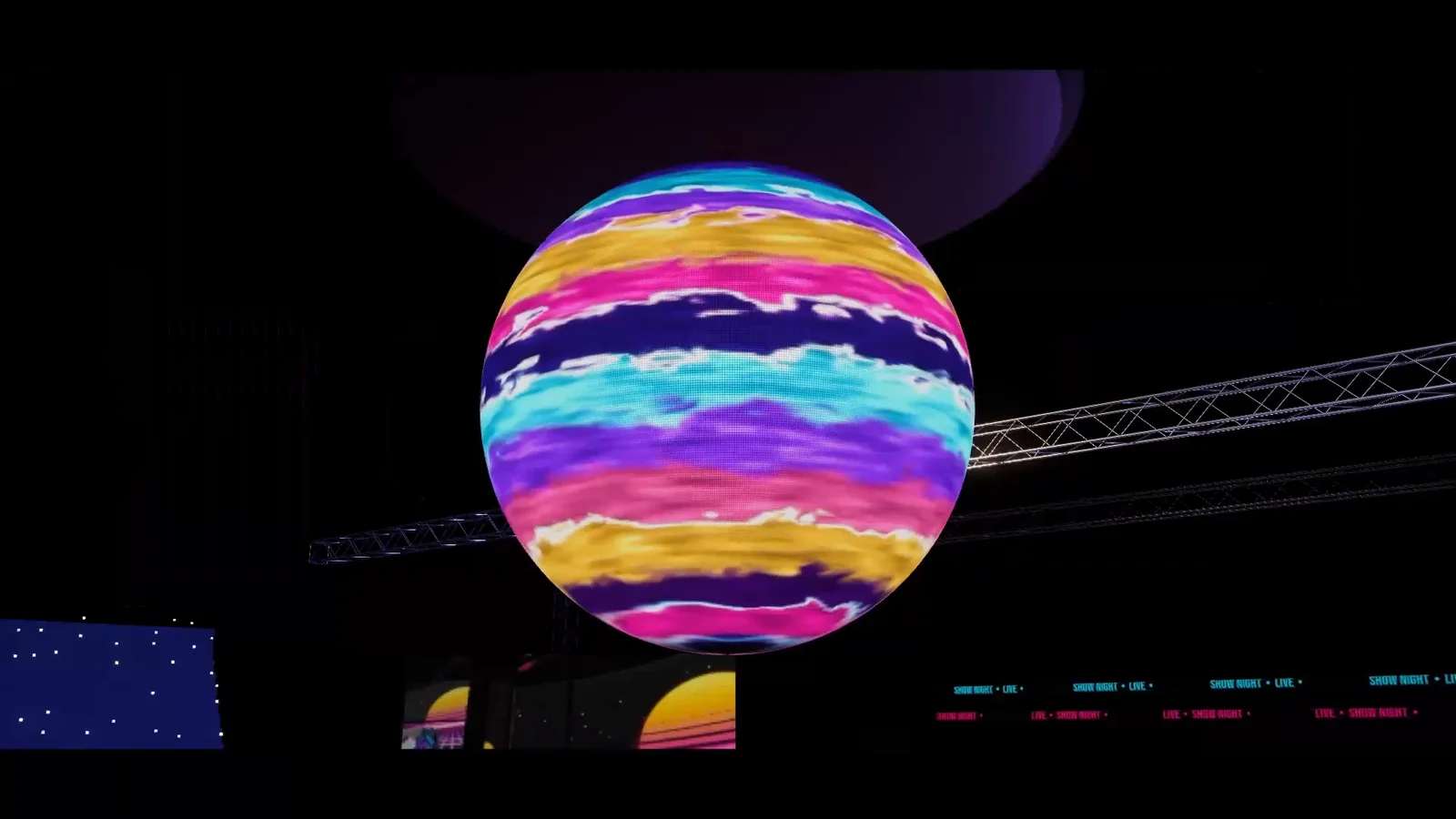 The spherical display in front of a lighting truss, with swirling bands of yellow, pink, purple and teal across its surface.
Live camera feed and video
A camera in the scene renders into one render texture, and three Render Texture sources show it: the two IMAG screens beside the stage, each a 2 x 2 Grid group with a one-pixel gap, and a Live Feed zone on the end scoreboard during the concert. Eleven Video sources feed the hero wall, the LED columns, both honeycombs, the booth, the orb and the courtside boards, whose clip the driver swaps from a concert reel to a game night reel.
Glitches triggered from code
The booth shot is captioned “Trigger glitches from your show code”. On the glitch cue, the driver applies a defect profile with flicker, cabinet outages, a line failure and color drift to the hero wall, both LED columns and the DJ booth front:
GlitchBoards[i].ApplyDefectProfile(new LedDefectBlendRequest{ Profile = GlitchProfile, Weight = 0f, Seed = 9100 + i, TimeScale = 1f});For 1.2 seconds it then sets the severity every frame with SetDefectSeverity: a fast 0.08-second attack, a 0.3-second release and a Perlin noise stutter in between. Afterwards ClearDefectProfile removes the profile, and the boards return to clean output. The dead pixels, flicker and glitches use case covers defect profiles in depth.
One cue switches the whole show
The game_mode cue turns the concert into a basketball game. The boards flash, and halfway through the flash the driver deactivates the concert content objects and activates the game night ones, swaps the courtside reel, changes the ribbon text to a HAWKS VS TITANS message and starts the game clock at 2:14. Because the concert and game night content live in source components on their own GameObjects, switching the show is mostly a matter of SetActive, plus a few calls such as SetText, SetTime, StartCounting and SetScore.
The zoned scoreboard
The end scoreboard is one board of 320 x 112 emitters with 8 x 2 cabinets and zoned sources: team names, colored image plates, home and away scores, the period and a Timer source for the clock. On the goal cue, the driver adds three points to the home team and makes the score blink in Flash mode at four blinks per second for 2.4 seconds. The center-hung ring shows the same score through a Score source, updated with one SetScore call.
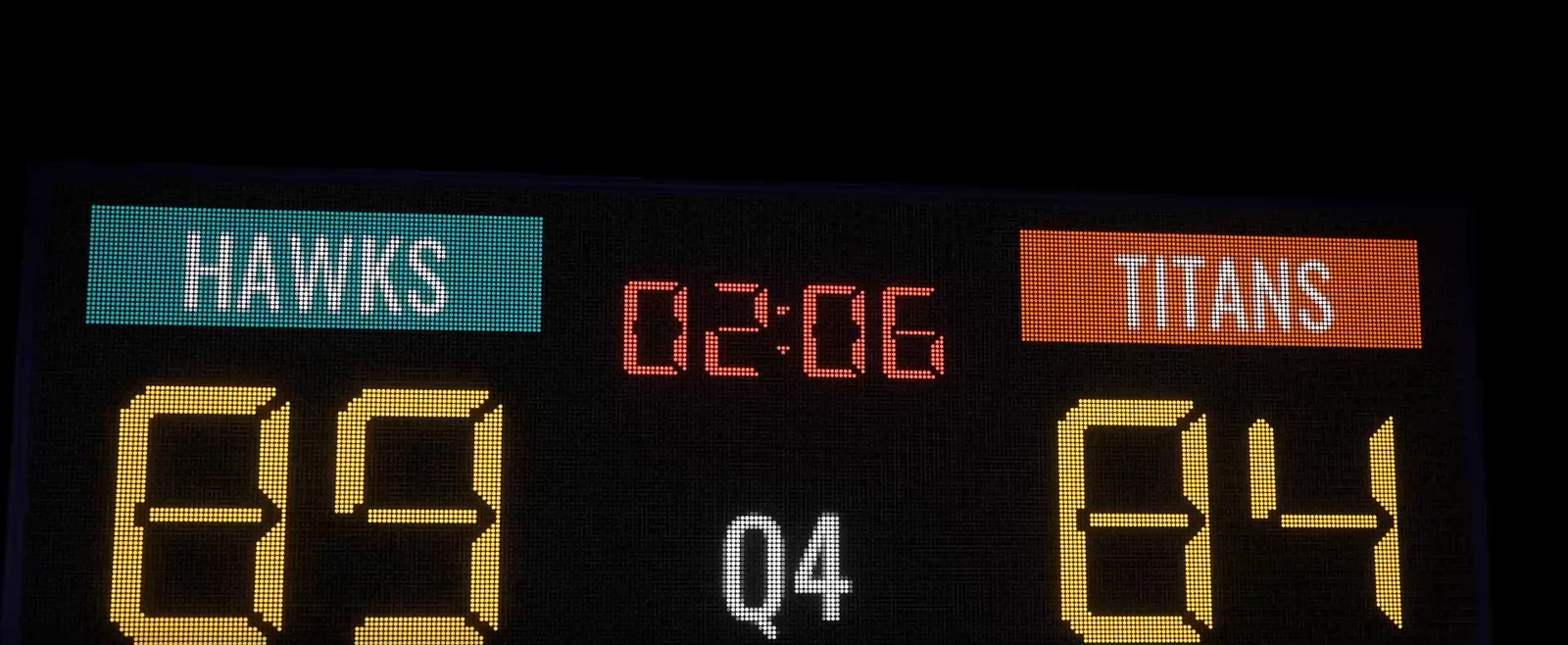 The end scoreboard after the goal: HAWKS 89 on a teal plate, TITANS 84 on an orange plate, the clock at 02:06 and Q4.
Finale and the Showcase Camera Look
The finale cue flashes the boards once more, brings back the concert content with a finale logo and sets the LED tubes and the ring message to LED STUDIO. The last shot ends on the tagline.
The film’s look comes from the Showcase Camera Look component. In URP projects it adds bloom, tonemapping, color grading, vignette and depth of field through a volume that exists only at runtime, so the scene saves no pipeline-specific components; boards with a brightness multiplier above 1 cross its bloom threshold. The scene’s thin Exponential Squared fog keeps distant perimeter shots visible instead of fading them to black. Other pipelines play the same film without the post-processing. In the editor, the director can also record the film with Unity Recorder.
Run it yourself
Open the ArenaShowcase scene in the Examples/05_ArenaShowcase folder of LED Studio 1.7.0 and enter Play Mode. To change the film, edit the shot list on the director, or call TriggerCue on the driver from your own code. For the real-world background of each display type, read How stadium LED systems work.
Frequently asked questions
Which LED Studio version includes the Arena Showcase scene?
The Arena Showcase scene ships with LED Studio 1.7.0, in Examples/05_ArenaShowcase. LED Studio 1.6.0 includes the Overview, Programmatic API, UI Toolkit, Realtime GI and Feature Showcase scenes.
Does the arena film need URP?
No. The film plays in every supported render pipeline. In URP projects the Showcase Camera Look adds bloom, tonemapping, color grading, vignette and depth of field through a volume that exists only at runtime; other pipelines show the same film without that post-processing.
How are the glitches in the film triggered?
The show driver applies a defect profile to four boards with ApplyDefectProfile, drives its severity every frame with SetDefectSeverity for 1.2 seconds, then removes it again with ClearDefectProfile.
Can I reuse the show logic in my own scene?
Yes. The show driver exposes TriggerCue with cues such as power_on, glitch and game_mode, and every effect goes through the public LED Studio API, so the same calls work on your own boards. The camera director simply sends those cues from its shot list.
LED screens, walls and signs that look like real hardware.
Keep reading
 Article
How stadium LED systems work, and how to build them for a game
A stadium is a system of LED displays with different jobs: center-hung videoboards, scoreboards, ribbon and fascia boards, perimeter and end-zone boards, concourse signs. What each one shows, typical pitches, and how to build each with LED Studio.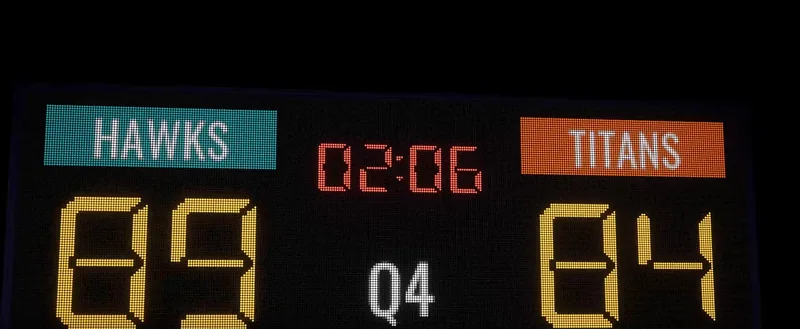 Use case
Stadium screens, scoreboards and perimeter boards in Unity
A venue needs a center screen, a scoreboard, ribbon boards and perimeter signage that look like real LED hardware. LED Studio covers them with wizard presets, score and timer sources, sponsor playlists, synced panel groups and boards on stadium meshes.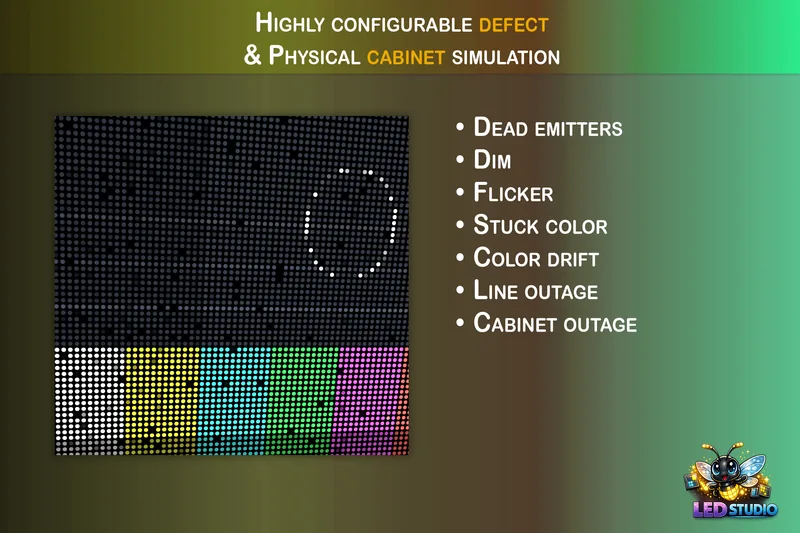 Use case