Build an LED audio visualizer in Unity
Build an LED audio visualizer in Unity: read GetSpectrumData, draw bars into a texture sized to the emitter grid and show it on an LED Studio board.
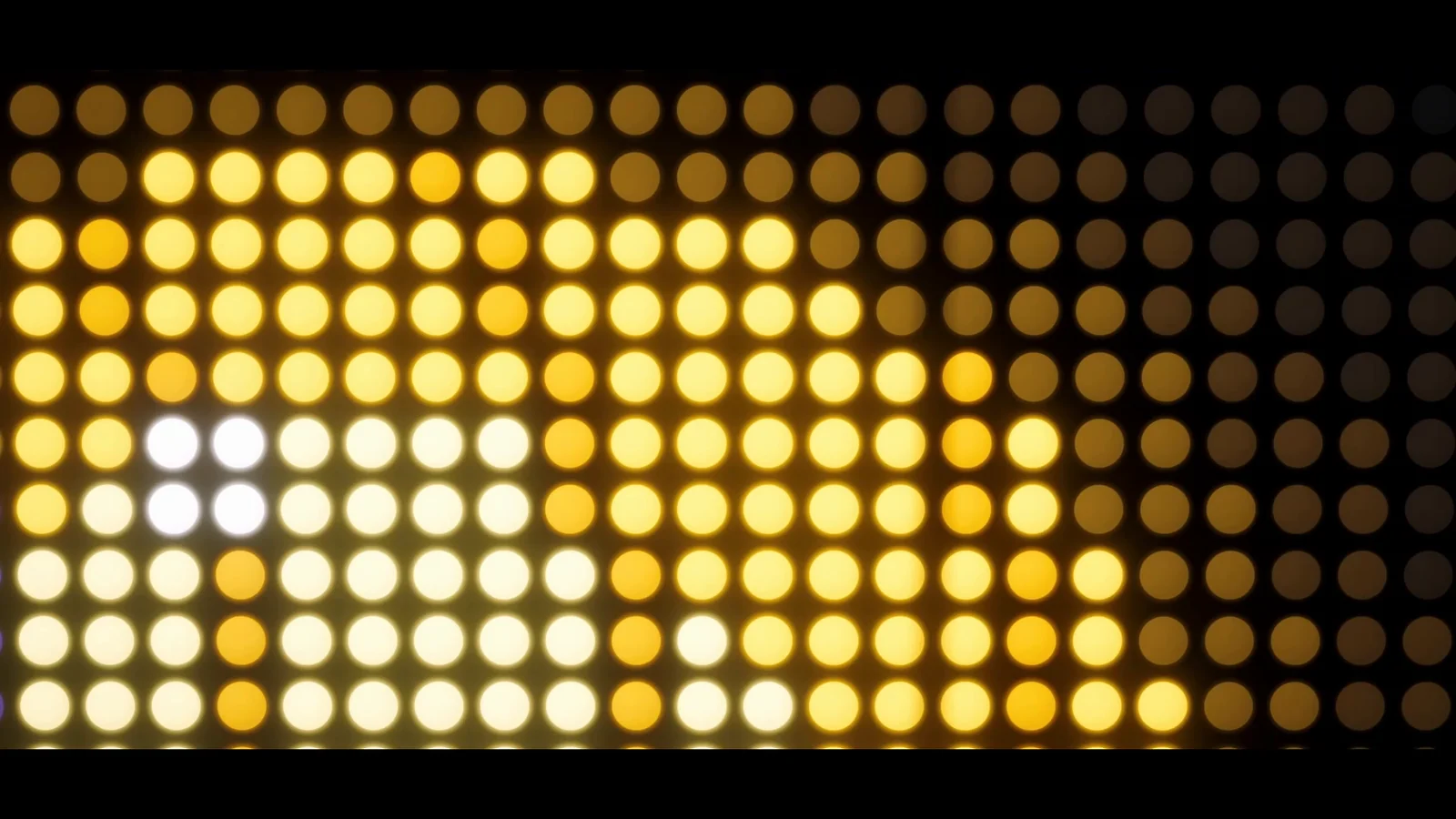
A spectrum analyzer is one of the most natural things to put on an LED board: columns of lit dots on a dark grid, peaks jumping with the music. It also takes very little code. One Asset Store reviewer describes building an audio visualizer with LED Studio along these lines, writing spectrum values into a Texture2D that feeds a board. This article walks through the same approach with a complete script.
How it works
Three steps run on every update:
- Read the frequency spectrum of an AudioSource with
GetSpectrumData. - Draw one bar per frequency band into a small Texture2D with exactly one texel per emitter.
- Copy that texture into a drawing port on an LED Studio board.
The board does the rest: emitter shape, pitch, glow, cabinet seams and bloom.
Read the spectrum
AudioSource.GetSpectrumData fills a float array you pass in. Its length must be a power of two between 64 and 8192, and the bins are evenly spaced from 0 Hz to half of the output sample rate, AudioSettings.outputSampleRate. With 1024 bins at 48 kHz, each bin covers about 23 Hz. The window parameter reduces leakage between bins, and more complex windows cost a little more.
Even spacing is a poor match for hearing. The octave from 40 to 80 Hz fits into two bins, while the top octave covers hundreds. So group the bins into bands on a logarithmic scale, convert each band’s magnitude to decibels and map a decibel range onto the bar height. Bars that jump up instantly and fall back slowly, with a peak dot that falls even slower, read like a hardware analyzer.
Two notes from Unity’s documentation: Unity only starts recording audio history on the first call, so the first frames return empty data, and the function is not meant for low-latency analysis. For visuals, neither matters.
Draw bars into an emitter-sized texture
Make the texture exactly as large as the board’s emitter grid, which LedBoardController.EmitterCount reports. Every texel then lands on one emitter, and no reduction or filtering softens the bars. Use RGBA32 without mipmaps, point filtering and clamped wrapping, the same setup LED Studio’s Programmatic API sample uses for its runtime textures.
Write all pixels into one reused Color32 array and upload it with SetPixels32 and Apply. Unity’s documentation notes that SetPixels32 is usually faster than many SetPixel calls, and Apply copies the changed pixels to the GPU.
Hand the texture to the board
LED Studio’s runtime API offers several ways to put a texture on a board. Image ports (AddImagePort and SetSourceTexture) suit logos, cards and test patterns that change by swapping one texture for another. For content you redraw every frame, use CreateDrawingPort: it creates a runtime-owned, point-filtered render texture, adds it to the board as a source layer that refreshes every frame, and returns it. After each redraw, copy the Texture2D into it with Graphics.Blit. If you already render into a render texture of your own, from a camera or a compute shader, AddRenderTexturePort binds it directly.
The drawing port also takes an optional zone, fit mode and priority, so the bars can share a board with other content.
The complete script
using LEDStudio;using UnityEngine;
// Draws the spectrum of an AudioSource as LED bars on an LED Studio board.[RequireComponent(typeof(AudioSource))]public sealed class LedSpectrumBars : MonoBehaviour{    [SerializeField] LedBoardController board;    [SerializeField] string sourceId = "spectrum";    [SerializeField, Min(1)] int barWidth = 3;    [SerializeField] float minHz = 40f;    [SerializeField] float maxHz = 16000f;    [SerializeField] float floorDb = -60f;   // tune both decibel limits to your mix    [SerializeField] float ceilingDb = -10f;    [SerializeField, Min(0.1f)] float fallPerSecond = 1.5f;    [SerializeField, Min(1f)] float updatesPerSecond = 60f;    [SerializeField] Color32 bottomColor = new Color32(0, 255, 140, 255);    [SerializeField] Color32 topColor = new Color32(255, 40, 60, 255);    [SerializeField] Color32 peakColor = new Color32(255, 255, 255, 255);
    readonly float[] spectrum = new float[1024];    AudioSource audioSource;    Texture2D canvas;    RenderTexture target;    Color32[] pixels;    int[] bandEdges;    float[] levels;    float[] peaks;    int width;    int height;    float elapsed;
    void Start()    {        if (board == null)        {            enabled = false;            return;        }
        audioSource = GetComponent<AudioSource>();        Vector2Int grid = board.EmitterCount; // one texel per emitter        width = grid.x;        height = grid.y;
        canvas = new Texture2D(width, height, TextureFormat.RGBA32, false)        {            filterMode = FilterMode.Point,            wrapMode = TextureWrapMode.Clamp        };        pixels = new Color32[width * height];        target = board.CreateDrawingPort(sourceId, grid);
        int bars = Mathf.Max(1, (width + 1) / (barWidth + 1));        levels = new float[bars];        peaks = new float[bars];        bandEdges = new int[bars + 1];        float nyquist = AudioSettings.outputSampleRate * 0.5f;        for (int i = 0; i <= bars; i++)        {            float hz = minHz * Mathf.Pow(maxHz / minHz, (float)i / bars);            bandEdges[i] = Mathf.Clamp(Mathf.RoundToInt(hz / nyquist * spectrum.Length), 1, spectrum.Length - 1);        }    }
    void Update()    {        elapsed += Time.deltaTime;        if (elapsed < 1f / updatesPerSecond) return;        float step = elapsed;        elapsed = 0f;
        audioSource.GetSpectrumData(spectrum, 0, FFTWindow.BlackmanHarris);
        for (int bar = 0; bar < levels.Length; bar++)        {            int first = bandEdges[bar];            int last = Mathf.Max(first + 1, bandEdges[bar + 1]);            float magnitude = 0f;            for (int i = first; i < last; i++)                magnitude = Mathf.Max(magnitude, spectrum[i]);
            float db = 20f * Mathf.Log10(magnitude + 1e-7f);            float level = Mathf.InverseLerp(floorDb, ceilingDb, db);
            // Rise instantly, fall slowly, like a hardware analyzer.            levels[bar] = Mathf.Max(level, levels[bar] - fallPerSecond * step);            peaks[bar] = Mathf.Max(levels[bar], peaks[bar] - fallPerSecond * 0.3f * step);        }
        DrawBars();        canvas.SetPixels32(pixels);        canvas.Apply(false);        Graphics.Blit(canvas, target);    }
    void DrawBars()    {        Color32 off = new Color32(0, 0, 0, 255);        for (int x = 0; x < width; x++)        {            int bar = x / (barWidth + 1);            bool gap = bar >= levels.Length || x % (barWidth + 1) == barWidth;            int lit = gap ? 0 : Mathf.RoundToInt(levels[bar] * height);            int peak = gap ? -1 : Mathf.Min(height - 1, Mathf.RoundToInt(peaks[bar] * (height - 1)));
            for (int y = 0; y < height; y++)            {                Color32 color = off;                if (y < lit)                    color = Color32.Lerp(bottomColor, topColor, (float)y / Mathf.Max(1, height - 1));                else if (y == peak && peak > 0)                    color = peakColor;                pixels[y * width + x] = color;            }        }    }
    void OnDestroy()    {        if (canvas != null)            Destroy(canvas);    }}
Add the component to a GameObject with an AudioSource, assign a board and press Play. The board owns the drawing port’s render texture, so the script only destroys its own Texture2D. Because the script sizes everything from the board’s emitter count, it works on any board, including curved, cylindrical and spherical ones: whatever the shape, content always uses the board’s rectangular emitter grid.
Board settings that sell it
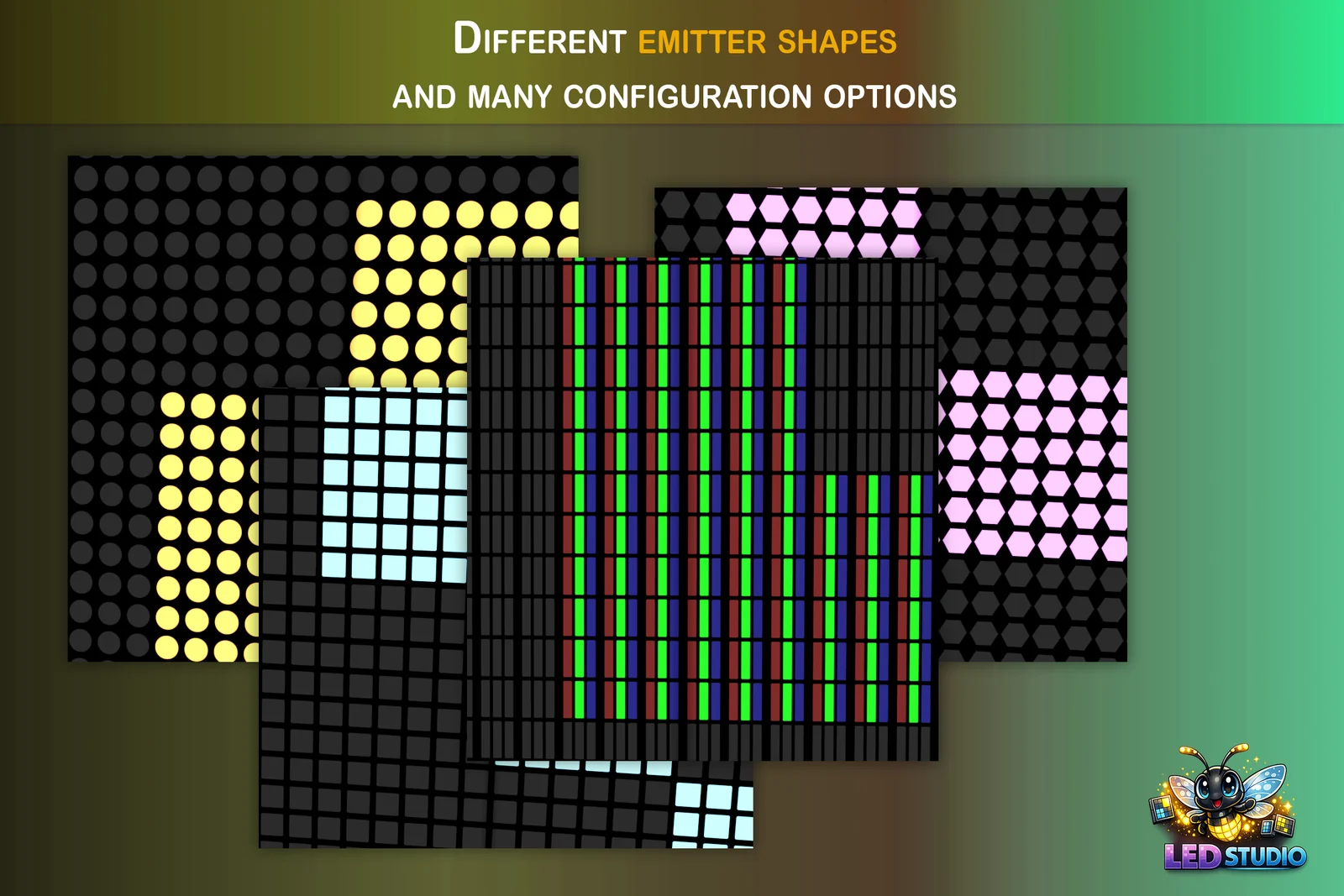 Store image of the four emitter shapes: round yellow dots, square light cyan cells, red, green and blue LCD subpixel stripes and pink hexagons, with unlit emitters in gray.
- Emitter count and pitch. Fewer, larger emitters look like a club rig, finer grids like a studio wall. 64 x 32 emitters at P10 make a 0.64 x 0.32 m board, and the Low Res preset starts at a chunky 40 x 40 at P20.
- Emitter shape. Circle gives classic LED dots, Square blocky bars, Hex a honeycomb texture, and LCD RGB, with RGB or BGR subpixel order, a monitor look.
- Brightness and bloom. A brightness multiplier above 1 lets emitters cross the bloom threshold when the camera renders HDR bloom, and the Venue Contrast response keeps saturated colors and HDR highlights while strengthening contrast. Keep bloom contribution enabled in the board’s quality settings when the scene uses bloom.
- Cabinets and wear. A cabinet grid that divides the emitter count evenly adds seams, and the Board Wizard’s Add Realistic Wear option adds subtle dim LEDs, flicker and color drift.
To set the emitter from code, copy the board’s current settings, change them and apply them. SetEmitter writes inline settings, which takes the board off a shared board profile:
LedEmitterParams emitter = board.Emitter;emitter.Shape = LedEmitterShape.Square;emitter.BrightnessMultiplier = 2f;board.SetEmitter(emitter);Performance notes
- Keep the texture small. One texel per emitter means a 64 x 32 board uploads 2,048 texels, 8 KB in RGBA32, per update.
- Allocate once. The script reuses its spectrum, level and pixel arrays. Unity’s own example allocates a new array in every Update, which creates garbage each frame.
- Choose an update rate.
updatesPerSecondlimits how often the script reads the spectrum and redraws. The board’s Target Update Rate, in its quality settings or a shared LedQualityProfile, limits how often the board composes. - Keep other layers cheap. Static text and logos on the same board can use On Change or Manual source timing instead of updating every frame.
Variations
- Whole mix.
AudioListener.GetSpectrumDatatakes the same arguments and analyzes everything the listener hears. - VU meter. AudioSource.GetOutputData returns raw samples. Their RMS level in decibels drives one horizontal bar per channel.
- Waveform. Plot the same samples as one lit emitter per column for an oscilloscope look.
- Spectrogram. Shift the pixel rows down by one each update and draw the newest spectrum along the top for a scrolling waterfall.
- Title overlay. Add a text port with a higher priority above the bars, for example
board.AddTextPort("title", "NOW PLAYING", zone: new Rect(0f, 0.75f, 1f, 0.25f), priority: 10);.
Spectrum bars sit naturally next to dot-matrix and retro LED displays, and the same drawing port pattern works for any generated content, from minigames to data plots. For camera images and video on boards, see video and camera feeds on LED screens.
Frequently asked questions
How do I get audio spectrum data in Unity?
Call AudioSource.GetSpectrumData with a preallocated float array whose length is a power of two between 64 and 8192. The bins are evenly spaced from 0 Hz to half of AudioSettings.outputSampleRate. AudioListener.GetSpectrumData analyzes the whole mix instead of one source.
Why draw into a texture with one pixel per LED?
When the texture matches the board's emitter grid, every texel lands on exactly one emitter, so no reduction or filtering softens the bars. Point filtering keeps their edges hard.
Can an LED Studio board show a texture that changes every frame?
Yes. CreateDrawingPort adds a runtime-owned render texture to the board as a source layer that refreshes every frame, so you can copy a Texture2D into it with Graphics.Blit after each redraw. AddRenderTexturePort binds a render texture you already own.
Is GetSpectrumData accurate enough for rhythm gameplay?
Unity's documentation says it is not suited to low-latency or chronological analysis, and it returns empty data until enough audio has been processed. It is fine for visuals, but not for judging player input against the beat.
LED screens, walls and signs that look like real hardware.
Keep reading
 Use case
Video and live camera feeds on LED screens in Unity
A Video Player writing into a render texture on a quad gives a flat TV. LED Studio takes the same video, camera or UI output as a source, reduces it to an emitter grid, layers it with graphics, sequences it in playlists and keeps screens in step. Use case
Dot-matrix and retro LED displays in Unity
A dot-matrix look needs visible diodes, text that snaps to the grid and a little glow. How to get there with LED Studio's Low Res preset, coarse pitch, Internal or Crisp text, emitter shapes, LCD subpixels for close-ups, bloom and realistic wear.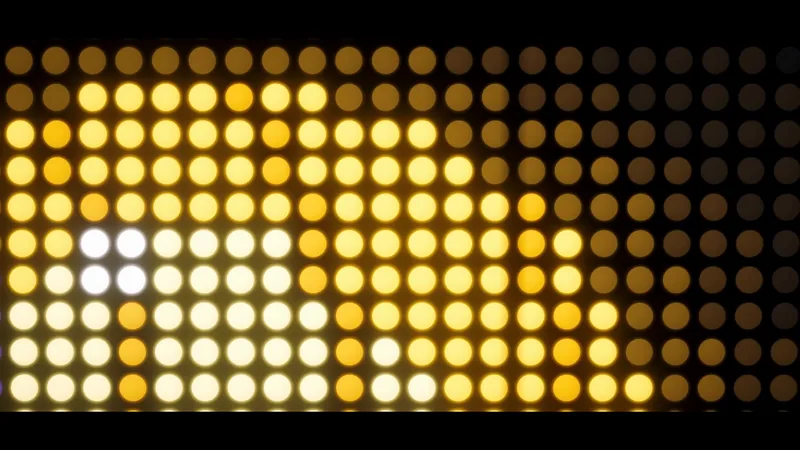 Use case