LED signs and billboards with live content in Unity
Build LED shop signs, roadside billboards and transit boards in Unity, loop ads with playlists and transitions, and swap images or video from code at runtime.
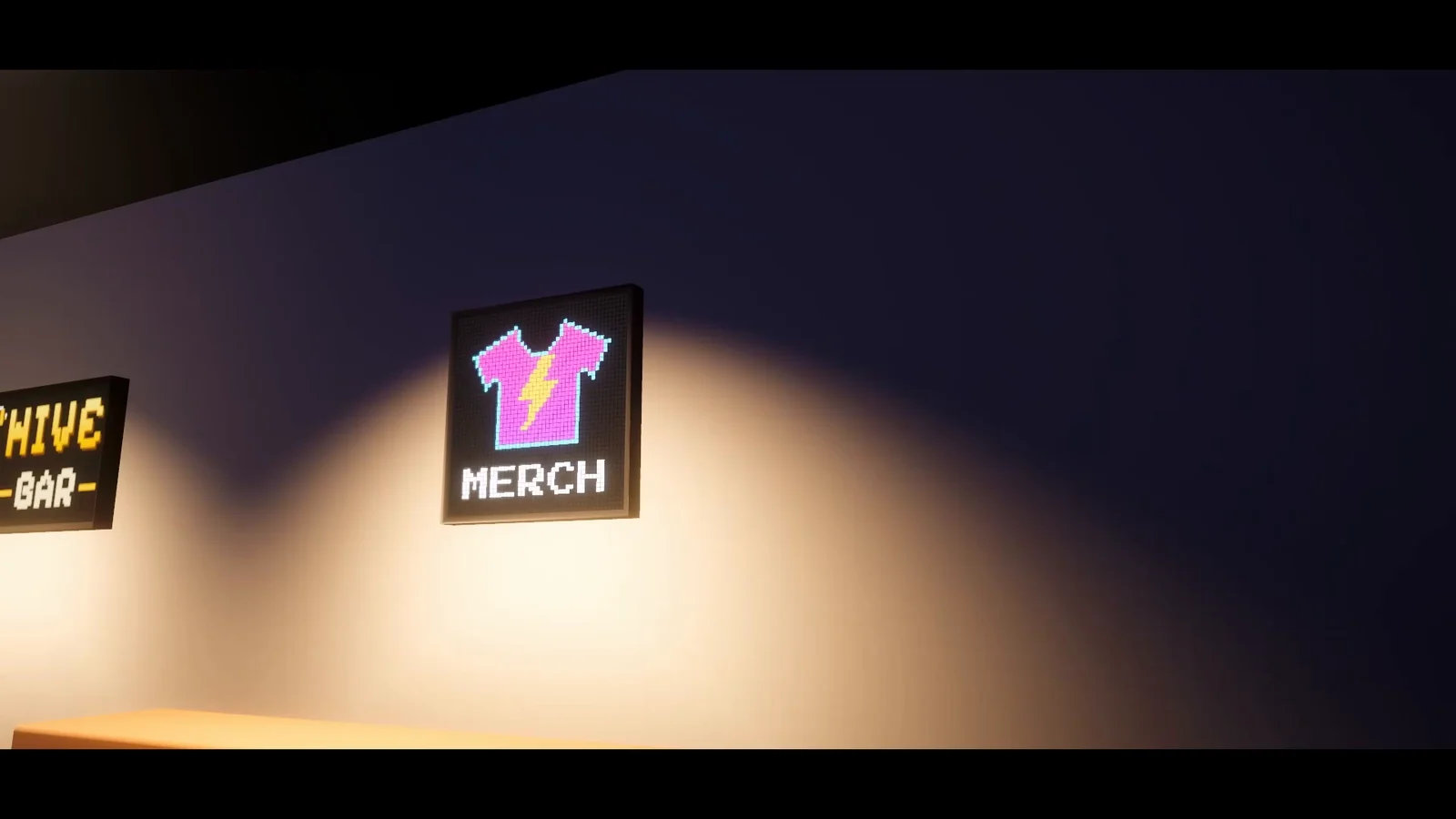
Shop fronts, concourses, roadsides and stations are full of LED signs, and most Unity scenes fake them with an emissive texture that never changes. A sign that rotates ads, reacts to the game or shows a freshly downloaded image needs real content handling, and it should still look like hardware when the player walks up to it. LED Studio boards show images, video and text, loop them with transitions and take new content from code. One note on terms: in Unity, a billboard often means a sprite that always faces the camera, while this page is about sign screens.
Sign types and presets
Start in Tools > LED Studio > Board Wizard with the preset closest to the sign:
- Shop and concourse signs: Low Res gives a chunky 40 x 40 grid at P20 for pictograms and short words, and Custom sets any emitter count.
- Roadside billboards: a wide Custom board at a coarse pitch such as P10 or P16, the range the manual suggests for large outdoor boards, with a rear body for a freestanding cabinet.
- Transit boards: Ribbon Board (512 x 16 at P3.9) for a one-line ticker, or a taller board whose zones place destination, platform and time sources side by side.
Physical size follows from emitter count times pitch, and Auto Size From Pitch keeps the transform scale matched. A Low Res sign measures 0.8 m square, and a 480 x 160 board at P16 measures 7.68 by 2.56 m. Pick the emitter shape per sign: Circle for classic outdoor diodes, Square for blocky pixel signs, Hexagon, or LCD RGB for screens seen up close.
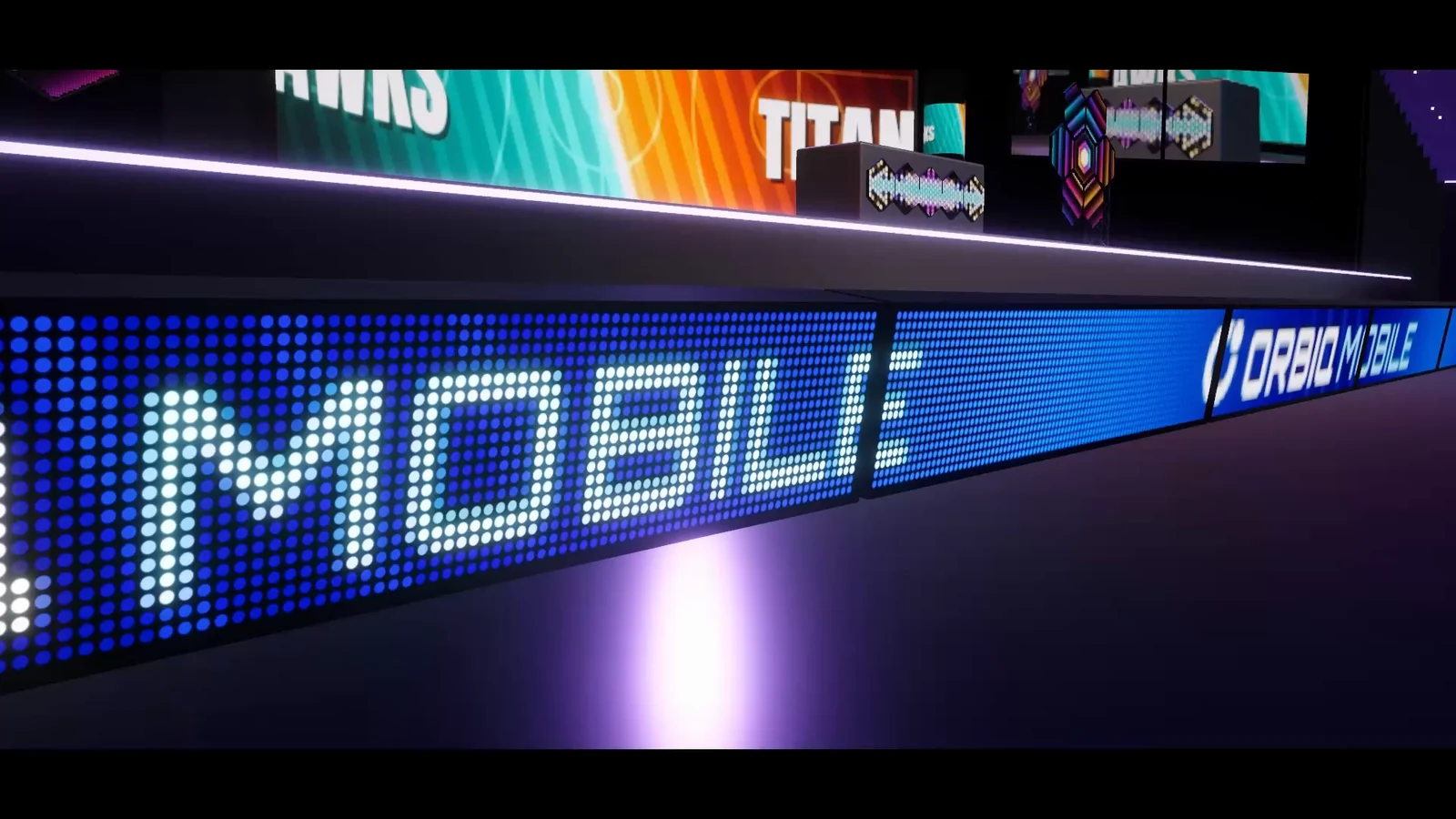 Perimeter ribbon boards from the arena film showing ORBIO MOBILE sponsor content.
Images, video and ad loops
Image sources hold posters and logos, and a Video Source plays a clip or URL through the VideoPlayer next to it. When content is larger than the emitter grid, reduction decides how it is sampled: Edge Preserving Sharpen suits images and Box suits video.
A playlist turns these into an ad loop. Each entry shows an image Source Asset or a composition for a set duration, with a transition and a transition duration, and the playlist can loop and carry a sync group ID so several signs rotate together. The 38 built-in transitions plus a hard cut include cross fades, wipes, splits, iris and radial reveals, pushes, zooms, blinds, scanlines, stripes, checkerboards, pixel and noise dissolves, dip to black and flash white. Video needs a scene component, so a video spot joins the loop as a composition layer whose live Input Name the board maps to its Video Source.
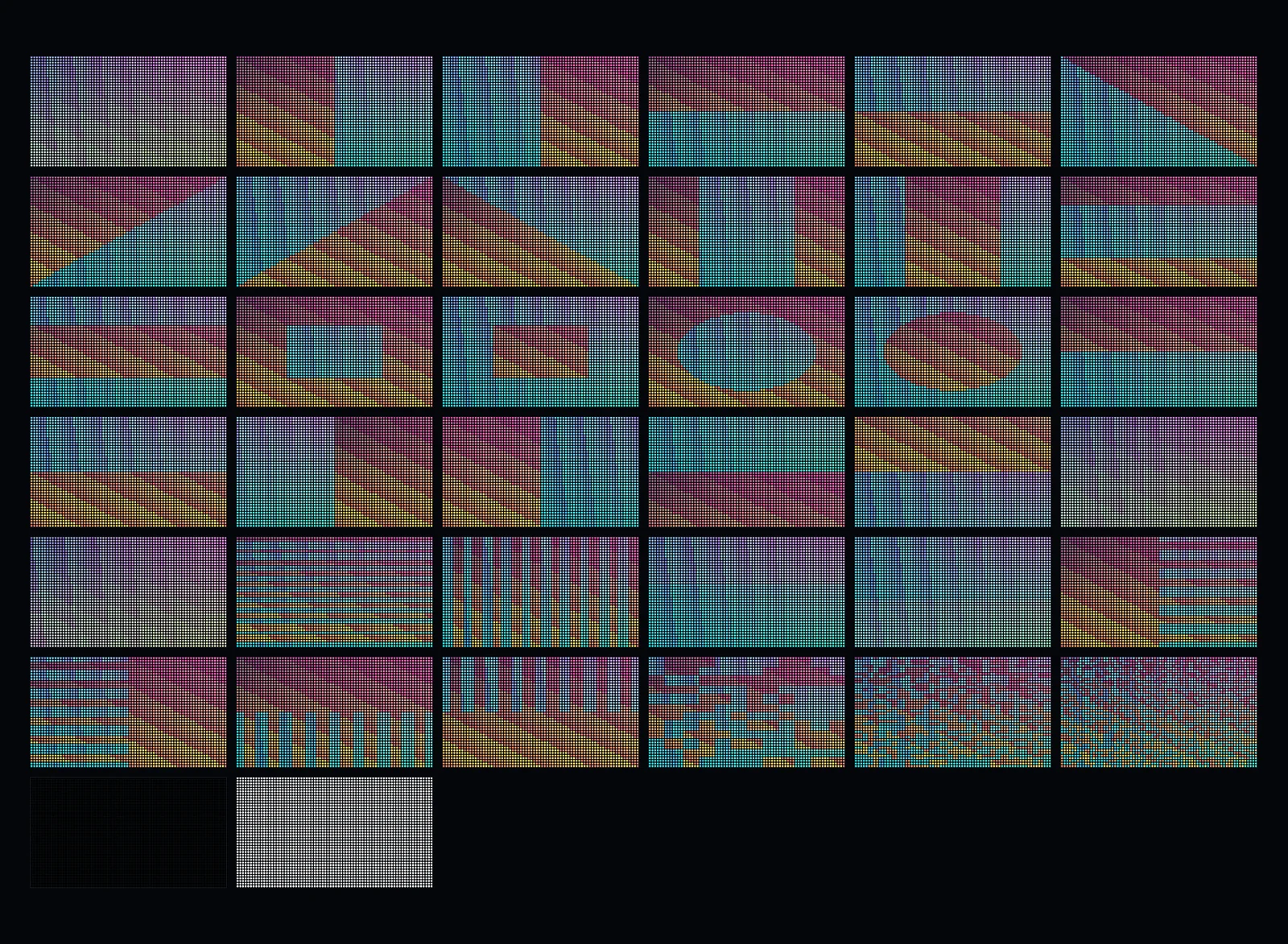 The built-in transitions, each captured at 50 percent progress.
Swap content from code
Code addresses sources by their stable Source ID. SetSourceTexture replaces the image of an image source, SetSourceText changes a text source, and SetPlaylist switches the whole rotation, for example between day and night loops. Named ports such as AddImagePort and AddVideoPort create new layers from code. For video, the Video Source exposes its VideoPlayer as Player: assign another clip there and the board prepares and plays the new spot. Downloading new images is your own code, and once the texture arrives, the board takes it like any other:
using System.Collections;using LEDStudio;using UnityEngine;using UnityEngine.Networking;
// Sketch: show a downloaded image on a signpublic sealed class RemoteAdSign : MonoBehaviour{    [SerializeField] LedBoardController sign;    [SerializeField] string imageUrl;
    IEnumerator Start()    {        ILedBoardRuntime board = sign;        board.AddImagePort("ad");
        using (UnityWebRequest request = UnityWebRequestTexture.GetTexture(imageUrl))        {            yield return request.SendWebRequest();            if (request.result == UnityWebRequest.Result.Success)                board.SetSourceTexture("ad", DownloadHandlerTexture.GetContent(request));        }    }}
Your code also owns each downloaded texture, so destroy the old one when you replace it.
Frames, housing and update timing
A sign reads as a physical object once it has a body. Front Frame adds a Chamfer, Round, Cove, Ogee, Stepped or Custom profile around the LED surface, and Rear Body adds cabinet depth with its own side and back materials. The manual’s starting points fit signs well: Cove at 0.025 m width and 0.01 m recess with Rear Body off for a sign set into a wall, and its touring-cabinet values, Chamfer at 0.015 m width and 0.006 m recess with a 0.05 m Rear Body, for a freestanding sign.
Static signs should not redraw every frame. Use On Change source timing for text, images and logos, Fixed Rate for slow feeds, and Target Update Rate for boards whose content rarely changes. For a sign that has seen better days, keep Add Realistic Wear on in the wizard for subtle dim LEDs, flicker and color drift.
The Content Sources manual page covers sources and timing, Compositions and Playlists covers loops and transitions, and the Runtime API page lists every board member. One-line transit boards and crawls are covered in scrolling LED text and tickers.
Frequently asked questions
How do I change billboard ads at runtime in Unity?
Give the sign an image source with a stable Source ID, such as ad, and call SetSourceTexture with that ID and the new texture. For a whole new rotation, assign another playlist with SetPlaylist.
Can a sign show images downloaded from a server?
Yes, with your own download code. Fetch the image, for example with UnityWebRequestTexture, then hand the texture to the board with SetSourceTexture. LED Studio does not handle networking itself.
Is this the same as a billboard in Unity?
No. In Unity, a billboard usually means a sprite or BillboardRenderer that always faces the camera. This page is about sign screens fixed in the world that show images, video and text.
Do static signs need to update every frame?
No. Set the source timing to On Change so a sign composes only when its content changes, or to Fixed Rate for slow feeds. Target Update Rate limits how often a slow-changing board composes.
LED screens, walls and signs that look like real hardware.
Keep reading
 Use case
Dot-matrix and retro LED displays in Unity
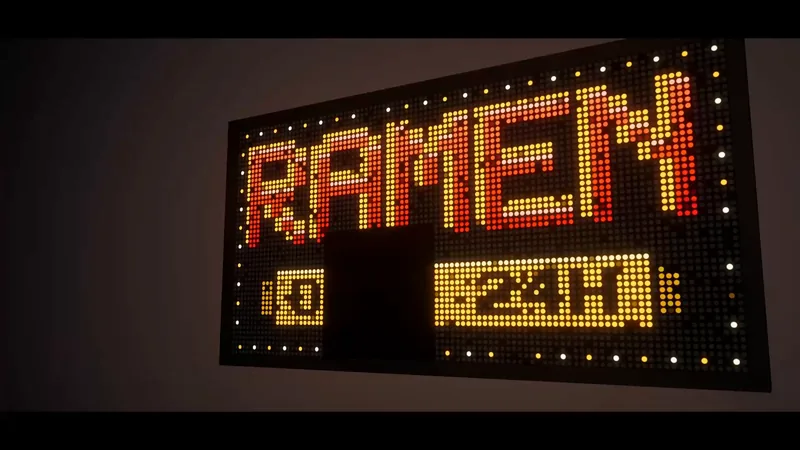
A dot-matrix look needs visible diodes, text that snaps to the grid and a little glow. How to get there with LED Studio's Low Res preset, coarse pitch, Internal or Crisp text, emitter shapes, LCD subpixels for close-ups, bloom and realistic wear.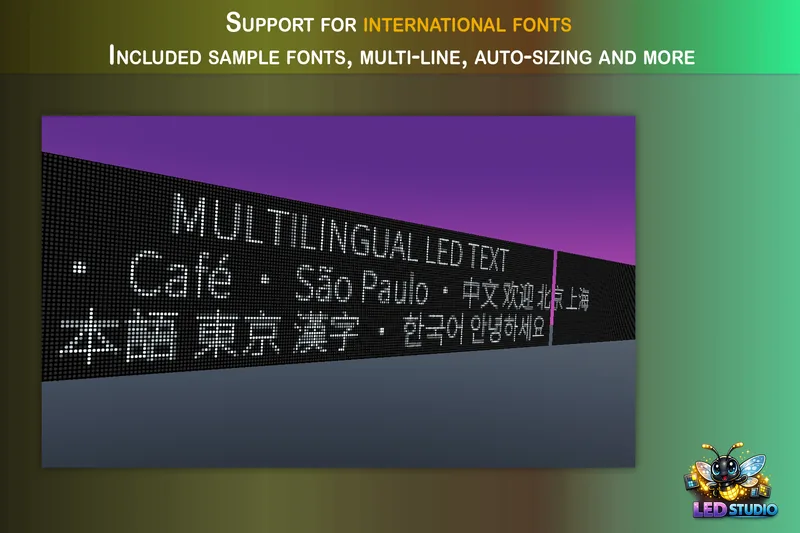 Use case
Scrolling LED text and news tickers in Unity
Build a ticker or marquee on a real LED emitter grid: horizontal or vertical scrolling with seamless wrapping, blinking, sizing and crisp rasterization for pixel fonts, four text renderers, zones under a score, runtime text updates and playlists.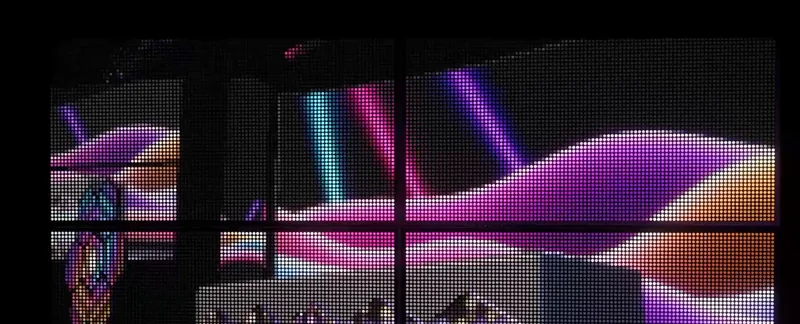 Use case