Cutting the first frame of 3D text on Quest 3 from 74 to 18 ms
How Text Studio 3D 1.4.0 cut the first frame of a revealed 3D title on Quest 3 from 74 to about 18 ms, and how to prepare your text and measure it on the device.
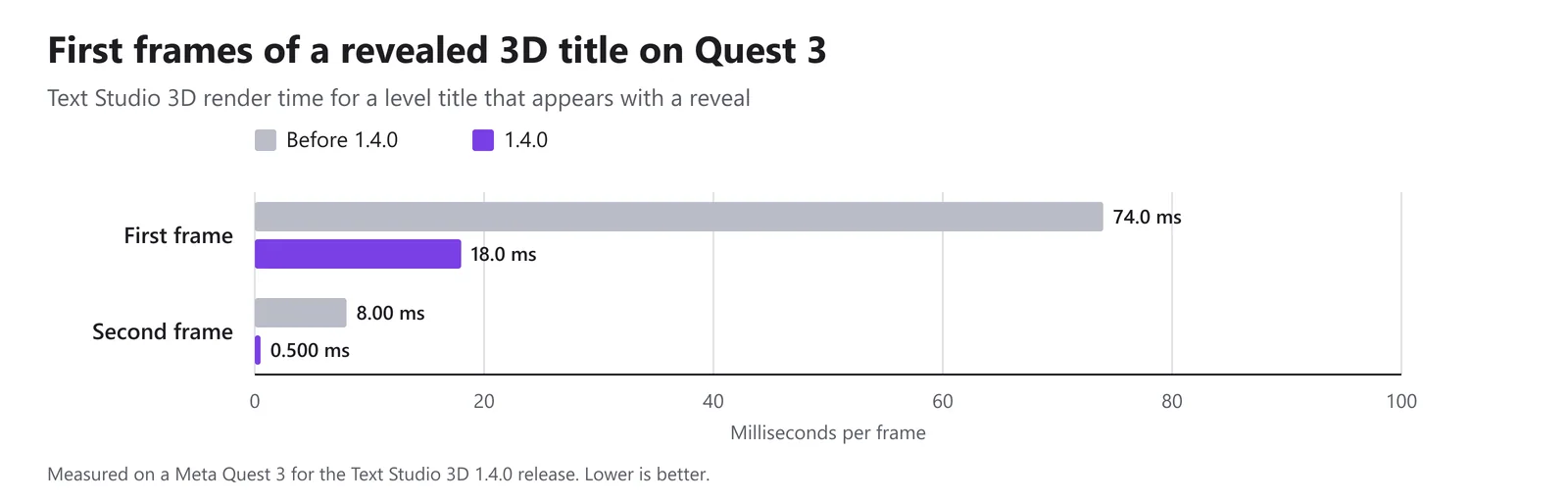
At 90 Hz, a Quest 3 frame lasts about 11 ms. Before Text Studio 3D 1.4.0, a level title that appeared with a reveal took 74 ms of Text Studio 3D render time on its first frame, more than six frames’ worth, and the player saw a hitch the moment the title appeared. The next frame still took 8 ms.
Text Studio 3D 1.4.0 cuts that first frame to about 18 ms and the next one to 0.5 ms. Two changes made the difference: fonts and prepared geometry are read and validated in the background before the first scene loads, and a revealed text assembles its mesh once instead of twice. I built Text Studio 3D; this is what changed, and how to prepare and measure your own titles on the headset.
Why 3D text hitches on its first frame
The first time a 3D text appears, it needs data that later frames already have: the prepared geometry library and the parsed outline data of its fonts. Before 1.4.0, both were loaded on demand, on the main thread, in the frame that first asked for them.
A text that appeared with a reveal paid a second time. It first built a static mesh, and its next animated frame assembled that mesh again in the form the reveal animates. On a Quest 3, the first frame of a revealed level title cost 74 ms of Text Studio 3D render time, and the next frame 8 ms.
What changed in 1.4.0
- Fonts and prepared geometry are read before the first scene. In players, the prepared geometry library starts loading asynchronously before the first scene loads. When it arrives, it is validated and its lookups are built on a worker thread, and the prepared runtime fonts are parsed on a worker at the same time. The first text normally finds both ready instead of loading them itself.
- A revealed text assembles its mesh once. A text that is already revealing or disappearing when it builds now assembles the animatable buffers right away, instead of a static mesh that its next animated frame would assemble again.
With these two changes, the first frame of the revealed title fell from 74 ms to about 18 ms of Text Studio 3D render time, and the next frame from 8 ms to 0.5 ms.
A third change helps text that keeps changing after it appears. First-use prepared characters and score updates do less repeated geometry work and allocate less memory, including on Quest: unchanged letters reuse their placement and derived rendering data, and combined-mesh bounds are built more efficiently. Compatible counters that use Numeric Value text also rebuild only the digits that change.
18 ms is still more than one frame at 90 Hz. A title that must appear without any hitch should be prepared or prewarmed before it is shown, during loading or behind a fade.
Prepare text before the first frame
- Prepare fonts and glyphs for the build. Open Tools > Text Studio > Runtime Preparation, run Prepare, and keep Prepare before each build turned on. Under Characters shown at runtime, add what the game shows that the build cannot see, such as player names, scores and other languages; Numeric Value text adds its digits automatically.
- Prepare fixed titles exactly. For a title whose wording never changes, choose Prepare this text in the 3D inspector. Since 1.4.0 it saves the exact title, including grouped outlines and settled snow or frost, while reveals, tags and events stay live.
- Use Prepared only where surprises are unacceptable. It forbids geometry generation in the player, checks the exact visible text before a build, and keeps the last valid mesh if data is missing.
- Prewarm what preparation cannot cover. PrewarmCharacters builds a bounded set of characters without changing the visible mesh, PrewarmCurrentOutput warms the exact current output, and a TextStudioEmitter prewarms complete hosts for popups. Run them during loading, not in the frame that shows the text.
- Keep titles you show again. Since 1.4.0, an inactive 3D text keeps its meshes, glyph geometry and prepared effects, so a level title you deactivate and show again later reuses them. Disabling the Text Studio 3D component releases them.
Word, line and whole-text outlines depend on the complete wording and cannot be prewarmed per character. For changing text such as a score or a countdown, Setup Status warns about them, and Use Per-Letter Outline converts them into outlines that can be prepared once. The Prepare Fonts, Glyphs, and Builds chapter covers every option.
Measure the first frame on the device
Averages hide hitches, so look at single frames on the headset.
- Build a development player for Quest 3 and connect the Unity Profiler to it, over USB or with Autoconnect Profiler in the build settings.
- Record the moment the title appears and select the spike frame in the CPU Usage module.
- Read the markers whose names start with Text Studio 3D. Since 1.2.0, Text Studio 3D adds Profiler detail for glyph generation, mesh building, Writing, retained effects, geometry uploads and Snow Accumulation, with markers such as Text Studio 3D.Render, Text Studio 3D.Build Geometry, Text Studio 3D.Generate Glyph and Text Studio 3D.Assemble Mesh. If Generate Glyph appears in the spike frame, a glyph was built at runtime: prepare it or prewarm it.
- Check the prepared-geometry markers that 1.4.0 adds. Text Studio 3D.Wait for Prepared Geometry means a text needed the library while the worker was still validating it; Text Studio 3D.Load Prepared Geometry and Text Studio 3D.Validate Prepared Geometry mean the library had not arrived yet and was loaded on the spot. If your first scene shows 3D text immediately, a short loading scene before it gives the background work time to finish.
- Confirm the result in a release build, because a development build and an attached Profiler add overhead. Let the headset run for a minute first, since heat lowers its clock speed, and look at GPU time as well as main-thread time.
What the numbers cover
The 74 ms and 18 ms come from one revealed level title on one Quest 3, measured for the 1.4.0 release; your fonts, styles and effects will produce different numbers. Standalone headsets and phones usually run out of GPU time and heat headroom before CPU time, so a fast first frame does not replace a check of GPU time. 3D text on mobile and Quest covers the rest of the device picture, keeping builds small covers the other 1.4.0 work that matters on Quest, and changing 3D text at runtime covers text that keeps changing after it appears.
Frequently asked questions
Why does 3D text hitch when it first appears?
The first display needs data that later frames already have: prepared geometry, parsed font outlines and, for a revealed text, a mesh in the form the reveal animates. Before 1.4.0 that work happened on the main thread in the first frame. Since 1.4.0, fonts and prepared geometry are read in the background before the first scene, and a revealed text assembles its mesh once.
How do I stop Text Studio 3D from generating glyphs at runtime?
Prepare fonts and glyphs with Runtime Preparation, prepare fixed titles with Prepare this text, and choose Prepared only where runtime generation must never happen. Prewarm characters or emitter hosts during loading for text that preparation cannot cover.
Which Profiler markers show the cost of Text Studio 3D?
Markers whose names start with 'Text Studio 3D.', such as Text Studio 3D.Render, Build Geometry, Generate Glyph and Assemble Mesh, available since 1.2.0. Version 1.4.0 adds Wait for Prepared Geometry, Load Prepared Geometry and Validate Prepared Geometry, which show whether a text had to wait for the prepared library or load it itself.
Real 3D text for Unity, built from your TextMeshPro text.
Keep reading
 Use case
Fast 3D text on mobile and Quest, with small builds
Phones and headsets run out of GPU time and heat before CPU. How to pick output, mesh detail and prepared geometry for them, and what Text Studio 3D 1.4.0 changed: Quest 3 first frame 74 to about 18 ms, build share 93.7 to 0.7 MB.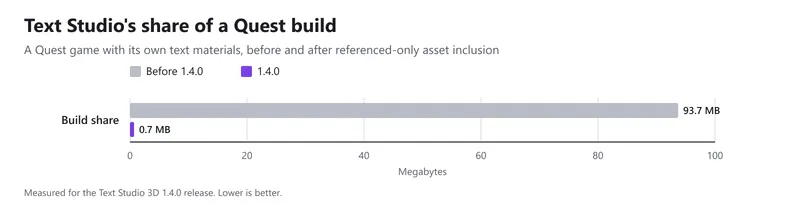 Article
How Text Studio 3D keeps builds small
What 1.4.0 changed to make builds smaller: shader programs for unused pipelines and variants are skipped, built-in assets left the Resources folder, optional features ship only when used, and the package lost about 30 MB. Plus how to check your own build. Use case