Lit, shadow-casting 3D text in URP and HDRP
TextMeshPro is unlit by default. What its Surface, URP Lit and HDRP Lit shaders can do, and how real 3D text casts shadows, reflects metal and glows in URP and HDRP.
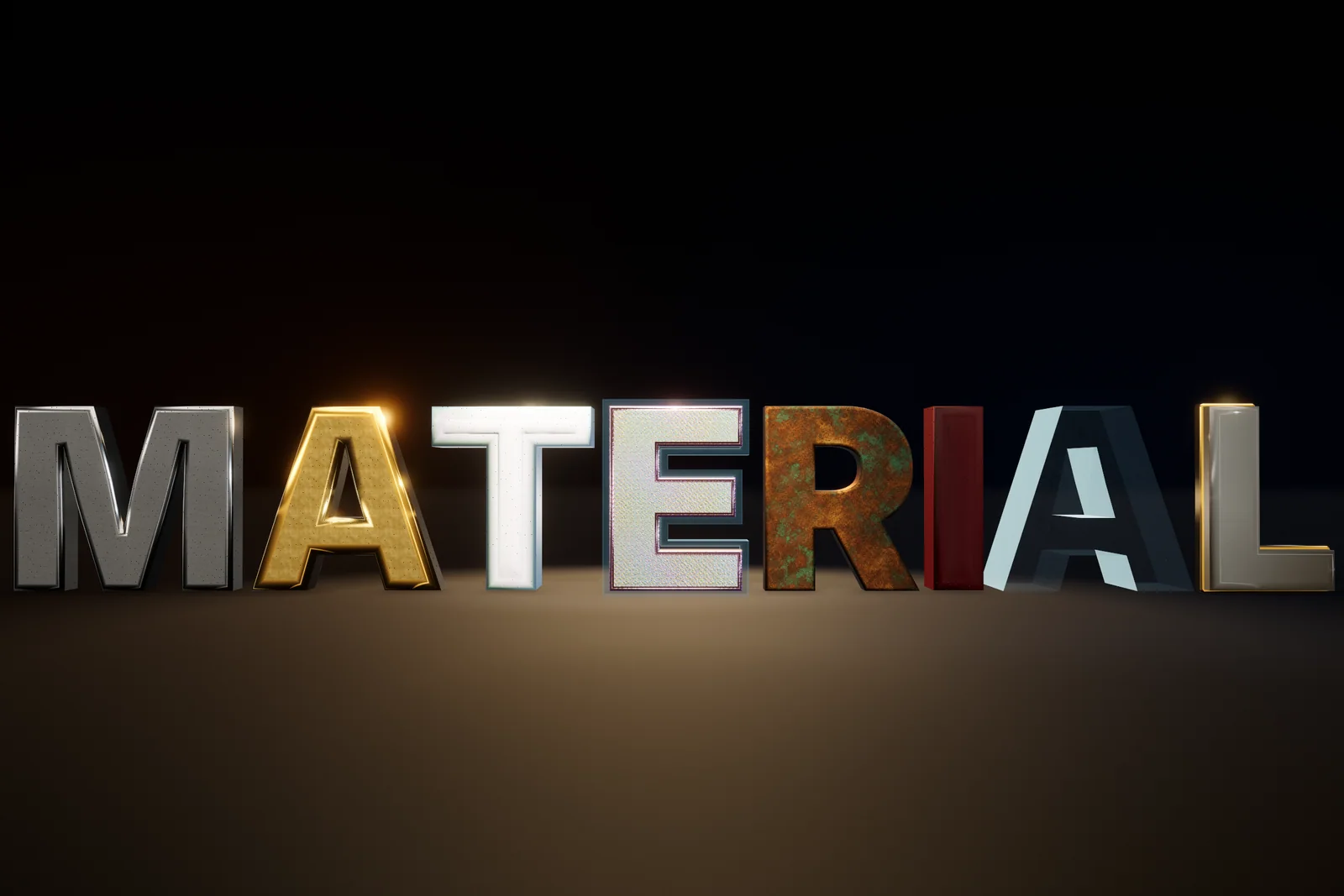
Put a TextMeshPro sign into a lit URP or HDRP scene and something looks off. It stays bright in a dark alley, ignores the lamp beside it and casts no shadow. That is by design: TextMeshPro draws every character on a flat quad, and its default Distance Field shader is unlit, faking its own light instead of using yours (3D text objects, Distance Field shader).
There are two ways out. Switch the text to one of TextMeshPro’s lit shaders, which react to scene lights but still shade a flat card, or give the text real geometry that lights, shadows and reflects like any other mesh. I built Text Studio 3D for the second route, so I will be specific about where the first one is enough.
Why default TextMeshPro text ignores your lights
The Distance Field shader computes each letter’s edge from a signed distance field and colors it with simulated local directional lighting. Its bevel, which the documentation presents as an illusion of depth, is lit by that simulated light too. Nothing from the scene reaches the text: not the color of your lights, not their shadows, not your reflection probes. In a bright scene you rarely notice. In a dark one the text glows, and next to lit props it looks pasted on.
What the TextMeshPro lit shaders in URP, HDRP and Built-in can do
TextMeshPro has a lit option for each render pipeline:
- Built-in: Distance Field (Surface) reacts to scene lighting through Unity’s surface shader framework. Its documentation calls it flexible but more demanding on the GPU and warns that pronounced bevels are prone to artifacts (Distance Field (Surface)). Surface shaders run only in the Built-in Render Pipeline (Surface shaders).
- URP: recent TextMeshPro versions, including the one built into Unity 6, ship a Shader Graph called TMP_SDF-URP Lit in their essential resources. The current documentation lists it as Distance Field (URP Lit), the URP replacement for the Surface shader (Distance Field (URP Lit)).
- HDRP: TMP_SDF-HDRP LIT plays the same role (TextMeshPro shaders).
What they do well: they take the color, direction and intensity of scene lights, so a painted sign darkens in shadow and warms under a lamp. For lettering printed on a wall, a poster or a label read head-on, that is often all you need.
What they cannot do is give the letters a body. The bevel is still shading inside a flat glyph, so there are no side walls to catch a rim light, no letter can shadow its neighbor, and edge-on the text disappears. Whatever shadow a flat glyph casts can only be the outline of a paper-thin cutout.
3D text that casts and receives shadows
Real 3D text is a mesh with a front face, beveled edges, side walls and a back. Text Studio 3D builds that mesh from your TextMeshPro text and renders it with its own Lit and Glass shaders, which include subshaders for the Built-in Render Pipeline, URP and HDRP.
The Lit shader casts shadows and receives them from the main light and additional lights, and the Mesh Renderer’s Cast Shadows and Receive Shadows settings work as on any mesh. Glass refracts and takes highlights but, like most transparent materials, does not cast shadows, so pick a Lit style when the shadow matters.
Because the mesh has real surfaces, each one can take its own material: Front Face, Front Relief, Front Bevel, Outer Sides, Inner Walls, Back Bevel, Back Face, Trim Rim and Decorations, assigned one by one or together through a Material Set. A painted face with metal sides, or a matte face with a polished bevel that catches a rim light, becomes a material choice rather than a shader trick (Design Materials and Surfaces).
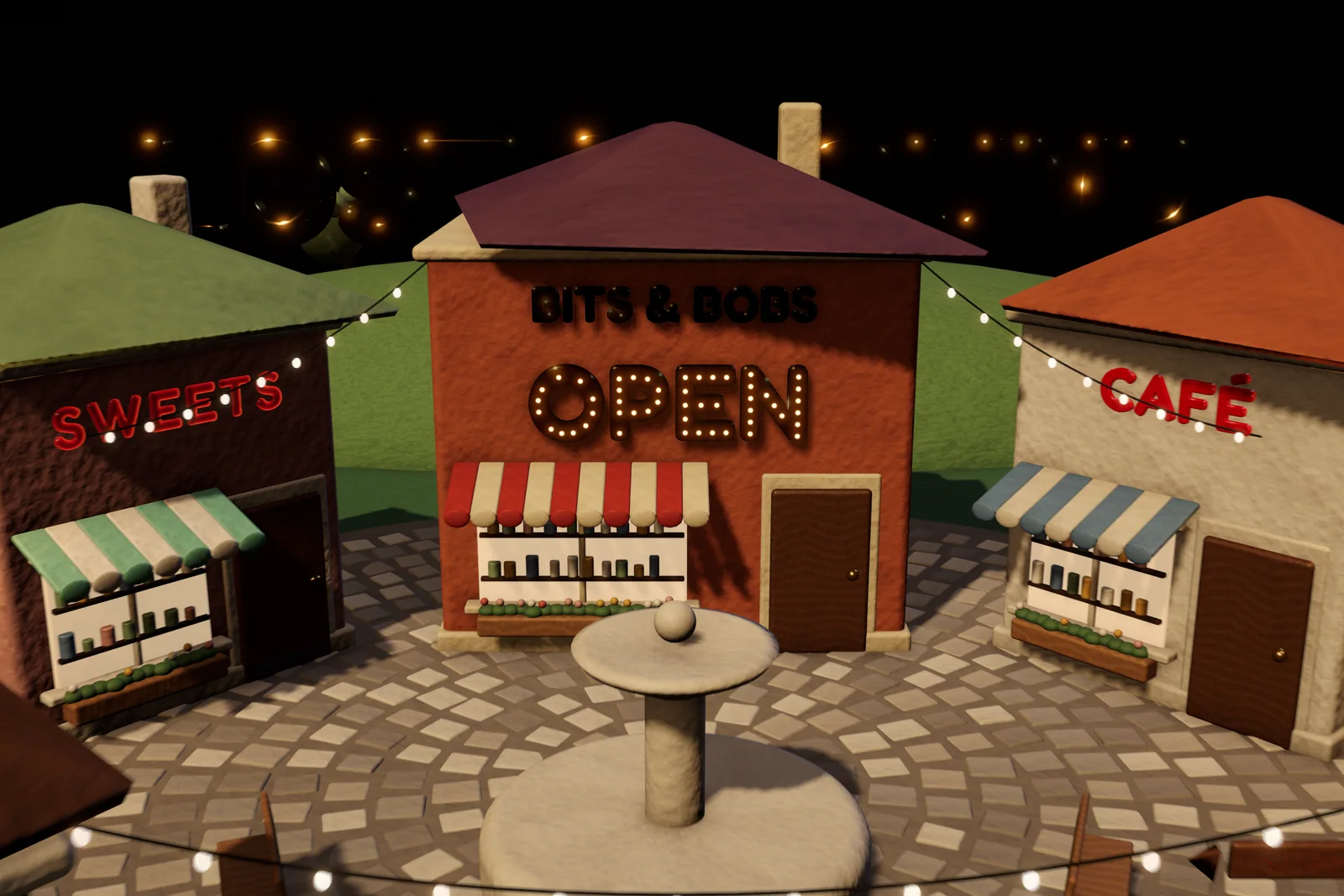 Shop signs as real geometry: lit by the scene’s lights and casting shadows on the walls behind them.
To light a sign on a wall:
- Add Text Studio 3D to the sign’s TextMeshPro text, or create one with GameObject > Text Studio > 3D > Text.
- Since 1.4.0, keep Depth Anchor on Back (the default for new components) and place the origin on the wall, so the whole letter stands in front of the surface.
- Pick a style with a matte face and contrasting sides, or apply a Material Set.
- Check the shadow from your key light at a low angle; if it detaches from thin letters, reduce the light’s shadow bias.
Reflections for chrome, brass and other metals
Metal has little color of its own; it shows what it reflects. In a test scene without a skybox, chrome and gold styles look black. Give them something to reflect: a skybox or another environment reflection source in the Lighting window, a reflection cubemap, or a Reflection Probe near the text (Reflection Probes). Since 1.4.0, Setup Status in the Text Studio 3D inspector explains this when a metallic or very glossy style looks dark.
Bevels are where metal comes alive. A flat face reflects one direction, while a rounded or chamfered edge sweeps through the environment and draws the bright line that makes lettering read as metal, which an SDF bevel can only imitate. The Lit shader also adds clear coat, anisotropy and iridescence on the pipelines that support them, for lacquered, brushed and pearlescent looks.
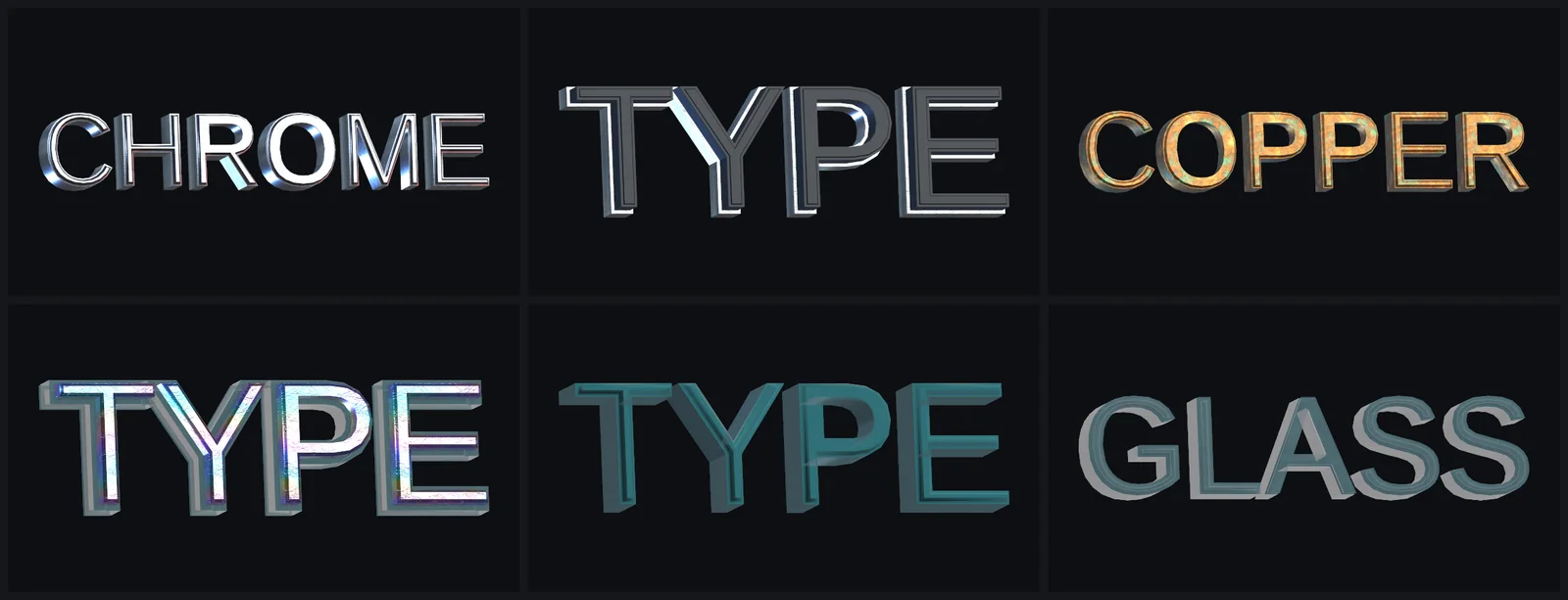 Brushed Chrome, Black Chrome, Copper Patina, Holographic Glass, Crystal Acrylic and Glass Frosted, rendered with Text Studio 3D.
HDRP: exposure and emission
HDRP lights scenes in physical units and applies camera exposure, so an emissive material that glows at night can vanish under a daylight exposure. HDRP’s own materials control this with an exposure weight; at 0, exposure does not affect the emission (Emission node).
Since 1.4.0, Text Studio 3D renders its styles in HDRP like URP: emission, effect light, flames, native images and Glass highlights keep their authored brightness under camera exposure, the equivalent of an exposure weight of zero. HDRP Glass also refracts with its authored distortion and chromatic aberration, blurred by surface roughness. With earlier versions, check emissive styles under your daylight exposure before you ship.
Neon 3D text with emission and bloom
Neon is emission plus bloom. Build the glow from geometry first. The manual’s neon recipe is a contour tube (Automatic Stroke draws it along the middle of each stroke) or outline geometry, emissive Decorations or Trim, and a darker non-emissive body; the Neon Tube style is a ready-made starting point. Keep the emission on the tube: if the whole face glows, bloom smears the word into a blob.
Then let post-processing spread the light:
- URP: add a Volume with a Bloom override and raise Intensity above its default of 0, which leaves bloom off; Threshold (0.9 by default) sets the brightness where bloom starts. Turn on Post Processing on the camera (URP Bloom).
- HDRP: add Bloom to a Volume profile. Since 1.4.0, the emission keeps its authored brightness under exposure, so the glow does not disappear in daylight.
- Built-in: install the Post Processing package, add Bloom to a post-process volume and put a Post-process Layer on the camera.
Baked lighting and lightmaps
Lightmaps need static meshes with lightmap UVs, and live 3D text is neither, since it can change at any moment. Light it like other dynamic objects: realtime or mixed lights for direct light and shadows, and Light Probes for baked indirect light, which Unity’s manual describes as high-quality lighting for moving objects, bounced light included (Light Probes).
For a sign that will never change and should sit in the lightmap like the wall behind it, make a static copy. Choose Export Current Mesh as OBJ from the Text Studio 3D component’s context menu, import the file with Generate Lightmap UVs enabled in the Model tab (Generating lightmap UVs), assign materials to its region groups, mark it static and bake. The copy no longer follows the text, so keep the live object for anything that changes.
Pipeline notes for Built-in, URP and HDRP
| Built-in | URP | HDRP | |
|---|---|---|---|
| TextMeshPro lit shader | Distance Field (Surface) | TMP_SDF-URP Lit | TMP_SDF-HDRP LIT |
| Text Studio 3D Lit | Casts and receives shadows | Casts and receives shadows; Forward, Forward+ and Deferred | Casts and receives shadows; styles render like URP since 1.4.0 |
| Bloom | Post Processing package | Bloom Volume override | Bloom Volume override |
| XR | Single-pass instanced stereo for Lit and Glass | Same | Same |
After you change pipeline assets, check lit and glass text in the target pipeline, including shadows, transparency, motion vectors and baked lighting. And since 1.4.0, player builds skip Text Studio 3D shader programs for render pipelines that no quality level uses, and URP Forward and Forward+ builds drop unused deferred variants, so Forward URP 3D shader compilation falls by about a third with identical rendering (small builds and shader stripping).
Frequently asked questions
Does TextMeshPro have a lit shader for URP?
Yes. Recent TextMeshPro versions, including the one built into Unity 6, include a TMP_SDF-URP Lit Shader Graph in their essential resources, documented as Distance Field (URP Lit), plus TMP_SDF-HDRP LIT for HDRP and Distance Field (Surface) for the Built-in Render Pipeline. They react to scene lights, but the letters stay flat quads and the bevel is shading.
Why does my TextMeshPro text glow in a dark scene?
Its default Distance Field shader is unlit: it ignores scene lights and simulates its own. Switch to the lit shader for your render pipeline, or use real 3D geometry with a lit material if the text also needs depth and shadows.
Why do chrome or gold 3D letters look black?
Metals show what they reflect. Without a skybox, reflection cubemap or reflection probe there is nothing to reflect, so metallic faces turn dark. Since 1.4.0, Setup Status in the Text Studio 3D inspector points this out.
Can 3D text be baked into lightmaps?
Live 3D text can change at any time, so light it with realtime or mixed lights and Light Probes. For a sign that never changes, export the mesh as OBJ from the component's context menu, import it with Generate Lightmap UVs enabled, mark it static and bake.
Real 3D text for Unity, built from your TextMeshPro text.
Keep reading
 Use case
3D signs, neon and marquee lettering for game worlds
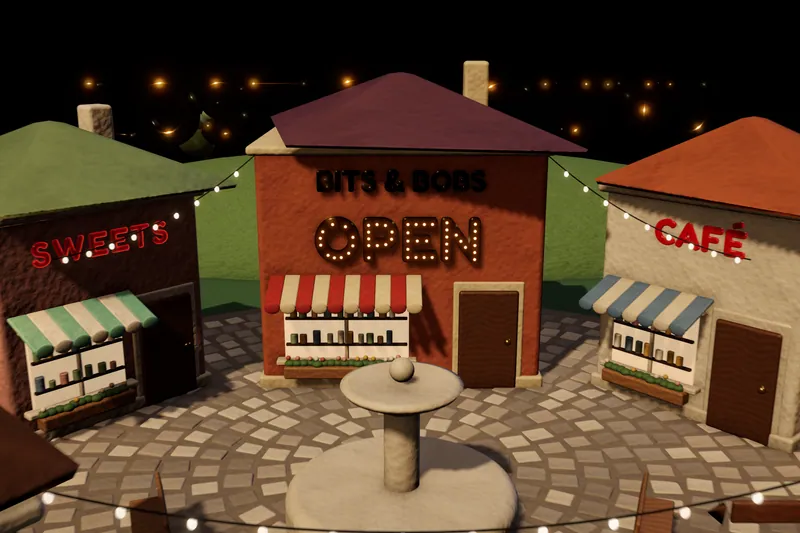
Flat text on a shop front looks pasted on. Text Studio 3D builds signs from solid letters with plates and backings, neon tubes and marquee bulbs that follow every contour, and glowing LED faces, lit by the scene and ready for static use.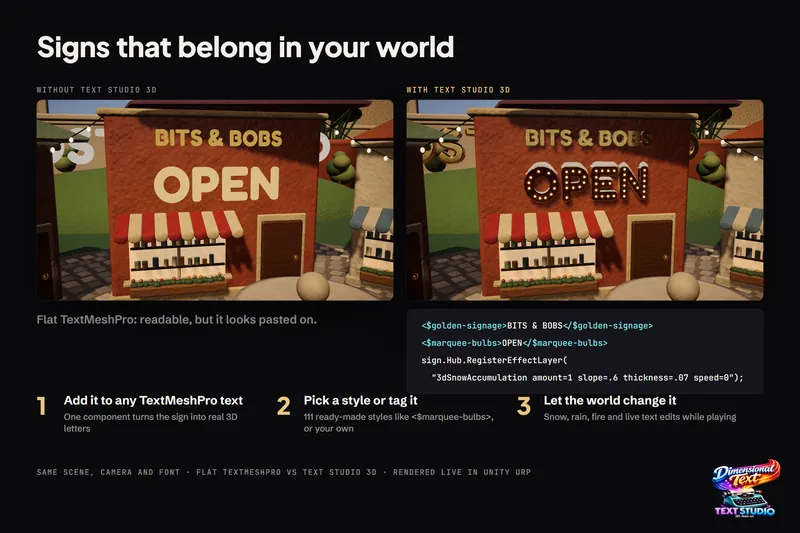 Comparison
Real 3D text vs TextMeshPro's 3D text and bevel
TextMeshPro is the right tool for flat UI, HUD and labels: free, crisp and cheap. Its bevel and lighting are shader effects on flat glyphs. Real geometry pays off when text needs sides, silhouettes, shadows, physics or VR depth. Use case