3D text on arcs, rings and Unity Splines
Put 3D text along a spline in Unity: place solid letters on arcs, rings, helixes and Unity Splines paths, or bend each letter's body along a Bezier or spline sweep.
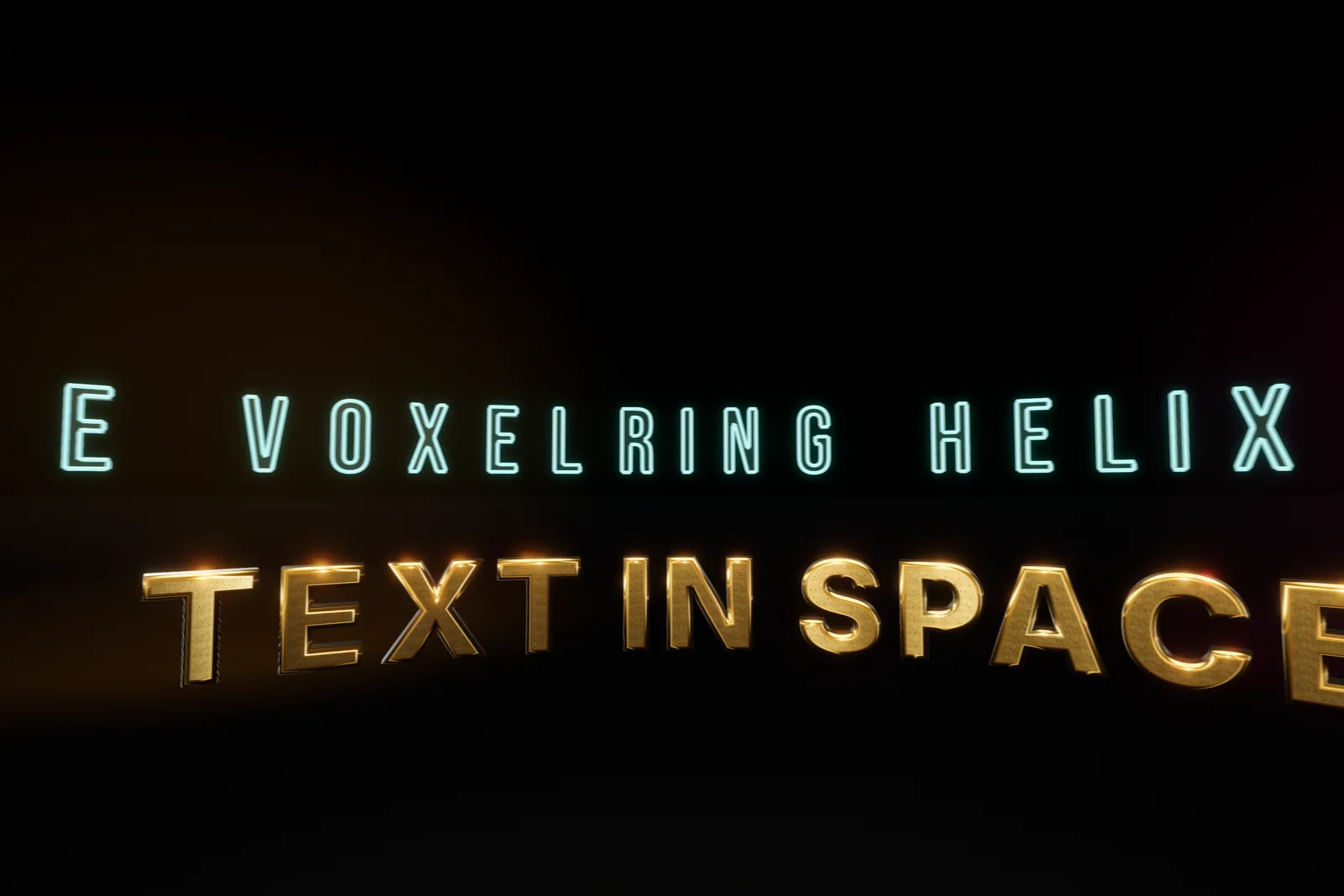
Searching for Unity text along a spline turns up two different wishes. One is a row of letters that follows a path: a word around a ring, a banner along a road, a title spiraling into the distance. The other is a solid word whose body curls through space like a ribbon. Curved-text tools for TextMeshPro only do the first, and they bend flat letters.
Text Studio 3D does both with solid letters and keeps them as separate settings: placement decides where each glyph sits, an extrusion sweep bends each glyph from front to back, and deformers reshape the finished geometry. The cover shows lettering arranged on rings and a helix in space. For flat curved TextMeshPro and UI text, curved text with Text Studio is the better fit and needs no 3D geometry.
Two kinds of curved 3D text
| Placement | Extrusion sweep | Deformer | |
|---|---|---|---|
| Answers | Where does each glyph sit? | How does each glyph’s body travel through depth? | How is the finished shape bent? |
| Examples | Arc, circle, wave, helix, tunnel, a Unity Splines path | Side bend, lift, ribbon, a spline-shaped body | Bend, twist, taper, cylindrical wrap |
| Set in | Text Studio Placement tab, Spatial Placement | Depth Extrusion Sweep and the layer’s Body Sweep | Deformer Stack module, Taper, Twist & Bulge |
All three can be active at once. If a line follows a curve but each letter’s depth stays straight, the text uses placement, not a sweep.
Place 3D text along arcs, rings, helixes and splines
Text Studio’s Placement tab moves glyph baselines along a Linear, Arc, Circle, Wave, Grid, Curve or Spline layout, and Text Studio 3D builds the solid letters wherever the glyphs land. Spline placement follows a Unity Splines path through Text Studio’s optional Unity Splines integration.
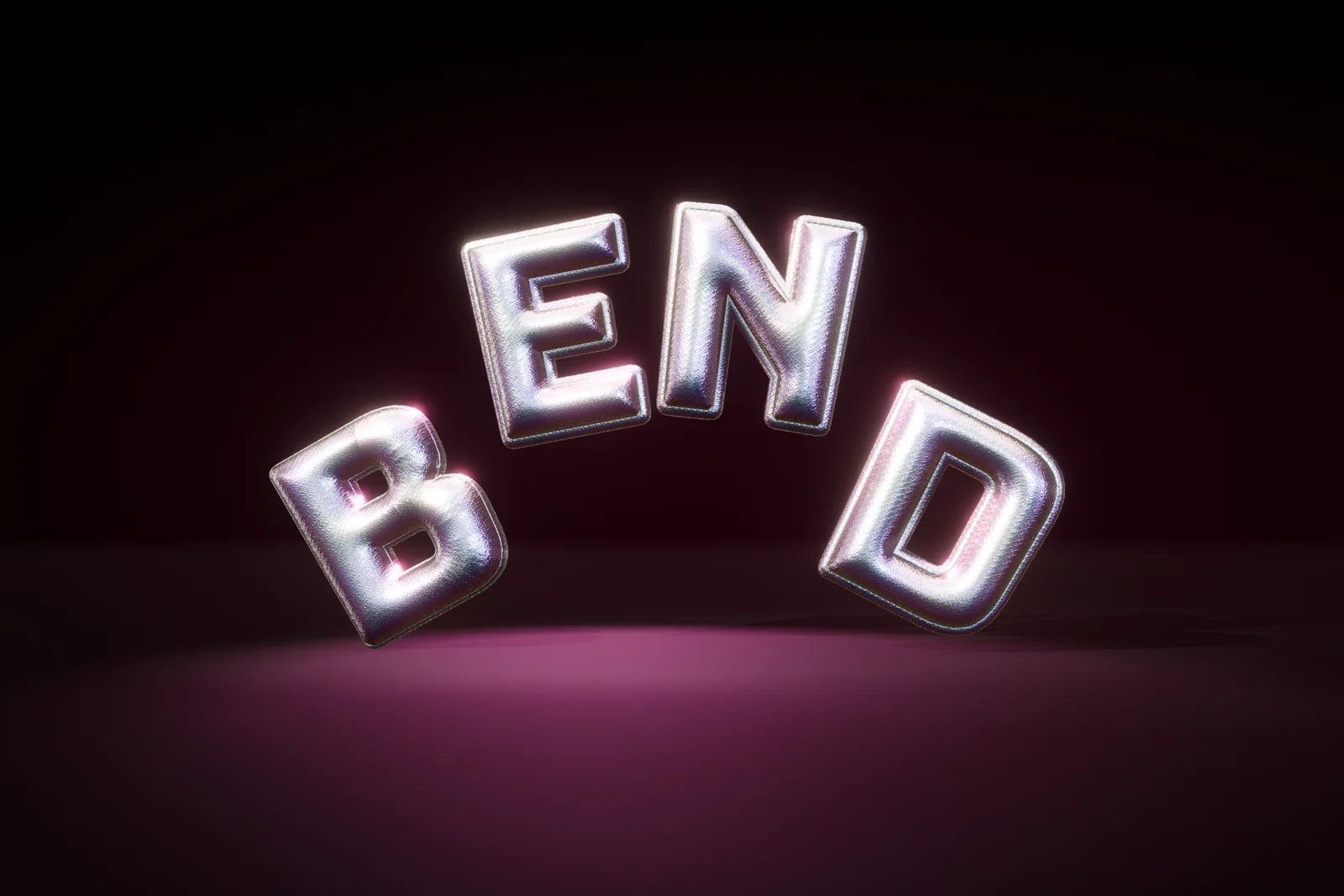 Each letter of BEND sits on an arc and leans with it.
For forms that use all three dimensions, add Text Studio > 3D > Spatial Placement through Add Component and choose Use Spatial 3D Placement. It adds six forms: Helix, Cylinder, Sphere Band, Tunnel, Staircase and Spatial Grid. Choose Polished Starting Point… applies the DNA Helix, Hero Carousel, Globe Band, Tunnel Spiral, Dimensional Stair and Voxel Wall presets, which change placement and orientation only. Keep Original, Follow Path, Face Outward and Face Inward decide how the letters face, and Reverse and Fine Rotation fix the reading direction. Cylinder and Sphere Band read from the outside by default; AutoFitRadius grows a curved form so the letters keep their spacing.
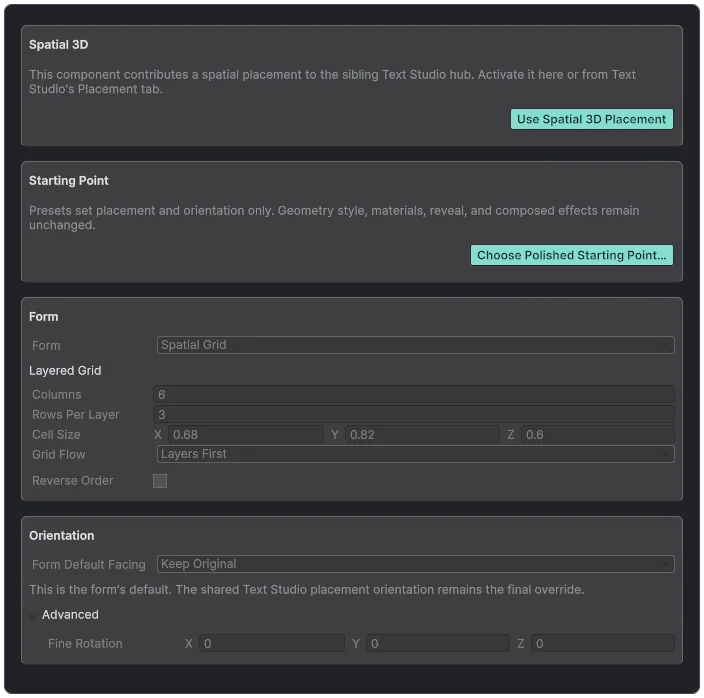 Spatial Placement configured as a layered voxel grid.
Since 1.4.0, scripts control the same values, on a text that already uses Spatial 3D placement:
using TextStudio.ThreeD;using UnityEngine;
public class HelixTitle : MonoBehaviour{    [SerializeField] TextStudio3DSpatialPlacement placement;
    void Start()    {        placement.ApplyPreset(TextStudio3DPlacementPreset.DnaHelix);        placement.Turns = 2f;        placement.Radius = 1.5f;    }}
Bend each letter along a Bezier or Unity Splines sweep
An extrusion sweep curves each glyph from its back face to its front face, so the letters themselves become arches, ribbons or hooks.
- Quadratic Bezier. Use Create Quadratic Extrusion Path in the inspector’s Depth Extrusion Sweep section, or Assets > Create > Text Studio > 3D > Geometry > Quadratic Extrusion Path, then set Body Sweep to Path on the layer. Starting shapes include Straight, Side Bend, Lift and Ribbon. Back-face Start, Curve Control and Front-face End shape the curve, Arc Samples sets its smoothness, and Bank, Roll Through Sweep, Back Scale and Front Scale roll and taper the body along it.
- Unity Splines. Install Unity Splines 2.0.0 or newer and support activates automatically. Add Text Studio > 3D > Spline Extrusion Path Provider, assign a SplineContainer and set Body Sweep to Path. The provider samples the spline with rotation-minimizing frames, optional knot banking, roll, endpoint scale and closed paths, and refreshes when knots or transforms change. The optional integration package adds only a showcase.
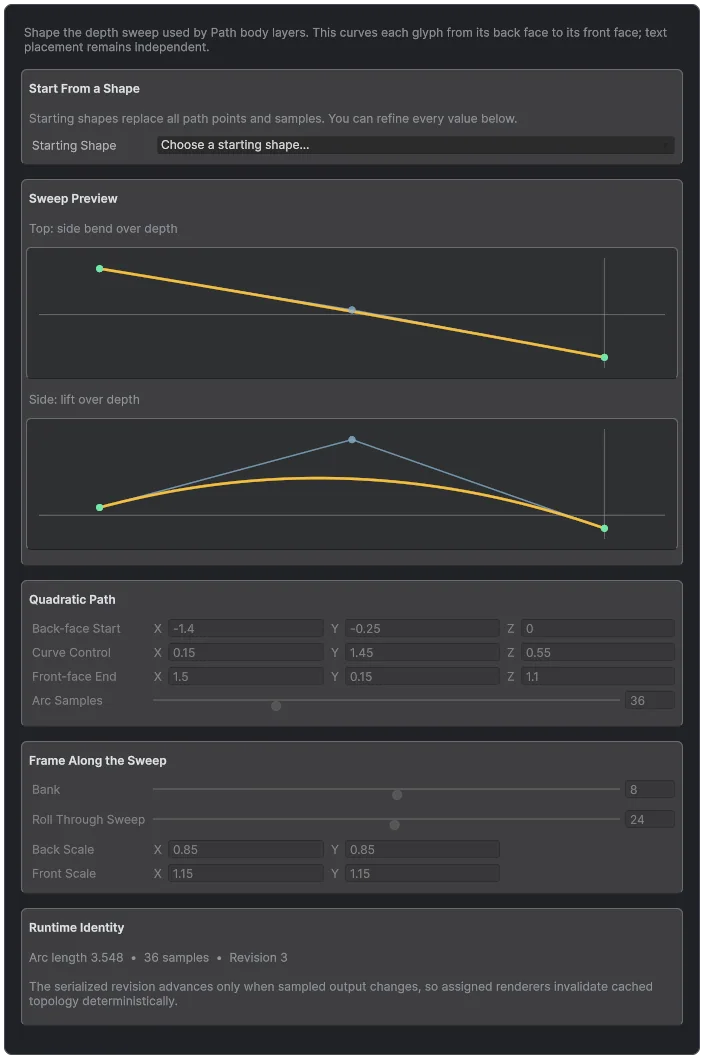 A quadratic sweep: the top view shows the side bend, the side view the lift.
Bend, twist and taper the finished letters
A Deformer Stack (Assets > Create > Text Studio > 3D > Modules > Deformer Stack), attached with Create Module or Attach Existing in the 3D Modules section, applies ordered Bend, Arc, Shear, Pinch, Flare, Spherize, Cylindrical Wrap, Wave, Noise and Twist operations in Glyph, Word, Line, Text, Object or World space, with automatic or custom bounds and falloff. Order matters: a bend followed by a twist is not the same shape as a twist followed by a bend. On a layer, Taper, Twist & Bulge shapes the body itself. In combined, chunked or hybrid output, warmed built-in deformation updates the visible mesh without rebuilding its topology, which keeps an animated bend cheaper than a rebuild.
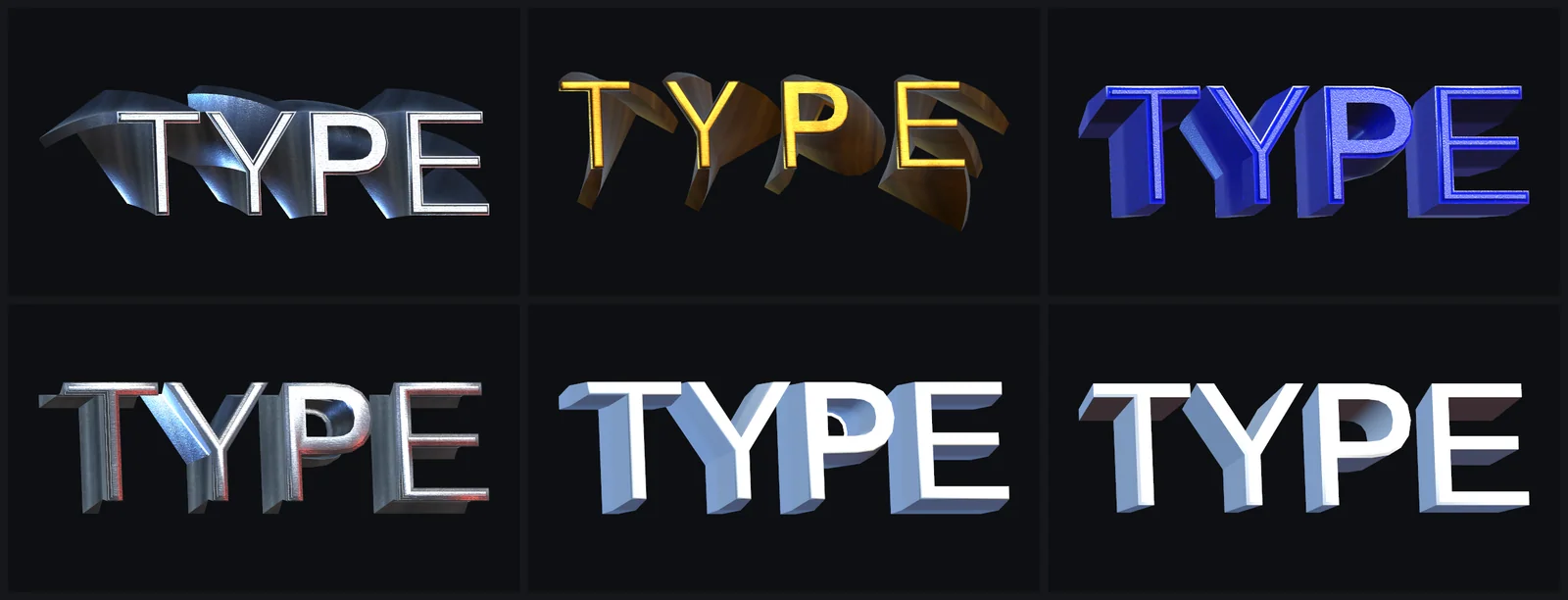 Twisted and tapered bodies from the built-in depth styles.
Limits worth knowing
- Prepared only needs stable paths. A mutable extrusion path without a durable identity cannot use reusable prepared geometry; snapshot it, give it a stable identity or keep Generate if missing.
- Swept layers prepare per depth. Layers with an extrusion path store geometry for each exact depth, and hidden path-swept text must be shown once before it can be prepared.
- Detail stays authored. Automatic Quality keeps the authored mesh on text with an extrusion path or a deformer.
- Reading direction. On a cylinder or sphere band, Face Inward reads from the center; use Reverse when a ring reads backwards.
Menus can use the same idea: Control Layout arranges spatial controls on circular, spline and volume forms, as covered in 3D menus and world-space UI. The Placement in Space sample compares placement, spatial forms and front-to-back sweeps on one text, and the manual chapters Arrange Text in Space and Use 3D Modules list every setting.
Frequently asked questions
How do I make text follow a spline in Unity?
To place letters along a path, use Text Studio's Spline placement with a SplineContainer, and Text Studio 3D builds solid letters at those positions. To bend each letter's body along a spline, add Spline Extrusion Path Provider with Unity Splines 2.0.0 or newer and set the layer's Body Sweep to Path. Both can run together.
What is the difference between placement, an extrusion sweep and a deformer?
Placement decides where each glyph sits, such as on a ring or a helix. An extrusion sweep bends each glyph's body from front to back. A deformer reshapes the finished geometry, for example bending or twisting a whole word. They are separate settings and can be combined.
Can scripts change the arrangement at runtime?
Yes. Since 1.4.0, scripts set the Spatial Placement form and its values: radius and automatic radius fitting, rotation, start angle and angle span, turns, latitude and its span, step height and depth, and grid columns, layers and cell size.
Do I need Text Studio 3D for flat curved text?
No. For flat curved TextMeshPro or UI text, Text Studio alone is enough: its Placement tab bends the baseline into arcs, circles, waves and custom curves. Text Studio 3D is for solid letters on those paths and for bodies that bend through depth.
Real 3D text for Unity, built from your TextMeshPro text.
Keep reading
 Use case
Animate 3D text: reveals, weather and energy effects
Every compatible Text Studio effect animates the 3D mesh, and 29 native effects use what flat text lacks: depth, bevels and surfaces. Weather grows over the letters, energy runs along them, and scripts can drive the growth. Use case
3D menus and world-space UI for VR and AR
A flat canvas in a headset reads like a sticker. Text Studio 3D builds menus, controls and a spatial keyboard from solid, lit 3D text, with themes, optional XR Interaction Toolkit input and single-pass instanced stereo. Use case