3D text with depth in Unity: extrusion and bevels
How to make 3D text with depth in Unity: extrude TextMeshPro text into solid letters with front and back bevels, 22 bevel profiles, layer stacks and face relief.

Put a TextMeshPro label into a 3D scene and orbit the camera around it. From the front it looks fine. From the side it thins to a line and disappears, and nothing suggests the letters have weight. TextMeshPro draws each glyph as a flat quad that samples a signed distance field, and Unity has no built-in extruded text.
Text Studio 3D gives you 3D text with depth inside Unity. It reads the real font outlines and builds solid letters with front and back caps, counters and holes, beveled edges and side walls, lit by your scene and casting real shadows. The cover shows the generated mesh as a wireframe over the shaded word: triangulated caps, the rings of the bevel and the sides.
Why flat text cannot fake depth
Three common shortcuts break as soon as the camera moves:
- TextMeshPro bevel and lighting. Shading on a flat quad: it reads as embossed from the front and collapses at an angle.
- Stacked copies. Duplicates spaced along depth show gaps from the side.
- A mesh modeled in Blender. Real depth, but the word is frozen: every copy change, translation or score needs another export.
The comparison with TextMeshPro covers the differences in detail.
How Text Studio 3D builds 3D text with depth
Every letter passes through the same pipeline, from the shaped glyph outline through caps, relief, bevel, body, decorations and materials to the final mesh. Caps use a constrained Delaunay triangulation (since 1.2.0), which avoids long sliver triangles under relief and deformation. The words still come from TextMeshPro, so they stay editable text.
The first settings to reach for live on a geometry layer:
- Depth sets the front-to-back distance.
- Front Bevel and Back Bevel each set a Size, a Thickness, a Cross-section Profile and Round Segments.
- Depth Anchor, in the 3D Style section, decides which plane sits on the object origin. Since 1.4.0, new text uses Back, so the letters stand in front of their origin, as a sign on a wall should.
Bevels: 22 profiles or your own curve
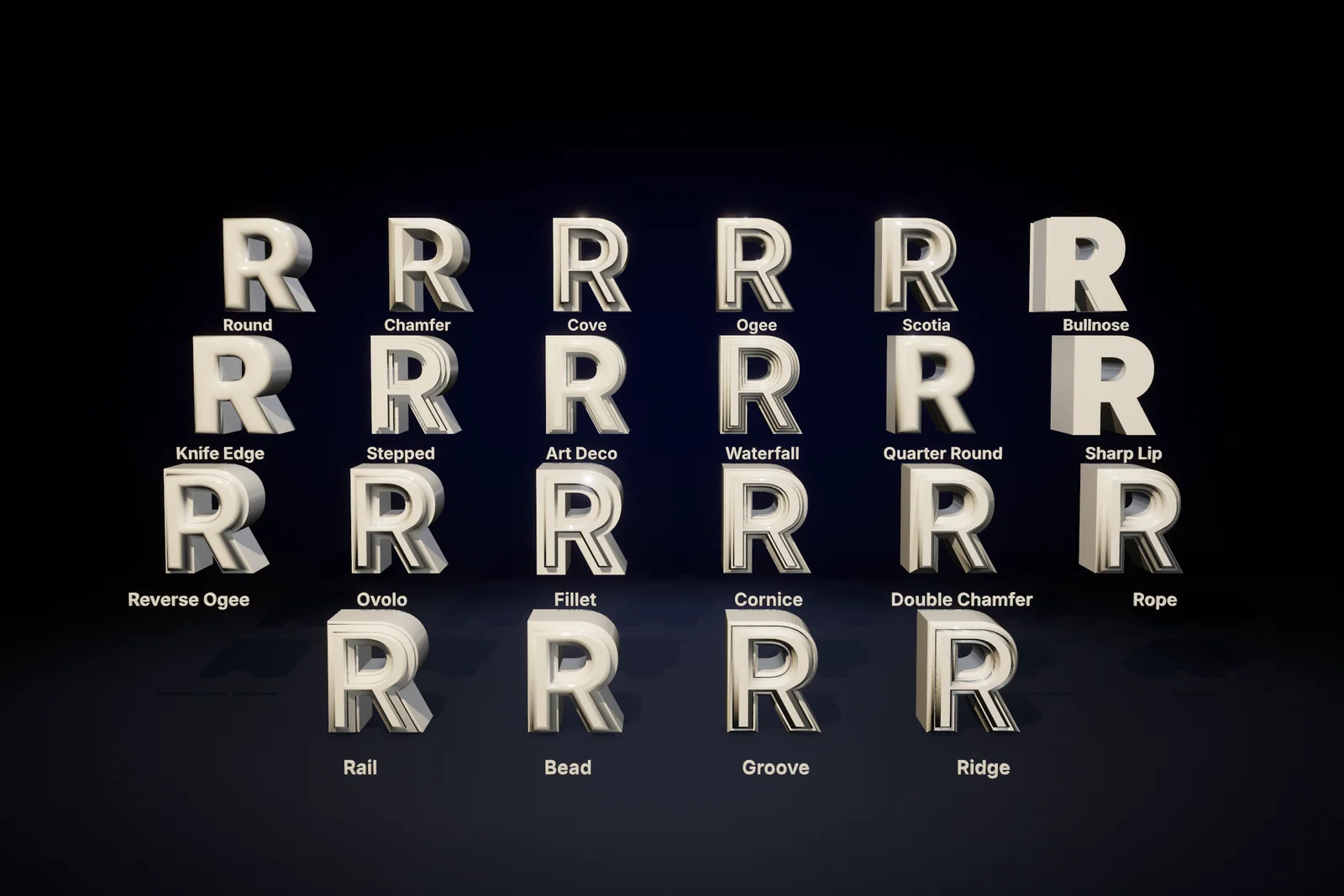 The same R in all 22 built-in bevel profiles.
The profiles run from simple (Round, Chamfer) to architectural (Ogee, Cornice, Art Deco) and decorative (Rope, Bead, Ridge). When none fits, draw your own:
- Create one with Assets > Create > Text Studio > 3D > Appearance > Bevel Profile.
- Use Start From a Preset to copy one of the 22 shapes into the graph.
- Drag the anchors, convert to a Bezier curve for tangent handles, and use Mirror XY, Reverse or Smooth as needed. The inspector reports how many rings it samples and whether the curve crosses itself.
- Assign it as the Cross-section Profile of a layer’s Front Bevel or Back Bevel and judge it on the finished word with the scene handles.
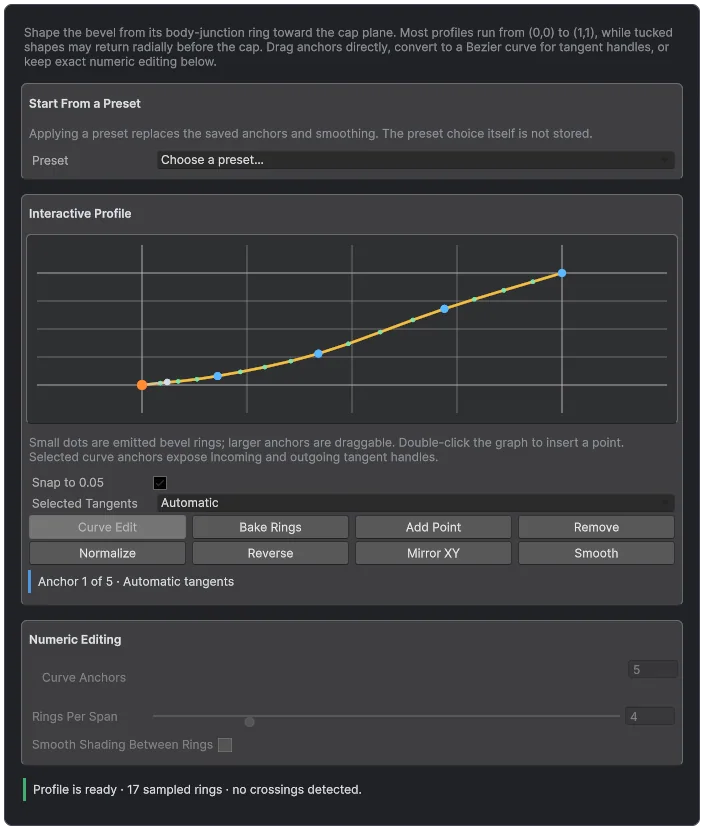 A custom bevel drawn as a curve; small dots mark the generated rings.
Layer stacks: outlines, trims and shadows as real geometry
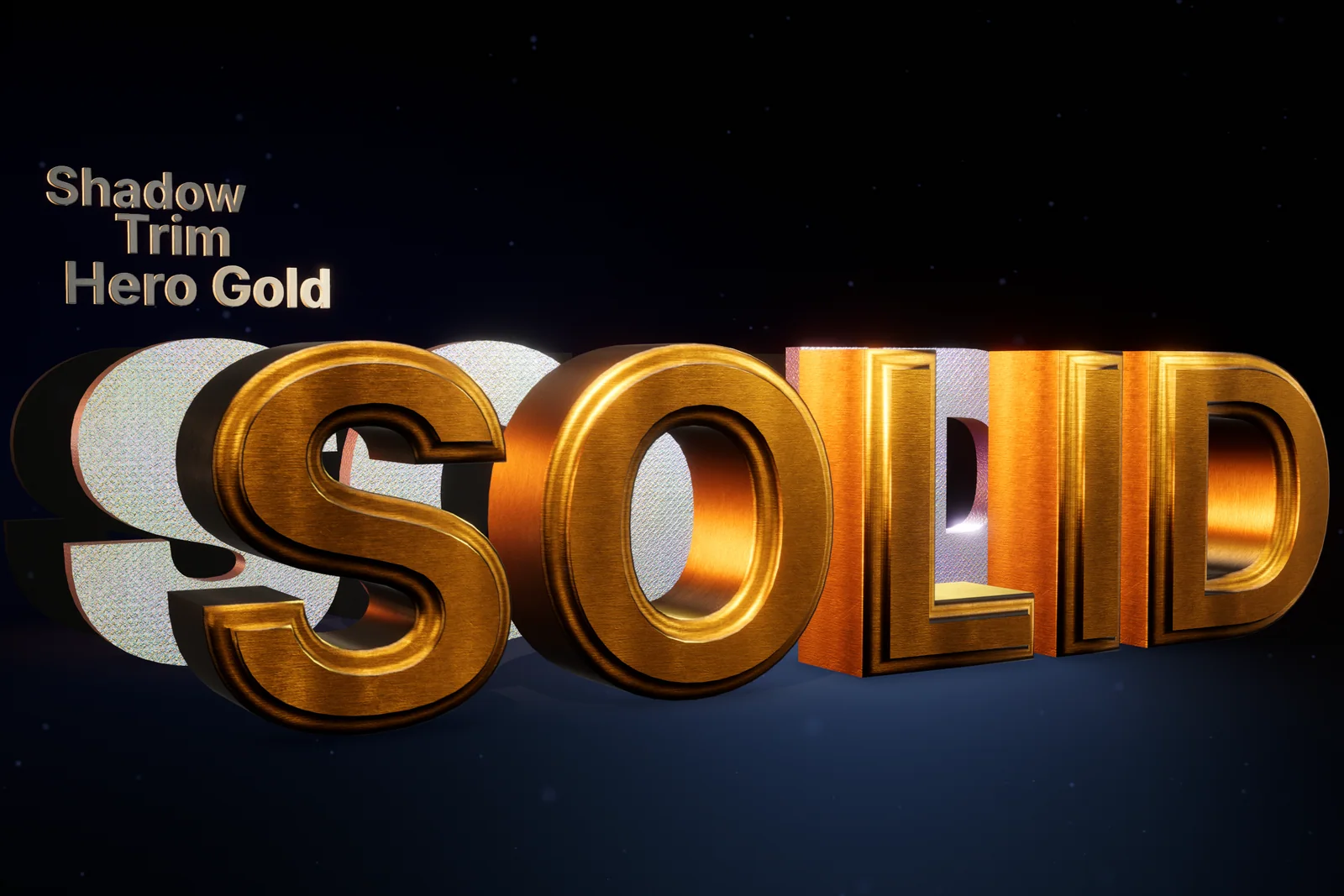 Three layers, each with its own depth, bevel and material.
A 3D Style holds ordered layers, each with its own contour, faces, bevels, body, materials and placement. Stack places a layer behind the previous one, which suits signs, trims and plates; Overlay starts a new depth chain at the front plane. Contour Expansion and Stroke Rings create true outline geometry, not a duplicated text object. A layer works Per Glyph, or on a Word, Line or Whole Text for connected outlines and fitted backings.
Grouped outlines rebuild whenever the wording changes, so scores and countdowns should use per-glyph layers. Since 1.4.0, Setup Status warns about this and offers Use Per-Letter Outline.
Face relief, hollow bodies and depth shaping
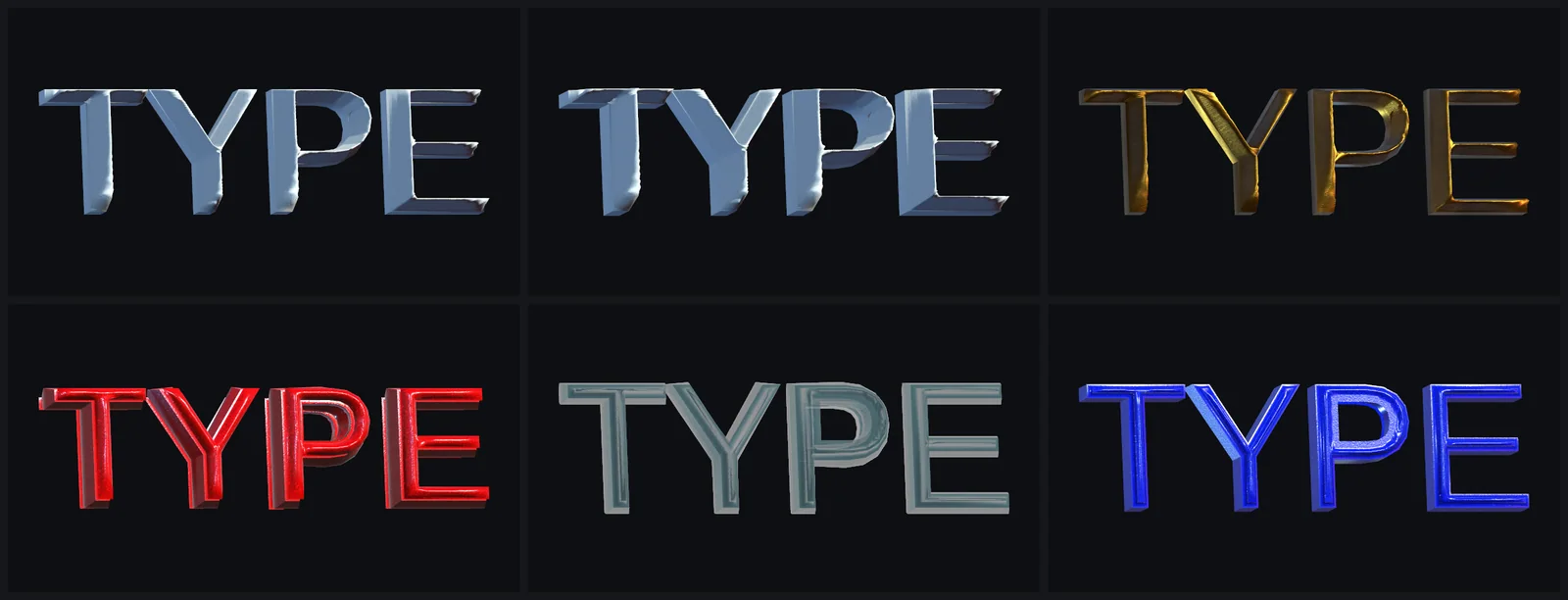 Chiseled, carved and inflated faces from the built-in styles.
Front Face and Back Face choose Flat, Chisel or Inflate independently. A positive Chisel amount raises a carved ridge, a negative one engraves a valley, and Inflate gives a smooth crown for candy, pillow and balloon letters. Body Fill set to Hollow creates an inner shell with its own Inner Walls material, starting at a Wall Thickness of 0.05. Taper, Twist & Bulge shapes the body through its depth.
A material for every surface
Materials are assigned by meaning: Front Face, Front Relief, Front Bevel, Outer Sides, Inner Walls, Back Bevel, Back Face, Trim Rim and Decorations. Unassigned regions inherit from related ones, and ten beginner Material Sets fill all nine at once. The bundled Lit and Glass shaders cover Built-in, URP and HDRP, with clear coat, anisotropy and iridescence on supported pipelines. Since 1.4.0, Setup Status explains when metallic styles look dark because the scene has no skybox, reflection cubemap or reflection probe to reflect.
Mesh detail without guesswork
The Authored Detail presets in the Mesh Detail section, Draft, Balanced, High and Hero, coordinate curve tolerance, bevel rings, subdivisions and decoration detail. New text starts at Balanced: use Draft while shaping, High for close readable text and Hero for final captures. Automatic Quality (since 1.3.0) lowers detail only when it can prove the visible error stays within your Surface Error (px) and Normal Error (degrees) budget. It currently certifies reduced levels only for straight, solid extrusions without bevels, so beveled styles keep their authored detail and the preset choice matters.
Set up beveled 3D text step by step
- Create GameObject > Text Studio > 3D > Text, or add 3D to an existing world-space TextMeshPro text as described in turning TextMeshPro text into 3D.
- Open Tools > Text Studio > 3D Gallery and apply a starting style such as Bevelled, Deep Chamfer or Soft Round. Compare Styles… shows the current look and a candidate side by side.
- Choose Make Inline to edit the layers on this object; Save as Style… later turns them into a reusable asset.
- Set Depth, Front Bevel and Back Bevel on the layer, and assign materials per region or a Material Set.
- Use Open Live 3D Preview… to check the side and back views with wireframe and normals, then pick the Mesh Detail preset for the real viewing distance.
- Before building a player, open Tools > Text Studio > Runtime Preparation and prepare whatever it reports.
When flat text is the better choice
Real geometry costs triangles. HUD numbers, body text, subtitles and small labels read better and cost less as flat TextMeshPro, animated with Text Studio if needed. Use depth where the camera sees the letters at an angle. The manual chapters Shape Faces, Edges, and Depth and Build a Style Layer by Layer list every setting.
Frequently asked questions
How do I make 3D text with depth in Unity?
Unity's built-in text draws flat letters, so you need extruded geometry: model the word in Blender and import a static mesh, or generate it inside Unity. Text Studio 3D generates it from your TextMeshPro text, with depth, bevels and materials, and the words stay editable at runtime.
Can TextMeshPro make real 3D text?
No. TextMeshPro draws each letter as a flat quad that samples a signed distance field. Its bevel, lighting and underlay options are shader effects on that flat surface, so the text has no sides and disappears when you look at it edge-on.
How many bevel profiles does Text Studio 3D have?
22 built-in profiles, from Round and Chamfer to Ogee, Art Deco and Rope, plus custom profiles you draw as a Bezier curve in the Bevel Profile inspector. Front and back bevels are set independently on every layer.
Does real 3D text cost more than flat text?
Yes. A beveled letter has many more triangles than a flat quad. The mesh detail presets from Draft to Hero keep the triangle count where the camera needs it, and flat TextMeshPro remains the better choice for HUD and body text.
Real 3D text for Unity, built from your TextMeshPro text.
Keep reading
 Use case
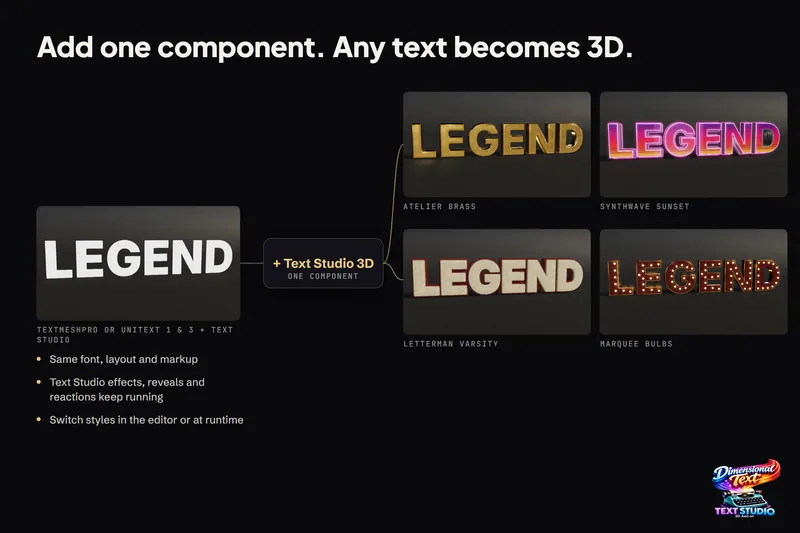
Turn TextMeshPro text into real 3D geometry
Text Studio 3D adds depth to the TextMeshPro text you already have instead of replacing it. Font, layout, rich text and Text Studio effects carry over, and Runtime Preparation makes sure the same letters build in a player.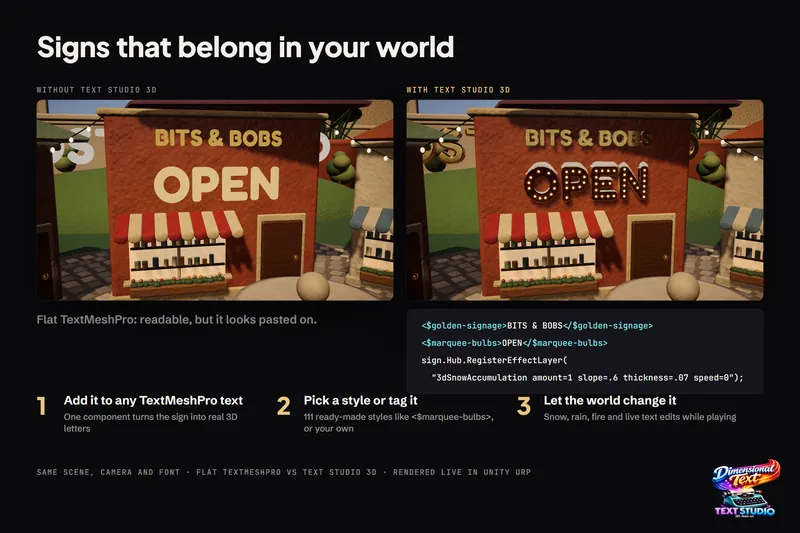 Comparison
Real 3D text vs TextMeshPro's 3D text and bevel
TextMeshPro is the right tool for flat UI, HUD and labels: free, crisp and cheap. Its bevel and lighting are shader effects on flat glyphs. Real geometry pays off when text needs sides, silhouettes, shadows, physics or VR depth. Article