3D game titles and logos in Unity
Build 3D title screen text and logos in Unity from live text: hero designs, layer stacks, backings, SVG outlines, 3D reveals and Render Studio exports for trailers.
The title screen is the first thing players see, and the same logo comes back in the trailer, on the store page and in the capsule art. The usual route is to model it in Blender, export a mesh and repeat the round trip for every change: a subtitle, a sequel number, a localized version, a holiday edition.
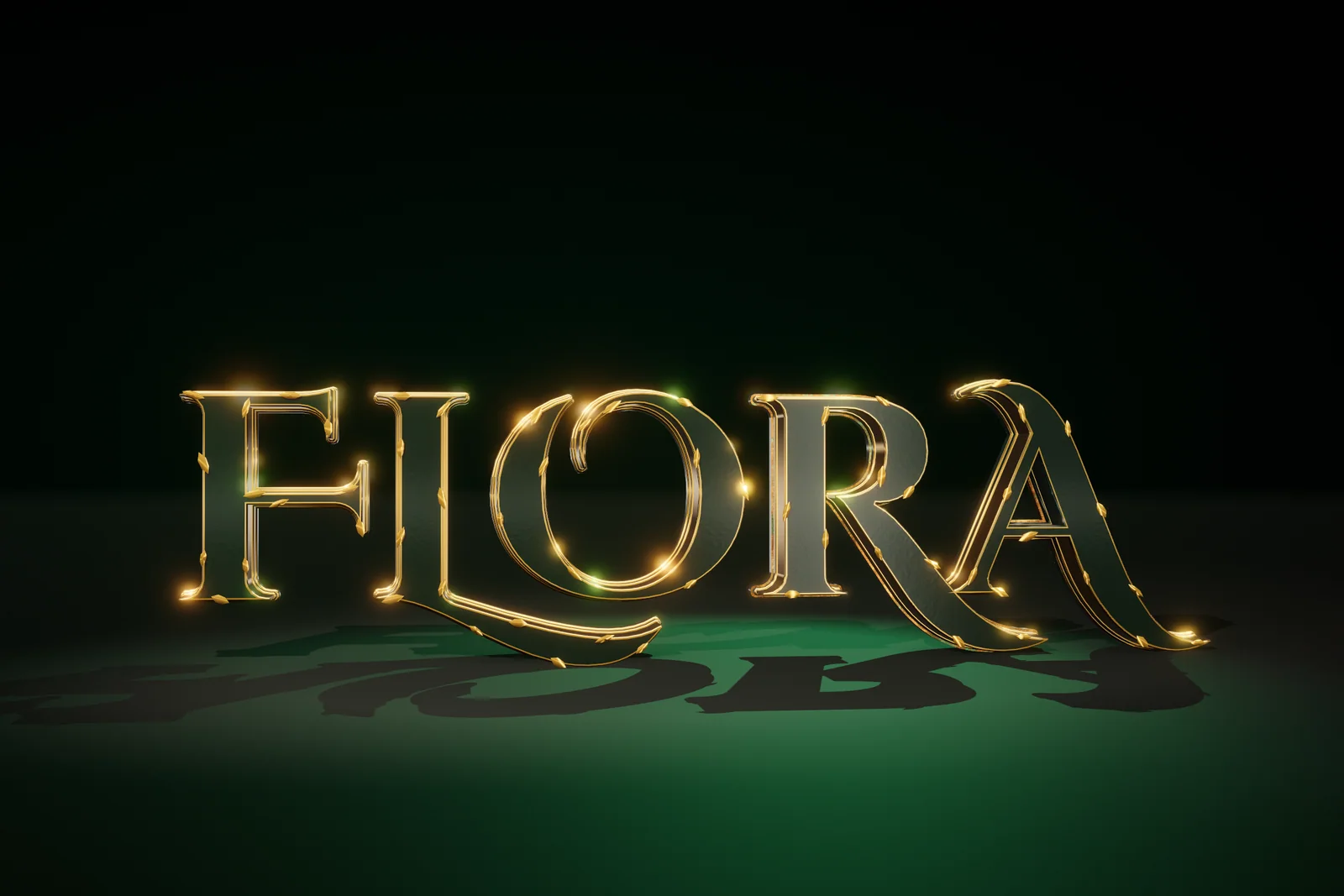
Text Studio 3D builds 3D title screen text and logos from live text instead: Blender-quality 3D text, right inside Unity. Start from a finished design, change any layer, reveal it in depth and render it for the trailer, while the words stay text you can edit, translate and animate. The cover shows FLORA in the Botanical Gold hero design, with gold leaves following the letter contours.
Build a 3D title screen from a hero design
Text Studio 3D ships 111 appearance styles and 25 complete hero designs. A hero design bundles face, materials, decorations and behavior in one preset: Botanical Gold, Molten Core, Arctic Rune, Synthwave Sunset, Esports Trophy and Sci-Fi Reactor are among them.
- Open Tools > Text Studio > 3D Gallery. Every card is a real rendered preview.
- Select a design, inspect its layers and requirements, then create a new title or apply it to the selected text.
- Use Compare Styles… in the inspector to judge your current look against a candidate on the same text. Keep Materials holds your materials fixed when only the geometry is in question.
- Browse the online Style Gallery when you want to shortlist looks before opening Unity.
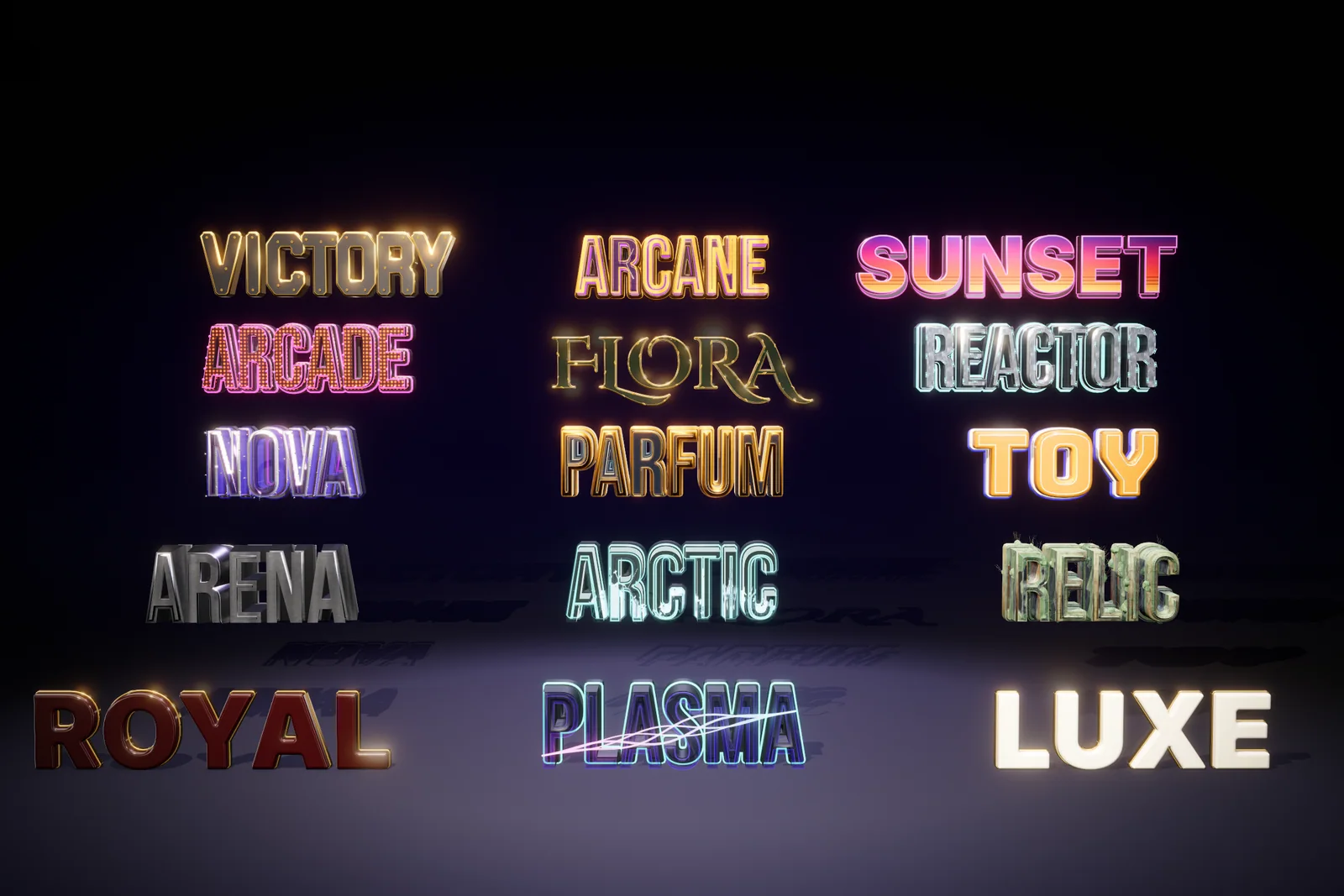 Fifteen game-title looks, each rendered from editable Text Studio 3D text.
Shape the title layer by layer
A title usually needs more than one solid: a readable front, a trim that separates it from the background and a shadow or backing that gives it weight. Each layer of a 3D Style has its own depth, bevel, face relief and materials, and Stack places it behind the previous layer. Stacked title looks such as Title Card Hero, Comic Book, Letterman Varsity, Retro Shadow and Block Poster show how far that goes. The guide to 3D text with depth covers bevel profiles, relief and materials in detail.
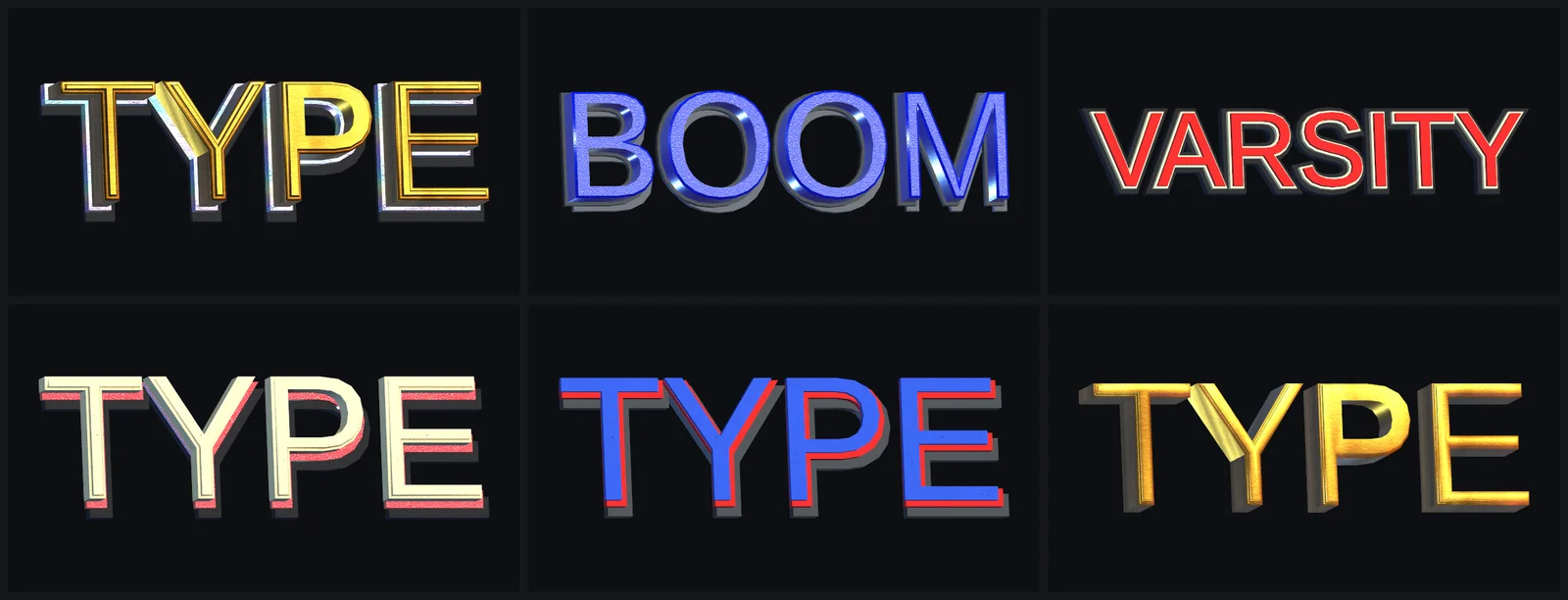 Built-in title styles, rendered as real geometry.
3D logos: backings, badges and SVG outlines
Logos rarely stop at the letters. Text Studio 3D builds the shapes around them as real geometry too:
- Generated contours. Assets > Create > Text Studio > 3D > Geometry > Generated Contour offers Rounded Rectangle, Pill, Plate, Shield, Badge, Banner and Frame. Text Bounds fits the shape around a glyph, word, line or the whole text with signed padding.
- Backing composition. A text-bounds backing stays Plain, cuts the letters out (Cutout) or raises them from the plate (Emboss).
- Contour programs. Union, Subtract, Intersect and Clip combine shapes in order, for logo cutouts and inset plates.
- SVG outlines. Create a Contour Asset and press Import SVG… to bring in a logo mark. Remove invisible duplicate paths and self-intersections first, and sample curves for the final size rather than the maximum.
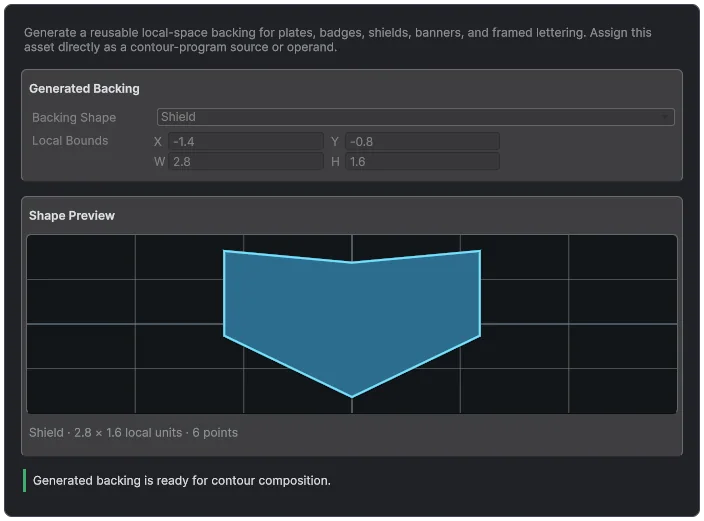 A Generated Contour configured as a shield, ready to sit behind a title.
A quick badge: create a Generated Contour set to Pill, fit it to Whole Text bounds with positive padding and a modest corner radius, choose Emboss, assign distinct Front Face, Outer Sides and Back Face materials, and check the result from both sides.
Reveal the title in 3D
A title that pops in flat wastes the depth you built. The 3D Gallery’s Effects category previews eleven spatial examples marked Reveal, Hold or Exit: Hero Depth Rise, Card Flip Y, Top Hinge, Domino Line, Spiral Assemble, 3D Scatter & Return and Accordion reveal the letters; Rolling Ribbon, Soft Spatial Float and Orbit hold them; Fold Away exits. Create Effect Example creates editable 3D text with the effect, and Copy Tag copies its markup for your own title. Native effects such as Chrome Sweep, Contour Trace or Exploded Assembly add a finishing pass; animated 3D text lists all 29.
Render stills and video for trailers
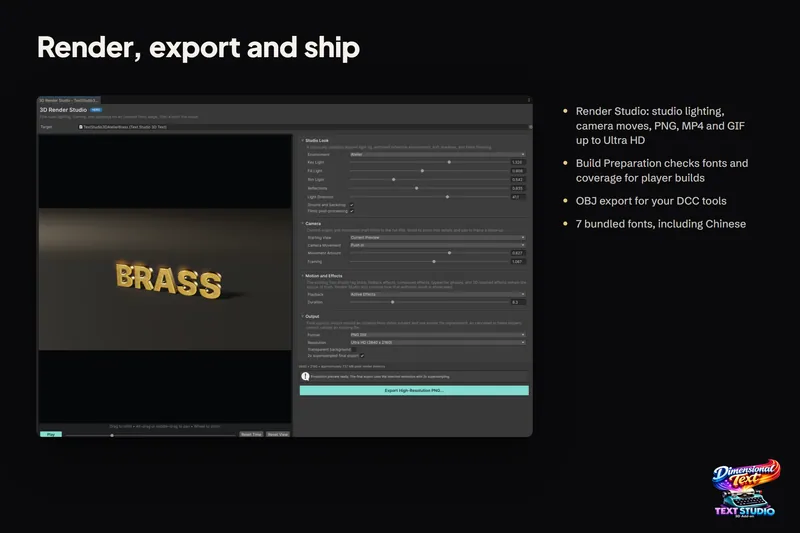
Open Render Studio… in the Live 3D Preview section of the inspector, or Tools > Text Studio > 3D > Render Studio, renders the exact source text with studio lighting. It exports PNG stills, GIF at up to 50 fps and MP4 at up to 60 fps, up to Ultra HD, on a transparent or solid background, with panning, detailed zoom, camera travel and a constant-speed orbit. The same title then serves the game, the trailer and the store art. Rendering 3D text to PNG and video goes through the options.
Ship a static title cheaply
- Since 1.4.0, Prepare this text saves the exact title, including outlines around whole words and settled Snow or Frost, so matching text reuses that geometry while reveals, tags and events stay live. If the wording or style changes, it falls back to generation; prepare the final variant again.
- Freeze Current Appearance in the Static Output section stores one static frame as ordinary meshes and stops animation, tags and events until you choose Unfreeze. Live Writing and GPU-driven effects such as settled Snow cannot be frozen; Render Studio can still capture them.
- Since 1.4.0, a deactivated title keeps its meshes, so showing a Game Over sign again reuses them.
For a one-off sculpted logo that never changes, Blender is still a fine tool, and its meshes import into Unity like any model. The comparison with Blender covers when each fits and how to combine them. The manual chapter Create Logos, Backings, and Custom Contours lists every contour setting.
Frequently asked questions
Can I make a 3D title screen in Unity without Blender?
Yes. Text Studio 3D builds the title from TextMeshPro text inside Unity, with depth, bevels, layered outlines and materials. Start from one of 25 hero designs or 111 styles and edit any layer; the words stay editable, so a subtitle or translation is a text change instead of a new export.
Can I turn my SVG logo into 3D?
Yes. Create a Contour Asset, press Import SVG... and use the contour as a layer's shape or as a backing. The importer reads line, cubic, quadratic, smooth and arc commands, nested transforms and compound holes.
How do I export a 3D title for a trailer?
Use Open Render Studio... in the Live 3D Preview section of the Text Studio 3D inspector. It renders the exact text with studio lighting to PNG, GIF at up to 50 fps or MP4 at up to 60 fps, up to Ultra HD, on a transparent or solid background.
Does a static title still need runtime work?
Less after preparation. Since 1.4.0, Prepare this text saves the exact title geometry, including outlines around whole words and settled snow, so matching text reuses it while reveals and tags stay live. Strict Freeze goes further and turns the title into ordinary static meshes.
Real 3D text for Unity, built from your TextMeshPro text.
Keep reading
 Use case
Render 3D text to transparent PNG, GIF and MP4
Store art, trailers and thumbnails need the title as an image or a video. Render Studio renders the exact 3D text on a studio stage and exports a transparent PNG, a GIF up to 50 fps or an MP4 up to 60 fps. Use case
Animate 3D text: reveals, weather and energy effects
Every compatible Text Studio effect animates the 3D mesh, and 29 native effects use what flat text lacks: depth, bevels and surfaces. Weather grows over the letters, energy runs along them, and scripts can drive the growth.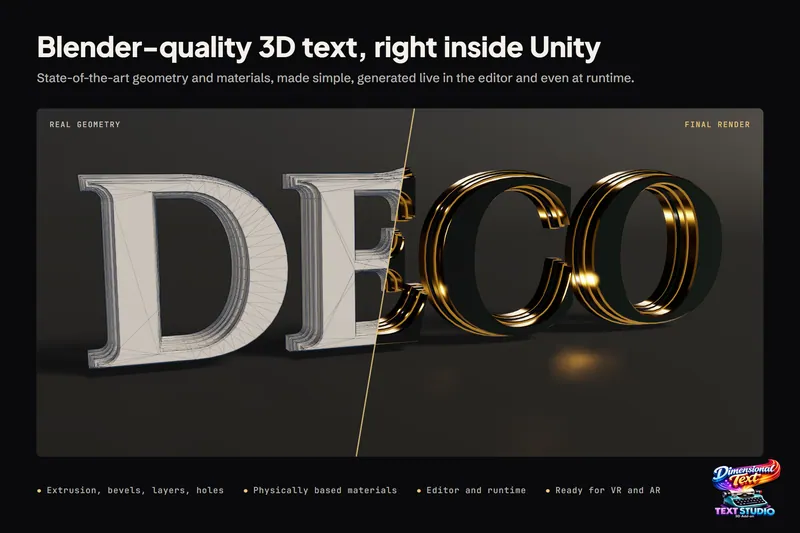 Comparison