Change 3D text at runtime: scores, counters and names
Dynamic 3D text in Unity: scores, counters, timers and player names stay beveled geometry that rebuilds at runtime, with the right output mode, prepared fonts and lab numbers.
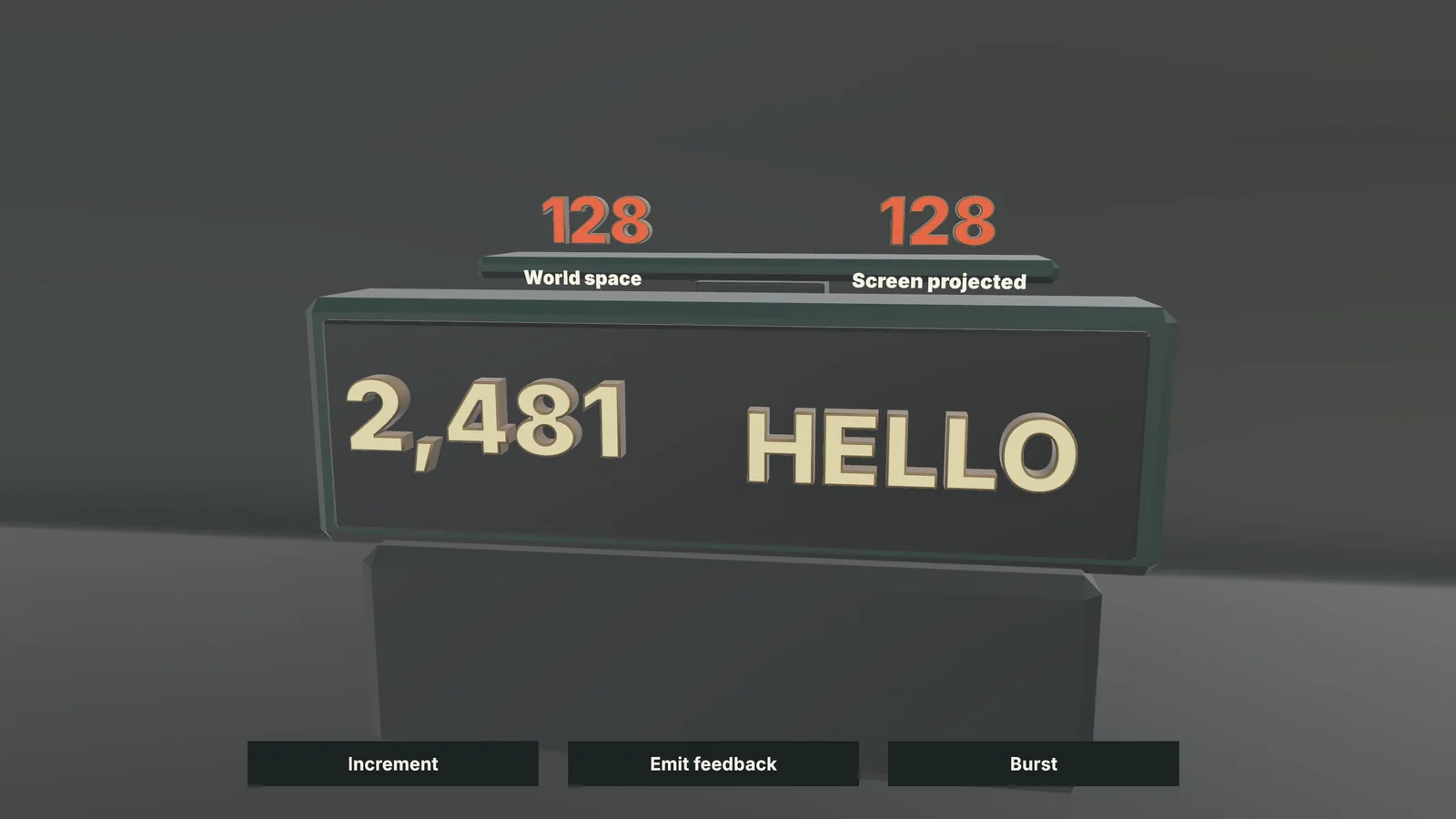
A 3D title modeled in Blender or assembled from a prefab font is one fixed mesh per string. That works for a logo, but not for a score, a countdown, a player’s name or a quest counter, because every new value would need a new model. Text Studio 3D generates the geometry from the live text instead: when the string changes, the beveled, lit mesh follows, in the editor and in player builds.
That turns dynamic 3D text in Unity into a question of cost rather than possibility. You set the text from a script as you would for any Text Studio or TextMeshPro text, pick an output mode that suits how often it changes, and prepare the fonts for the build. Since Text Studio 3D 1.4.0, a compatible score counter rebuilds only the digits that change.
How the geometry follows the live text
The base Text Studio component owns the content, and Text Studio 3D follows it. A change to the text, font, contour, bevel or body rebuilds the topology. Visibility, tint, compatible material changes and supported effect channels update without a rebuild, and runtime overrides can change visibility, depth, tint, material and quality without touching the authored style.
Set new text with TextStudioText.SetText, or with SetTextDeferred for values that can change several times in one frame, such as counters and timers: Text Studio then updates once before the frame is drawn. AppendText adds to a log without setting the whole text again.
using System.Globalization;using TextStudio;using UnityEngine;
public class ScoreBoard : MonoBehaviour{    [SerializeField] TextStudioText scoreText;    int score;
    public void AddPoints(int points)    {        score += points;        scoreText.SetTextDeferred(score.ToString("N0", CultureInfo.InvariantCulture));    }}
Choose an output mode for changing text
| Text | Output and profile |
|---|---|
| Score, timer or short label that changes often | Realtime profile with Chunked Combined Mesh, or Combined Mesh with Numeric Value for counters |
| Long passages or many glyphs | Massive Text profile with a measured chunk size |
| Labels a pointer should hit | Interactive profile with one root collider where possible |
| Letters that move on their own | Per Letter GameObjects, or Physical Letters for collisions |
| Fixed title shown again and again | Combined Mesh with Prepare this text, or Strict Freeze when nothing stays live |
Chunked output limits the replacement work: appended and changed text reuse existing chunks and unchanged detailed letters. Mesh detail is a separate decision: Balanced suits most changing text, High suits close readable text, and Hero is for final captures.
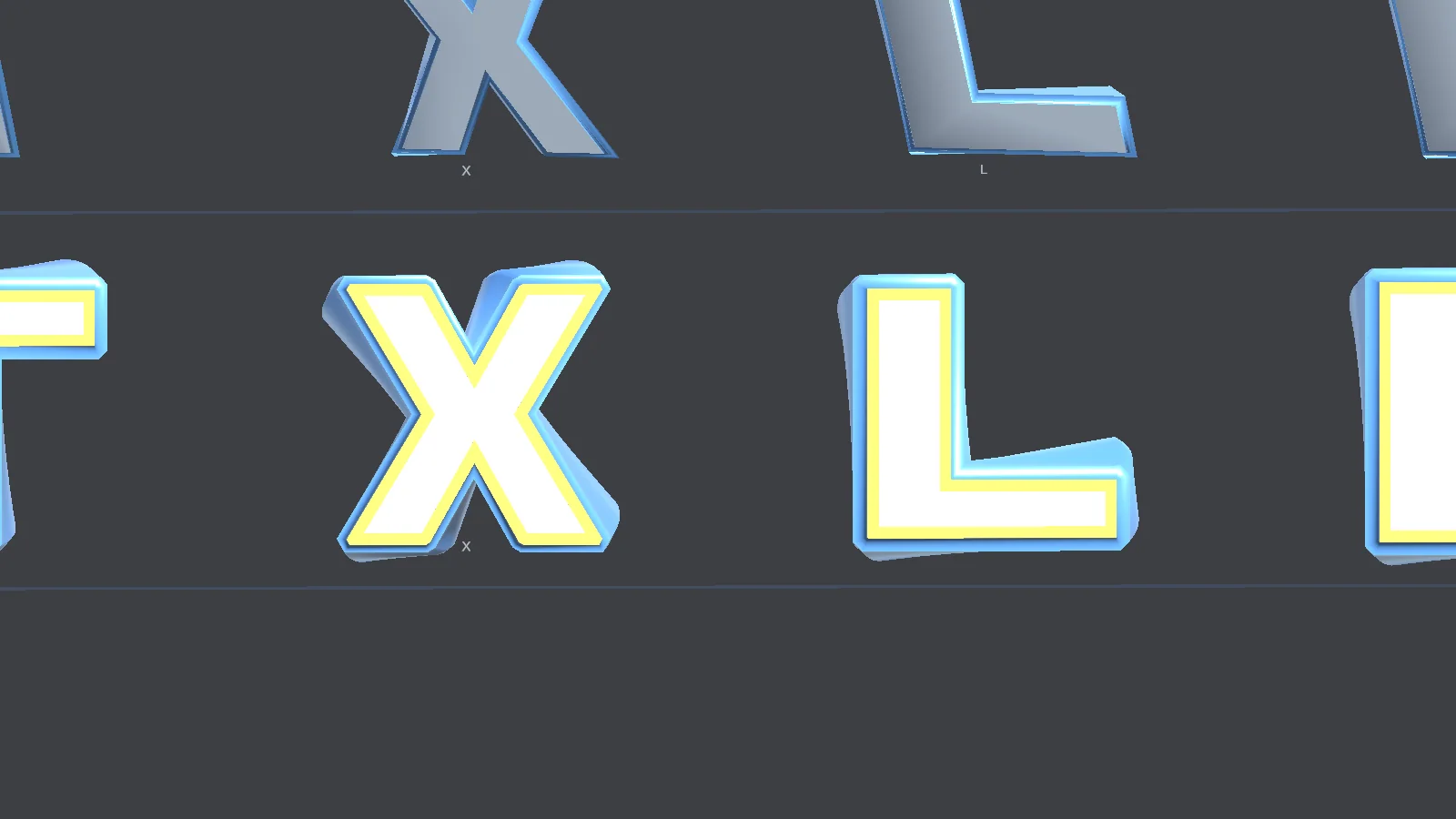 A close view of the combined-output stress example, which keeps a large block of changing 3D text readable.
Build a 3D score counter in Unity
- Create GameObject > Text Studio > 3D > Text and apply a style from Tools > Text Studio > 3D Gallery.
- In the base Text Studio component, set Text Change Scope to Numeric Value (the Affected Text field in the typewriter’s Behavior section).
- Keep Combined Mesh output. Since 1.4.0, compatible counters keep one mesh per letter internally and rebuild only the changed digits while the Output Mode stays as authored. Text with modules, grouped outlines, text-wide surface mapping or glyph images stays fully combined.
- Runtime Preparation adds the digits of Numeric Value text automatically. Declare what your format adds, such as the thousands separator from
N0, a minus sign, a prefix or a suffix, under Phrases and special characters. - Update the value with
SetTextDeferred. - Read Setup Status. Since 1.4.0 it warns when changing text uses a word, line or whole-text outline, which must be rebuilt as one shape on every change. Use Per-Letter Outline swaps in a similar outline that is prepared once.
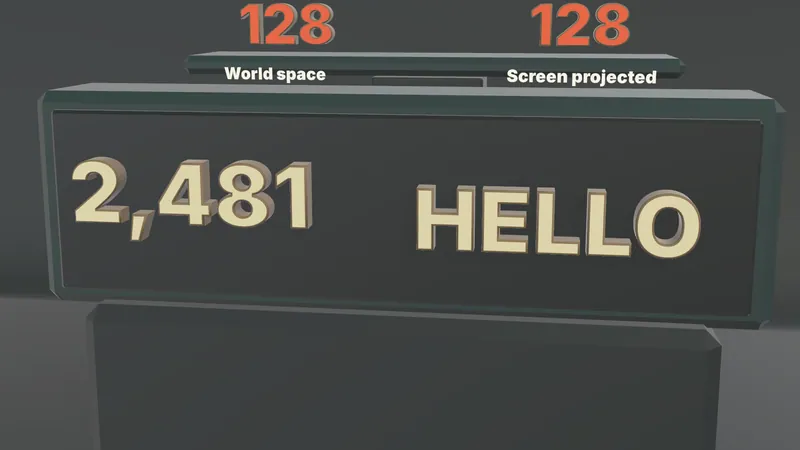
The Live Feedback sample on the cover shows the pieces together: Increment raises the counter, HELLO is typed live one glyph at a time, and Emit feedback sends one damage value (Burst a series) to a world-space and a screen-projected target. Its counter also uses the Counter Outgoing reaction, which sends replaced digits away when the value changes.
Player names and other free text
Edit Mode can read font outlines that a player cannot, so open Tools > Text Studio > Runtime Preparation before you build. Generate if missing lets the player build outlines for text you could not predict, if it has durable access to the font source. Prepared only forbids surprise generation and keeps the last valid mesh when data is missing. For names, tick the character sets under Settings > Shown at runtime (digits, A to Z, a to z, punctuation, and more sets such as Latin-1, Greek and Cyrillic) and add representative names under Phrases and special characters. Chinese and other large scripts need deliberate ranges, covered in localized 3D titles.
Since 1.4.0, deactivating a compatible 3D text keeps its meshes, so a Game Over sign or a menu label shown again reuses them; edits made while hidden apply when it reappears. Disabling the component releases the output.
Scripting entry points
| Call | Use it for |
|---|---|
PrewarmCharacters | Warm a bounded set of characters during loading without touching the visible mesh |
PrewarmCurrentOutput | Warm the exact glyphs the text shows now |
ScheduleGeometryBuild | Coalesce repeated edits into one cancelable build; cacheable per-glyph work can run on worker threads while the last mesh stays visible |
RebuildGeometry | Rebuild after editing a style or other asset in place |
GeneratedLodOverride | Hold Primary, Medium or Low detail instead of Automatic |
TextStudio3DMemoryPressure.RequestTrim | Release cached geometry at a content boundary; LastTrimReport lists what was freed |
For damage numbers and other temporary labels, use TextStudioEmitter with a complete 3D host so pooling and prewarming are shared with flat text; see 3D damage numbers.
What changing text costs: lab numbers
The Performance Lab run of 2026-11-04 measured each operation once per frame in a Windows 11 IL2CPP release player (i9-13900K, RTX 4090, Direct3D 11, URP, Unity 6000.3.27f1), median of three repetitions. Text Studio 3D 1.4.0 in development used TextMeshPro shaping, against UniText 3D from UniText 3.40.0 and Modular 3D Text 4.9.2. UniText 3D rows are input-matched. Modular 3D Text rows were measured with the same font and glyph count, but not input-matched; the lab does not rank them.
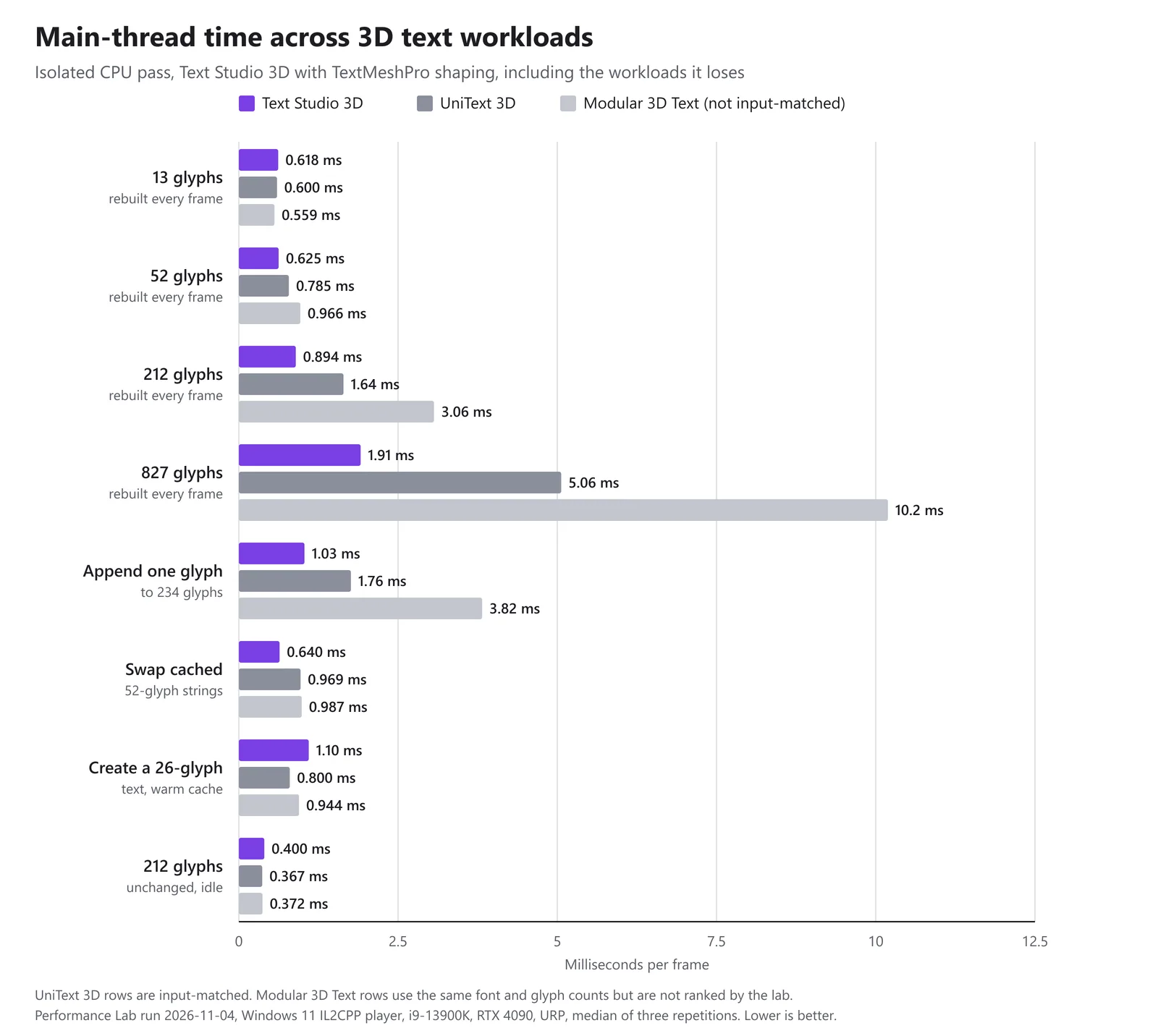 Isolated main-thread time per frame from the Performance Lab run of 2026-11-04. Lower is better.
In matched lab workloads, Text Studio 3D used 1.031 ms against UniText 3D’s 1.760 ms when appending one glyph per frame to 234 glyphs, 0.640 against 0.969 ms when swapping cached 52-glyph strings, and 1.912 against 5.061 ms when rebuilding 827 glyphs every frame from a new 1,000-character string. It lost three workloads: rebuilding only 13 glyphs every frame (0.618 against 0.600 ms), recreating a 26-glyph text every frame with a warm cache (1.098 against 0.800 ms) and idling on 212 unchanged glyphs (0.400 against 0.367 ms). Rebuilding 105 glyphs every frame as per-letter objects took 0.836 ms; UniText 3D has no per-letter mode.
These are desktop numbers. Phones and headsets have far less headroom, so measure there too; the guide to 3D text on mobile and Quest shows how, and the performance page collects the lab results. The manual chapters on output and performance and fonts and builds list every setting.
Frequently asked questions
Can 3D text change at runtime in a Unity build?
Yes. Text Studio 3D generates the mesh from the live text, so a new score, name or translation becomes new geometry in the player too. Prepare fonts with Runtime Preparation so the player has the outline data it needs.
Which output mode is best for a 3D score counter?
Combined Mesh with Text Change Scope set to Numeric Value. Since Text Studio 3D 1.4.0, compatible counters rebuild only the digits that change. For other short labels that change often, use the Realtime profile with Chunked Combined Mesh.
Why is my changing 3D text slow to update?
The usual cause is an outline drawn around whole words, lines or the whole text, which must be rebuilt as one shape on every change. Since 1.4.0, Setup Status warns about it, and Use Per-Letter Outline swaps in a similar outline that is prepared once.
How does it compare with UniText 3D for changing text?
In matched lab workloads, Text Studio 3D used less main-thread time when appending a glyph per frame (1.03 against 1.76 ms), swapping cached strings and rebuilding 52 or more glyphs every frame. UniText 3D was ahead when recreating a short text every frame, when rebuilding only 13 glyphs and on unchanged idle text.
Real 3D text for Unity, built from your TextMeshPro text.
Keep reading
 Use case
3D damage numbers and floating combat text
The Text Studio emitter that shows flat popups can also emit complete 3D hosts: extruded, lit numbers for hits, crits and heals, pooled and prewarmed, with digits prepared for builds and costs measured in the lab.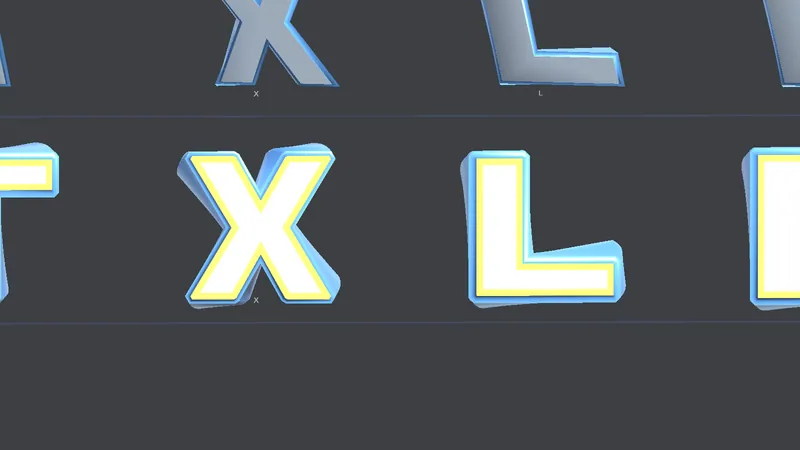 Use case
Fast 3D text on mobile and Quest, with small builds
Phones and headsets run out of GPU time and heat before CPU. How to pick output, mesh detail and prepared geometry for them, and what Text Studio 3D 1.4.0 changed: Quest 3 first frame 74 to about 18 ms, build share 93.7 to 0.7 MB.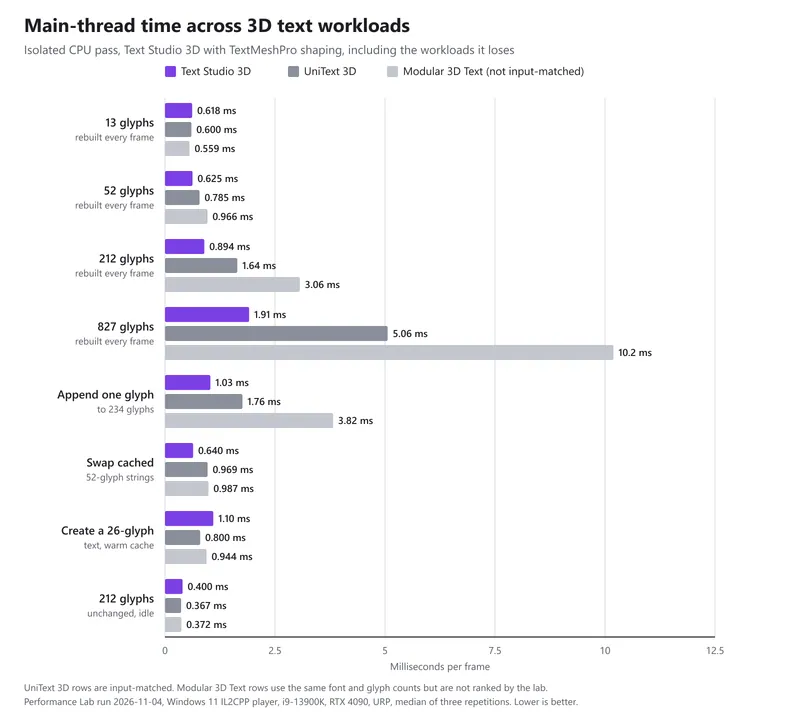 Article