3D signs, neon and marquee lettering for game worlds
Put real 3D signs on objects in Unity scenes: shop signs lit by your lights and casting shadows, plaques, neon tubes, marquee bulbs and LED letters that sit flush.
A sign made of flat TextMeshPro text reads fine and looks pasted on: its letters have no edges or sides for the street lights to catch, and from an angle the sign turns into a sliver. The usual answer to putting text on a 3D object in Unity is a world-space canvas or a TextMeshPro object, and both are flat.
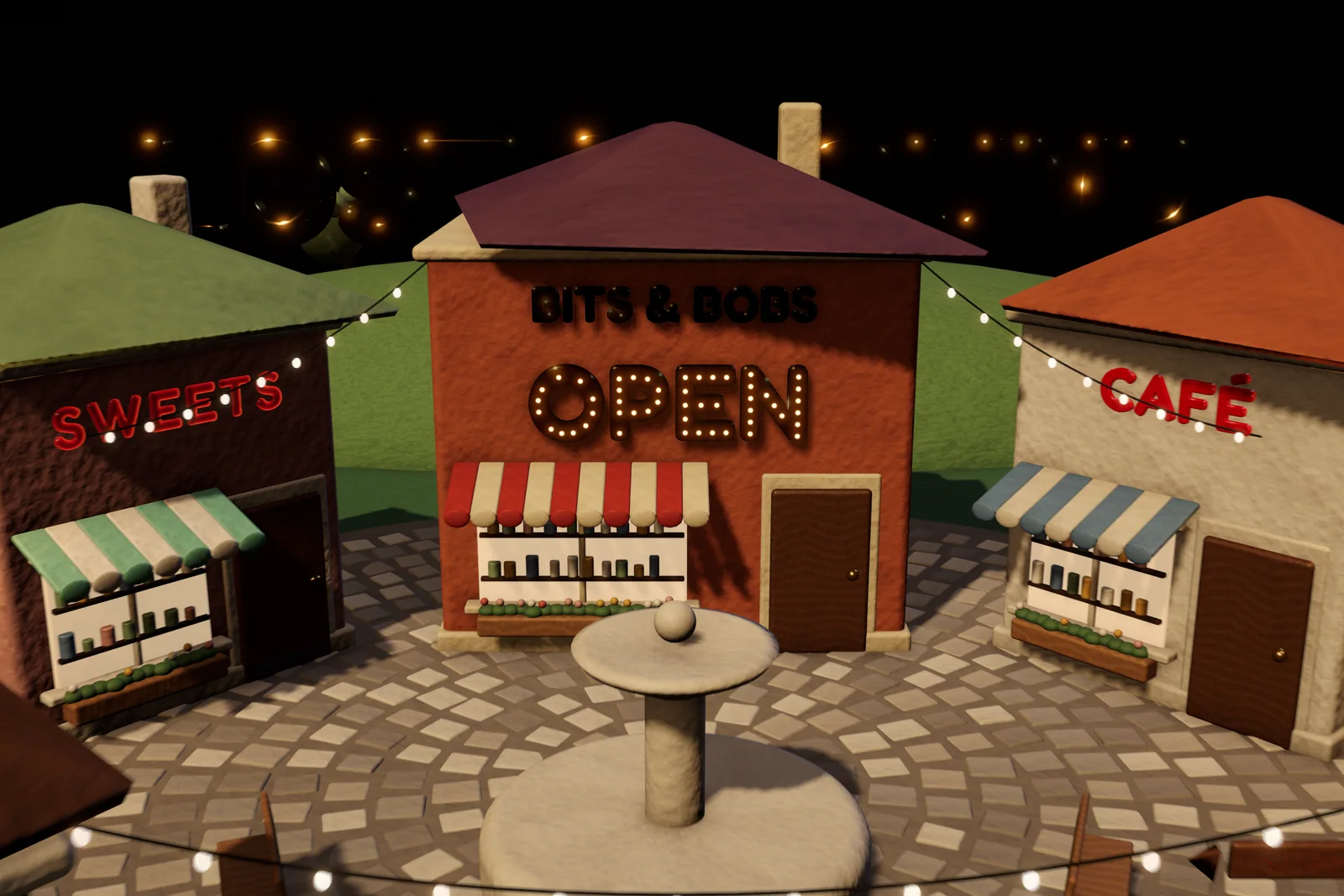
Text Studio 3D makes signs from real lettering: solid letters lit by your scene’s lights and casting shadows, mounted on plates and backings, with neon tubes, marquee bulbs, stitches and rivets that follow every contour. The cover shows a small town square with dimensional shop signs, the OPEN sign in marquee bulbs throwing shadows onto its wall.
Put text on a 3D object so it sits flush
- Depth Anchor. Since 1.4.0, new text uses Back: the whole layered sign, including outlines and their offsets, stands in front of its origin. Put the object on the wall surface and the letters stay in front of it. Front extends the letters behind the front plane and Center splits the depth. Scripts set the same value through
TextStudio3DText.DepthAnchor. - Round surfaces. A Deformer Stack with Cylindrical Wrap bends the lettering around a barrel, a column or a round tower.
- Carved into a surface. The Engraved Plaque style, a negative Chisel amount on the front face, or a Cutout backing give engraved and through-cut lettering.
- Attachments. Named glyph sockets at the center, front, back, top, bottom or a point along the contour hold lights, particles or props that should stay on a letter.
Plates, plaques and backings
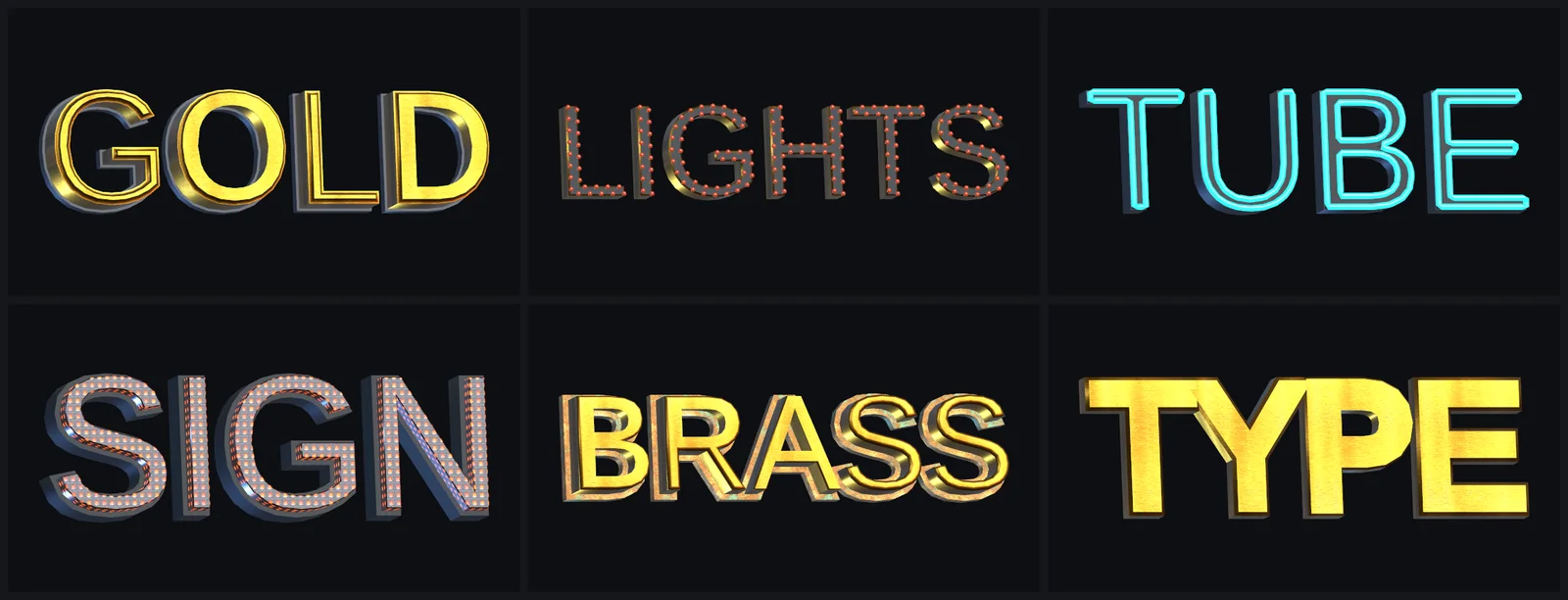 Six built-in sign styles, from gilded letters to an engraved plaque.
Golden Signage, Nameplate Brass, Engraved Plaque, Metal Plate and Riveted Plate are ready-made starting points. For a plate behind the words, create Assets > Create > Text Studio > 3D > Geometry > Generated Contour, choose Plate, Pill, Rounded Rectangle or Frame, and fit it to the text bounds with padding. The backing stays Plain, cuts the letters out (Cutout) or raises them from the plate (Emboss), and gets its own front, side and back materials. 3D titles and logos covers backings and SVG logo outlines in more depth.
Neon tubes, marquee bulbs, stitches and rivets
As far as we know (checked November 2026), Text Studio 3D is the only Unity 3D text tool with decorations that follow every contour of every letter.
- Contour Tube sweeps a round or custom cross-section (a Contour Tube Profile with 3 to 64 points) around the front, the back or both, with its own material. Path Source chooses Perimeter for outlines, Automatic Stroke for a tube along the middle of each stroke, like neon glass, or Authored Stroke for hand-drawn paths from a Writing Style.
- Contour Repeats place Dash, Stitch, Bulb, Marquee, Rivet, Rail, Bead, Spike, Gem, Bolt, Leaf or your own prefab along the contour, by spacing, count or density.
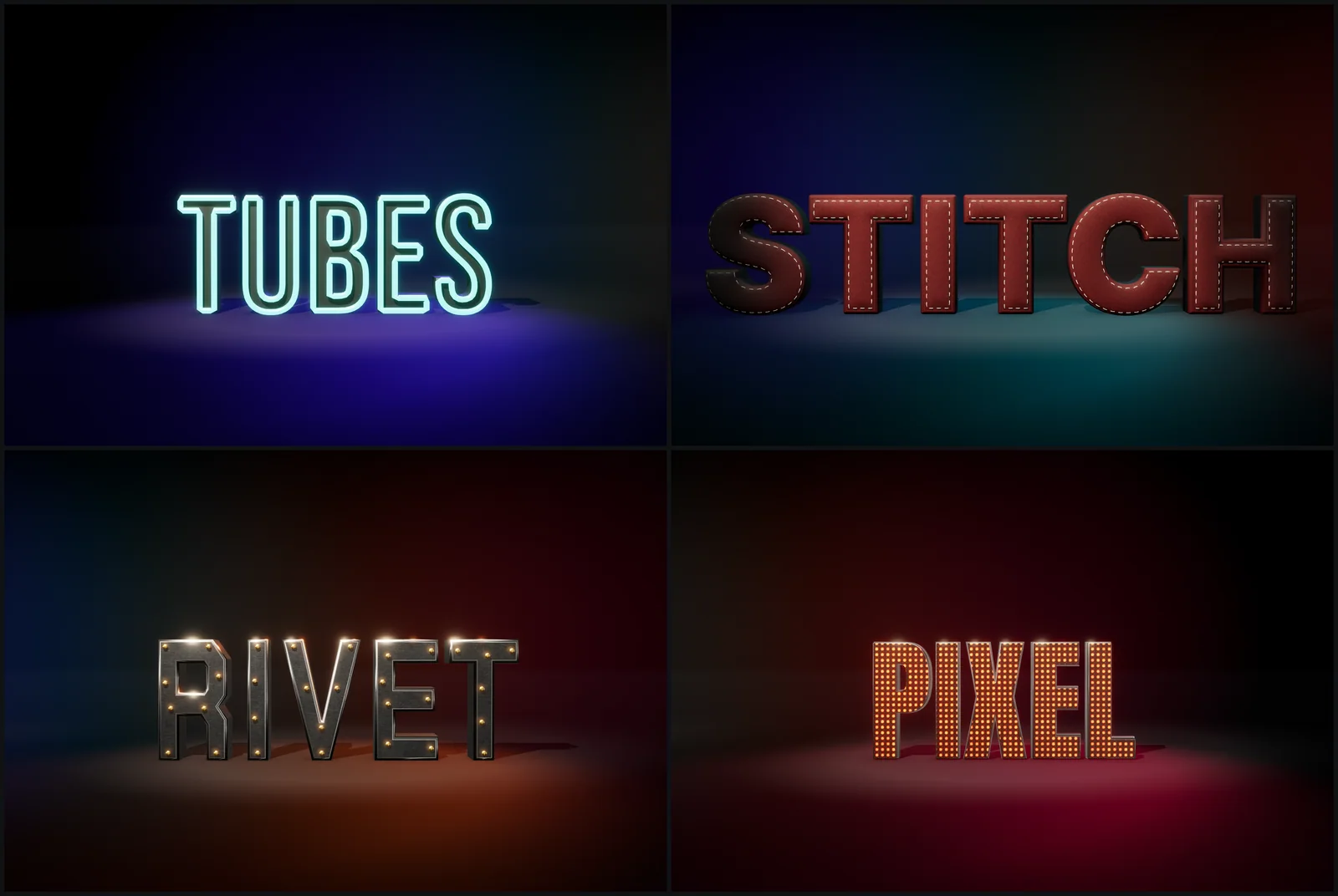 Neon tubes, stitching and rivets follow the contours; the PIXEL letters use an emissive LED face.
A marquee sign in five steps:
- Enable Contour Repeats on a layer and choose Marquee or Bulb.
- Start with Spacing, then tune the bulb size so neighbors stay separate at corners.
- Choose Avoid Sharp Corners with a Corner Clearance, or Structural Corners, and turn on Avoid Overlap.
- Assign an emissive material to the Decorations region and keep the Front Face readable.
- Change the seed only when variation is enabled, and check that the layout stays stable after a reload.
Make neon and LED signs glow
The glow starts in the material and ends in post-processing. Give tubes, bulbs or trim an emissive material in the Decorations or Trim Rim region and keep the letter body darker and non-emissive, so the shape still reads. The bloom that spreads the light comes from your render pipeline: a Bloom override on a Volume in URP and HDRP (URP also needs post-processing enabled on the camera), and the Post Processing package in the Built-in pipeline. Without bloom, emissive parts are bright but do not glow.
HDRP needs one more note. Since 1.4.0, emission, effect light and flames keep their authored brightness under HDRP’s camera exposure, so a neon sign no longer fades out in a daylight scene. Emissive letters do not light their surroundings on their own; for a pool of light under a sign, place a Light, for example at a socket on the front of a letter. The article on lit 3D text in URP and HDRP covers lighting in detail.
Light, shadows and baked scenes
Live letters are meshes, so scene lights shade their bevels and the letters cast shadows like any other object. Metallic and glossy styles need something to reflect; since 1.4.0, Setup Status explains when they look dark because the scene lacks a skybox, reflection cubemap or reflection probe.
For a fully baked scene, keep in mind that live text is generated geometry lit in real time. A sign that will never change can become an ordinary static model: choose Export Current Mesh as OBJ from the component’s context menu, save the file under Assets, and turn on Generate Lightmap UVs in its model import settings. The OBJ keeps positions, normals, the main UVs and one group per material, so give each group a lit material from your project. The words stop being text at that point, so do this last.
Static signs that stay cheap
- Since 1.4.0, Prepare this text saves the exact sign, including outlines around whole words and settled Snow or Frost, while reveals, tags and events stay live.
- Freeze Current Appearance in the Static Output section turns the sign into static meshes, keeping its colliders, and stops its animation until you choose Unfreeze. Live Writing and GPU-driven effects such as settled Snow cannot be frozen.
- Start static signs from the Static Quality performance profile with Combined Mesh output. For a sign the player can point at, the Interactive profile keeps one raycastable combined mesh.
The manual chapters Add Tubes, Repeats, and Attachments and Design Materials and Surfaces list every decoration and material setting. For signs that are part of a menu or HUD in a headset, see 3D menus and world-space UI.
Frequently asked questions
How do I put text on a 3D object in Unity?
For a flat label, a world-space TextMeshPro object is enough. For lettering that belongs to the object, Text Studio 3D turns that text into solid letters. With Depth Anchor set to Back, the default for new text since 1.4.0, the letters stand in front of their origin, so you place the object on the surface. A Cylindrical Wrap deformer bends lettering around round objects.
How do I make a neon sign in Unity?
Run a contour tube with an emissive material over darker letters, as the Neon Tube style does, and add bloom from your render pipeline's post-processing. With Path Source set to Automatic Stroke, the tube follows the middle of each stroke like bent glass tubing.
Can 3D text be lightmapped?
Live text is generated geometry and is lit in real time. For a sign that never changes in a fully baked scene, export the current mesh as OBJ and let Unity's model importer generate lightmap UVs; the sign then becomes an ordinary static model whose words no longer update.
Do marquee bulbs follow curved letters?
Yes. Contour Repeats place bulbs along every outline by spacing, count or density, with corner handling and overlap avoidance, so round letters get evenly spaced bulbs.
Real 3D text for Unity, built from your TextMeshPro text.
Keep reading
 Use case
3D game titles and logos in Unity
Start from one of 25 complete hero designs, shape it layer by layer, frame it with a generated backing or your own SVG logo, reveal it in 3D and export stills or video for the trailer, while the title stays editable text.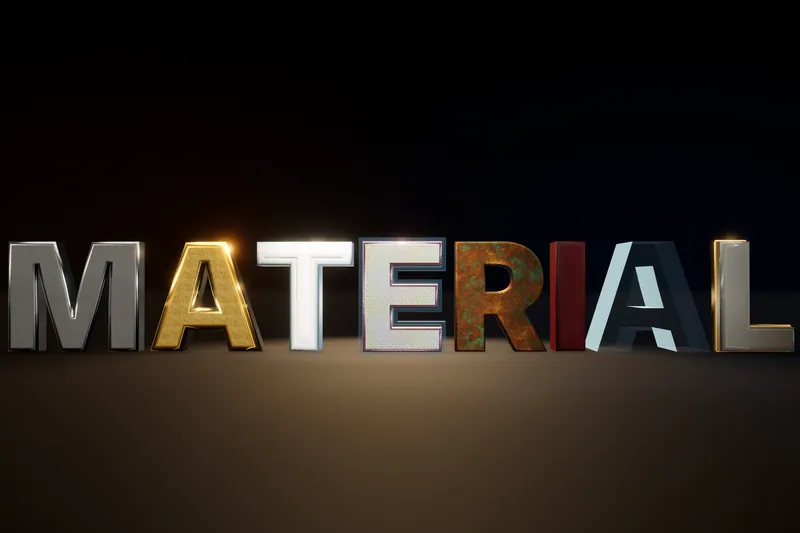 Article
Lit, shadow-casting 3D text in URP and HDRP
Default TextMeshPro text ignores your lights. What TextMeshPro's lit shaders do in each pipeline, and how real 3D text casts and receives shadows, reflects metal, glows with bloom and fits baked lighting in Built-in, URP and HDRP. Use case