Turn TextMeshPro text into real 3D geometry
Turn TextMeshPro text into real 3D geometry in Unity: add one component, keep your font, rich text, layout and Text Studio tags, and get solid, beveled, lit letters.
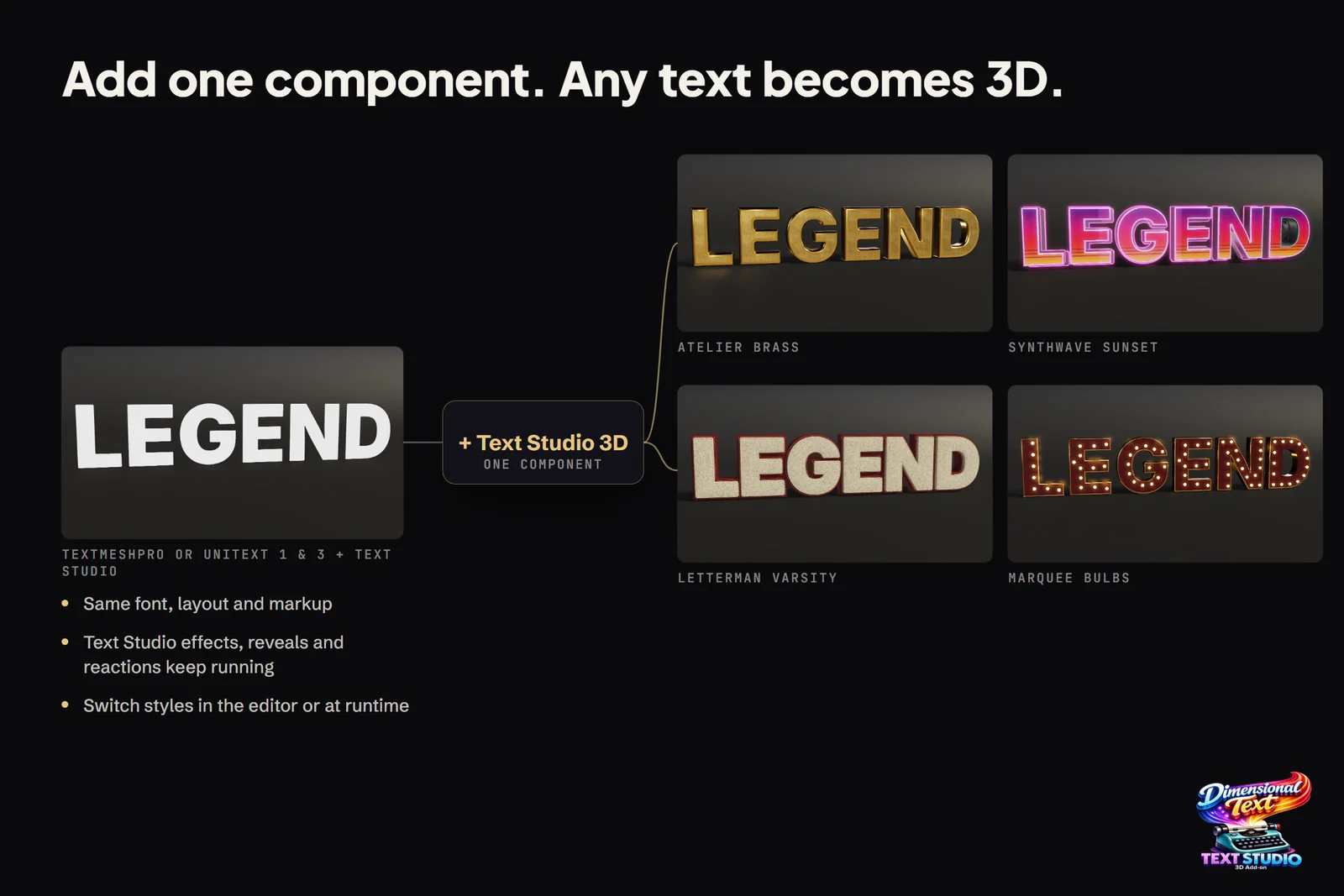
Most Unity projects already set their words in TextMeshPro: titles, signs, nameplates, scores. TextMeshPro is excellent flat text, and its 3D text is still flat, a signed distance field drawn on quads whose bevel is a lighting effect. When a sign needs real sides and shadows, the usual answers are to model the word in Blender or to switch to a different text component and rebuild the setup.
Text Studio 3D turns TextMeshPro text into real 3D geometry with one component and keeps the TextMeshPro object. As far as we know, it is the one Unity 3D text tool that adds 3D to the TextMeshPro text you already have instead of replacing your text component. The font, layout, rich text and Text Studio tags keep working, now on solid, beveled, lit letters. One reviewer, DugganSC, summed up the workflow: it converts a TextMeshPro object into a 3D shape, and Text Studio tags animate and style the result.
Create TextMeshPro 3D text with one component
- Install Text Studio, check that a normal animated text works, then install Text Studio 3D in the matching version and let Unity compile.
- Select a world-space TextMeshPro object. A Text Studio card at the top of its Inspector offers Add Text Studio and Add Text Studio 3D.
- Choose Add Text Studio 3D. It adds Text Studio and Text Studio 3D in one step, keeps the current text as the editable source and replaces the flat output with extruded geometry. It also works on several selected objects at once.
- Pick a look in the 3D Style section, or browse Tools > Text Studio > 3D Gallery and apply a style to the selected text.
The card does not appear for text under a Screen Space Overlay canvas, which has no depth to show. If an object already has Text Studio, add Text Studio > Text Studio 3D through Add Component instead. For new text, GameObject > Text Studio > 3D > Text creates an object with all three components; since 1.4.0 it is centered, single-line and named 3D Text. New text starts in Live authoring preview with Balanced mesh detail, and since 1.4.0 the Text Studio and Text Studio 3D controls sit above TextMeshPro in the Inspector.
What carries over from TextMeshPro
Text Studio owns the message and Text Studio 3D owns the geometry. There is no separate 3D font choice: the letters follow the font, fallbacks and layout of the TextMeshPro object.
- Fonts: TrueType and CFF1 OpenType outlines, bold and italic faces, fallback fonts and rich-text font changes.
- Rich text: bold, italic, case, Small Caps, tracking, solid colors and authored gradients carry through. Underline and strikethrough become real extruded geometry.
- Layout: alignment and line breaks come from TextMeshPro. With Overflow set to Page, only the displayed page is extruded.
- Text Studio tags and effects: reveals, typewriter timing, placement, effect tags and Scramble keep running on the 3D letters. Registered 3D styles also work as tags, so one text can mix looks.
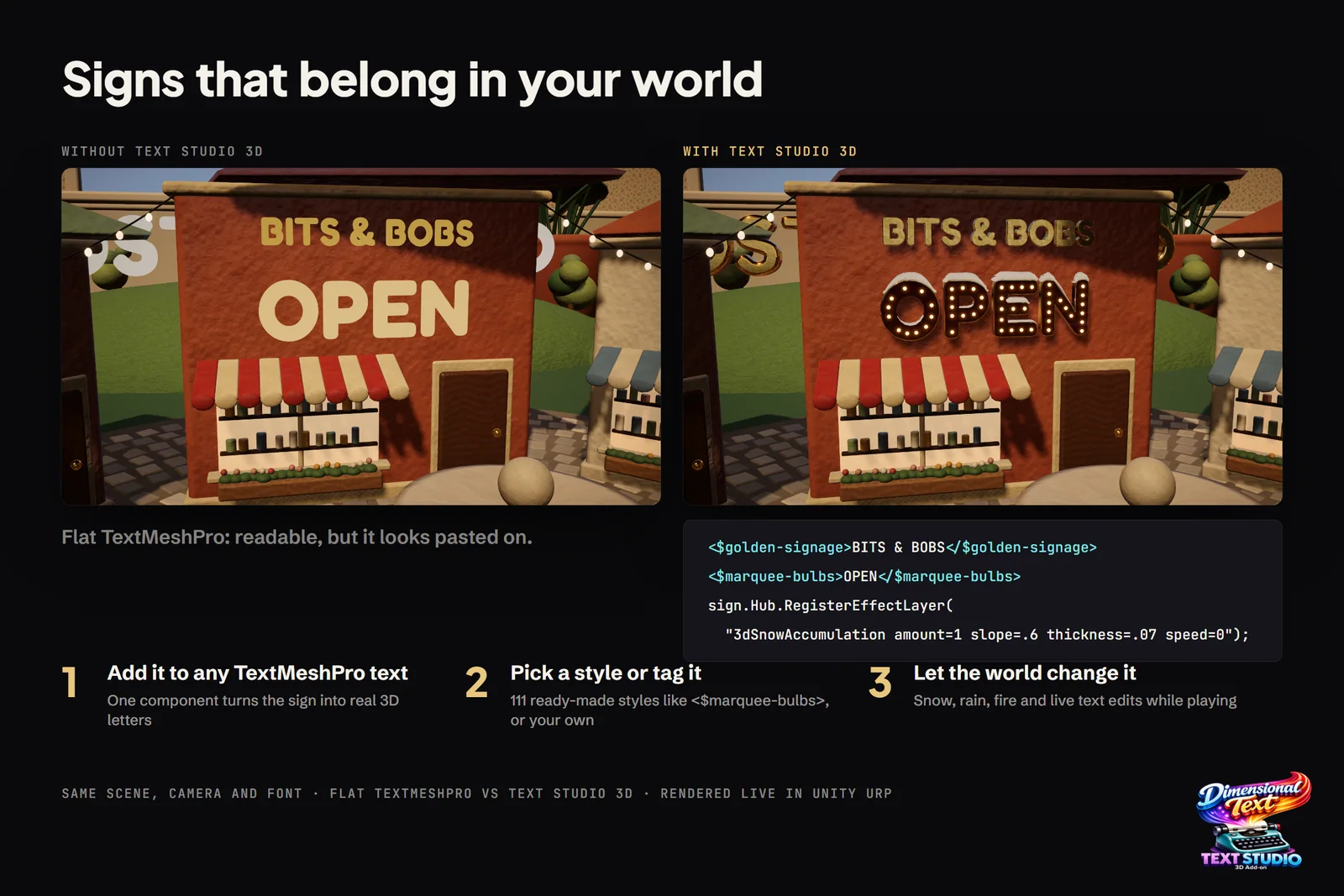 Same scene, camera and font: flat TextMeshPro on the left, Text Studio 3D on the right, rendered live in URP.
The slide shows the idea in markup: <$golden-signage>BITS & BOBS</$golden-signage> and <$marquee-bulbs>OPEN</$marquee-bulbs> give two passages different 3D styles, and one line of script, sign.Hub.RegisterEffectLayer("3dSnowAccumulation amount=1 slope=.6 thickness=.07 speed=0"), adds settled snow.
Fonts that work, and fonts that need a source
- Ready to use: TrueType and CFF1 OpenType fonts with outlines. Variable TrueType fonts use their default instance.
- Bundled: seven OFL families with prepared, player-ready outline data: Bebas Neue, Bungee, Monoton, Audiowide, Cinzel Decorative, Press Start 2P and ZCOOL QingKe HuangYou, which renders genuine Chinese lettering from the complete font.
- Needs an imported outline source: CFF2, color-only fonts, dynamic OS fonts and atlas-only font assets. Font3D is the matching technical outline data, not a second font picker.
- Emoji: a monochrome Noto Emoji fallback supplies outlines; color emoji layers are not reproduced.
- Other scripts: Arabic and Hebrew shaping comes through the optional UniText integration, a separate paid text engine, and CJK needs deliberate production ranges. Localized 3D titles covers both.
Prepare fonts for player builds
An Edit Mode preview can read font outlines through editor-only access that a player does not have. Runtime Preparation turns the fonts and glyphs your text needs into project assets:
- Open Tools > Text Studio > Runtime Preparation, or Open Runtime Preparation in the component’s Runtime Preparation section. The Overview checks open scenes and build content.
- Choose the runtime policy. Generate if missing allows outline generation in the player for dynamic content; Prepared only forbids it and suits strict builds where every visible glyph is known.
- Under Settings, add the characters and representative phrases your game shows at runtime, such as names, scores and languages. Numeric Value text includes its digits automatically.
- Press Prepare. The Prepare before each build setting repeats this automatically when you build a player.
Prepared only checks the exact visible text before a build. When data is missing, Text Studio 3D reports the blocker and keeps the last valid mesh instead of showing broken letters.
What TextMeshPro alone cannot do
| TextMeshPro | TextMeshPro with Text Studio 3D | |
|---|---|---|
| Side view | Flat, vanishes edge-on | Solid sides and back |
| Bevel | Lighting effect on a flat quad | 22 profiles plus custom curves |
| Materials | Face, outline and underlay in one material | Nine surface regions per layer |
| Animation | Vertex animation by script | Text Studio effects plus 29 native 3D effects |
| Physics | None | Physical Letters with rigid bodies and colliders |
TextMeshPro stays the right choice for HUD and menu text on screen-space canvases, long passages and small labels. Text Studio 3D is for words the camera sees in space. The manual’s Create Your First 3D Title and Prepare Fonts, Glyphs, and Builds chapters go through both steps in detail.
Frequently asked questions
Can I add 3D to existing TextMeshPro text?
Yes. Select a world-space TextMeshPro object and choose Add Text Studio 3D on the Text Studio card at the top of its Inspector. It adds Text Studio and Text Studio 3D in one step, keeps the current text and replaces the flat output with extruded geometry.
Do I need Text Studio as well?
Yes. Text Studio 3D (US$24) is an add-on for Text Studio (US$38). Text Studio provides authoring, animation and the TextMeshPro integration, Text Studio 3D adds geometry, materials and 3D effects, and the two need matching versions.
Which fonts work for TextMeshPro 3D text?
TrueType and CFF1 OpenType fonts with outlines, including bold and italic faces, fallbacks and rich-text font changes. Variable TrueType fonts use their default instance. CFF2, color-only, dynamic OS and atlas-only fonts need an imported outline source.
Why does my 3D text work in the editor but not in a build?
The editor can read font outlines that a player cannot. Open Tools > Text Studio > Runtime Preparation, add the characters your game shows at runtime and prepare before building. Prepared only mode checks the exact visible text and reports anything missing.
Real 3D text for Unity, built from your TextMeshPro text.
Keep reading
 Use case
3D text with depth in Unity: extrusion and bevels
TextMeshPro letters are flat and vanish when seen from the side. Text Studio 3D builds solid letters from the real font outlines, with bevels, layers, relief and a material for every surface, at the mesh detail you choose. Comparison
Real 3D text vs TextMeshPro's 3D text and bevel
TextMeshPro is the right tool for flat UI, HUD and labels: free, crisp and cheap. Its bevel and lighting are shader effects on flat glyphs. Real geometry pays off when text needs sides, silhouettes, shadows, physics or VR depth. Article