3D menus and world-space UI for VR and AR
Build Unity world space UI and VR menus from real 3D text: buttons, sliders, lists, a spatial keyboard and XR Interaction Toolkit input, themed and readable in a headset.
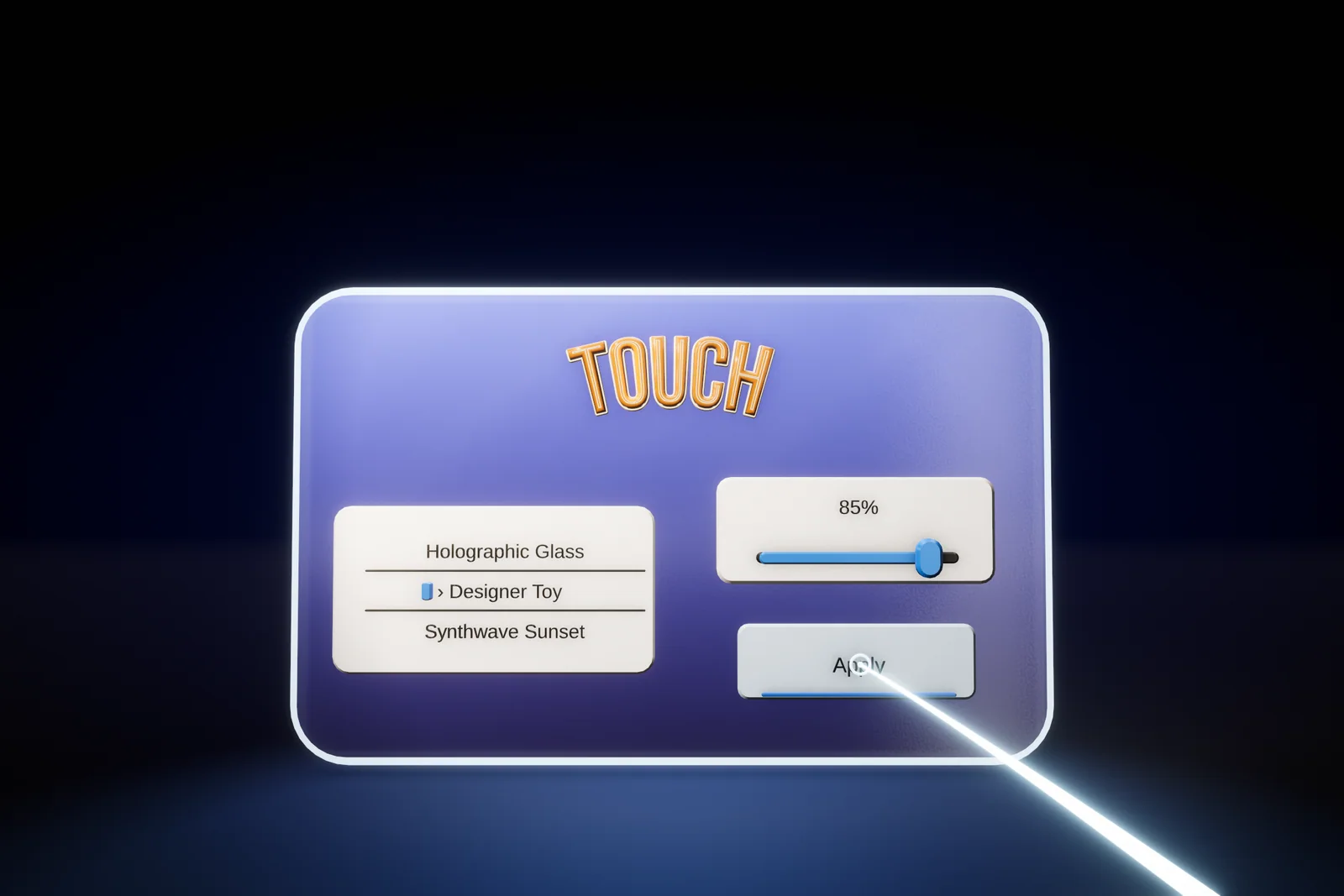
World space UI in Unity usually means a flat Canvas or, since Unity 6.2, a UI Toolkit panel floating in the scene. On a monitor that works. In a VR or AR headset the same panel reads like a sticker: it ignores the scene light, a button has nothing to press, and hover feedback is a change of color. Text Studio 3D builds world space UI and VR menus from real 3D text instead: every title, button label, list entry and slider value is solid, beveled, lit geometry made from your TextMeshPro font.
All controls come from GameObject > Text Studio > 3D > Spatial UI and respond to mouse, touch, keyboard, controllers and XR rays, with optional Input System and XR Interaction Toolkit adapters, 3D Themes for a consistent look, and single-pass instanced stereo for headsets such as Meta Quest 3.
What the spatial UI kit includes
The menu creates Panel, Spatial Menu, Button, Toggle, Slider, Progress Bar, List, Dropdown, Input Field, Selector, Reposition Handle and Spatial Keyboard. Labels render as Text Studio 3D geometry and inherit fonts, named styles, feedback, navigation and accessibility names, and every control raises UnityEvents. Polished Progress Bar, Dropdown and Starter Menu prefabs ship with the package.
| Part | What it does |
|---|---|
| Panel and Spatial Menu | Panel is a neutral container. Spatial Menu adds menu flow and navigation and starts with a Main Menu and an Options Menu panel. |
| Spatial Keyboard | An in-world key surface for an Input Field, so a headset needs no platform keyboard |
| Reposition Handle | An explicit grip for moving a panel; a control never becomes draggable just because a pointer crossed it |
| Control Layout and Option Presentation | Linear, Grid, Circular, Spline or Volume arrangements; options as a Depth Stack, rotary or radial choice |
| Menu Controller and Menu Action | The current panel and Back history; Back, Close and Close All as UnityEvent commands |
| Control Pool | Restores value, focus and visual state before a pooled control appears again |
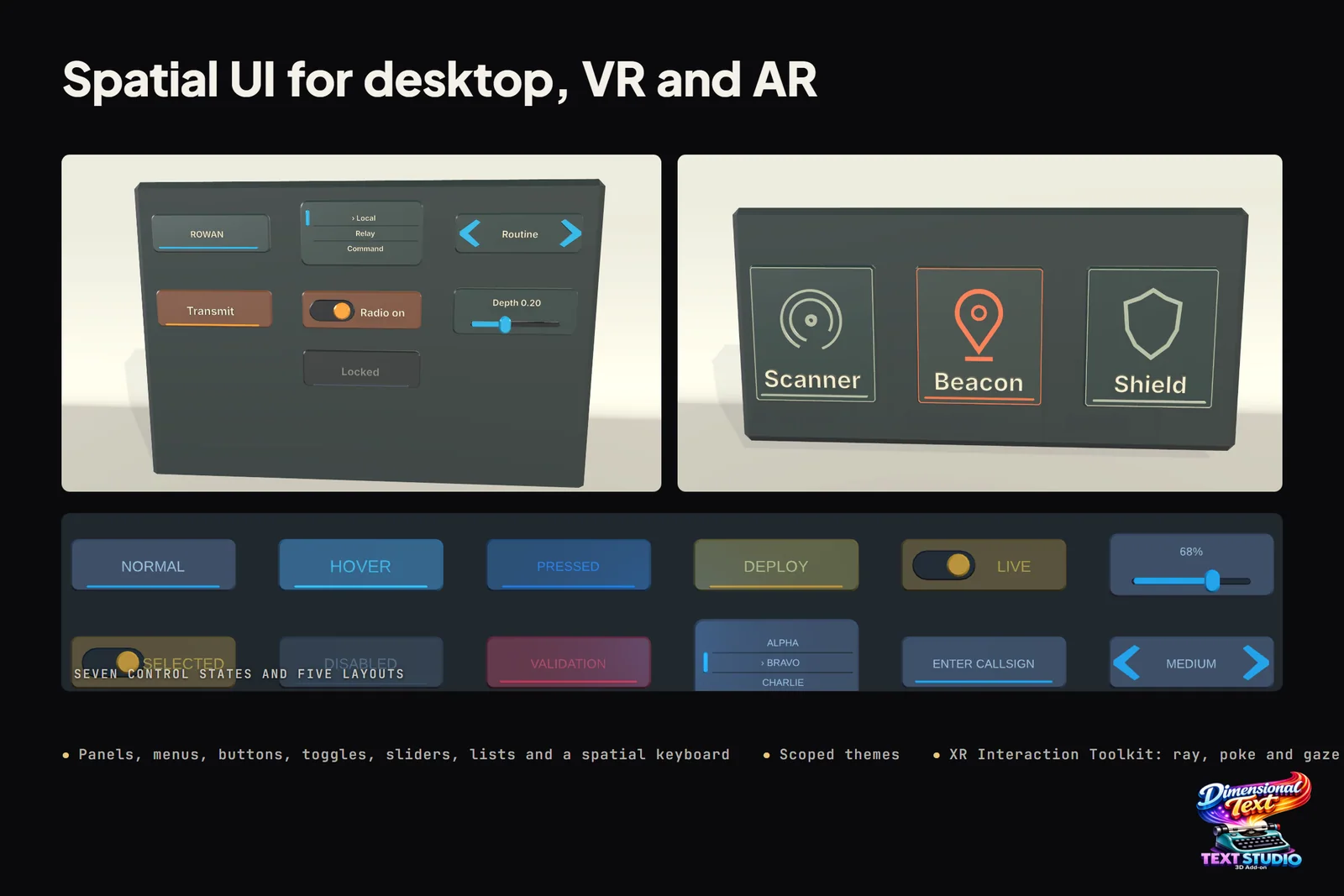 The spatial UI kit on its store slide: panels, an icon menu and states such as hover, pressed, selected, disabled and validation.
Controls that stay readable in a headset
Every control has Normal, Hover, Focused, Pressed, Selected, Disabled and Error states, and they combine without losing meaning: a focused, selected option that fails validation still reads as all three. A Control Theme sets label tint, surface tint, scale and depth offset per state, and that feedback updates without rebuilding the letters. Controls track each pointer separately, so a left and a right controller ray each get their own hover and press feedback.
- Use High mesh detail for text read up close; Balanced, the default, suits ordinary real-time content.
- In AR passthrough or a scene without a skybox, chrome and other glossy styles have nothing to reflect and look dark. Setup Status explains this since Text Studio 3D 1.4.0; pick a matte style or add a reflection probe.
- Turn on Raycast Label Geometry in a control’s Behavior section when the pointer should hit the exact lettering.
- Test narrow, typical and wide framing, and fill in every accessibility name and hint.
The article on readable 3D text in VR goes deeper.
One theme for the whole menu
A 3D Theme carries a font pairing, a default 3D style, named variations such as Menu Title, Warning or Score, mappings for control labels and gameplay feedback, and one Control Theme. Tools > Text Studio > 3D > Project Theme creates the global default. Add a Theme Scope around a menu, cockpit or room that needs its own look; the nearest enabled scope wins. Theme Action components switch themes from UnityEvents, so titles, labels, selected options and feedback change together.
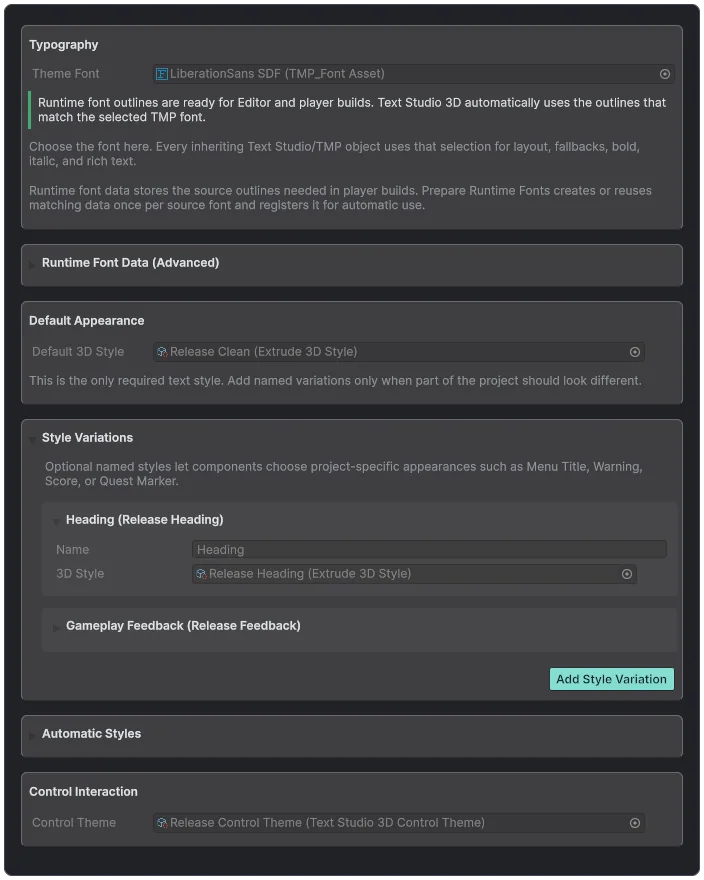 A 3D Theme bundles the font, a default style, named variations and the Control Theme.
Input from mouse, controllers and the XR Interaction Toolkit
Without any adapter, mouse, keyboard navigation and focused text entry run on Unity’s Input System package, with Active Input Handling set to Input System Package (New). A Pointer Raycaster connects the mouse, touch or a ray, and a Navigation Group owns keyboard and controller order.
Two optional adapters ship in the Text Studio 3D Integrations folder. The Input System adapter maps your own Point, Press, Move, Submit and Cancel actions. The XR Interaction Toolkit adapter turns ray, Near-Far, direct, poke and gaze interactors into spatial input with hover, select, drag, cancel, handedness, interaction strength and optional haptics, for XR Interaction Toolkit 2 and 3. XR Origin, interactors and locomotion stay with the toolkit.
Build a VR menu in Unity step by step
- Install Text Studio, Text Studio 3D and the Input System package; for XR, add the XR Interaction Toolkit and import the Text Studio 3D adapter.
- Choose GameObject > Text Studio > 3D > Spatial UI > Spatial Menu, or XRI Menu once the adapter is imported. Navigation and a pointer raycaster come set up.
- Add only the controls the player needs and arrange them with Control Layout.
- Assign a Control Theme and check every state under the final lighting.
- Connect a Spatial Keyboard to the Input Field it serves and add a Reposition Handle if players should move the menu.
- Test every input type in the headset and check that pooled controls come back clean.
Stereo rendering and Quest
The Lit and Glass shaders support single-pass instanced stereo. On a Meta Quest 3, Text Studio 3D 1.4.0 cut the first frame of a revealed level title from 74 ms to about 18 ms of Text Studio 3D render time, and since 1.4.0 a deactivated menu keeps its 3D text meshes for the next time it opens. Our own mixed reality game for Meta Quest, Snowball Party, uses Text Studio for lots of real-time 3D text. The guide to 3D text on mobile and Quest covers builds and budgets.
When a flat UI Toolkit world-space panel is enough
Since Unity 6.2, UI Toolkit can render a UI Document in world space, and the XR Interaction Toolkit can drive it. For settings screens, long scrolling lists, forms and text-heavy inventories, that flat panel is the better tool: you get UI Toolkit’s layout, styling and data binding, and flat text is cheaper than geometry. TextMeshPro on a World Space Canvas covers simple floating labels.
Text Studio 3D earns its place when the interface belongs to the world: a title that catches the scene light, buttons with depth that press in, labels on a cockpit console, or menus that match your 3D titles. The two mix well, such as a UI Toolkit settings list under a Text Studio 3D title. For simple 3D buttons without bevels, Modular 3D Text also offers a complete 3D UI kit with XR Interaction Toolkit support; see Text Studio 3D vs Modular 3D Text.
Samples to open first
Open them from Tools > Text Studio > Examples:
- Spatial Controls: editable controls, navigation, text input and the contextual keyboard.
- Spatial Menus: equipment cards with focus, Back history and three shared themes in a Theme Scope, plus Flat Row, Depth Stack, Rotary Wheel and Radial Menu prefabs.
- World Space UI: complete spatial controls and native layout in a production scene.
The manual chapters on spatial interfaces and 3D themes list every setting. Text Studio 3D needs Unity 2023.2 or newer and Text Studio.
Frequently asked questions
Does Text Studio 3D work with the XR Interaction Toolkit?
Yes, through an optional adapter that ships in the Text Studio 3D Integrations folder. It turns ray, Near-Far, direct, poke and gaze interactors into spatial pointer and navigation input, with handedness and optional haptics, and works with XR Interaction Toolkit 2 and 3. Your XR rig stays owned by the toolkit.
Do I need the new Input System?
Yes for the built-in input: mouse, keyboard navigation and focused text entry use the Input System package with Active Input Handling set to Input System Package (New). The optional Input System adapter is only needed for your own action maps.
Should I use a UI Toolkit world-space panel instead?
For flat, text-heavy panels such as settings lists and forms in Unity 6.2 or newer, a UI Toolkit world-space panel is enough. Text Studio 3D is for menus whose titles and controls should have real depth, light and press feedback. Many projects mix both.
Does it run on Meta Quest?
Yes. The Lit and Glass shaders support single-pass instanced stereo, and Text Studio 3D 1.4.0 was measured on a Quest 3, where the first frame of a revealed title fell from 74 ms to about 18 ms of Text Studio 3D render time.
Real 3D text for Unity, built from your TextMeshPro text.
Keep reading
 Article
How to make 3D text readable in VR
Readable VR text comes down to angular size, contrast, placement and stable edges. What Microsoft, Apple and Meta recommend, where solid 3D letters beat flat SDF text, where they do not, and how to keep 3D text fast on Quest. Use case
Fast 3D text on mobile and Quest, with small builds
Phones and headsets run out of GPU time and heat before CPU. How to pick output, mesh detail and prepared geometry for them, and what Text Studio 3D 1.4.0 changed: Quest 3 first frame 74 to about 18 ms, build share 93.7 to 0.7 MB. Comparison