Reduced motion and flashing text in games
What WCAG and the Xbox Accessibility Guidelines say about moving and flashing content, how to turn that into rules for animated text, and how Text Studio applies them.
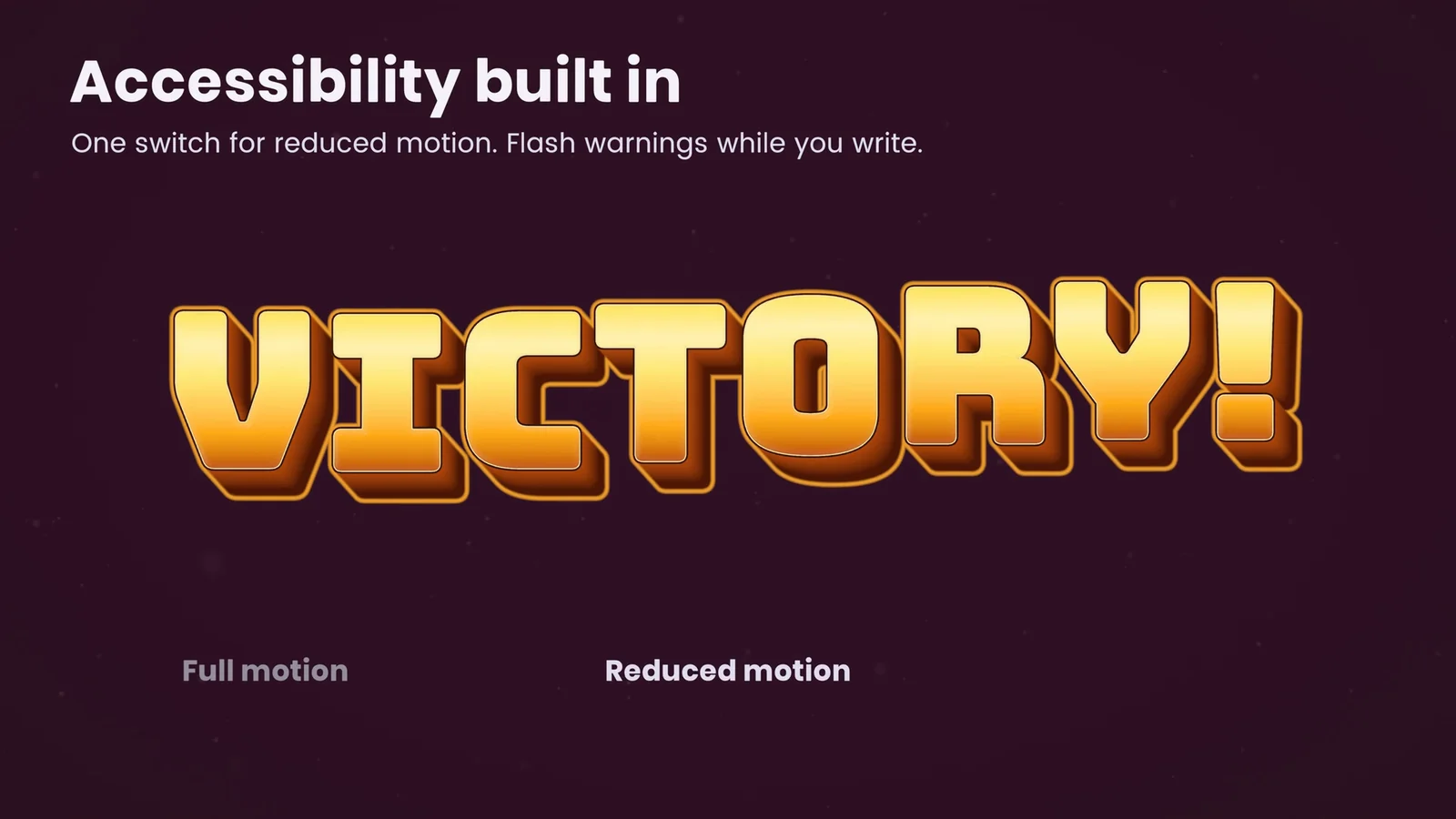
Animated text is everywhere in a game: shaking warnings, bouncing rewards, wavy dialogue words, flashing prompts, scrolling credits. For most players it adds life. For players with vestibular disorders it can cause dizziness or nausea, for players with attention difficulties it competes with the words themselves, and for players with photosensitive epilepsy, flashing can be dangerous. The good news is that text is one of the easiest places to get this right, because its meaning never depends on the motion.
What the guidelines say
Games have no single accessibility standard, but the same few rules show up everywhere:
- Three flashes or fewer. WCAG 2.3.1 (Level A) says content must not flash “more than three times in any one second period,” or the flash must stay below the general and red flash thresholds.
- Photosensitivity in games. Xbox Accessibility Guideline 118 estimates that about 1 in 4,000 people can have a seizure from certain visual images. It flags flashes at roughly more than three per second covering about 20 percent or more of the screen, gives a lower bar for saturated red flashes, and says removing such content is preferred over splash-screen warnings.
- Motion that can be turned off. WCAG 2.3.3 (Level AAA) asks that “motion animation triggered by interaction can be disabled, unless the animation is essential.” WCAG 2.2.2 (Level A) asks for a way to pause, stop or hide moving or blinking content that starts automatically and lasts more than five seconds.
- Moving text in game UI. Xbox Accessibility Guideline 117 aims to let players “pause or completely stop any content that scrolls, blinks, auto-updates, or otherwise moves,” and notes that an opaque background behind text helps when the scene behind it keeps moving.
- Game Accessibility Guidelines. The community guidelines recommend to avoid flickering images and repetitive patterns, to provide an option to turn off background movement, and to let players progress through text prompts at their own pace.
WCAG was written for web content, but its flash thresholds are the common reference that game guidelines build on.
Rules for animated text
Turned into practice, the guidance gives a short checklist for every text effect:
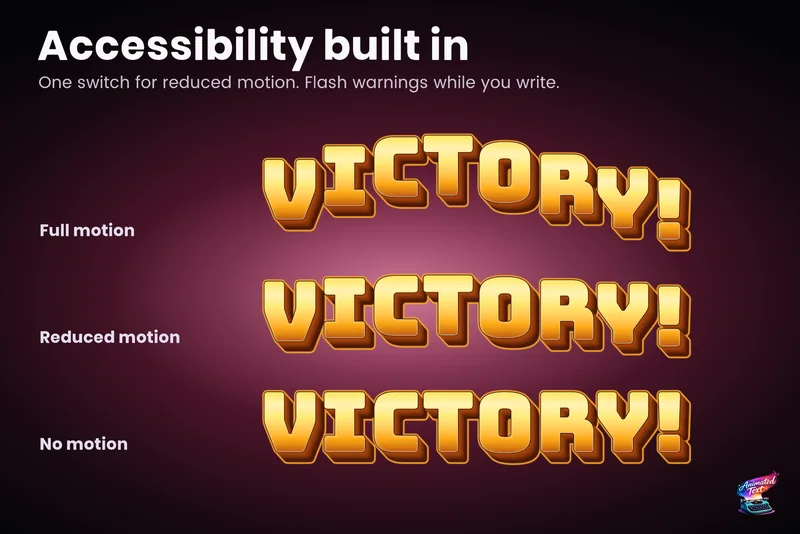
- Offer three levels: full, reduced and none. A single on or off switch forces players to choose between all decoration and a flat UI. A reduced level keeps the game expressive for players who only need the extreme motion gone.
- Reduce the right things first. Lower displacement, rotation, depth travel, flashing and rapid color contrast. Keep timing, semantic emphasis and readable state changes, because they carry meaning.
- Cap flashing. No more than three flashes per second, small flashing areas, and no saturated red flashing. A warning pulse can use a slower color change instead of a strobe.
- Let emphasis settle. A word that pops when it appears and then stays still is easier to read than one that wobbles for the rest of the scene. Use finite playback for emphasis and reserve looping motion for a few deliberate moments.
- Give subtitles a stable base. Use restrained reveal motion, a stable background and enough contrast, and never let subtitle text drift while the player reads it.
- Let players control time. A text speed option with an instant setting, skippable waits, and no dialogue that advances on a timer the player cannot control. See typewriter timing that reads like speech.
- Test the worst case. Judge every effect at the smallest text size and over the busiest background your game uses, in all three motion levels.
How Text Studio applies them
Text Studio treats motion as a policy instead of a per-effect afterthought. Project Settings and every text object can choose Full, Reduced or No Motion; a text object set to Inherit follows the project. Reduced Motion keeps the meaning while lowering travel, rotation, depth, flashing and procedural instability. No Motion keeps a stable, readable result.
One policy switch changes how every effect behaves, without editing the text.
Connecting it to your options menu takes one property. Project Settings provide the starting value:
using TextStudio;using UnityEngine;
public class MotionOption : MonoBehaviour{    // Called by the options menu: 0 = full, 1 = reduced, 2 = none.    public void SetMotion(int level)    {        TextStudioMotionSettings.GlobalPolicy = level switch        {            1 => TextStudioMotionPolicy.Reduced,            2 => TextStudioMotionPolicy.None,            _ => TextStudioMotionPolicy.Full        };    }}
What each effect does under the policy is declared with the effect, so authors do not have to remember it per line:
- Effects carry their reduced motion behavior: preserve, reduce or disable. Custom Code Effects declare the same in their capabilities, along with whether they can flash.
- Some effects document their alternative directly: Blink recommends a calm Reduced Motion alternative, Squiggle turns off under Reduced Motion, and Soft Spatial Float has a still alternative.
- The Inspector warns when authored flashing can exceed three flashes per second, while you write the effect, not after a certification report.
- Prefab responses in Reactions can be set to respect the motion policy as well.
For typewriters, the Low Motion preset keeps readable pacing with fade-only effects, and Instant Accessible shows text with no timed reveal or transition effects at all. The manual’s subtitle and accessibility recipe pairs readable timing with a stable background and a No Motion path, the Accessible Captions sample shows a production caption setup, and the Reveal Timing sample compares reveal styles including reduced motion.
 The Accessible Subtitle look prioritizes legibility over decoration.
Accessibility settings are only as good as the testing behind them. Play your text-heavy scenes in all three motion levels, at the smallest size, and with the text speed set to instant. If a line loses its meaning when the motion goes away, the meaning was in the wrong place. The subtitles and captions use case walks through a complete setup.
Frequently asked questions
How many flashes per second are safe for animated text?
WCAG 2.3.1 sets the limit at no more than three flashes in any one second, unless the flash is below the general and red flash thresholds. The Xbox Accessibility Guidelines use roughly the same rule and also limit large flashing areas and saturated red flashes. Removing flashing content is preferred over a warning screen.
What should a reduced motion setting do to text effects?
Lower displacement, rotation, depth travel, flashing and rapid color changes while keeping timing, emphasis and readable state changes. A no motion setting should leave every line stable and readable. Effects that exist only for decoration can simply turn off.
How do I connect Text Studio to my game's accessibility menu?
Set TextStudioMotionSettings.GlobalPolicy to Full, Reduced or None from your options menu. Project Settings provide the starting value, and each text object can inherit it or choose its own Motion Policy.
Does reduced motion slow down or remove the typewriter?
Not by itself: Reduced Motion keeps the reveal timing and meaning while calming the movement. For players who want text without any timed reveal, offer a text speed option with an instant setting. Text Studio's Instant Accessible preset shows text with no timed reveal or transition effects.
Style and animate every word in Unity.
Keep reading
 Use case
Accessible subtitles and captions
Subtitles exist to be read. Text Studio paces them by word or line, highlights key phrases without moving them, respects motion preferences and keeps every wait skippable.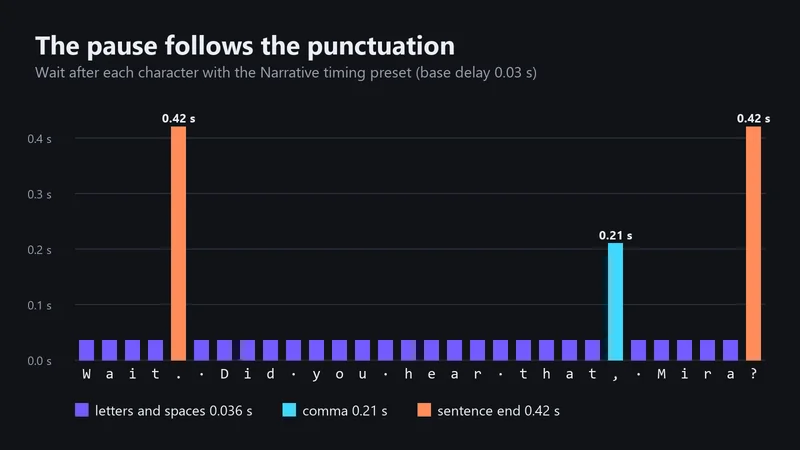 Article
Typewriter timing that reads like speech
Good typewriter text follows the rhythm of speech: pauses after punctuation, no pause after Dr., word reveals for readability, and a first press that completes the line. Concrete numbers from Text Studio's timing presets. Use case