Write a custom text effect in five minutes
Build a custom text effect in Unity with Text Studio: when a no-code Composed Effect is enough, and a complete Code Effect with typed parameters, aliases and a live preview.
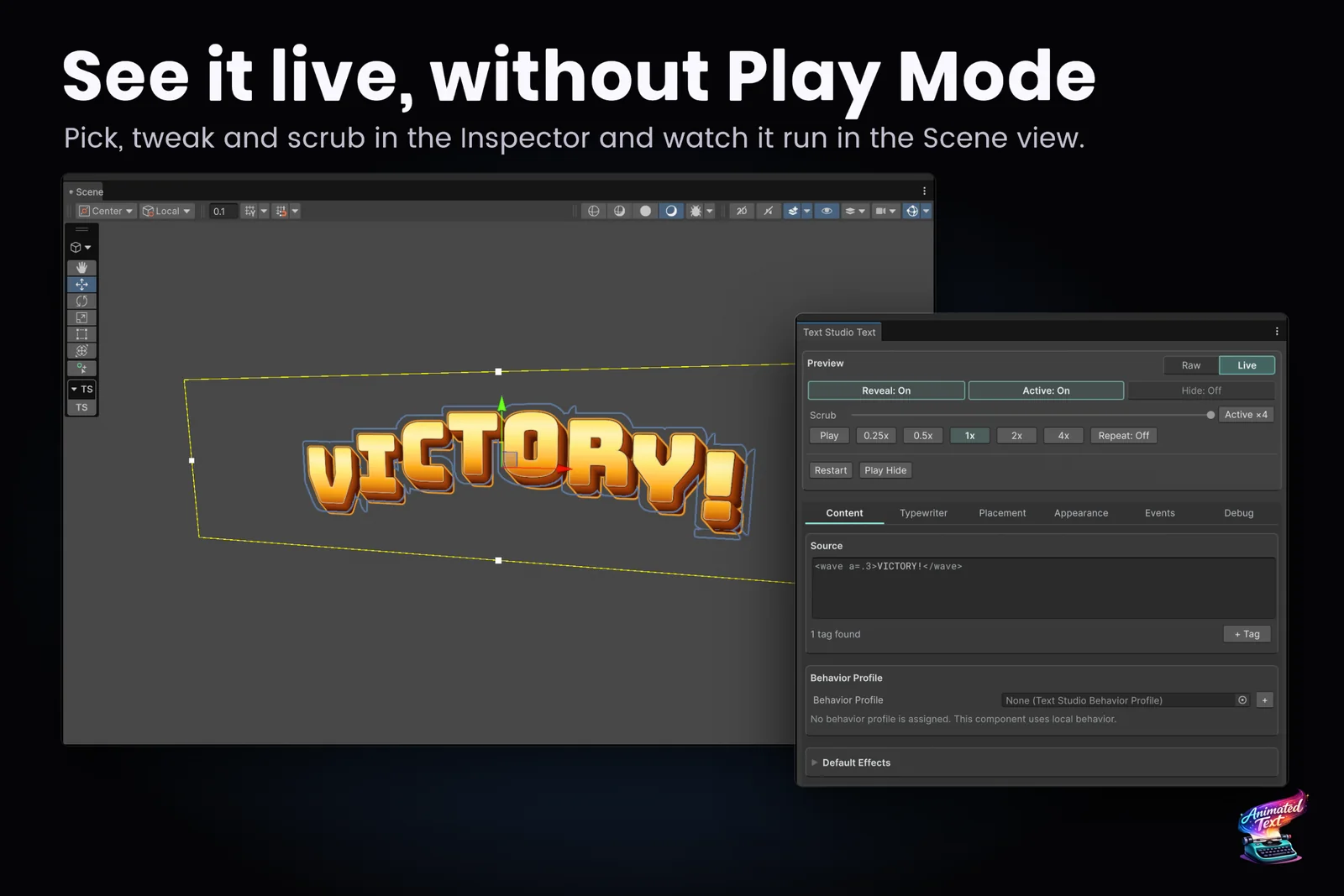
Text Studio ships with 40+ effects, but sooner or later every project wants one that does not exist yet. Before writing code, it is worth knowing that most “new” effects are really combinations, and Text Studio has a no-code tool for those. This tutorial covers both routes: a Composed Effect for combinations, and a Code Effect for a genuinely new algorithm. The code route really does fit in five minutes once you know the four pieces.
First, check whether you need code at all
Text Studio’s reference appendix is direct about it: create a custom Code Effect only when built-in effects and Composed channel layers cannot express the algorithm. A reward pop, for example, is a scale overshoot on reveal, a short lift, a warm color and a brief shimmer. All of that exists already.
A Composed Effect is an asset made of ordered layers. Each layer can reuse any built-in effect, custom effect or other Composed Effect, or drive a typed visual channel such as position, rotation, scale or color, with its own area (glyph, word, line or range), phase, timing, curve and staggering. To make one:
- Choose Assets > Create > Text Studio > Animation > Composed Effect.
- Set its Tag ID, for example
reward. - Use Add Layer to stack effects and channels, or Inspire Me for an editable starting point, and watch the Live Preview.
- Click Add to Catalog, then write
<reward>+500</reward>in any Text Studio text.
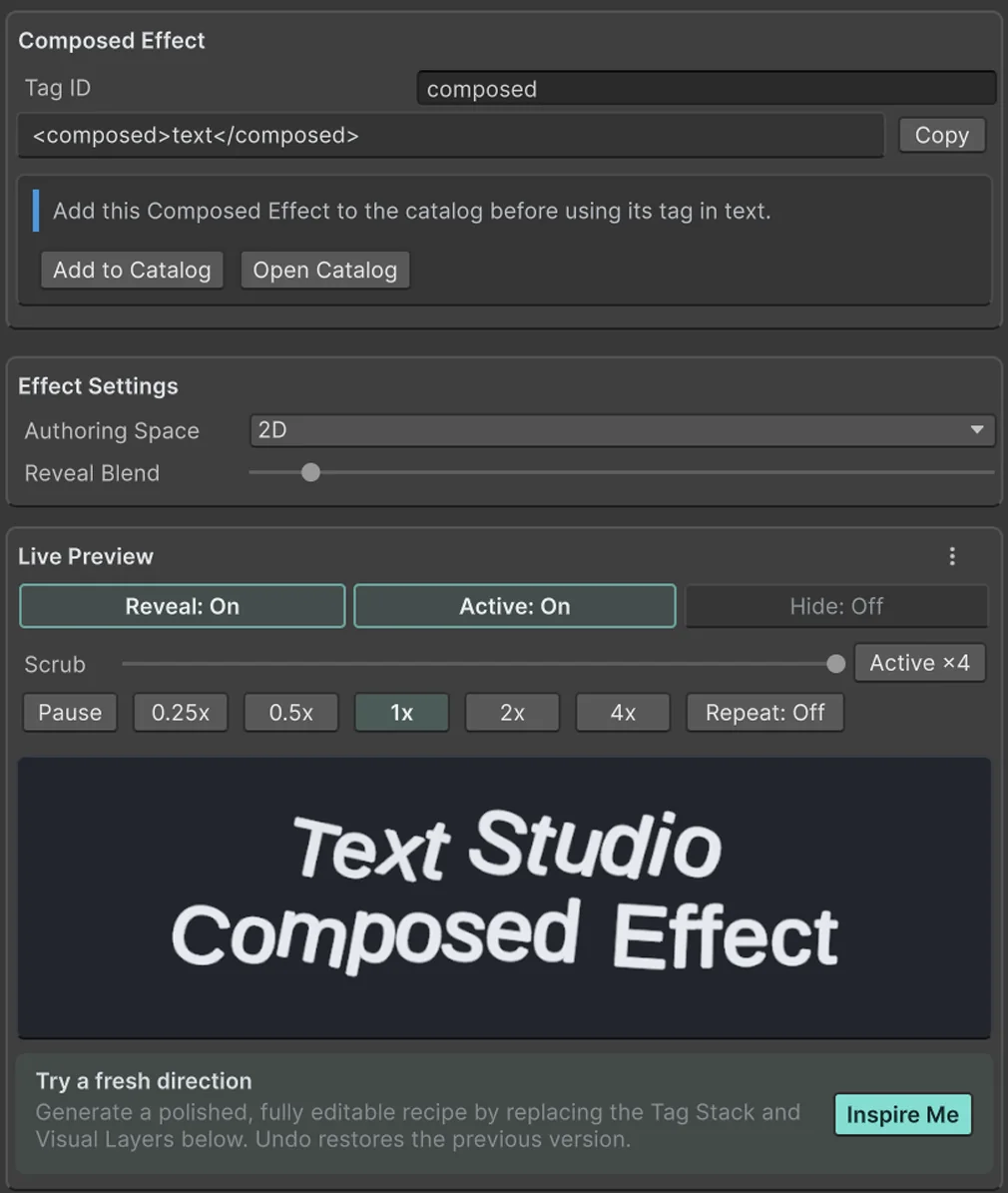 A Composed Effect gets its own tag. Add it to the catalog before using the tag in text.
Composed Effects also own lifecycle, playback, curves, timing and sequence. That is why even code effects are often used inside one: the code provides the motion, the composition decides when and how long it runs.
When you do need code: a Seesaw effect
Say you want neighboring letters to tilt in opposite directions, like a row of seesaws. No built-in does exactly that, so it is a good candidate for a Code Effect. Save this as SeesawEffect.cs in a folder that is not an Editor folder:
using System;using TextStudio;using UnityEngine;using UnityEngine.Scripting;
[Serializable, Preserve]public struct SeesawParameters{    [Tooltip("Maximum tilt in degrees.")]    [TextStudioRange(0f, 30f, 0.5f, "°")]    [TextStudioParameterAlias("a")]    public float angle;
    [Tooltip("Swings per second.")]    [TextStudioRange(0f, 10f, 0.1f)]    [TextStudioParameterAlias("s")]    public float speed;
    [Tooltip("Vertical travel in local text units.")]    [TextStudioRange(0f, 0.5f, 0.01f)]    public float lift;}
[Preserve]public struct SeesawState { }
[Preserve][CreateAssetMenu(menuName = "My Game/Seesaw Effect", fileName = "Seesaw Effect")]public sealed class SeesawEffect : TextStudioCodeEffectAsset<SeesawState, SeesawParameters>{    protected override string DefaultId => "seesaw";    protected override string DefaultDisplayName => "Seesaw";    protected override string DefaultDescription => "Neighboring letters tilt in opposite directions.";
    protected override SeesawParameters CreateDefaultParameters()    {        return new SeesawParameters { angle = 8f, speed = 1.2f, lift = 0.04f };    }
    protected override void EvaluateEffect(        ref EvaluatedGlyphState glyphState,        ref SeesawState effectState,        in SeesawParameters parameters,        in EffectEvaluationContext context,        EffectBlendMode blendMode)    {        float side = context.unitIndex % 2 == 0 ? 1f : -1f;        float swing = Mathf.Sin(context.time * parameters.speed * Mathf.PI * 2f) * side;        Quaternion tilt = Quaternion.Euler(0f, 0f, swing * parameters.angle);        Vector3 lift = new Vector3(0f, swing * parameters.lift, 0f);
        if (blendMode == EffectBlendMode.Override)        {            glyphState.positionOffset = lift;            glyphState.rotation = tilt;            return;        }        glyphState.positionOffset += lift;        glyphState.rotation = tilt * glyphState.rotation;    }}
That is the whole effect. The four pieces:
- The parameter struct publishes the tag’s parameters.
TextStudioRangesets the authoring range, snap step and unit,TextStudioParameterAliasadds a short name, and the tooltip becomes the help text. Text Studio binds the values once per invocation, never per glyph. - The state struct holds isolated per-glyph state for effects that need memory, such as a random seed or a spring. This one needs none.
- The defaults in
CreateDefaultParametersare stored on the asset when it is created, so designers can tune them in the Inspector without touching code. - EvaluateEffect runs per glyph and writes into
EvaluatedGlyphState. Respect the blend mode: Override replaces the channel, the default Additive mode adds to whatever other effects already did.
Create the asset and use the tag
- Choose Assets > Create > My Game > Seesaw Effect.
- In the Code Effect inspector, check the Tag ID, display name, description and markup example, then click Add to Catalog. This adds the asset to the Effect Catalog in Text Studio’s Project Settings, which registers its tag.
- Use the inspector’s Live Preview, with Play and Scrub, to tune the defaults.
- Write it like any built-in effect:
<seesaw>Balance</seesaw><seesaw a=14 s=2>Wobbly bridge</seesaw><seesaw area=word>Every word takes turns</seesaw>Because the effect uses context.unitIndex instead of a raw glyph index, it follows the area setting: with area=word, whole words alternate instead of letters. The Tag Browser and the + Tag button pick up the new effect with its parameters and ranges, the same way they list built-ins.
What the context and the glyph state give you
EffectEvaluationContext describes where and when the glyph is: time and deltaTime, the lifecycle phase and phaseProgress, effectProgress for externally driven playback, and indices such as glyphIndex, wordIndex, lineIndex, unitIndex and normalizedUnitIndex for staggering. EvaluatedGlyphState is what you change: positionOffset, rotation, scale, alpha, color multipliers and overrides, skew, uvOffset and per-corner offsets for deformation.
Rules that keep it fast and correct
- No allocations or parsing in EvaluateEffect. It runs for every glyph every frame. Parameters arrive already bound.
- Stay deterministic. Use time and indices, or a seed in the state struct, instead of Unity’s shared random state, so scrubbing, Timeline and restarts reproduce the same result.
- Declare capabilities honestly. The Code Effect inspector exposes render channels, supported phases, performance tier, reduced motion behavior, determinism, whether the effect can flash, and render domains. The editor uses them for compatibility guidance, and the motion policy uses the reduced motion setting. See reduced motion and flashing text.
- Use a stable ID. Text written by your team will reference the tag for years, so pick a name that will not collide with built-ins or future effects.
The runtime factory route
A Code Effect asset suits effects whose behavior is fully described by their parameters. When an effect depends on scene objects, services or live game state, implement ITextStudioEffectFactory instead and register it with TextStudioEffects.Register. Text Studio’s Custom Extensions sample scene shows both routes side by side with an orbit effect: TextStudioOrbitCodeEffectAsset.cs for the asset route, and a runtime factory with metadata for the picker, aliases and ranges that registers when its host is enabled and unregisters when it is disabled, which keeps Fast Enter Play Mode and repeated scene loads predictable.
Once your effect works, the tag effects use case shows how to combine it with built-ins, and the rich text tags reference explains how your tag coexists with Unity’s own formatting tags.
Frequently asked questions
Do I need to write code to make a custom text effect?
Usually not. A Composed Effect asset stacks built-in effects, custom effects and visual channels with their own area, phase, timing and curves, and gets its own tag. Write code only when no combination of existing effects can express the algorithm.
What does a Text Studio Code Effect consist of?
A serializable parameter struct with ranges and aliases, an optional per-glyph state struct, and a class that derives from TextStudioCodeEffectAsset and implements EvaluateEffect. The asset stores the defaults, and adding it to the effect catalog makes its tag available in text.
Can a custom effect use scene objects or game state?
Yes, through a runtime factory that implements ITextStudioEffectFactory and is registered with TextStudioEffects.Register. Text Studio's Custom Extensions sample shows a factory that registers when its host is enabled and unregisters when it is disabled.
Does my custom effect work with reduced motion?
Each Code Effect declares a reduced motion behavior, preserve, reduce or disable, together with its render channels, whether it is deterministic and whether it can flash. Text Studio applies the project's motion policy accordingly.
Style and animate every word in Unity.
Keep reading
 Use case
Wave, shake and rainbow text with tags
Wrap a word in <wave> or <shake> and it moves, in the Inspector and in the build. 40+ effects, named parameters, nesting, reusable Composed Effects and your own project tags. Article
Reduced motion and flashing text in games
Animated text is the most common moving element in a game's UI. The relevant guidance on motion and flashing, practical rules for text effects and typewriters, and Text Studio's Full, Reduced and No Motion policy. Article