Animating UI Toolkit text from Unity 6.2 to 6.5
UI Toolkit had no maxVisibleCharacters for years. What Unity 6.3 and 6.5 changed for text animation, what that means for your code, and how Text Studio handles it.
For years the answer to “how do I make a typewriter in UI Toolkit?” was “you can’t, really.” UI Toolkit had no equivalent of TextMeshPro’s maxVisibleCharacters, and the Unity Discussions thread asking for one, maxVisibleCharacters for typewriter effect in UI Toolkit, ran from 2021 into 2026. The usual workaround was to rebuild the string every tick with an <alpha=#00> tag in front of the hidden part.
Unity 6 changed this in two steps. One gives animation code a proper hook. The other replaces the text engine underneath it.
Unity 6000.3: a hook for every glyph
Unity’s manual page Create custom text animation lists the feature for version 6000.3 and newer. TextElement.PostProcessTextVertices is a callback that, in Unity’s words, “lets you modify the mesh vertices of each glyph immediately before UI Toolkit renders them.” Each TextElement.Glyph exposes its vertices with position, tint and UVs, plus metadata: the line, a link ID for <link> spans, and whether it is a character or a sprite.
A minimal typewriter fades the glyphs that have not been reached yet and asks for a repaint on a schedule, much like Unity’s own sample:
// Unity 6000.3 or newer: reveal glyphs over time by tinting the rest invisible.void Reveal(Label label, float duration){ float start = Time.realtimeSinceStartup; label.PostProcessTextVertices += glyphs => { float elapsed = Time.realtimeSinceStartup - start; int visible = (int)(elapsed / duration * glyphs.Count); int index = 0; foreach (TextElement.Glyph glyph in glyphs) { if (index++ < visible) continue; var verts = glyph.vertices; for (int i = 0; i < verts.Length; i++) { var v = verts[i]; var tint = v.tint; tint.a = 0; v.tint = tint; verts[i] = v; } } }; label.schedule.Execute(() => label.MarkDirtyRepaint()).Every(16);}That is a real improvement over string rebuilding: layout stays stable, nothing reallocates per tick, and the same callback can move or recolor glyphs for effects.
Unity 6.5: a new text engine by default
The Unity 6.5 release notes state that “the Advanced Text Generator (ATG) is now the default text system for UI Toolkit,” with full feature parity with TextCore and “CPU improvements ranging from 10% to 40%, depending on the text benchmark.” Two consequences matter for existing projects:
- Static font assets. Unity’s guide to migrating static font assets says the default generator “doesn’t support static font assets.” The recommended fix is Convert to Dynamic in the font asset’s Inspector, which keeps the atlas and references and subsets the source font to the baked characters.
- One alignment value. The supported tags page marks
<align=flush>as not supported by the Advanced Text Generator. The full list is in our rich text tags table.
What this means for animation code
The vertex hook is low level on purpose, and a few things are left to you:
- Glyphs are not characters. Rich text tags never produce glyphs, and whitespace may or may not produce geometry. In our testing, Unity 6.3 can emit four-vertex entries for spaces while other cases omit whitespace or newline geometry, so the glyph index of a letter depends on the text and the generator. Animation code needs its own mapping from glyphs back to the characters and words it means to animate.
- Tags do not survive into the callback. To shake one word you need to know which glyphs belong to it.
<link>IDs are the only built-in way to mark a span, and Unity’s page notes that<a href>hyperlinks are not reported through that field. - You own the clock. The callback only runs when the element repaints, so something has to mark it dirty every frame while text animates, and stop doing so when it settles.
- Two generators to test. If you support Unity versions before 6.5, or projects that opt out of the new default, check the result on both the standard and the advanced generator.
None of this is hard for one label. It becomes real work once you want punctuation-aware timing, skip, events, several effects on different words, localization and the same behavior on TextMeshPro elsewhere in the game.
How Text Studio handles each version
Text Studio treats UI Toolkit as another output for the same authored text, so the tags, typewriter presets and effects you use on TextMeshPro work on Labels too. What you get depends on the Unity version:
| Unity version | What Text Studio does in UI Toolkit |
|---|---|
| 2023.2 to 6000.1 | Basic: reveal, actions, events and visible-prefix presentation |
| 6000.2 and newer | Full parity: native per-glyph reveal, effects, color and placement |
| 6000.5 and newer | Full parity with the Advanced Text Generator as Unity’s default |
From code, a binding attaches to any ordinary Label through the element’s text binding slot:
using TextStudio;using UnityEngine;using UnityEngine.UIElements;
public class ObjectiveBanner : MonoBehaviour{    [SerializeField] UIDocument document;
    void Start()    {        Label label = document.rootVisualElement.Q<Label>("objective");        TextStudioBinding binding = label.AttachTextStudio();        binding.ShowText("Find the <wave>lantern</wave> before <shake>dawn</shake>.");        Debug.Log(binding.FeatureSet); // Basic before Unity 6.2, FullParity from 6.2    }}
The binding plays on its own panel-bound schedule and stops repainting when nothing changes. A Manual update mode is there for custom clocks and tests. The text generator is a preference on the binding: by default it follows Unity’s runtime default, so it prefers the Advanced Text Generator once Unity makes it the default, and you can pick Prefer Advanced, Standard or Project Default explicitly. Either way, animation still flows through Text Studio’s semantic plan, which maps glyphs back to words and tagged ranges for you.
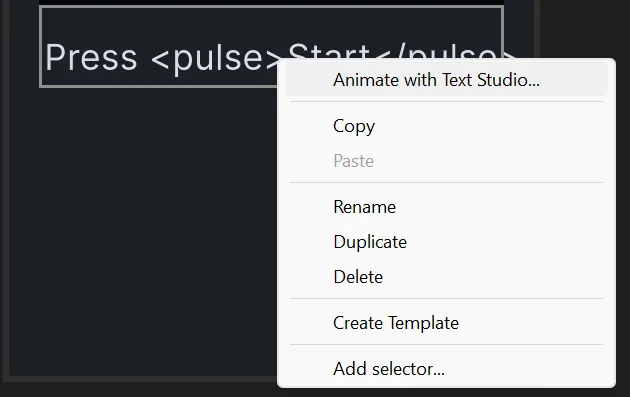 Unity 6.3 and newer: right-click a Label in UI Builder and choose Animate with Text Studio.
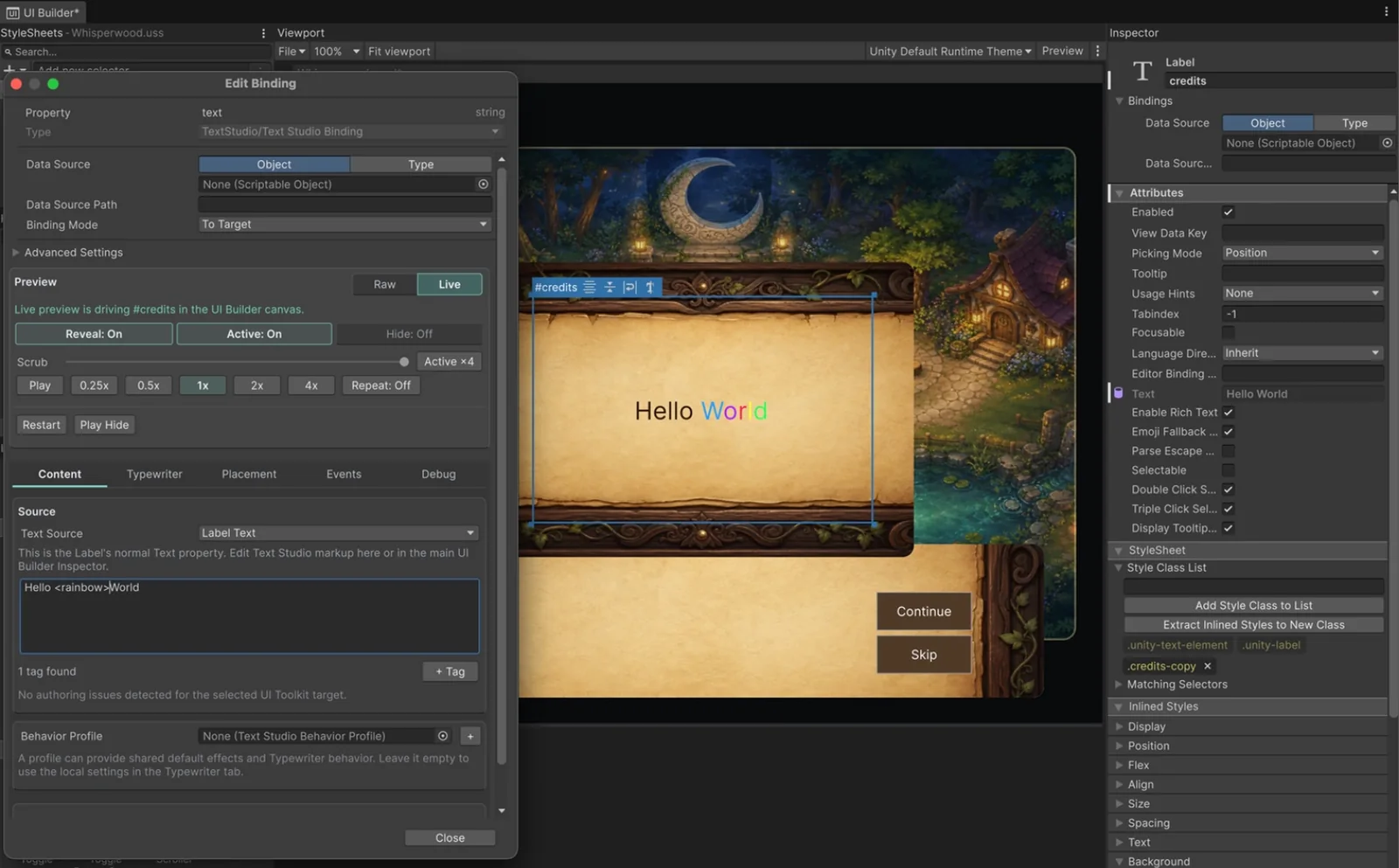
In UI Builder on Unity 6.3 and newer, you can right-click a Label and choose Animate with Text Studio, or add the binding through UI Builder’s own Add Binding flow. The preview runs live on the canvas, text edits are written back to the UXML document, and Undo works as usual. Runtime panels can be hosted by a UIDocument or, on Unity 6.5 and newer, a PanelRenderer.
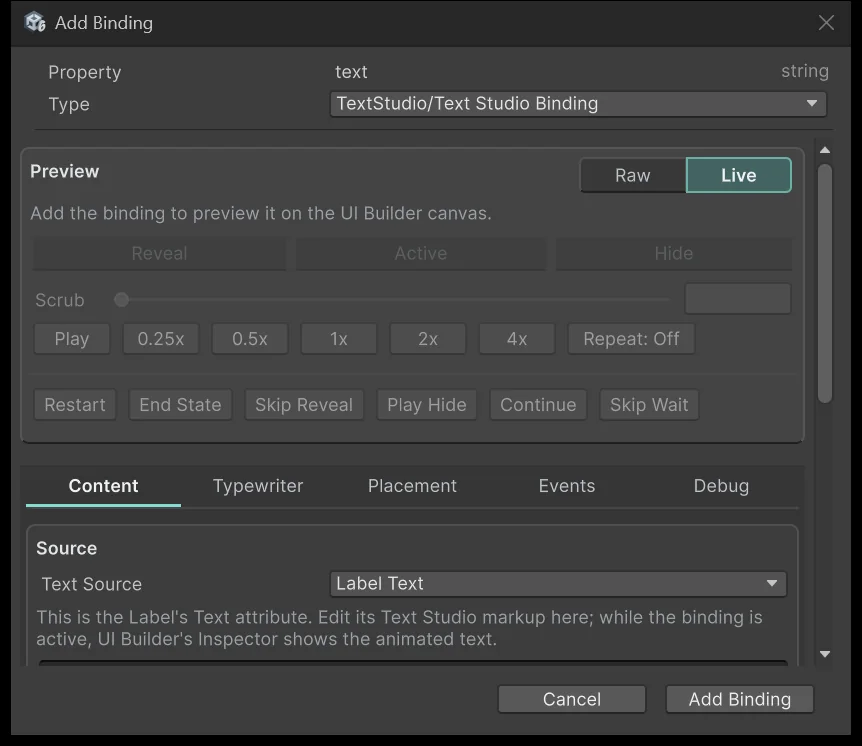 The binding’s settings in UI Builder: preview, source, typewriter, placement and events.
The complete demo in Text Studio’s samples, Whisperwood, ships in a Canvas and a UI Toolkit version, which is a quick way to compare both outputs with the same content. The UI Toolkit use case walks through setup step by step.
Frequently asked questions
Does UI Toolkit have maxVisibleCharacters like TextMeshPro?
No. From Unity 6000.3 the TextElement.PostProcessTextVertices callback lets code change the position, tint and UVs of each glyph before rendering, which is enough to build a typewriter. On older versions people hide text with rich text alpha tags.
What changed for UI Toolkit text in Unity 6.5?
The Advanced Text Generator became the default text system for UI Toolkit, with CPU improvements of 10 to 40 percent according to Unity. It does not support static font assets, which Unity recommends converting to dynamic in the Inspector.
Does Text Studio work with the Advanced Text Generator?
Yes. Text Studio supports UI Toolkit on Unity 6.5 and newer with the Advanced Text Generator. Each binding follows Unity's runtime default, or you can choose Prefer Advanced, Standard or Project Default explicitly.
Do I need a special Label control for Text Studio in UI Toolkit?
No. Text Studio attaches to ordinary Labels through the element's text binding, from code, from UXML, or from UI Builder. In Unity 6.3 and newer you can right-click a Label in UI Builder and choose Animate with Text Studio.
Style and animate every word in Unity.
Keep reading
 Use case
Animated text and typewriter in UI Toolkit
Text Studio binds to the Label you already have: right-click it in UI Builder, preview the animation live, and save it in UXML. Typewriter from Unity 2023.2, per-glyph effects from 6.2.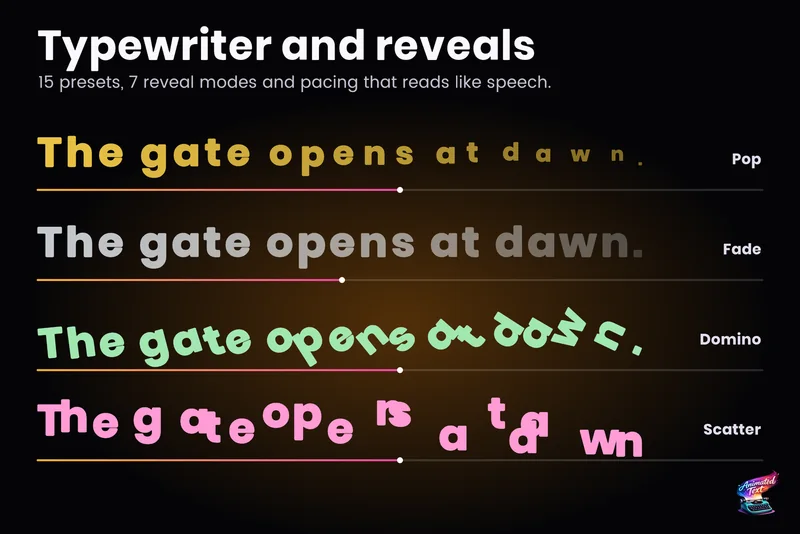 Use case
Typewriter effect for TextMeshPro and UI Toolkit
Reveal text by glyph, word or line with timing that understands punctuation, then add waits, skipping, sounds and events without writing a coroutine. Article