Animated titles, menus, HUD text and score counters
Animate menu titles, chapter cards, HUD labels, prompts and score counters in Unity with tags and ready-made looks, keep idle text still and let changing numbers roll.

The title screen needs a logo word that looks like it belongs on a poster. The pause menu wants a short entrance for each item. The HUD shows an objective, a context prompt, a combo counter and a score that changes forty times a minute. Usually that means a different script or prefab for each, and a HUD that keeps animating labels nobody is looking at.
Text Studio treats all of them as text with three questions: what does it look like, how does it arrive, and how does it react when it changes. The answers are tags, looks and settings on the same component, on TextMeshPro, UI Toolkit or legacy UI Text.
Give titles a look
A title is mostly appearance. Text Studio ships 60+ ready-made looks, from Chrome Title, Cinematic Gold and Neon Cyan to Comic Impact, Arcade Champion and Toxic Warning, built from layered fills, strokes, glows, shadows, bevels and faux depth. Pick one in the Text Gallery or with Browse in the Appearance section, which opens the Style Browser with filters, Favorites and Recent, and preview it in the Inspector before applying it.
 One of the ready-made looks, rendered by Text Studio.
Looks can also apply to a phrase rather than the whole text. Define a named style and wrap the words: <$warning>Low health</$warning>. Tint and opacity adjust one use of it, so a warning can flash brighter without a second style. The persistent 2D text chapter covers building your own looks layer by layer, and the outline and glow guide goes deeper on the classic treatments.
Give it an entrance, then let it rest
Every Text Studio text has three phases: Reveal when it appears, Active while it is on screen, and Hide when it leaves. For interface text, the rule of thumb is a short, confident Reveal, a still Active phase, and a quick Hide:
- Chapter cards and level titles: reveal by word with Pop, Elastic or Fade, hold, then hide with the matching effect. Center-Out sequencing works well for single words.
- Menu items: stagger a small Slide or Fade per line so the menu reads top to bottom.
- Objectives and prompts: replace the text in place; changed glyphs animate while the rest stays put.
- Credits and long logs: the Auto Scroll Follower keeps continuous text moving, and TMP Page overflow handles codex pages.
Keeping the Active phase still is not only a style choice. Since Text Studio 1.3, settled text skips its per-frame updates until its source or appearance changes, and large groups of parked Canvas labels share scale checks. A HUD that rests costs very little; a HUD where every label wiggles forever does not.
Make changes readable: scores and counters
Numbers change constantly, and re-animating the whole score on every point is noisy. The Numeric Value text-change scope matches the formatted number by decimal place: digits that did not change keep their position, only the changed digits run their effect, and multiple-number text falls back to the ordinary change detection.
Three settings make counters feel right:
- Set the text-change scope to
NumericValue, andNumericDecimalSeparatorto your formatter’s decimal separator. - Set
TextChangeLayoutDuration, for example 0.18 seconds, so retained digits slide when the number grows from 999 to 1,000. Rapid updates continue from the current positions instead of restarting. - Use
SetTextDeferredwhen a value may change several times before the next visual update; the changes collapse into one.
 A Counter Outgoing reaction on a changing score digit.
For a little extra punch, the Counter Outgoing reaction recipe lets the old digit leave while the new one arrives. Numeric Value text, such as scores and countdowns, prepares its runtime digits automatically, so styled counters do not need project-wide digit preparation. No Motion and instant updates settle immediately, which matters for players who turn motion off.
Combo words, pickups and level-ups
Short-lived gameplay text, like “LEVEL UP!”, “+420” or “COMBO x12”, belongs on an emitter rather than in the HUD layout. GameObject > Text Studio > Temporary Text > Emitter creates one with a default preset and a reusable host, and the ready-made Damage, Critical, Heal, Status, Combo and Score presets cover the common cases. Pooling, stacking, merging and target following live on the emitter, so the HUD code only calls it. The damage numbers guide explains the whole setup.
Hover, focus and replay in menus
Menus feel alive when an item reacts to the pointer. In UI Toolkit, the Recipes window (Tools > Text Studio > Recipes) has ready-to-copy snippets for hover restarts and focus reveals on ordinary Labels, plus complete UXML and code-created examples. For TextMeshPro buttons, call RestartEffects() on the text from your own pointer or selection events. The UI Toolkit guide covers bindings and UI Builder.
The Responsive HUD example
The Responsive HUD scene in the examples puts all of this together: a callsign input field, supplies, combos, waypoints, a context prompt and priority warnings. Its notification queue merges pickups and resumes ordinary notices after a warning, the score uses Numeric Value with retained-glyph layout interpolation, and prepared icons stay attached when prompt text is replaced. A restartable round countdown sits next to it in the effect recipes. Open it from Tools > Text Studio > Examples; it is one of 30+ example scenes.
The Common Game Scenarios chapter has the HUD recipe in short form: change values with SetTextDeferred, keep the default state still, use a brief effect on change, and isolate units or warning thresholds with authored ranges instead of rebuilding markup every frame.
Limits worth knowing
- Appearance looks render on TextMeshPro, in Canvas and world space, and on UniText. UI Toolkit labels get effects, the typewriter and, on Unity 6.2 or newer, per-glyph color and placement.
- A look’s prepared glyphs cover the characters it was prepared for. If a title changes language or shows player names, add the characters under Runtime Preparation so the look renders them too.
- Notification queues, combo timers and score logic stay in your game code. Text Studio owns how the text looks and moves, not what it says.
Frequently asked questions
How do I animate a score without re-animating the whole number?
Use the Numeric Value text-change scope. Matching digits keep their place, only changed digits react, and TextChangeLayoutDuration, for example 0.18 seconds, slides retained glyphs when the number gets wider. SetTextDeferred collapses several updates in one frame into one change.
Will a HUD full of animated labels cost performance?
Text that has settled skips Text Studio's per-frame updates until its source or appearance changes, and animated text skips unchanged work and mesh uploads. Keep the resting state still and spend motion on changes; the Performance page shows measured workloads.
Can buttons replay an effect on hover?
Yes. The Recipes window has UI Toolkit snippets for hover restarts and focus reveals. For TextMeshPro buttons, call RestartEffects on the text from your own pointer events.
Do the ready-made looks work on every text system?
Appearance looks render on TextMeshPro, in Canvas and world space, and on UniText. UI Toolkit labels get the effects, typewriter and per-glyph color; check the Gallery cards for what each look supports.
Style and animate every word in Unity.
Keep reading
 Use case
Damage numbers and floating combat text
One emitter and a few presets cover damage, crits, heals, status words, combos and score bursts, pooled and readable under pressure, with the same looks and effects as the rest of your text.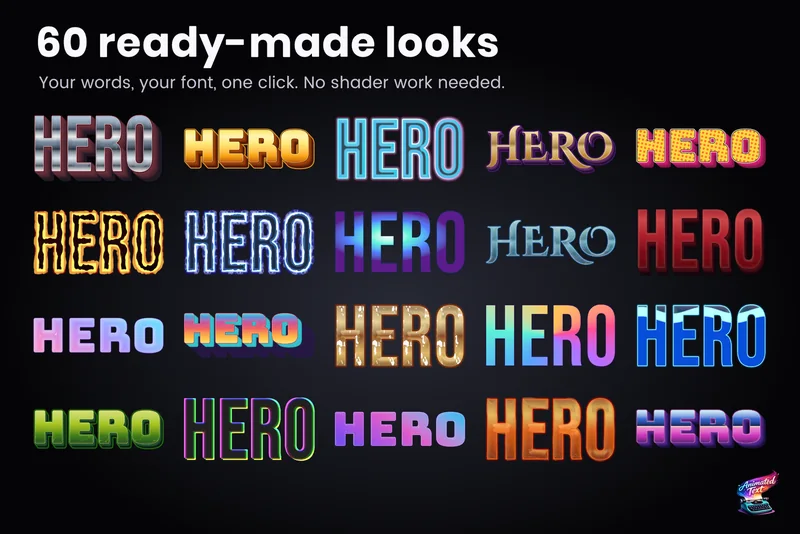 Use case
Outlines, glows, gradients and bevels for TextMeshPro
Layered 2D looks for TextMeshPro: outside and multiple strokes, glows, shadows, gradients mapped per word or line, bevels, materials and faux depth, from 60+ ready-made styles or your own stack. Use case