Curved text, arcs and circles for TextMeshPro
Curve TextMeshPro text in Unity along arcs, circles, waves, grids and curves you draw yourself, while the typewriter and effects keep working on the bent baseline.
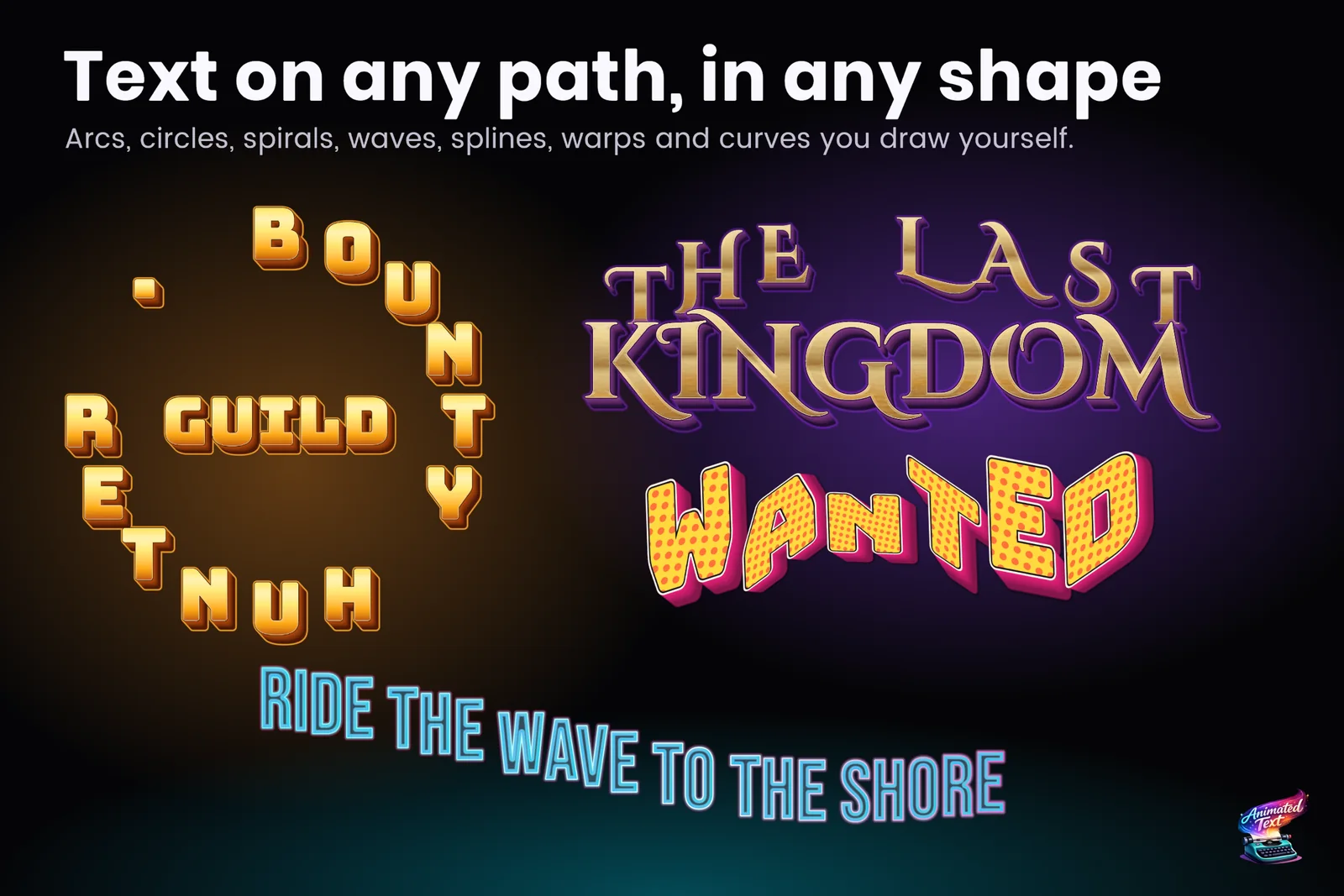
The most viewed text question on Unity Discussions that we found is How to make Curve Text By Using TextMesh Pro?, with about 39,000 views and replies from 2019 to 2024. The answers point to the warp example script in TextMesh Pro’s examples, to small GitHub components, or to splitting a word into one object per letter. Each of these can bend a static title. Combining the curve with a typewriter, changing text, wrapping and effects is left to you.
Text Studio handles curves as Placement: a step in the same pipeline that runs reveal and effects. The source text never changes, so localized text, effect tags and the typewriter keep working while the letters sit on an arc, a ring or a curve you drew.
The placement modes
Open the Placement tab of a Text Studio text and choose a mode:
- Linear keeps the normal TextMeshPro layout.
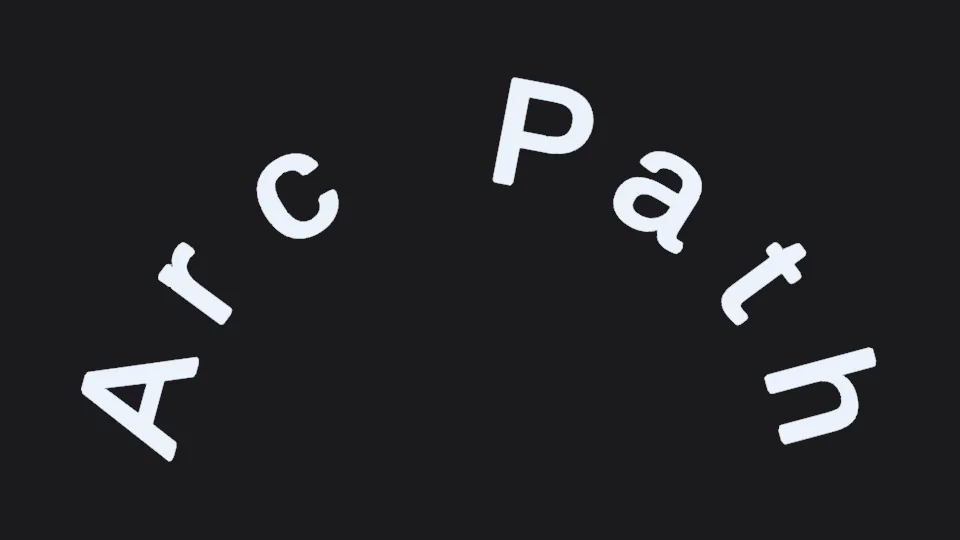
- Arc bends the baseline by radius and total angle.
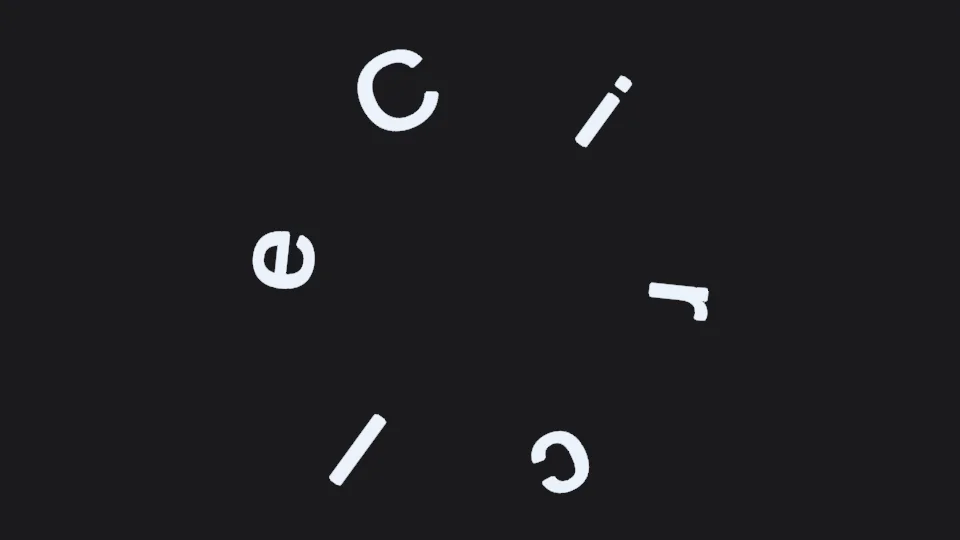
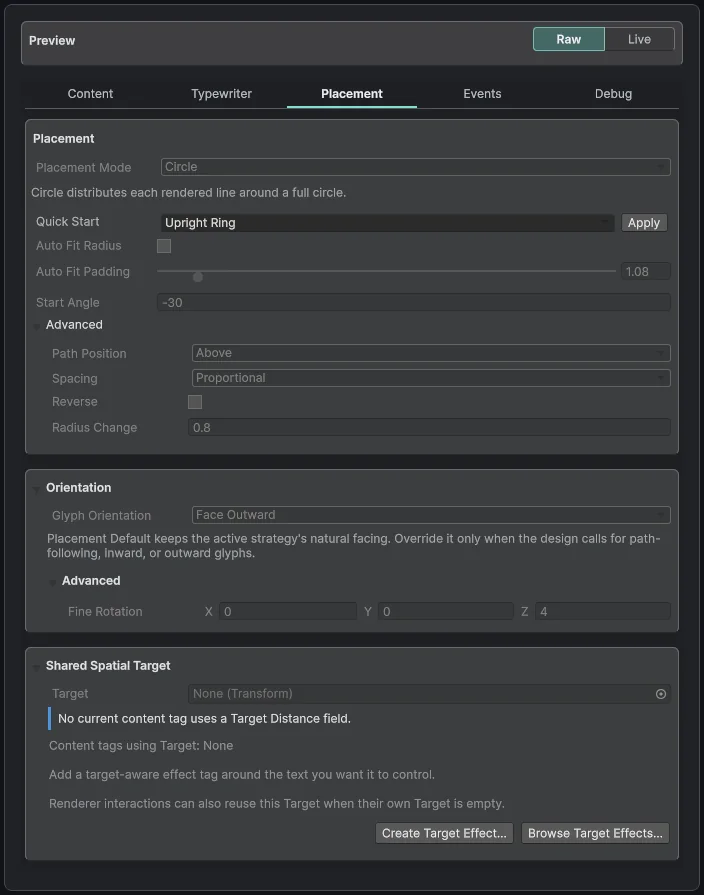
- Circle wraps the text around a full or partial ring.
- Wave displaces the baseline along a repeatable curve.
- Grid assigns glyphs to rows and columns.
- Curve follows a custom curve that you draw.
- Spline follows a Unity Splines path through the optional integration, covered below.
Arc and Circle use Auto Fit Radius by default: when the letters would overlap at the authored radius, the radius grows, and Auto Fit Padding adds breathing room. Rotation with placement decides how each glyph stands on the path: keep its original upright orientation, or turn with the path’s tangent so the letters lean into the curve.
Draw your own curve
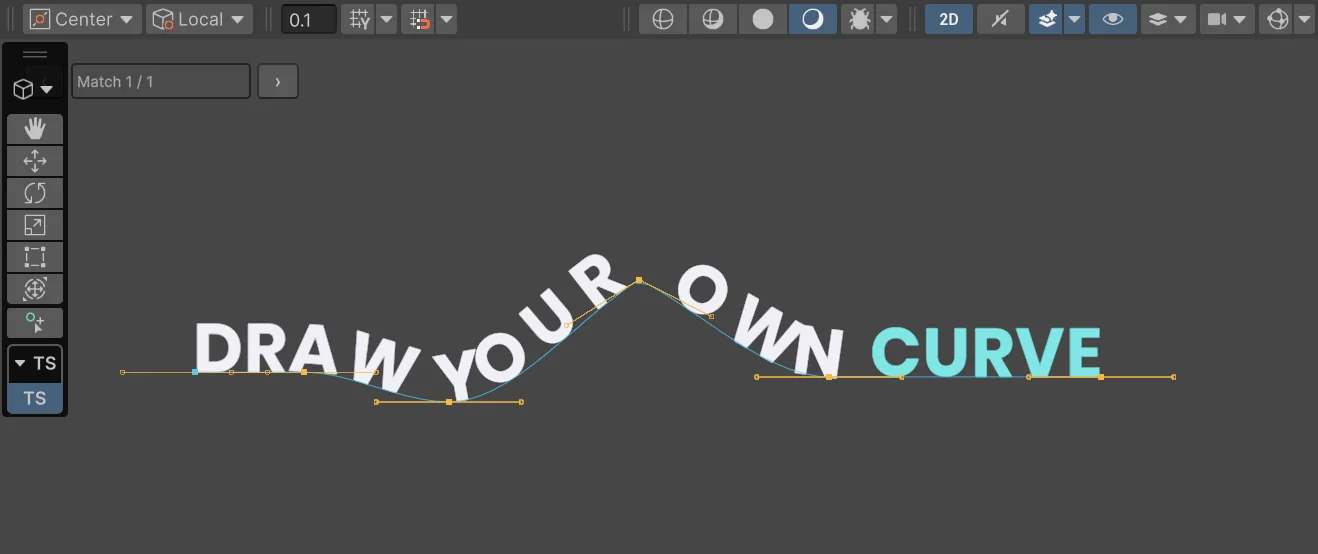
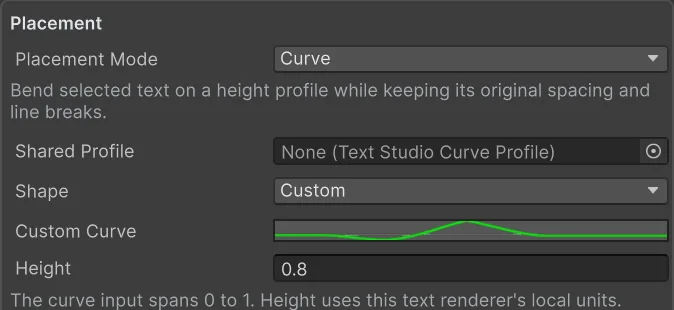
When no preset shape fits, set the mode to Curve. It bends the selected glyph baselines while keeping their spacing and line breaks, and you shape the curve with knots directly in the Scene view while the text follows. Height sets how far the curve bends, in the text’s local units.
The curve can live inline on the text, or in a Curve Profile asset (Assets > Create > Text Studio > Text Authoring > Curve Profile) that several texts share, so a set of signs or menu headers keeps one shape. Curve placement is also selective: it applies to a selection, and Each Match maps the curve onto every selected range separately while Entire Selection spans them as one. One word can arch while the rest of the line stays straight.
Effects and the typewriter keep working
The model has three separate jobs. Placement decides where glyph baselines live. An effect decides which visual property changes. A spatial field decides where that effect is strong. Because they stay separate, a <wave> on a circular title waves along the ring, a typewriter types around it, and a color sweep follows the letters, without any of them knowing about the curve.
<wave a=.1>ROUND AND ROUND</wave> it goesSpatial fields add a layer of interaction: Sphere, Box, Cylinder, Torus, Target Distance and Noise fields can raise or lower an effect’s strength by position. With Placement > Shared Spatial Target, several effects can follow the same player, cursor or controller, for example letters on an arch that lift as the player walks past.
Text on Unity Splines
For paths you already build with Unity’s Splines package, install Unity Splines 2.0.0 or newer and import the Text Studio Unity Splines integration from Tools > Text Studio > Integrations. Add Spline Placement Provider (Text Studio > Placement > Spline Placement Provider), assign a SplineContainer and spline index, and select the provider in Placement. If no path is assigned yet, Create Editable Path makes a child container and selects its knots, with Undo.
Text can also travel along the path. Spline Travel Presentation moves each letter in from an entry point during its reveal and back out during hide, with a minimum path speed or a reveal that waits for the letters to arrive. Its window controls fade text in and out along the path without replaying reveal events. For extruded letters on a path, see Text Studio 3D.
Bend the whole block with a cage
Sometimes the goal is not a path but a shape: a bulging WANTED poster, an arch over a door, a sheared sign. Whole Text Cage deforms native world or Canvas TextMeshPro text as one block:
- Add Text Studio > Whole Text Cage to the text object.
- Create a style with Assets > Create > Text Studio > Placement > Whole Text Cage and assign it.
- Start from Arch, Bulge or Shear, or edit the custom 4 by 4 grid. Strength blends the result.
- Choose Glyph Shape: Deform bends each letter, Rigid moves and turns letters while keeping their shape.
- Use Edit Cage in Scene to drag control points.
Compatible 2D Appearance looks follow the cage, so an outlined, beveled title bends with its outline. On UI Toolkit labels in Unity 6.2 or newer, the Text Studio binding can reuse the same cage style. Disabling the cage restores the original mesh.
Limits worth knowing
- Placement moves glyph origins. It does not rewrite the source, TextMeshPro line wrapping or effect tags, so test multiline text, mixed case, punctuation and narrow layouts on the shape.
- The cage route excludes Writing, World Batch Groups, exact Lens Magnifier output, skip-ink lines, links, input fields and Reactions. The component’s Status reports unsupported combinations instead of drawing a broken result.
- The native TMP cage does not deform Text Studio 3D output; 3D text has its own spatial placements.
The manual chapter Place and Influence Text has every setting. To pair curves with ready-made styles, see outlines, glows and bevels for TextMeshPro, and for menus and chapter cards, animated titles and HUD text.
Frequently asked questions
How do I curve TextMeshPro text in Unity?
Add Text Studio to the TextMeshPro object, open the Placement tab and choose Arc, Circle, Wave, Grid or Curve. The glyphs move onto the shape while the source text, line wrapping and effect tags stay as they are.
Can I put text on a full circle?
Yes. Circle wraps text around a full or partial ring. Auto Fit Radius grows the radius when letters would overlap, and rotation with placement keeps glyphs upright or turns them with the path.
Can I draw my own curve?
Yes. Curve placement takes a custom curve that you shape with knots in the Scene view. A Curve Profile asset shares one shape between several texts, and the mapping can follow each tagged match or the entire selection.
Do the typewriter and effects still work on curved text?
Yes. Placement only decides where glyph baselines sit. Reveal, effects, color and events run on the placed glyphs, so a wave or a typewriter follows the curve.
Style and animate every word in Unity.
Keep reading
 Use case
Animated titles, menus, HUD text and score counters
Title screens, chapter cards, objectives, prompts, combo words and scores: how to give interface text a look, a short entrance and a reaction to change, without keeping a busy HUD animating every frame. Use case
Wave, shake and rainbow text with tags
Wrap a word in <wave> or <shake> and it moves, in the Inspector and in the build. 40+ effects, named parameters, nesting, reusable Composed Effects and your own project tags. Use case