Text effects for Pixel Crushers Dialogue System
Animate Pixel Crushers Dialogue System subtitles with Text Studio: effects, typewriter timing, sounds and skip-first continue, with conversations left unchanged.
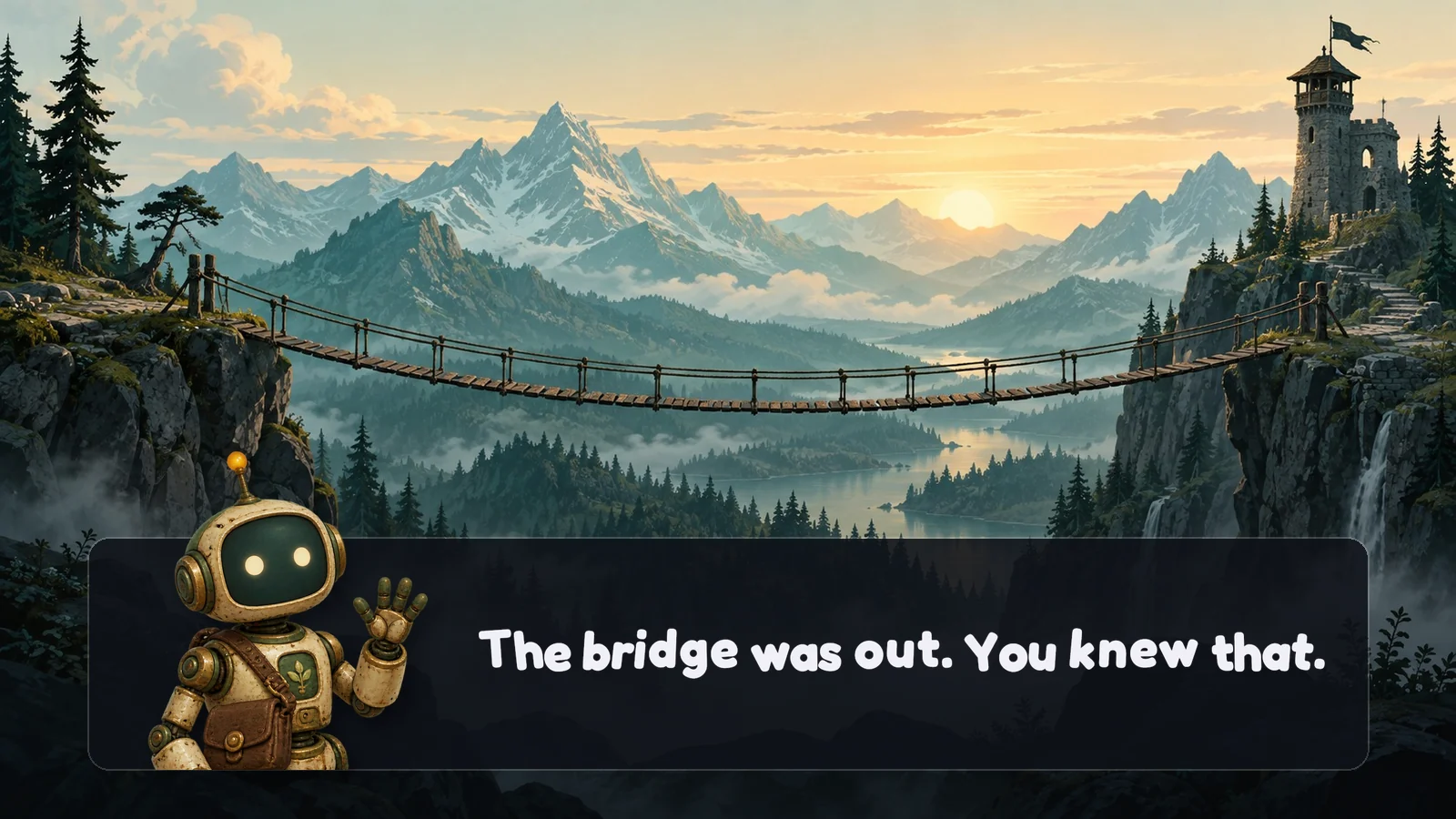
Your conversations already live in a Dialogue System database: actors, portraits, branching responses, Lua conditions and sequences. The subtitle itself, though, appears with one typewriter style. When the guard should bark a word, the ghost should whisper, or a revealed name should glow, you want effects in the text and typing sounds that follow it, without rebuilding the dialogue UI.
Text Studio’s Pixel Crushers integration replaces only the visible typewriter path. Swap one panel component, and every subtitle reveals through Text Studio while Dialogue System runs the conversation exactly as before.
What the integration adds
TextStudioPixelCrushersSubtitlePaneltakes the place ofStandardUISubtitlePanel. It follows the standard panel lifecycle, routes the formatted subtitle throughTextStudioDialogueSource, and stops the vendor typewriter so a line is never animated twice. It keeps Dialogue System’s subtitle text field updated for accumulation and scroll checks, and carries its base and emphasis colors to the visible text.TextStudioPixelCrushersResponseButtonanimates the labels of native response buttons.- Two sequencer commands,
TextStudioWaitForReveal()andTextStudioDisappear(), let sequences wait for the real presentation. TextStudioPixelCrushersScrollFollowkeeps transcripts in view without fighting a reader who scrolls back.
Dialogue System keeps conversation state, sequencing, the panel lifecycle, portraits, response menus, accumulation policy and the final advance. Text Studio owns subtitle markup, reveal, effects, sounds, skip-first completion and the rendered text.
Set it up
- Install Dialogue System for Unity and Text Studio. Open Tools > Text Studio > Integrations and press Import Integration on the Pixel Crushers card. Importing the package is the activation step; there is no define to set.
- Add
TextStudioTextto the subtitle’s TextMeshPro object. - On the subtitle panel, replace
StandardUISubtitlePanelwithTextStudioPixelCrushersSubtitlePanel. - Select the panel and press Configure Selected. It reuses the
TextStudioTexton the panel, its children or its parents, addsTextStudioDialogueSourceand connects both. - Keep Pixel Crushers typewriter components off that subtitle field, so only one system writes the visible text.
Dialogue System formats each subtitle before it reaches the panel, so its own markup, such as variables and emphasis colors, is resolved first. Write Text Studio tags such as <wave> or <shake> in the Dialogue Text where you want effects, or give the text a profile with default effects so every line gets the same treatment. The tag reference lists the effects.
Continue, responses and sequences
Continue skips first and advances second: the first press completes the reveal and the active wait, the next one lets Dialogue System move on. For response menus, add TextStudioPixelCrushersResponseButton next to the native button with a dialogue source and a text target, and pick a reveal mode if choices should animate in.
In a sequence, wait for what the player actually sees:
TextStudioWaitForReveal()TextStudioDisappear()TextStudioWaitForReveal() waits for the real Text Studio presentation, including appearance and action waits, and TextStudioDisappear() hides the current subtitle and waits until it is gone. Both stop when the conversation or the target goes away.
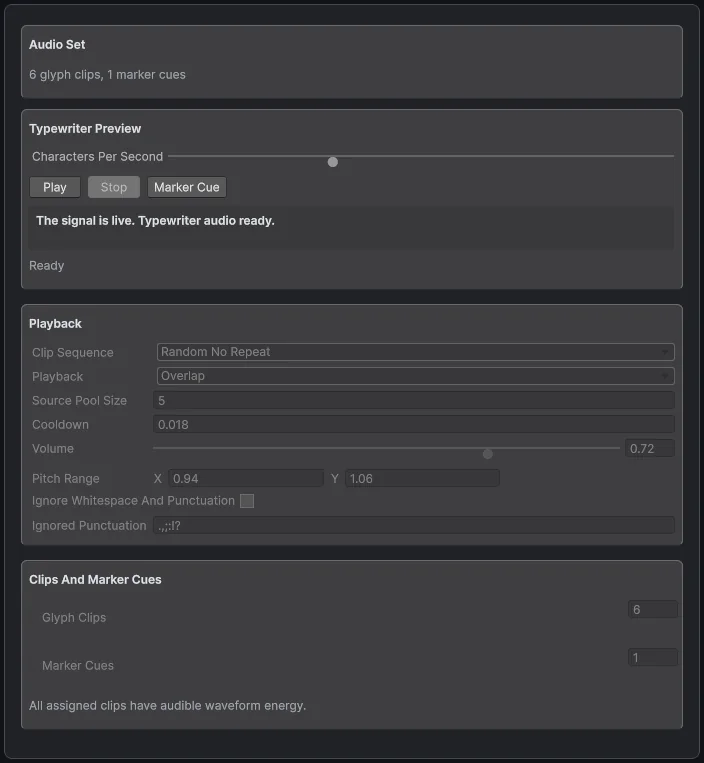 An Audio Set defines typing sounds with varied pitch, plus cues for markers inside the line.
Transcripts and accumulated subtitles
When the panel accumulates lines, the text-change policy of the target decides what animates. Changed Glyphs keeps matched transcript text in place and reveals only what is new; Whole Text animates the entire replacement on purpose. Dialogue System still decides how many lines are kept. Add TextStudioPixelCrushersScrollFollow to the native ScrollRect and enable Follow New Text: it follows new lines only while the reader stays near the bottom, and ResumeFollowing() returns to following after the player scrolls up.
The forest gate sample
Press Open Sample on the card to open Dialogue System.unity and enter Play Mode. Mara asks for a brighter signal. Continue first completes the reveal, then advances to Dialogue System’s native response menu. Choose Light the lantern or Ask about the gate, and use Restart conversation to try the other branch. Keep transcript turns on the panel’s accumulation setting so you can watch the Changed Glyphs policy keep earlier lines in place.
Limits worth knowing
- The integration was source-verified against Dialogue System 2.2.73.2 and its sample tested with 2.2.74. Recheck overridden APIs when you adopt a later release.
- Configure Selected appears only after the panel swap, and it needs a
TextStudioTexton or near the panel. - Never let a Pixel Crushers typewriter and Text Studio target the same field.
The Pixel Crushers section of the manual lists everything worth testing before release, and dialogue text effects covers voice blips, emotion and pacing in general.
Frequently asked questions
Do I need to change Dialogue System's source code?
No. You swap one component: StandardUISubtitlePanel becomes TextStudioPixelCrushersSubtitlePanel. Conversations, the database, portraits, response menus and sequences keep working as before.
How does the continue button behave?
The first press completes Text Studio's reveal and any active wait; the next press lets Dialogue System advance the conversation. That also holds for reveals that start after a focus delay.
Can response buttons animate too?
Yes. Add TextStudioPixelCrushersResponseButton to native response buttons. Leave the reveal Instant for normal choices or pick a reveal mode; focus, navigation and clicks stay with Dialogue System.
Does Text Animator work with Dialogue System as well?
Yes. Pixel Crushers ships Text Animator support in Dialogue System's Third Party Support folder. Text Studio ships its own integration package, which adds response buttons, sequencer commands and transcript scrolling.
Style and animate every word in Unity.
Keep reading
 Use case
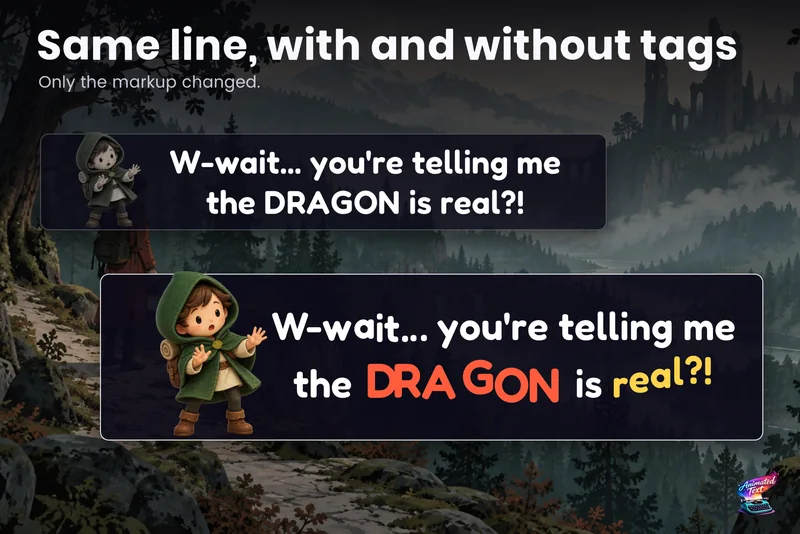
Dialogue text with typewriter, voice blips and emotion
Make a line sound nervous, excited or broken with a few tags, give each character a typing voice, and keep continue, skip, portraits and cameras in sync with the reveal.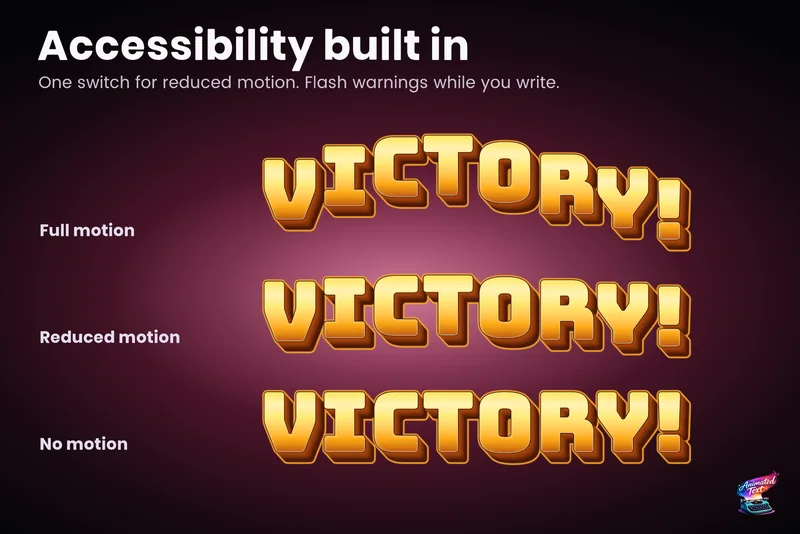 Use case
Accessible subtitles and captions
Subtitles exist to be read. Text Studio paces them by word or line, highlights key phrases without moving them, respects motion preferences and keeps every wait skippable. Comparison