Dialogue text with typewriter, voice blips and emotion
Give Unity dialogue a voice: typing sounds tied to the reveal, emotional effects on single words, pauses, skip and continue, and events for portraits and cameras.
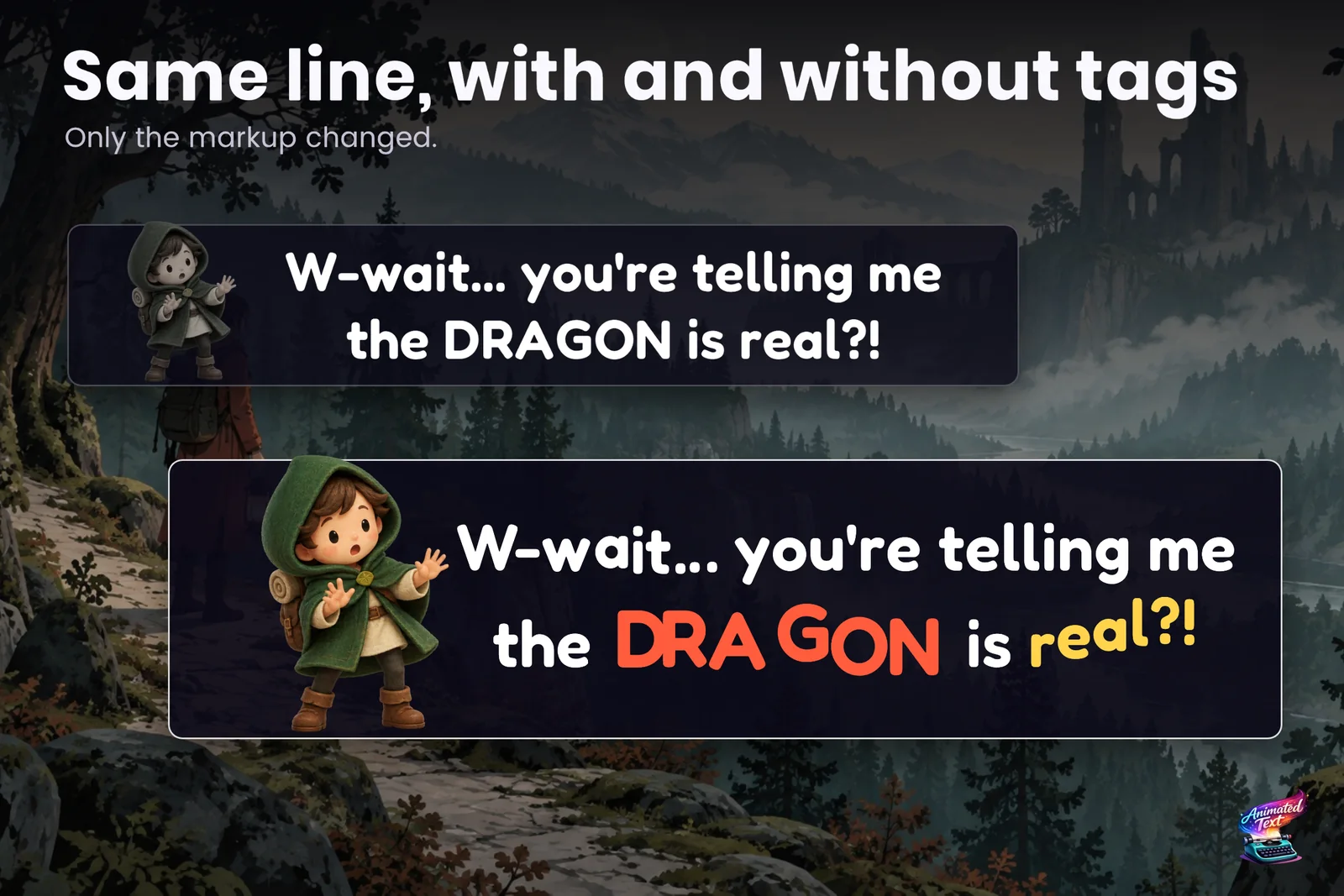
A scared traveler finally meets the dragon and says “W-wait… you’re telling me the dragon is real?!” In a plain dialogue box, that line reads exactly like “The shop opens at nine.” The writing is good; the presentation flattens it. Players read emotion from timing and motion as much as from words: a stutter, a beat of silence, one word that shakes.
Text Studio puts that performance into the line itself, so the writer who knows the character can direct it:
<shake>W-wait...</shake><wait=0.4> you're telling me the <color=#FF6B5A><shake a=.15>DRAGON</shake></color> is <bounce>real?!</bounce>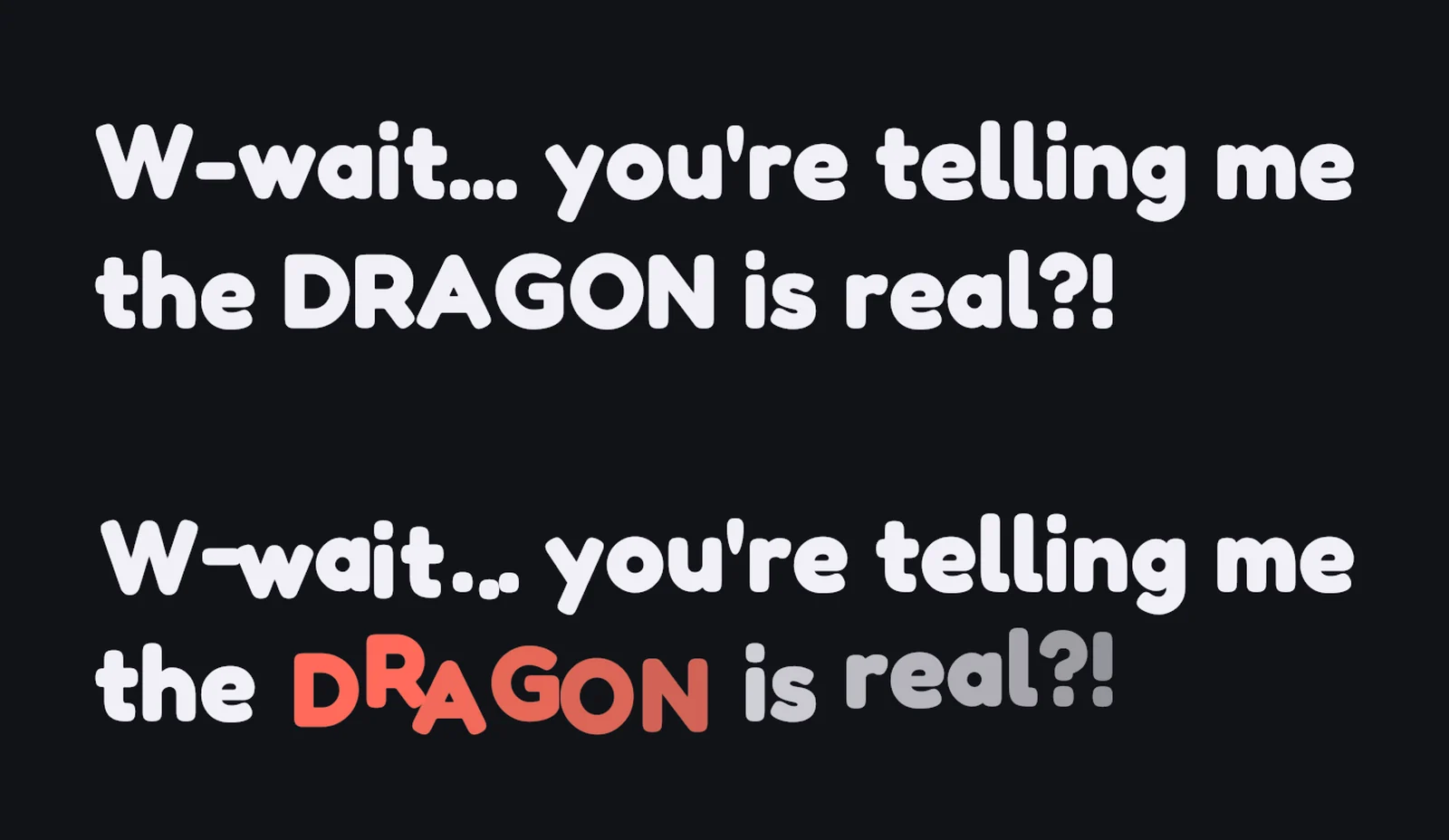
Emotion on the words that matter
A little goes a long way. These lines from the store slides use one or two tags each:
is this the <color=#7FE6E6><wave a=.14>Mountain</wave></color> trail?* <shake a=.1>I-I'm n-not scared of the d-dark...</shake>We actually <size=135%><rainbow><bounce a=.35 stagger=.14>WON</bounce></rainbow></size><chromaticGlitch activity=.8><shake a=.05>YOU FELL</shake></chromaticGlitch>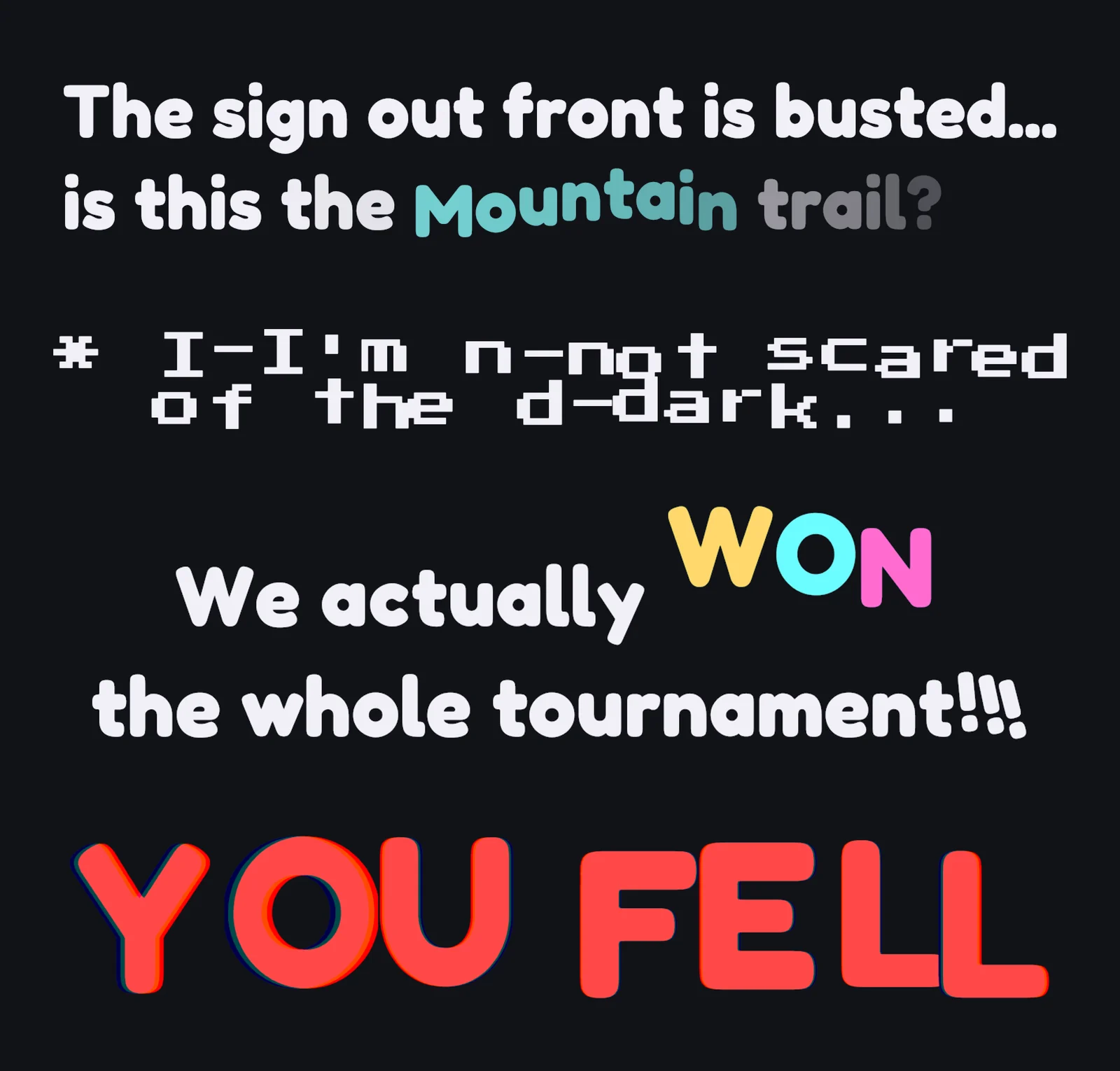
Effects can arrive with the reveal and settle, or keep running after the line is complete. The tag effects guide lists the 40+ effects; for a project vocabulary such as <nervous> or <angry>, a Tag Expansion Sheet maps one short tag to a reviewed stack so every writer gets the same performance.
Voices and typing sounds
A Typewriter Audio Set (Assets > Create > Text Studio > Animation > Typewriter Audio Set) holds a character’s glyph clips and named marker cues. Add Text Studio > Events > Audio Player to the text: it decides when sounds play for glyphs, words, punctuation and markers, how clips are picked, whether sounds overlap or interrupt, the cooldown, the punctuation policy, pitch and volume variation, and the size of its AudioSource pool. Give each character a different set, or vary pitch per speaker, and the classic voice blip falls out of the configuration.
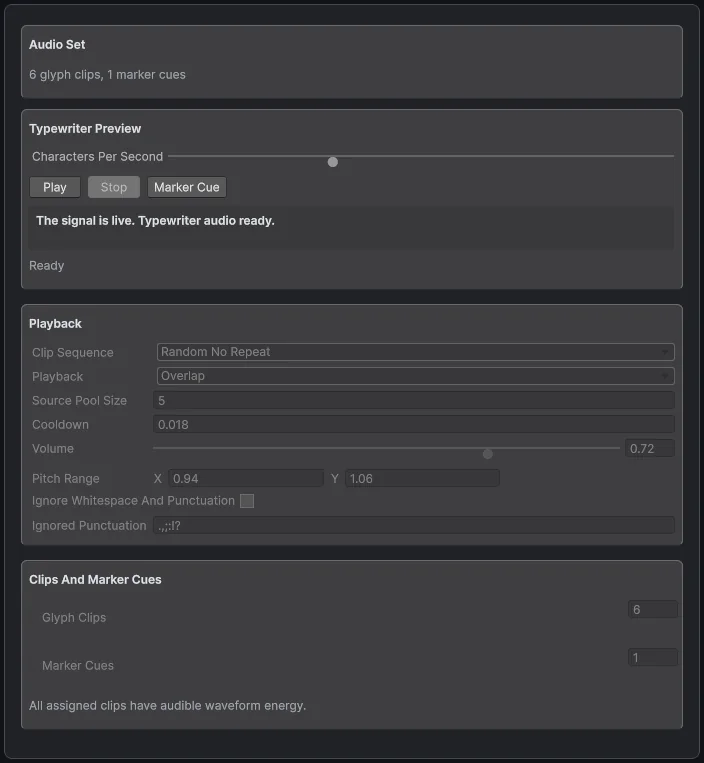
Keep frequent glyph sounds short and varied to avoid fatigue, and test a fast reveal and a full skip so many letters revealed in one frame do not flood the mix. For one-shot cues inside the line, <playSound> invokes a Play Sound action that can wait for completion, time out and stop on skip.
Beats, pauses and pacing
Punctuation-aware timing does most of the work: commas and ellipses get beats, abbreviations do not. Add explicit timing where the performance needs it:
<wait=0.4>holds for a beat, as after “W-wait…” above.<speed=2>and<speedDown=2>speed up a rush of words or slow down a confession.<waitForInput input=submit timeout=5>lets the player control a dramatic pause.
The typewriter guide covers reveal units, timing presets and reveal motion.
Continue and skip that never double-advance
Bind your continue button to AdvanceOrSkip. The first press completes the current wait or reveal; it returns true only when the line is complete and your dialogue system may advance:
public void ContinuePressed(){ if (dialogueSource.AdvanceOrSkip()) ShowNextLine();}TextStudioDialogueSource is the bridge for custom dialogue code: ShowLine stores the line and can restart the reveal, and its advance event tells your system when to move on. Long speeches can use TMP Page overflow, where the typewriter stops at each page and the next press turns it.
Portraits, cameras and quests
Markers raise named events at the moment the reveal reaches them:
The door opens.<event=doorOpen,cellar> Stay close.<event=music,tense>Add Text Studio > Events > Marker Event Router to map routes such as doorOpen to UnityEvents that swap a portrait, move a camera or start music, with the route, its first parameter or the whole payload. The Typewriter Event Relay exposes start, shown, glyph revealed and wait events to the Inspector without code. Use markers for presentation beats, not for story branching; branching belongs to your dialogue system.
For small flourishes, Reactions respond to letters arriving, markers or completion with a bounded effect, sound, prefab or sprite particles, for example sparks when a magic word appears.
Your dialogue system stays in charge
Text Studio presents the current line; your dialogue tool decides which line comes next. Optional integrations, installed from Tools > Text Studio > Integrations, connect the two:
PlayMaker 2 and Unity Visual Scripting integrations cover graph-driven dialogue, and Unity Localization feeds translated lines.
Try it in the samples
Several of the 30+ example scenes focus on dialogue. The Gate and the Lantern is an editable conversation with waits, skip, continue, markers and real player input. Character Voices and Events and Sound connect reusable audio to semantic beats, and Dialogue and Pages follows long text across pages. The complete Whisperwood Letters demo lets you walk around, talk to characters, skip or continue lines and open the Moon Gate, in a Canvas and a UI Toolkit version.
Limits worth knowing
- Per-glyph events fire often. Keep listeners cheap: no allocations or scene searches in a glyph callback.
- Reduced Motion keeps timing and meaning while calming the movement, so test your most dramatic lines in all motion modes.
- Text Studio presents dialogue; it does not write or branch it.
The manual chapters Sound, Input, Events and Interaction and Connect Other Tools have the details. For subtitles in cutscenes, see accessible subtitles and captions.
Frequently asked questions
How do I add typing sounds or voice blips to dialogue?
Create a Typewriter Audio Set with a few short glyph clips and add an Audio Player. It decides which glyphs, words and punctuation play a sound, varies pitch and volume, applies a cooldown and pools its AudioSources. The Character Voices sample shows several voices.
What happens to the sounds when the player skips?
The Audio Player's cooldown limits how often glyph sounds can play, so revealing many letters in one frame, as a skip does, does not fire a sound for each of them. A Play Sound action inside the line can also be set to stop on skip.
Can a word in the line trigger a portrait or camera change?
Yes. Put a marker such as <event=portrait,surprised> in the line and map it with the Marker Event Router to a UnityEvent. It fires when the reveal reaches that position.
Does this work with my dialogue system?
Yes. Optional integrations cover Yarn Spinner, Ink, Naninovel, Pixel Crushers Dialogue System, Adventure Creator, Game Creator 2, PlayMaker and Visual Scripting. Your dialogue system keeps choosing the lines; Text Studio presents them.
Style and animate every word in Unity.
Keep reading
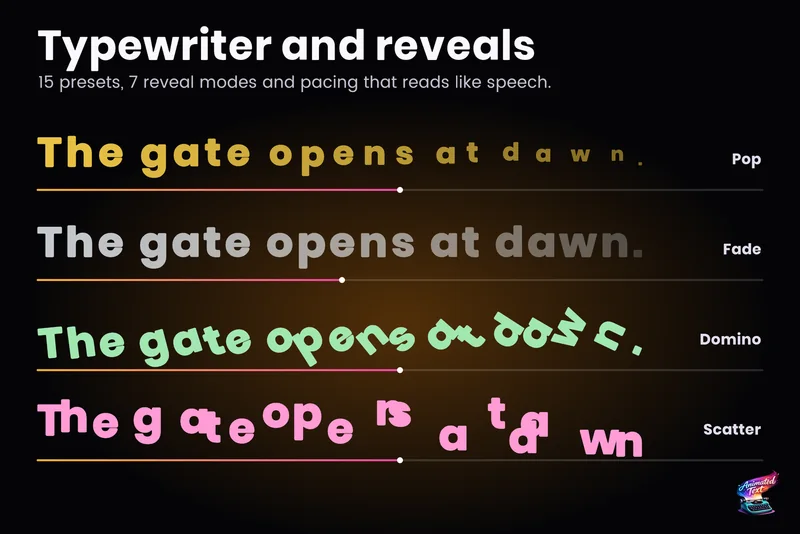 Use case
Typewriter effect for TextMeshPro and UI Toolkit
Reveal text by glyph, word or line with timing that understands punctuation, then add waits, skipping, sounds and events without writing a coroutine.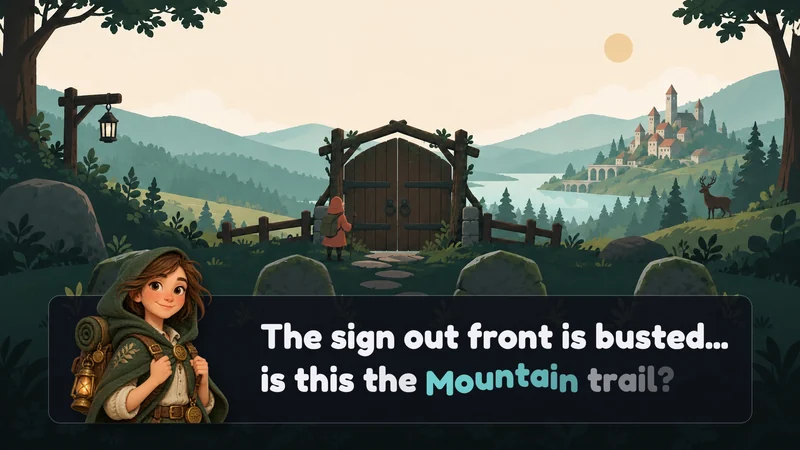 Use case
Text effects for Yarn Spinner dialogue
Text Studio plugs into Yarn Spinner's standard LinePresenter as its typewriter and markup processor. Write [wave] or [shake] in your Yarn lines; Yarn keeps the story, options, fades and line advancing.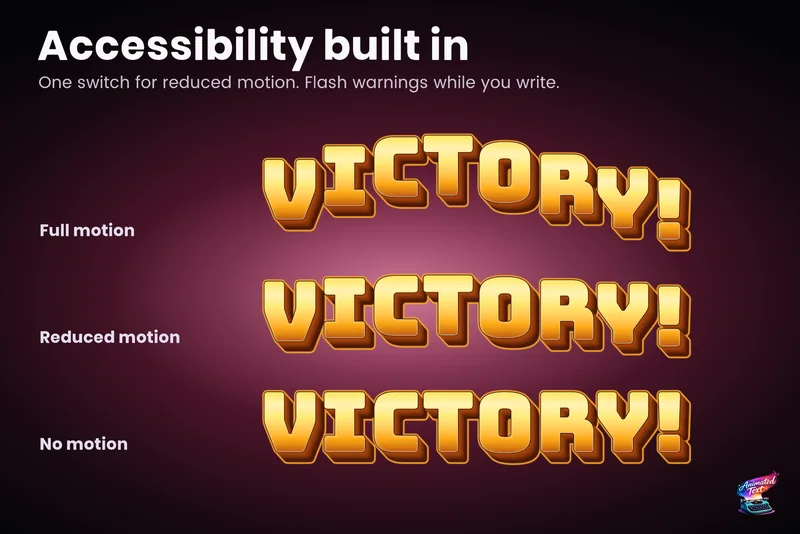 Use case