Export text animations as GIF or MP4
Export a Text Studio effect from the Unity Editor as a 960 x 540 MP4 at 60 fps or a transparent looping GIF at 50 fps, for store pages, trailers, devlogs and reviews.
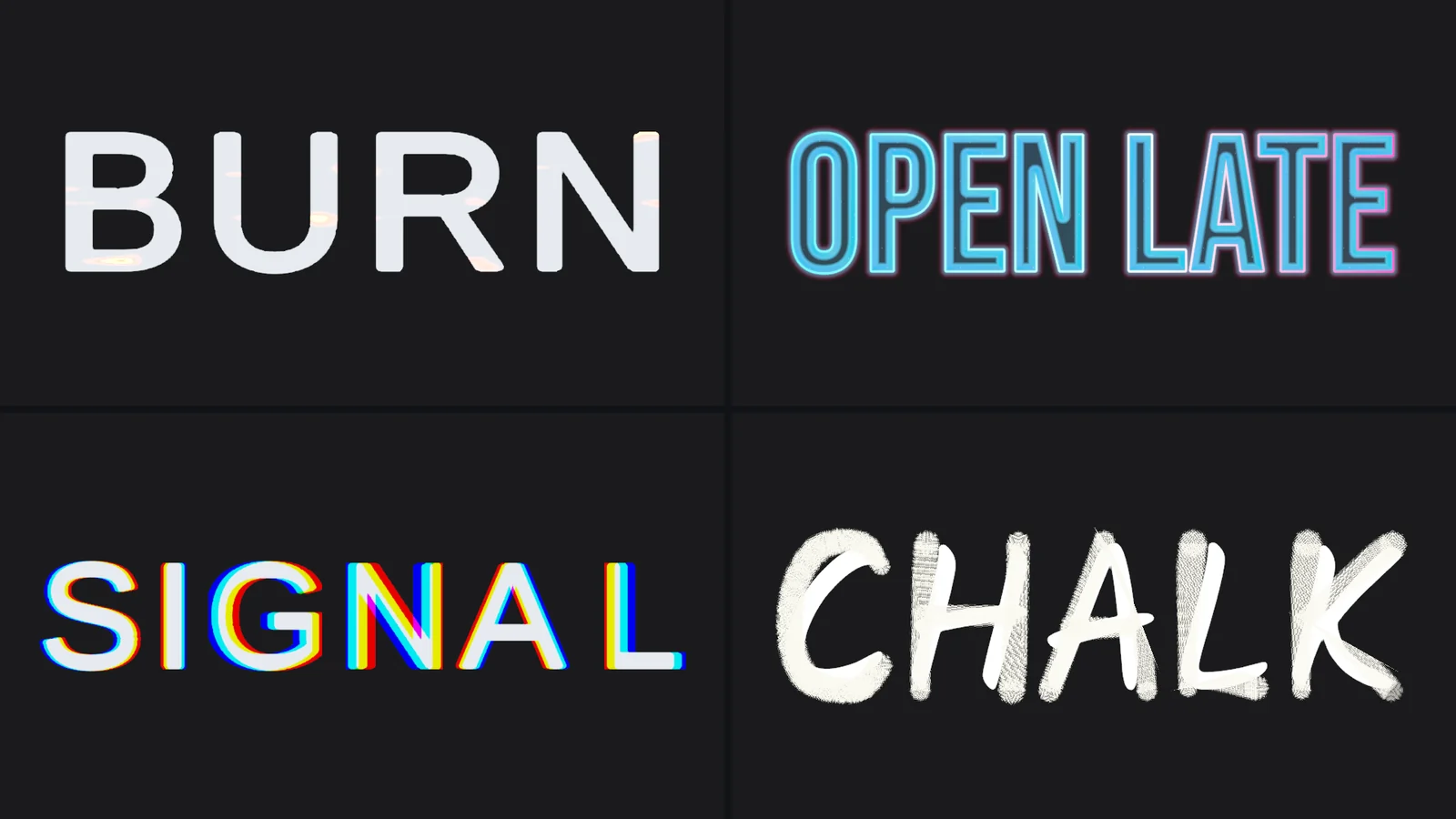
You spent an afternoon on a Composed Effect for your boss fight intro and want feedback before you wire it into the game. Or the store page needs a loop of the title effect, the devlog needs a GIF, and the art director wants to see three variations side by side. A screen recording of the Scene view gives you jittery frames, editor chrome around the text and a video you have to crop.
Text Studio exports the effect itself: the exact lifecycle you see in the Inspector preview, rendered frame by frame into an MP4 or a transparent GIF, without entering Play Mode.
Two formats, two jobs
| MP4 | GIF | |
|---|---|---|
| Size and rate | 960 x 540 at 60 fps | 960 x 540 at 50 fps |
| Background | Solid, no alpha | Transparent (binary transparency with spatial coverage) |
| Looping | One cycle; the website or platform loops it | Infinite loop embedded in the file |
| Editors | Windows and macOS | Windows, macOS and Linux |
| Best for | Store pages, trailers, social posts, long or gradient-heavy loops | Devlogs, documentation, chat, overlays on other images |
GIF files grow quickly, so the export window warns when a GIF would contain more than 300 frames and suggests MP4 or a shorter loop. MP4 export uses the Unity Editor’s own media encoder, so no FFmpeg or other encoder binary is bundled, and it has no audio track.
Export from the Inspector
Export lives where you tune effects:
- Select a Composed Effect or Code Effect asset and open its live preview in the Inspector.
- Choose the part of the lifecycle you want: Reveal, Active, Hide, or the whole pass, and set the playback speed.
- Click Export… and choose Export Loop from its menu.
- In the export window, pick the format and, where it applies, the renderer under Render as, then choose a destination.
The export takes an immutable snapshot of what the preview shows: the selected lifecycle segments, playback speed, the computed phase durations, a Composed Effect’s Active duration, Reveal Blend and a soloed layer if you are auditioning one. Editing the asset while the export runs does not change the file. Canceling releases all preview resources.
What gets rendered
2D effects render through Flat Text: an isolated TextMeshPro object, camera and RGBA render texture. Inspector helpers such as spatial guides and interactive test targets are never drawn into the export. A Composed Effect exports through the renderer of its Authoring Space, so a 2D effect renders as flat text, while a 3D effect uses the installed Text Studio 3D renderer, with its bevelled style, perspective camera and studio lighting.
Because the export evaluates the same effect code as the runtime, seeded effects such as Glitch and Scramble produce the same frames in the file as in the game. The export is equivalent to the preview’s lifecycle, not a pixel copy of the Inspector thumbnail, so the result is clean and full size.
Reactions and single frames
Reactions have their own preview. Export PNG saves the current frame, and Export Animation saves supported particle previews, such as Sprite Particles reactions, as GIF or MP4 on Editors with that encoder. Reaction previews run on a deterministic clock, so scrubbing and exporting give the same result every time, and the exports can also run as noninteractive jobs.
Share the effect, not only the video
Sometimes the recipient needs the effect, not a recording of it. The same Export… menu has Copy Effect Code, which turns the effect and its required dependencies into a text code (it starts with TSFX1) you can paste into a message or a ticket, and Import Effect Code, which recreates the effect in another project, lets you rename its tag and reports conflicts before replacing anything. Composed Effects and Profiles can also be shared as assets; the Reuse Your Work chapter covers both routes.
The gallery on this site uses the same pipeline
Every loop in the Text Studio effect gallery on this website was rendered by Text Studio’s own preview rendering at 960 x 540, one MP4 and one poster frame per card, with the same snapshot renderer as the Inspector export for effect and look cards. The gallery is a good preview of what an export of the same effect gives you. The making-of article tells more about how those captures and the store films were made.
Tips for good loops
- Export the whole lifecycle for store pages, so viewers see the effect arrive, live and leave.
- Use MP4 for anything with gradients or soft glows; GIF’s limited palette bands them.
- Keep GIFs short. Two or three seconds of the Active phase loop well and stay small.
- For a handwriting effect, export the Reveal only, so the loop starts with an empty page every time.
Frequently asked questions
Can I export with a transparent background?
Yes, as a GIF. GIF export uses binary transparency with spatial coverage and an infinite loop. MP4 has no alpha channel, so it always renders on a solid background.
Why is MP4 not available on Linux?
MP4 export uses the Unity Editor's own media encoder, which is available in the Windows and macOS Editors. The Linux Editor exports GIF only.
Do I need Play Mode or a camera in my scene?
No. The export renders in an isolated preview stage with its own text object, camera and render texture, so your scene, cameras and lighting are never touched.
Can I export 3D text the same way?
Yes, with Text Studio 3D installed. A Composed Effect authored in 3D exports through the 3D renderer, and the add-on also has its own Render Studio for stills and showcase videos.
Style and animate every word in Unity.
Keep reading
 Use case
Wave, shake and rainbow text with tags
Wrap a word in <wave> or <shake> and it moves, in the Inspector and in the build. 40+ effects, named parameters, nesting, reusable Composed Effects and your own project tags.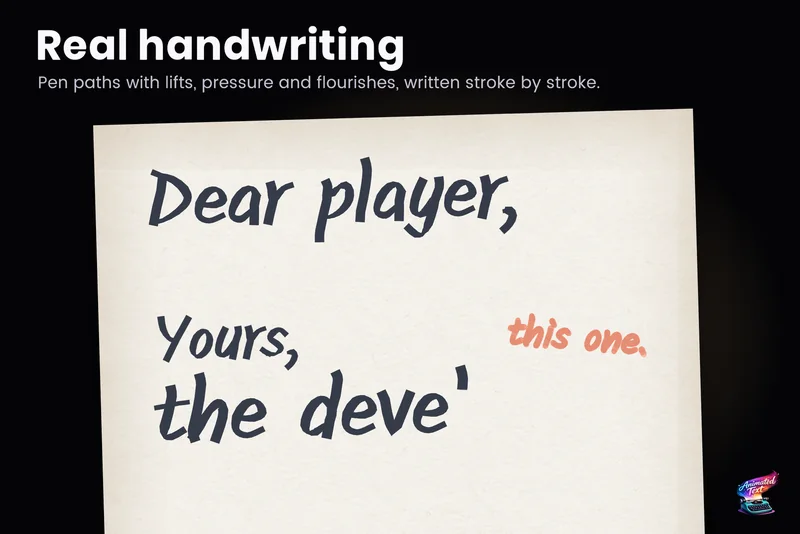 Use case
Handwriting text animation in Unity
Letters, signatures, chalkboards and title reveals that draw themselves: the four kinds of Writing in Text Studio, which one gives true handwriting, how to set it up, and what any other text falls back to. Article