Text effects for Game Creator 2 dialogue
Control Text Studio from Game Creator 2 instructions and conditions, and give Dialogue 2 speech effects and a typewriter while Game Creator keeps actors and choices.
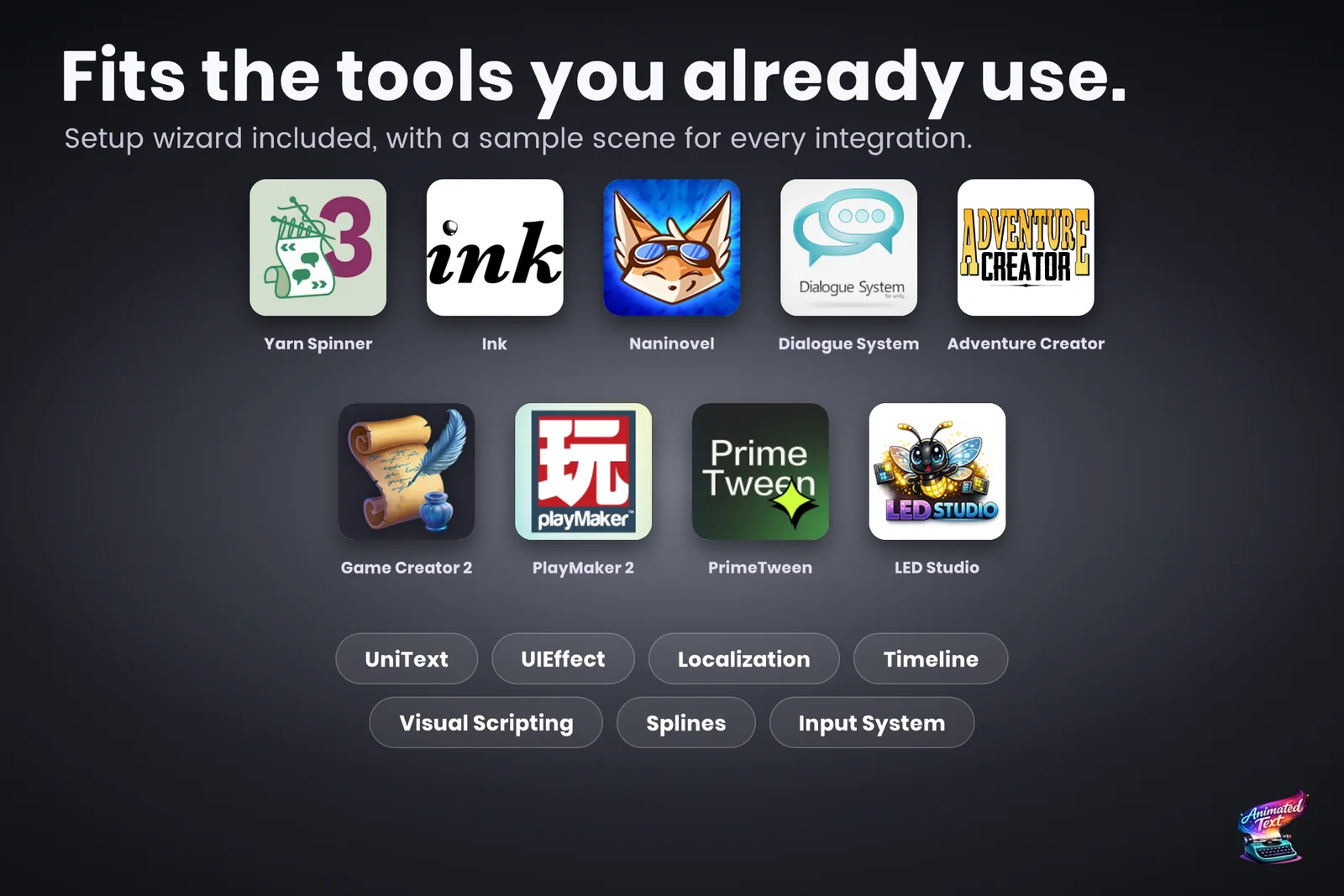
Game Creator 2 lets you build a whole game from instructions, conditions and triggers, without writing scripts. Text should work the same way: show a line, wait until the player has read it, open a gate when a certain word appears, and give Dialogue 2 speech more character than a plain typewriter.
Text Studio’s Game Creator 2 support comes as two independent packages, so a project imports only what it uses.
Two packages
| Package | What it adds | Needs |
|---|---|---|
| Core integration | 23 instructions and 6 conditions in the Text Studio category, a completion and marker relay, and a trigger invoker for Unity UI events | Game Creator 2 Core |
| Dialogue integration | Speech UI lines revealed through Text Studio, with actors, portraits and choices left to Game Creator | Game Creator 2 Core, Dialogue 2 and the core integration |
The core instructions cover the whole text lifecycle:
- Show Text Studio Text, Show Text Studio Text Instantly, Set, Append and Clear
- Advance Or Skip for a continue button
- Reveal control: start, continue, pause, resume, skip, stop, skip the current wait and trigger remaining events
- Set Text Studio Reveal Progress, a drive variant and Set Text Studio Reveal Speed
- Wait For Text Studio Complete, the disappearance controls, and Restart Text Studio Effects
The conditions Text Studio Is Complete, Is Revealing, Has Text, Is Paused, Is Waiting and Is Disappearing let triggers and buttons react to the text’s state.
Set up the core package
- Install Game Creator 2 Core and Text Studio. Open Tools > Text Studio > Integrations and press Import Integration on the Game Creator 2 card. Importing activates the integration without a scripting define.
- Select the text object and press Configure Selected. It adds and connects
TextStudioTextandTextStudioDialogueSource. - Add instructions from the Text Studio categories to any Actions or Trigger.
- For event-driven flows, add
TextStudioGameCreator2EventRelaynext to a Game Creator Trigger, assign the text, and choose show-complete or marker routing. To run a Trigger from a Unity UI event such as a button, addTextStudioGameCreator2TriggerInvokerand callExecute.
With marker routing, a marker in the middle of a line, such as <event=gate>, runs the relay’s Trigger, and with it any Game Creator instructions, at that exact letter once the relay’s marker id is set to gate. The events and markers reference explains the marker syntax.
 A marker fires at the letter it sits on, so a word can open a gate or update a quest.
Set up Dialogue 2
- Install Game Creator 2 Dialogue. Import the core integration first, then press Import Integration on the Game Creator 2 Dialogue card.
- In the Project window, select the Game Creator SpeechSkin asset your dialogue uses. If the project has none yet, install a Dialogue skin such as Skin Default from Game Creator > Install… first.
- Press Configure Selected on the Game Creator 2 Dialogue card. Text Studio opens the Speech Skin’s prefab in Prefab Mode and configures it. Selecting the prefab root or a scene instance with the
SpeechUIcomponent works too. - Repeat the configuration for every SpeechSkin used by actor or expression overrides.
The configured Speech UI keeps its visible text component and styling. Text Studio adds its components and redirects Game Creator’s own typewriter output to a hidden TextMeshPro mirror, so the two never write the same visible text. Re-running the setup is safe and repairs missing components. Continue requests honor Speech UI’s initial input safeguard: the first accepted press completes the reveal, a second advances the story.
TextMeshPro or Unity UI Text
The visible line can use either renderer, and the choice decides which looks are available:
| TextMeshPro | Unity UI Text | |
|---|---|---|
| Reveal, placement, per-glyph motion, alpha and color | Yes | Yes |
| Shared vertex effects | Yes | Yes, except UV Offset |
| TMP material effects and Text Studio 2D looks | Yes | No |
| Native rich text | Full TMP rich text | Bold, italic, color and size |
For Unity UI Text, setup preserves the font, size, alignment, color, masks, Outline, Shadow and compatible custom mesh effects, and orders Text Studio’s backend before downstream mesh modifiers.
The samples
Game Creator Actions.unity shows the core package. Show starts an encounter, a lantern marker runs a native Set Active instruction to open the gate, and the completion relay updates the quest. Reveal all keeps the remaining markers, Append adds route advice and 2x speed changes the reveal timing, while the Has Text, Is Revealing and Is Complete conditions decide which controls are available.
Game Creator Dialogue.unity shows Dialogue 2. Continue reveals the current line, then opens the native River path and High ridge choices. High ridge switches to Rowan’s concerned expression and its speech-skin override. Text toggles between TextMeshPro and Unity UI Text, and Inspect Speech Skin selects the current native skin.
Limits worth knowing
- Tested with Game Creator 2 Core 2.19.61 and Dialogue 2.6.20.
- Configure every SpeechSkin your actors and expressions use, not only the default one.
- An editable
InputFieldis not a supported visible dialogue target; use a separate presentation text. - Core-only projects import only the core package; the Dialogue package stays out.
Febucci also documents a Game Creator 2 setup for Text Animator. The Game Creator 2 section of the manual lists what to test for both packages, and dialogue text effects covers pacing and voice blips in general.
Frequently asked questions
Do I need the Dialogue module to use Text Studio with Game Creator 2?
No. The core integration works with Game Creator 2 Core alone and adds instructions, conditions and trigger relays. Import the separate Dialogue integration only if your project uses Dialogue 2.
Can I keep my Speech Skins and actors?
Yes. Configure Selected works on the Speech Skin's prefab and replaces only the visible line's typewriter. Actors, portraits, choices, timing, variables and story flow stay Game Creator's.
Does it work with Unity UI Text as well as TextMeshPro?
Yes, the visible Dialogue line can be either. TextMeshPro gets the full path, including material effects and 2D looks; Unity UI Text supports reveal, placement, per-glyph motion, alpha and color, but no TMP material effects or 2D looks.
Which versions were tested?
Game Creator 2 Core 2.19.61 and Dialogue 2.6.20.
Style and animate every word in Unity.
Keep reading
 Use case
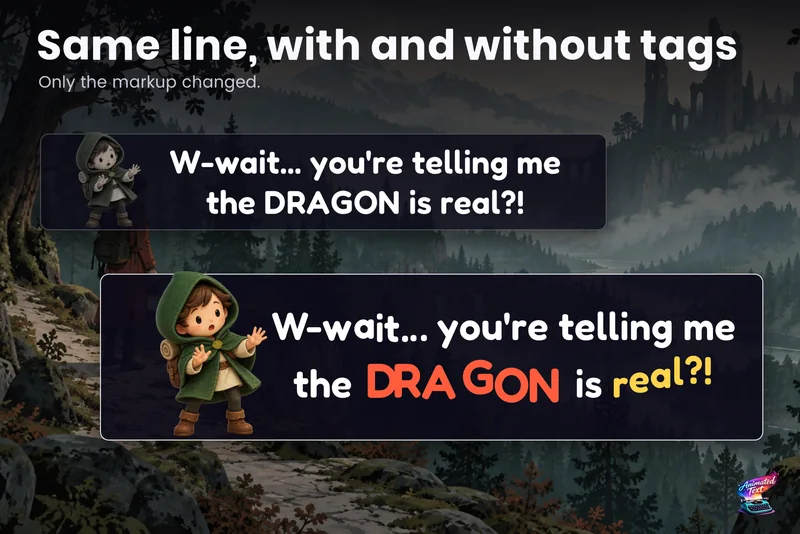
Dialogue text with typewriter, voice blips and emotion
Make a line sound nervous, excited or broken with a few tags, give each character a typing voice, and keep continue, skip, portraits and cameras in sync with the reveal.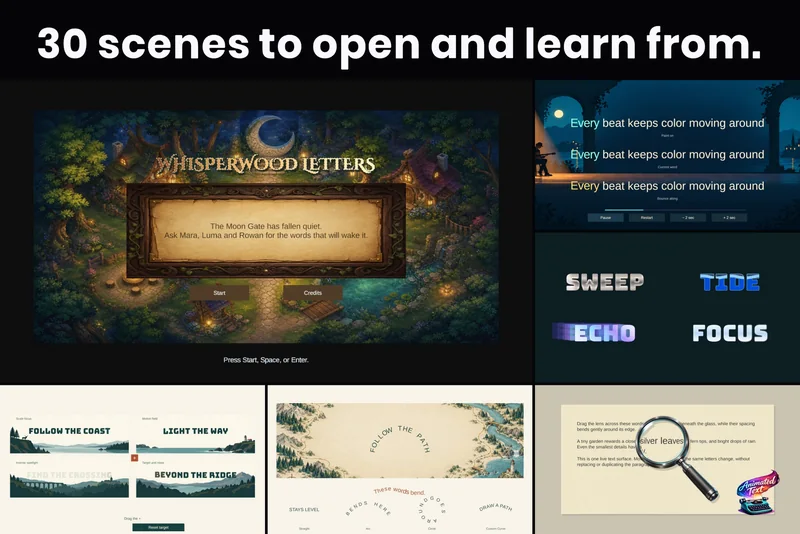 Use case
Animated speech text for Adventure Creator
A speech bridge sends each Adventure Creator line to Text Studio, which types it out with timing and effects. Adventure Creator keeps speech state, menus, voice, translations and ActionLists. Use case