Karaoke and word highlighting synced to audio
Highlight lyrics and spoken words in time with audio in Unity: Color Sweep and Shimmer driven by the audio clock, three karaoke styles in one sample, with seek and pause.
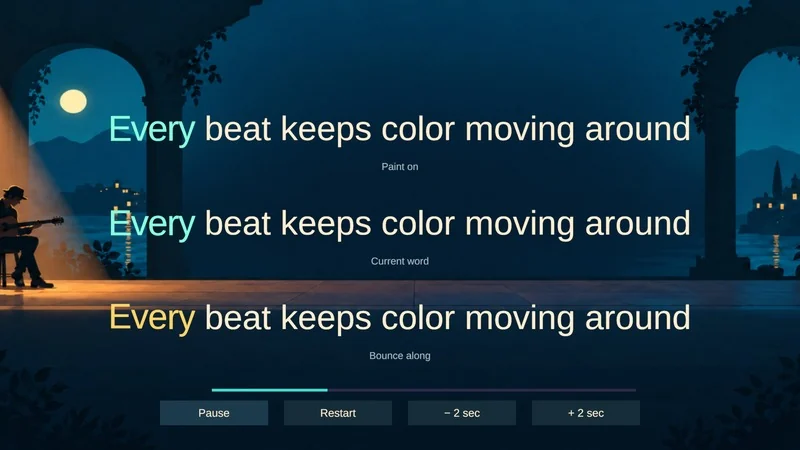
A rhythm game shows the lyrics of the current song. A music video in an in-game theater needs sing-along captions. A children’s story reads itself aloud and lights up each word as the narrator says it. In all three, the highlight has to follow the audio, not a timer that drifts the moment someone pauses, skips or the frame rate dips.
Text Studio handles this with a simple idea: the highlight is an ordinary effect, and its progress comes from outside. You decide where the audio is; Text Studio paints that position onto the text.
The effect: Color Sweep, Shimmer or your own
The workhorse is Color Sweep (<colorSweep>), which progressively blends a target color across its range, with adjustable softness and an optional reverse direction. You will also find it in the Text Gallery under its search aliases “karaoke sweep”, “progressive highlight” and “paint on”. Shimmer adds a moving highlight band with a slight scale boost, and any Composed Effect can be a highlight too, for example a color change plus a small hop on the current word.
The karaoke recipe in the manual sums up the approach: drive a Color Sweep or Shimmer layer through external progress, use source-color selection when speaker colors or lyric sections must stay distinct, apply progress to the intended range, and add a short release tail only if it helps readability after the sung position passes.
External progress: the audio decides
Normally an effect runs on Text Studio’s own clock. For karaoke you hand that clock to something else:
- External Effect Driver. Choose Add Component > Text Studio > Animation > External Effect Driver on the text. It exposes one existing effect at an exact Progress and Intensity, optionally on a semantic glyph range, and owns no clock of its own. Animator, Timeline, a tween or your own audio script sets the values.
- From code. Call
ApplyExternalEffecton the text each frame with the effect, the progress and the intensity. This is what the Karaoke Styles example does.
To stay in sync, compute progress from the audio’s playback position rather than from accumulated time. The example reads AudioSource.timeSamples divided by the clip’s sample rate, so a pause, a two-second seek or a restart lands on exactly the right syllable.
Cue data: lines and words
Progress needs to know where each line and word starts and ends. The Karaoke Styles example keeps that in a cue sheet asset: the audio clip, lines with a start and end time, and optional start and end times for every word. With line times only, the sweep glides evenly across the line; with word times, the highlight can sit on the current word or speed up and slow down with the singer.
The cue sheet and controller are example code in the 03_ProductionExamples folder, not a fixed format. Copy them as a starting point, or feed progress from your own lyric data, a rhythm game’s beat map or narration timestamps.
The Karaoke Styles example
Karaoke Styles.unity plays one song with three simultaneous treatments under a single audio owner: Paint on, a progressive color sweep; Current word, which highlights the word being sung; and Bounce along, which adds a small hop to the active word. Six style recipes are saved with it, and each style defines an active effect, a completed effect, a release duration of 0.2 seconds by default, and separate Reduced Motion versions of both effects. Pause, Restart and buttons that seek two seconds back or forward show that the highlight stays locked to the audio.
Three karaoke treatments driven by one audio clock.
In cutscenes and music sequences
When the song plays inside a Timeline, the highlight can live there too. Put a Color Sweep on a Text Effect Track clip that spans the sung line, next to the audio track, and scrub both together in Edit Mode. The Timeline guide explains the tracks and how seeking behaves.
Captions that follow speech
The same technique works for spoken dialogue, not only for songs. Word-level highlighting in subtitles helps players follow fast speech and is a common accessibility request. Combine it with the readable timing, backgrounds and Reduced Motion settings from the subtitles guide, and keep the highlight subtle: a color change is easier to read than motion.
Practical tips
- Keep resting text still. Let the highlight carry the timing, and save motion for the current word if you use it at all.
- Use source-color selection so a highlight does not repaint speaker names or colored lyric sections.
- Put the release tail on the completed words, not the active one, so the sung position stays sharp.
- On Unity 6.2 or newer, UI Toolkit labels support per-glyph color, so a Color Sweep works there as well as on TextMeshPro.
- Test with the audio paused, seeked and restarted, not only played from the start.
Frequently asked questions
How does the highlight stay in sync when the music pauses or jumps?
Drive the highlight from the audio's playback position instead of a running timer. The Karaoke Styles example reads the AudioSource sample position, so pausing, seeking two seconds back or restarting keeps the words exactly on the beat.
Do I need timings for every word?
For a smooth sweep across a line, a start and end time per line is enough. For word-accurate karaoke or a current-word style, add start and end times per word. The example's cue sheet stores both.
Can different singers keep their colors?
Yes. Use source-color selection so the highlight only affects the intended range, or keeps speaker colors and lyric sections distinct while it passes.
What about players who turn motion off?
Color sweeps carry the timing without movement, so they work well under Reduced Motion. Each style in the example also has separate Reduced Motion effects for the active and the completed words.
Style and animate every word in Unity.
Keep reading
 Use case
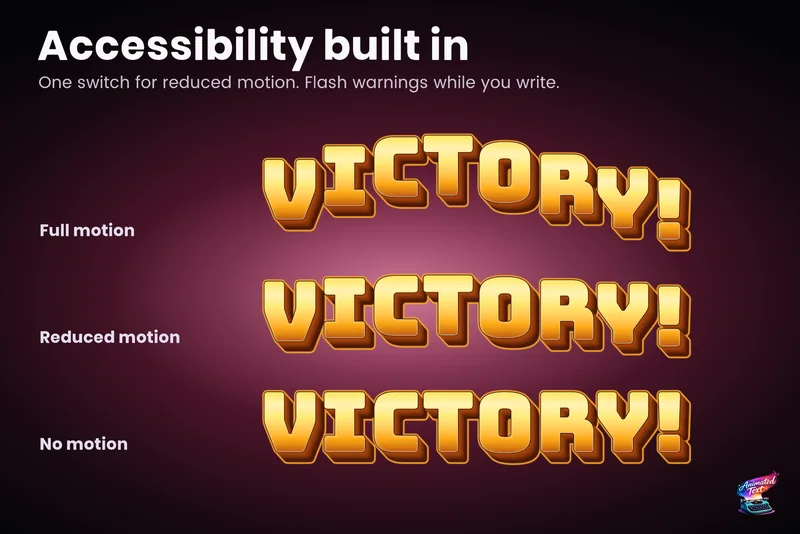
Accessible subtitles and captions
Subtitles exist to be read. Text Studio paces them by word or line, highlights key phrases without moving them, respects motion preferences and keeps every wait skippable.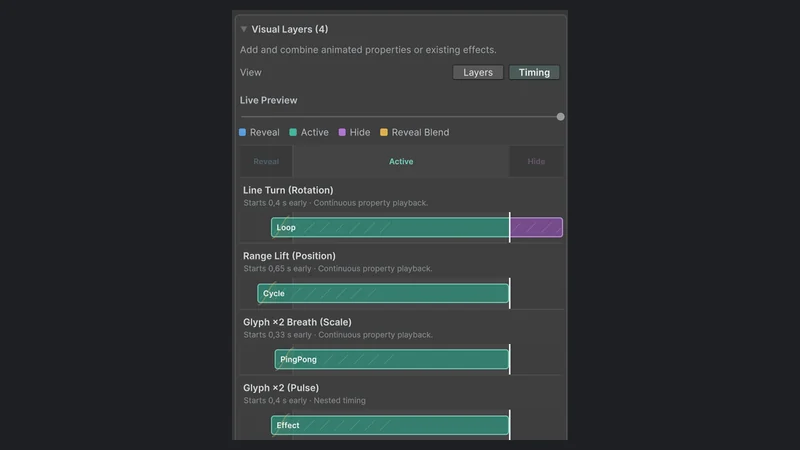 Use case
Text animation in Timeline cutscenes
Title sequences, tutorials and cutscenes where text has to land on a beat: the Text Studio reveal and effect tracks, control markers, how overlaps and seeking behave, and the Relay Ridge sample to start from. Use case