Move a project from Text Animator to Text Studio
Switch a Unity project from Text Animator to Text Studio: your markup keeps working, one-click steps convert sounds, events, timing and styles, and nothing is deleted.
Your project is full of Text Animator texts: dialogue with typewriter sounds, typing speeds you tuned for weeks, a style sheet with your own tags, and events that open doors when a line finishes. Rewriting all of that by hand is the reason most teams never switch tools, even when the new one does more.
Text Studio ships a guided migration for exactly this case. It checks the whole project, converts what it can in one click per step, keeps your markup working, and tells you precisely what is left. Nothing in Text Animator is touched until you remove it yourself.
Start with a project check
Open Tools > Text Studio > Setup > Migration and choose Open Guided Text Animator Migration…. The window checks scenes, prefabs, assets and scripts for Text Animator content; the Whole project scope includes closed scenes too. Nothing is changed while checking.
The result is sorted into three groups:
- Already works: texts and assets that need no change, such as Text Animator settings and databases, and effects, actions and playbacks that have built-in Text Studio equivalents.
- One-click: steps that convert automatically.
- Needs you: work Text Studio cannot do for you, each with instructions. None of it blocks the one-click steps.
The check is quick even in large projects. Since Text Studio 1.2 it skips unrelated prefabs, scenes and assemblies, which took one large project from about 23 seconds to about 2 seconds, and it leaves Text Animator’s own samples out by default.
The one-click steps
Each step only adds Text Studio content, supports Undo and can run as a whole or item by item. Run conversions runs every ready step in order after showing a summary.
| Step | What it does |
|---|---|
| Add Text Studio to your texts | Adds a Text Studio component next to Text Animator on each text. It reads the text already on the object, so your markup keeps working. Prefab instances update with their prefab. |
| Recreate typewriter sounds and events | Adds a Text Studio Audio Player and a Typewriter Event Relay, and copies clips, sound settings and event listeners without parameters. |
| Import typing speed | Creates Character Timings assets that keep the reveal pace you tuned, including punctuation pauses. Only per-character delays convert, so check how each typewriter starts and skips. |
| Import playbacks | Creates editable Playback assets, so custom playback names in your markup keep working, for example <bounce impactPop>. |
| Import style aliases | Adds your style sheet’s styles to one tag alias asset, so tags such as <style1> keep working without rewriting any text. |
Converted assets are saved in Assets/Text Studio Migration unless you choose another folder. Running a step again updates its assets instead of adding copies. Prefabs are saved for you; save open scenes yourself to keep their changes. Because migration changes scenes, prefabs and assets, it only runs in Edit Mode.
What needs you
Some things cannot be converted safely, and the window says so instead of guessing:
- Custom C# effects and actions. Recreate them as Composed Effects, which need no code, or as Code Effects. The Composed Effects guide covers both.
- Scripts that call the Text Animator API. They will not compile once Text Animator is gone. The window opens each script at its first reference and lists the matching calls:
| Text Animator | Text Studio |
|---|---|
typewriter.ShowText(text) | textStudio.ShowText(text) |
typewriter.StartShowingText() | textStudio.StartReveal() |
typewriter.SkipTypewriter() | textStudio.SkipReveal() |
typewriter.StartDisappearingText() | textStudio.StartDisappear() |
textAnimator.SetText(text) | textStudio.SetText(text) |
- Listeners that receive Text Animator data. Typed listeners have to be reconnected by hand.
- Tag parameters without a direct equivalent. Select each listed text and adjust the tag as described.
Playbacks driven by custom code cannot be read either; they appear under Needs you as well. Export report… saves a Markdown summary of the whole migration for your team.
Check, then remove Text Animator
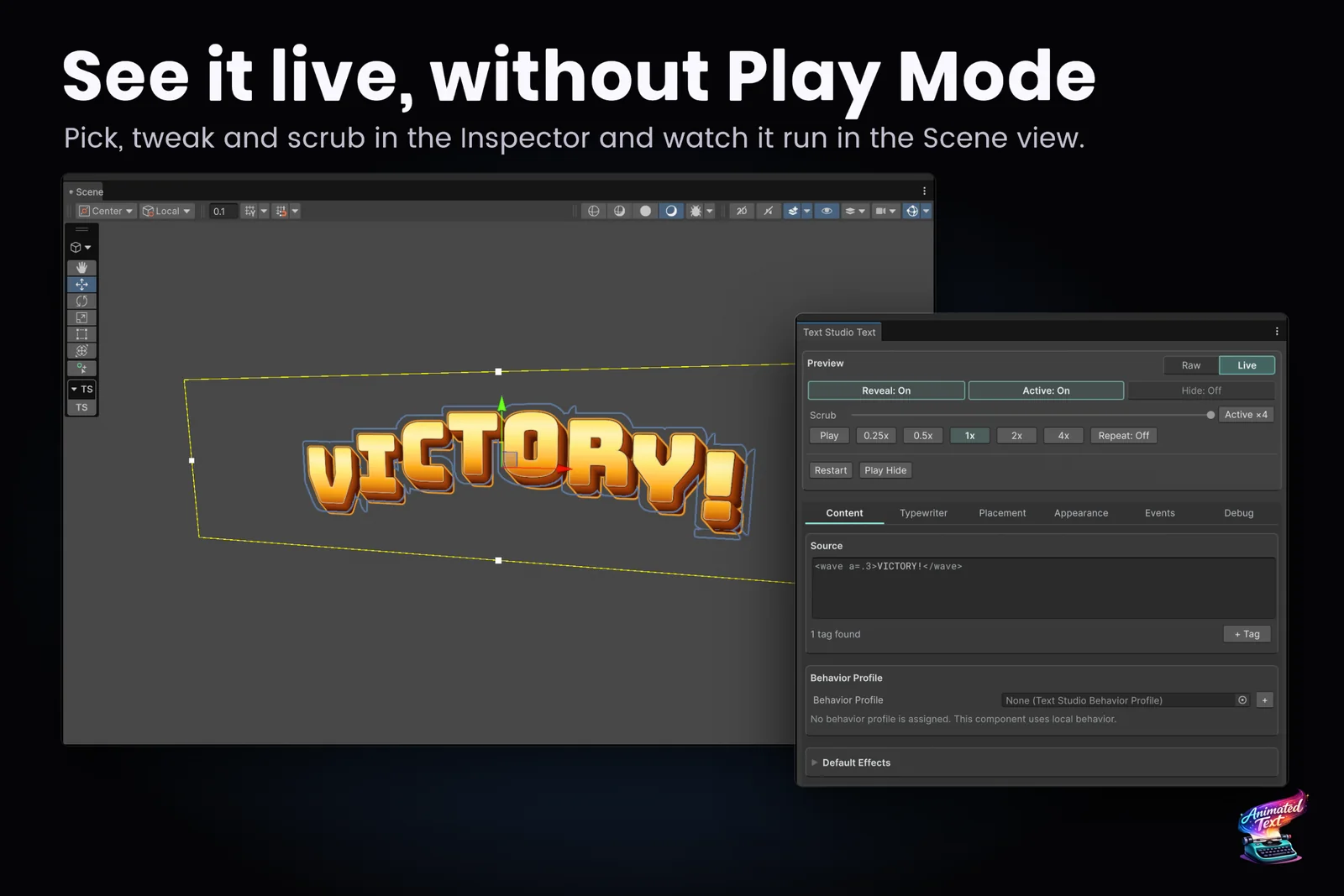
Before removing anything, compare. Select a migrated text and use the Text Studio preview in the Inspector: it works in Edit Mode, so you can scrub the reveal and effects without entering Play Mode. Then test in Play Mode, but never with both tools animating the same text at the same time.
When everything looks right, the finish checklist walks you through removal in order:
- Keep a way back: commit the project to version control.
- Remove the Text Animator components: the window selects every object in the open scenes that still has one.
- Update scripts that still reference the Text Animator API.
- Remove the package in the Package Manager and delete its samples folder.
The migration guide in the manual, Move an Existing Project to Text Studio, has the same checklist plus a short testing routine: compare reveal timing, visible text, grouping and skip behavior, and run Tools > Text Studio > Setup > Health Check after the last scene.
Single lines and TMPEffects markup
For one line at a time, the Migration window itself converts markup without needing the other package installed. Choose the Source Provider (Text Animator or TMPEffects), paste the markup or load it from a selected Text Studio component or TextAsset, review the Text Studio result, then copy it or apply it to the selected component with Undo. Unsupported content stays visible, so nothing disappears silently. This is handy for dialogue that lives in spreadsheets, Ink files or Yarn scripts rather than in scenes.
Coming from Text Animator 2.x
The guided migration is built for Text Animator 3.x projects. If yours still runs 2.x, Febucci’s own upgrade page is worth reading first. As checked on November 11, 2026, it says 2.x is under long-term support, recommends using 3.x only on new projects, and lets buyers of 2.x from the last 12 months claim 3.x for free, with a reduced upgrade price for earlier buyers. The 2.x listing no longer sells to new buyers.
That leaves three sensible paths:
- Shipping soon on 2.x: stay. Long-term support exists for this.
- Starting a new project: compare Text Animator 3 and Text Studio side by side. The comparison lists where each one is stronger.
- Moving an existing 2.x project to Text Studio: convert the markup line by line with the Migration window and set up the components by hand, or upgrade to 3.x first if you want the guided steps to do that work.
Why teams switch, and when they should not
Teams usually switch because they want more than animation in one tool: 40+ effects plus 60+ ready-made looks with outlines, glows and depth, text on arcs and splines, pooled damage numbers, handwriting, ordinary UI Toolkit Labels without a special component, and measured performance. The benchmark article explains how those numbers were taken, including the workloads where Text Studio does not lead. Price plays a role too: on November 11, 2026, Text Studio cost US$38 and the Text Animator 3 listing US$65 on the Asset Store.
Text Animator remains a mature, widely used tool, and Text Studio needs Unity 2023.2 or newer while Text Animator still supports Unity 2022.3. If your project is locked to 2022.3, switching has to wait for an editor upgrade.
Frequently asked questions
Does my Text Animator markup keep working?
Mostly, yes. Text Studio reads the text that is already on each object, and most Text Animator tags work as they are. Tags whose parameters cannot be mapped automatically are listed with instructions, and the Migration window converts single lines so you can compare the result before applying it.
Does the migration delete Text Animator?
No. Every step only adds Text Studio components and assets and supports Undo. The wizard never edits or deletes Text Animator components, assets or settings. You remove Text Animator yourself at the end, following the checklist in the same window.
Which Text Animator version does the guided migration support?
Text Animator 3.x. For a project that still runs 2.x, read the section on 2.x first: Febucci recommends 3.x only for new projects and keeps 2.x on long-term support.
What has to be done by hand?
Custom C# effects and actions, scripts that call the Text Animator API, and listeners that receive Text Animator data. The window lists each one with instructions and shows matching calls, for example typewriter.ShowText(text) becomes textStudio.ShowText(text).
Style and animate every word in Unity.
Keep reading
 Comparison
Text Studio vs Text Animator for Unity
Text Animator 3 is mature, focused and supports Unity 2022.3. Text Studio covers more of the text job, from looks and damage numbers to paths and handwriting, costs less and converts Text Animator 3 markup. Use case
Typewriter effect for TextMeshPro and UI Toolkit
Reveal text by glyph, word or line with timing that understands punctuation, then add waits, skipping, sounds and events without writing a coroutine.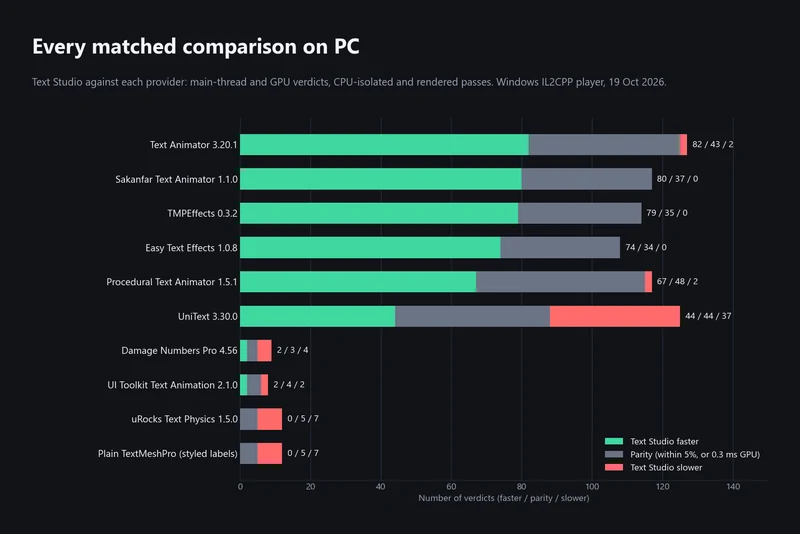 Article