Accessible subtitles and captions
Readable Unity subtitles and captions: word-paced reveal, highlighted phrases, Reduced and No Motion settings, flash warnings, skippable waits and Timeline playback.
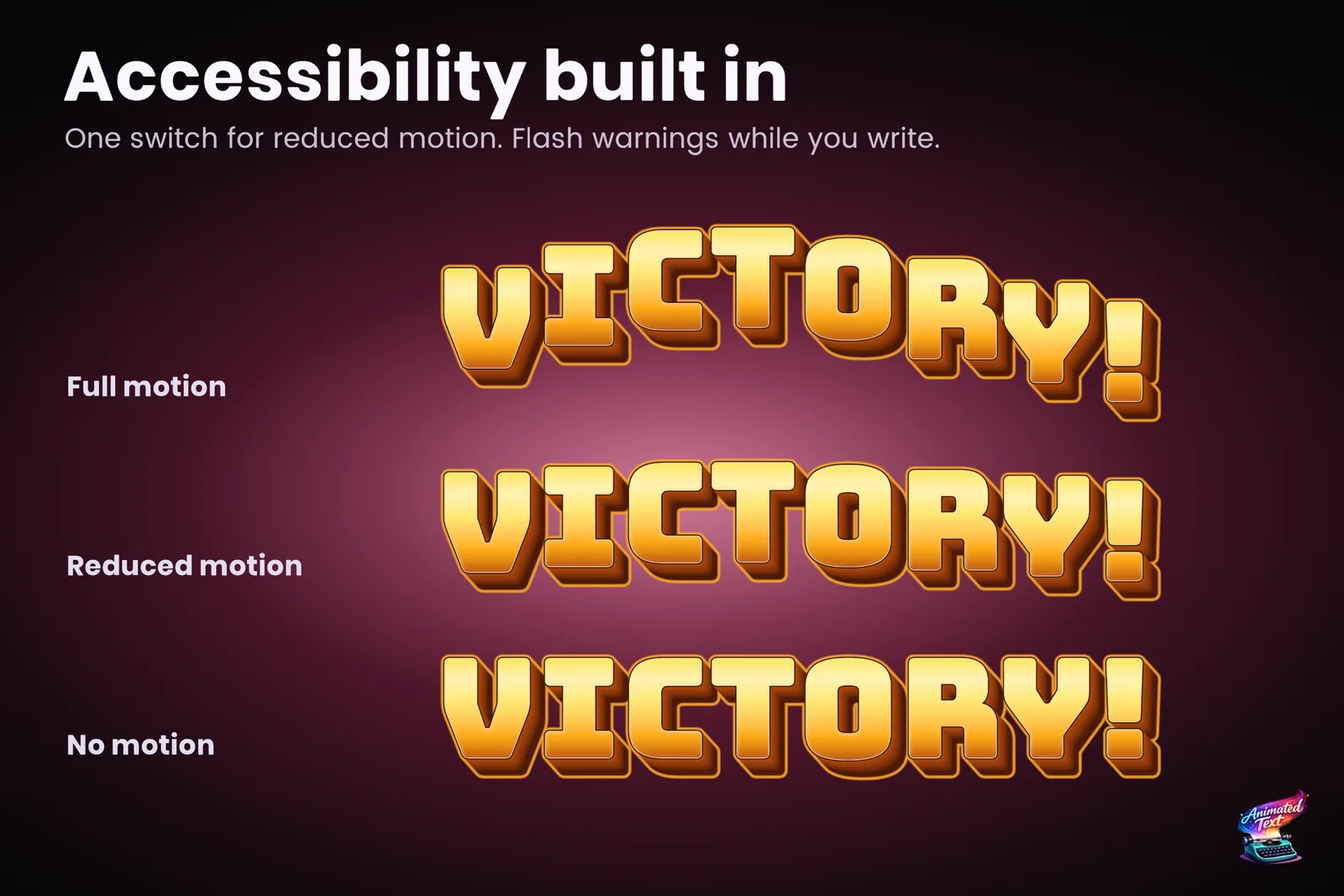
A subtitle has one job: to be read before it disappears. Animation can help, by drawing the eye to a new line or marking who speaks, and it can just as easily get in the way, with words that jitter while someone tries to read them or a flashing highlight that hurts. Some players need far less motion than others, and the German translation is noticeably longer than the English line it replaces.
Text Studio lets you design subtitles that move only as much as they should, and calm down for players who need it, without maintaining a second subtitle system.
Readable pacing first
Start with a reveal that follows reading, not typing. By Word or a readable timing preset such as Narrative keeps whole words arriving together. Among the 15+ typewriter presets, several are built for captions:
- Cinematic Line reveals line by line with restrained reveal and hide effects, for subtitles and chapter cards.
- Reverse Caption reveals readably and dismisses from the end back to the start.
- Low Motion gives a readable reveal with fade-only effects for motion-sensitive interfaces.
- Instant Accessible shows the line with no timed reveal or transition, as an accessibility-first fallback.
Punctuation-aware timing adds natural beats, and waits inside a line stay skippable. Expose a continue action, and use AdvanceOrSkip so the first press completes a line and only the next one advances. The typewriter guide covers the details.
One switch for motion
Every Text Studio text follows a motion policy: Full, Reduced or No Motion, set in Project Settings and overridable per object. Wire it to your game’s accessibility menu and every subtitle, prompt and warning follows.
- Full Motion plays the authored treatment.
- Reduced Motion keeps the meaning while lowering displacement, rotation, depth travel, flashing and procedural instability.
- No Motion keeps a stable, readable result.
The rule of thumb from the manual: reduce displacement, rotation, depth travel, flashing and rapid color contrast first, but do not remove timing, semantic emphasis or readable state changes. A warning appears when authored flashing can exceed three flashes per second.
Highlight without moving
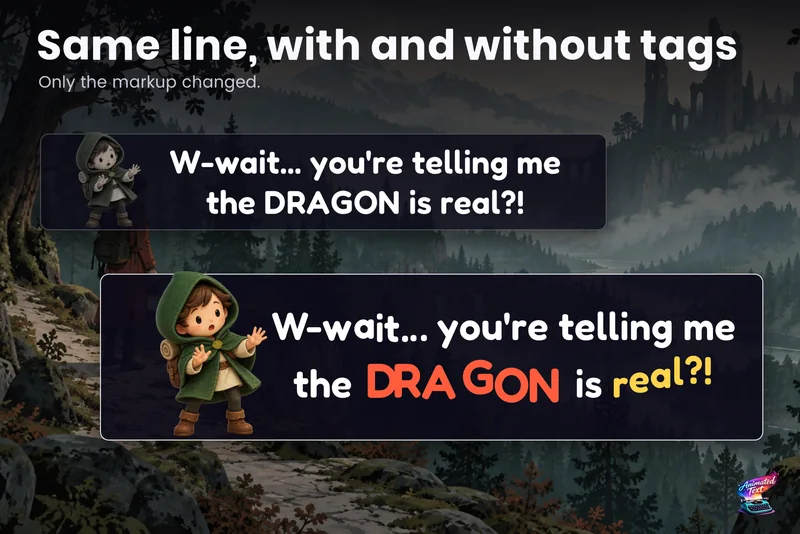
Emphasis does not have to move. Text Studio’s 2D Appearance can mark a phrase with a connected background that follows it across line wraps, a patterned underline, or a different color, all while the words stay still. The Accessible Captions sample does exactly that: its caption style targets <em> ranges with a connected background and a patterned underline, the speaker name uses a separate display font, and English, French and German cues are ordinary editable data. With that style assigned, a line only needs the tag:
JUNO: Get to the <em>north gate</em> before the bells stop.
Keep authored tags around phrases, never around fixed character positions, so the highlight still lands on the right words after translation. Test the longest language at the narrowest layout your game supports.
Player-controlled size and layout
The same sample keeps size and layout under player control. Highlights and effects are attached to words and ranges, not to screen positions, so they follow the text when the layout reflows. Readable defaults matter more than any effect: a stable background, sufficient contrast, a font size that works on a handheld or a headset, and line lengths that fit.
Cutscenes and Timeline
For scripted scenes, the optional Unity Timeline integration adds Text Studio tracks to your cutscene: reveal clips, blended effects and control markers, scrubbed in Edit Mode and played with the rest of the sequence. Pausing, seeking and reverse playback do not force a line to its end. See text animation in Timeline cutscenes.
Subtitles that must keep running while the game is paused can use the unscaled clock, so a pause menu does not freeze a caption mid-word.
Word highlighting for songs and narration
When a caption should follow audio word by word, as in karaoke, a lyric video or narrated story, an externally driven color sweep or shimmer highlights the current word without moving anything. The karaoke guide shows the setup.
A checklist before release
- Every subtitle has a readable No Motion presentation.
- Waits are skippable, and continue never advances two lines at once.
- Contrast and background hold up over the brightest and darkest scenes.
- The longest translation fits the narrowest supported layout.
- No authored flashing exceeds three flashes per second.
- Speaker names, portraits and progression stay owned by your dialogue system.
Limits worth knowing
- Text Studio presents captions; deciding when a line starts and which line comes next stays with your dialogue system, Timeline or localization setup.
- The motion policy calms Text Studio’s own effects. Camera shake, particles and other systems in your scene need their own settings.
- Accessibility guidance varies by platform and market. Treat these tools as support for your own accessibility review, not a replacement for it.
The manual explains the motion model in How Text Studio Thinks and has the subtitle recipe in Common Game Scenarios. For a broader view, read reduced motion and flashing text in games.
Frequently asked questions
How do I keep animated subtitles accessible?
Reveal by word or with a readable timing preset, keep reveal motion restrained, put the text on a stable background with enough contrast, and give every line a No Motion path. Text Studio's motion policy applies project-wide and per text.
What do Reduced Motion and No Motion change?
Reduced Motion keeps meaning and timing while lowering displacement, rotation, depth travel, flashing and rapid color contrast. No Motion keeps a stable, readable result. Emphasis and state changes stay visible in both.
Does Text Studio warn about flashing text?
Yes. It warns when authored flashing can exceed three flashes per second, which is a common threshold in photosensitivity guidance.
Can subtitles follow a Timeline cutscene?
Yes. The optional Unity Timeline integration plays reveal clips, blends effects and places control markers on a track, and you can scrub the result in Edit Mode.
Style and animate every word in Unity.
Keep reading
 Use case
Dialogue text with typewriter, voice blips and emotion
Make a line sound nervous, excited or broken with a few tags, give each character a typing voice, and keep continue, skip, portraits and cameras in sync with the reveal. Use case
Karaoke and word highlighting synced to audio
Sing-alongs, rhythm games, music videos and read-along stories: how to make a highlight follow the audio instead of a timer, with Color Sweep, external progress, per-word cues and calm alternatives for Reduced Motion. Article