Typewriter effect for TextMeshPro and UI Toolkit
A Unity typewriter effect with punctuation-aware timing, 15+ presets, wait and speed tags, skip and continue, typing sounds and events, on TextMeshPro and UI Toolkit.

Most Unity typewriters start the same way: a coroutine that raises TextMeshPro’s maxVisibleCharacters by one every few milliseconds. It works for the first line. Then the requests arrive. The line should pause after commas but not after “Dr.”, a click should complete the line without skipping the next one, every letter should make a sound, the word “dragon” should shake while it types, and the same dialogue box should also exist in UI Toolkit. Each request is another script, and the scripts start to fight.
Text Studio treats the typewriter as one part of a text’s lifecycle. Reveal, timing, waits, sounds, events and the effects on each word share one clock, one preview and one set of rules, on TextMeshPro, UI Toolkit and legacy UI Text.
Start with a working typewriter
- Choose GameObject > Text Studio > Animated Text > UI Canvas for HUD and dialogue boxes, or World Space for text in the scene. This creates a TextMeshPro object with a Text Studio Text component and a sample line.
- Type your line into Source on the Content tab. Tags such as
<wave>work right away. - Open the Typewriter tab and set Typewriter Source to Built-In. Pick a preset such as Classic Typewriter, Dialogue Typewriter, Fast UI, Word Pop or Cinematic Line.
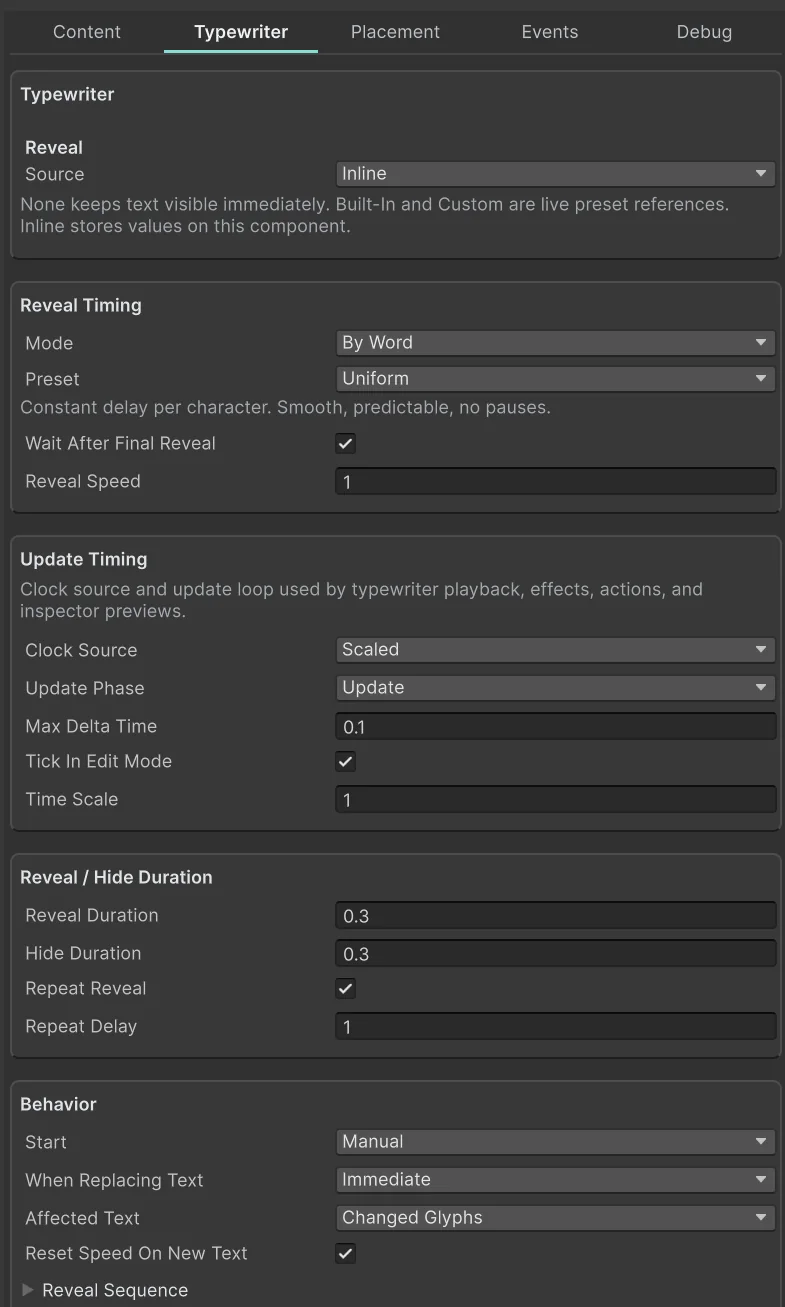
- New text starts in Live preview, so the line reveals in the Scene view without entering Play Mode. Use the preview transport to replay, pause and scrub it.
There are 15+ built-in typewriter presets, from Toast Flash for short reward labels to Reverse Caption, which dismisses a caption from the end back to the start. When one line needs its own variation, convert the preset to Inline and edit the complete local recipe. Custom points at a reusable Typewriter Preset asset (Assets > Create > Text Studio > Animation > Typewriter Preset), and a Behavior Profile can hand the same typewriter to many objects at once.
Pacing that reads like speech
A reveal unit decides what arrives together:
- By Glyph advances one visible character at a time.
- By Letter keeps shaped clusters together, so ligatures, combining marks and emoji sequences arrive as one.
- By Word and By Line stage whole words or rendered lines.
- By Region reveals tagged ranges as groups, and Instant shows the complete line.
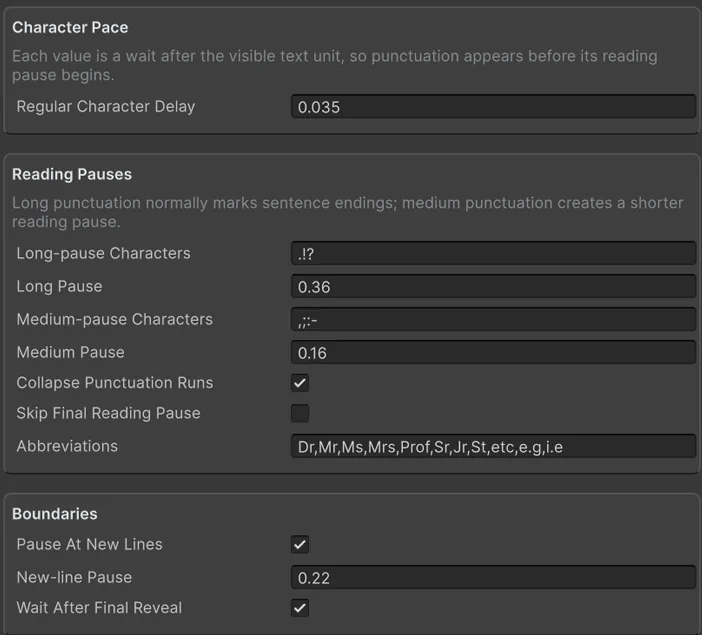
Timing presets set the rhythm: Uniform, Fast, Slow, Expressive, Cinematic, Staccato, By Word, Typist and Narrative. Character Timings read the complete text, not one character at a time. They recognize abbreviations, punctuation runs, words, lines and paragraphs, so “Dr. Vale… wait!” gets one deliberate beat for the ellipsis and none after “Dr.”. The order is yours too: forward, reverse, center-out, edges-in, all at once or seeded random.
Waits, speed and events inside the line
Actions are point-in-time tags. They run when the reveal reaches them, so the writer controls pacing in the line itself instead of in a separate script:
First beat<wait seconds=.35> waits. <speed x=2>Then the pace changes.</speed>The door opens.<event=doorOpen,cellar> Stay close.Press any key.<waitForInput input=submit timeout=5> Good.<instant>THIS APPEARS AT ONCE</instant> and this types out.The built-in actions are <wait>, <pause>, <resume>, <speed>, <speedUp>, <speedDown>, <waitForInput>, <event> and <playSound>. Use + Tag on the Content tab to find them: the tag browser validates required parameters and shows the exact markup before it inserts anything. With Input System 1.4.0 or newer, waitForInput can use named Input Action mappings such as submit or next.
Reveal and hide motion
Timing decides which unit is current; the Reveal & Hide Effects section decides how it enters and leaves. Assign a Composed Effect or type inline tags such as <fade> or <pop> for the arrival, and a separate treatment for the departure. Reveal motion ends when a letter has arrived, while the line’s normal effects keep running. Create Matching Hide builds a departure from a supported Fade or Size reveal so you can preview it before applying it.

Skip and continue without double advances
The classic bug: a player presses continue to finish the line, and the same press also advances to the next one. Text Studio separates the two. AdvanceOrSkip completes an active wait or reveal, turns a finished page, and returns true only when your dialogue system may show the next line.
public void ContinuePressed(){ if (dialogueSource.AdvanceOrSkip()) ShowNextLine();}SkipReveal completes the current line according to its settle policy, SkipCurrentWait cooperatively cancels a timed, input or audio wait, and IsWaitingForAction tells your code whether the reveal is waiting on an action or simply paused. Test rapid repeated input and a press during the first frame of a new line; the API is built for exactly those cases.
Typing sounds and events
An Audio Set holds glyph clips and named marker cues; the Audio Player decides when they play, how clips are chosen, whether sounds overlap, the cooldown, the punctuation policy, pitch and volume variation and the AudioSource pool. That is what keeps a fast reveal or a full skip from firing thirty sounds in one frame. The dialogue text guide covers voices in more detail.
The Events tab exposes typewriter start, shown, disappeared, glyph revealed, wait started, wait finished and marker messages. The Marker Event Router maps named routes such as doorOpen to UnityEvents for portraits, cameras and audio, without code.
Clocks, pages and long text
Use scaled time for gameplay text and unscaled time for menus and pause screens, so dialogue keeps typing while Time.timeScale is zero. Maximum Delta stops a long hitch from consuming a whole reveal in one frame. For a codex or long dialogue, TMP Page overflow reveals one page at a time and raises a Page wait at the end; AdvanceOrSkip turns the page before the story advances, and the Page Navigator supplies page buttons and counters.
How this compares with a coroutine
If all you need is one plain line that types out, a short coroutine around maxVisibleCharacters is fine, and TextMeshPro is free. The trouble starts when that script meets everything else: vertex effects that reset when the visible count changes, rich text tags, skipping, sounds and a second renderer. The article on why TextMeshPro typewriters break text effects explains the mechanics. Text Studio exists for the moment the second and third requirement arrive.
Limits worth knowing
- Per-glyph reveal effects on UI Toolkit labels need Unity 6.2 or newer; earlier versions reveal the text and run its actions and events. See animated text in UI Toolkit.
- Edit Mode ticking is for authoring; test timing in Play Mode before release.
- Custom actions can be non-skippable by design, so test how they behave when a player skips.
The complete reference is in the manual chapters Build Reveals and Typewriter Experiences and Sound, Input, Events and Interaction. For the craft side, read typewriter timing that reads like speech.
Frequently asked questions
How do I make a typewriter effect in Unity?
Create a text with GameObject > Text Studio > Animated Text > UI Canvas or World Space, type the line, open the Typewriter tab and pick a Built-In preset. The line reveals in the Inspector preview without Play Mode, and the same settings run in the player.
Can players skip the typewriter?
Yes. Call AdvanceOrSkip from your continue button: the first press completes the current wait or reveal, and it returns true only when your dialogue may move to the next line. SkipReveal completes a line directly and SkipCurrentWait ends a timed or input wait.
Does the typewriter pause at punctuation?
Yes. Character Timings read the surrounding text: the pause starts after the mark is visible, an ellipsis becomes one beat, and an abbreviation such as Dr. does not get a sentence-ending pause. Add a wait tag only where you want an extra beat.
Does the typewriter work with UI Toolkit?
Yes. Text Studio binds to an ordinary UI Toolkit Label. Reveal, actions and events work from Unity 2023.2; per-glyph reveal effects need Unity 6.2 or newer.
Style and animate every word in Unity.
Keep reading
 Use case
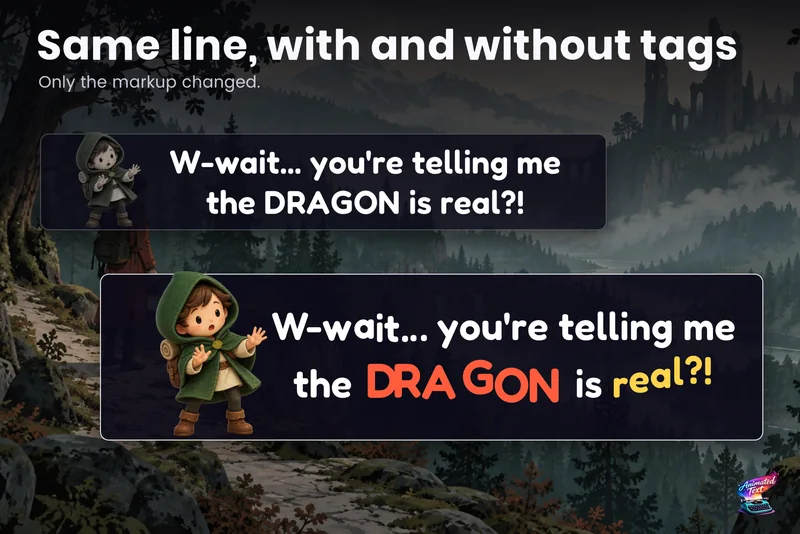
Dialogue text with typewriter, voice blips and emotion
Make a line sound nervous, excited or broken with a few tags, give each character a typing voice, and keep continue, skip, portraits and cameras in sync with the reveal.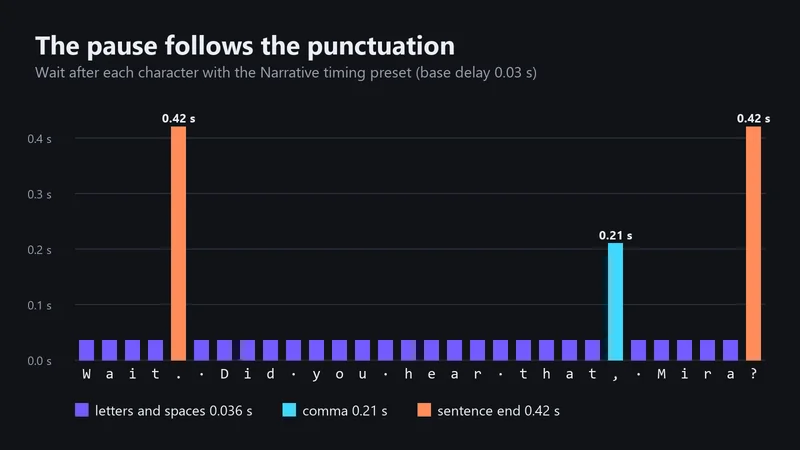 Article
Typewriter timing that reads like speech
Good typewriter text follows the rhythm of speech: pauses after punctuation, no pause after Dr., word reveals for readability, and a first press that completes the line. Concrete numbers from Text Studio's timing presets.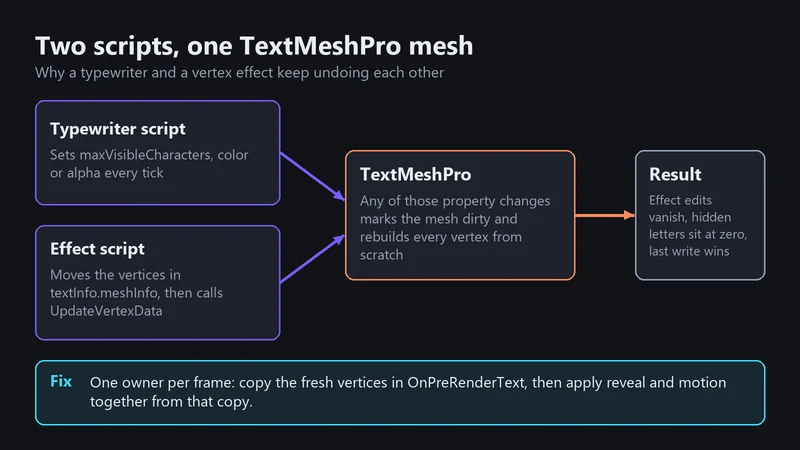 Article