Animated text and typewriter in UI Toolkit
Animate ordinary UI Toolkit Labels with a typewriter, tag effects and profiles, authored in UI Builder and working with Unity 6.5's Advanced Text Generator.
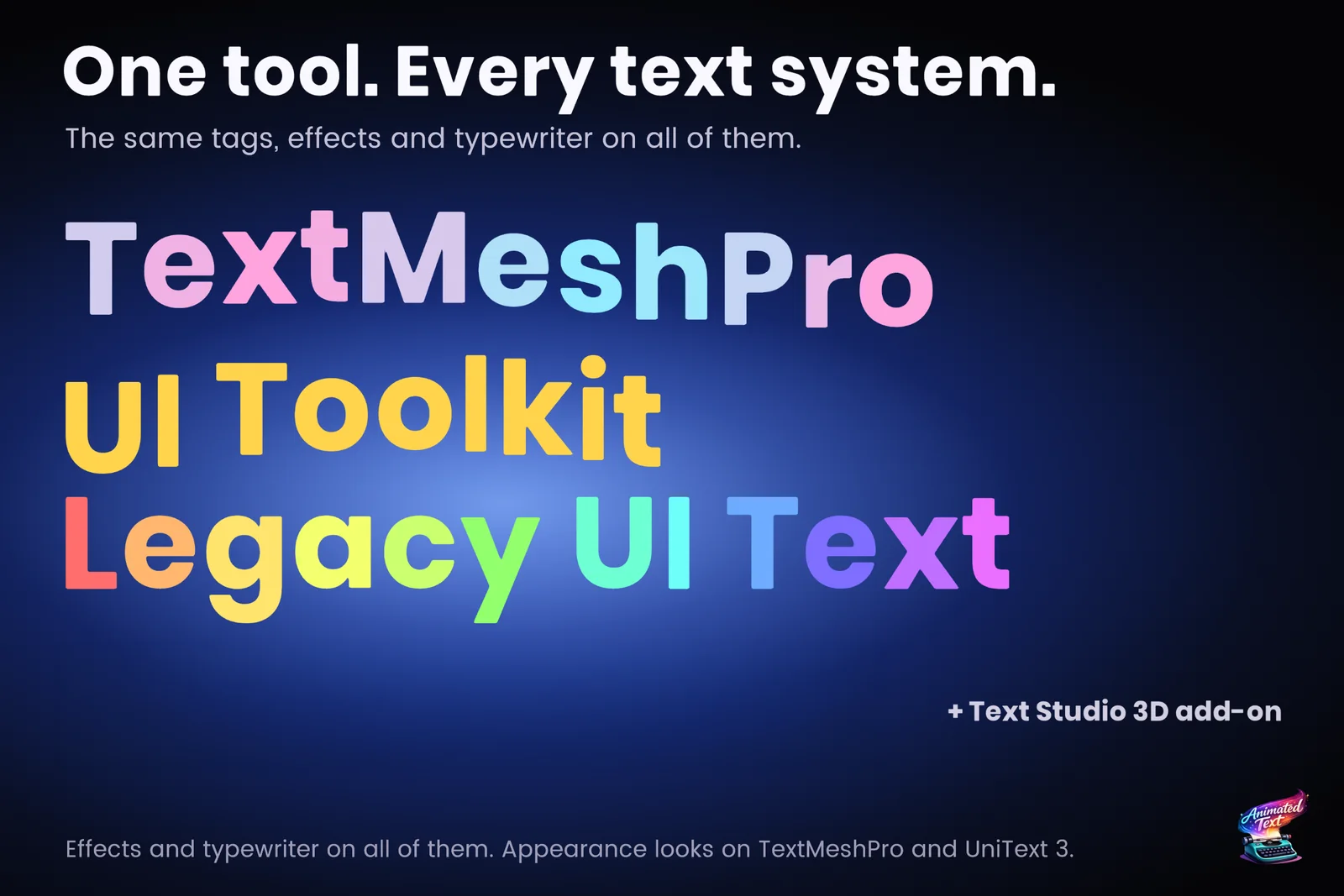
UI Toolkit has no maxVisibleCharacters. The Unity Discussions thread maxVisibleCharacters for typewriter effect, any way to recreate this in UIToolkit? has been running since 2021 and was still getting replies in 2026. The workarounds range from rewriting the label’s text with hidden alpha tags every frame to editing glyph vertices through low-level hooks that changed between Unity versions. Most text animation tools were built for TextMeshPro first, and some need you to swap your Labels for their own element.
Text Studio animates the ordinary Label. It attaches a binding to the Label’s text property, so your UXML, USS, layout and data stay as they are, and the same markup, effects, typewriter and Behavior Profiles work as on TextMeshPro.
Bind a Label in UI Builder
- Open the UXML document in UI Builder, add a Label or select an existing one, and type the line with its tags into the Label’s Text, for example
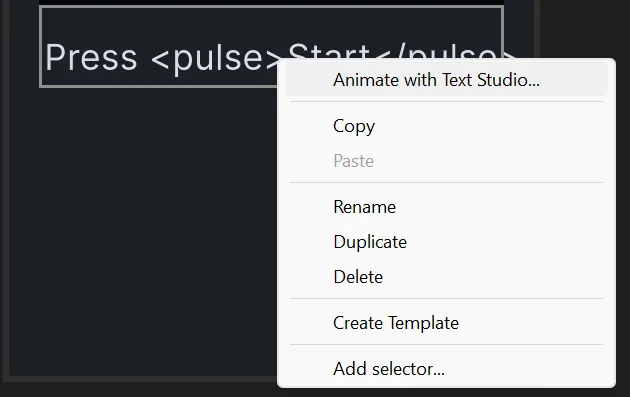
Welcome <wave>back</wave>!. - Right-click the Label on the canvas and choose Animate with Text Studio… (Unity 6.3 or newer). On any supported version, you can instead right-click the Text attribute in UI Builder’s Inspector, choose Add Binding… and select TextStudio/Text Studio Binding as the type.
- In the binding window, keep Text Source on Label Text, switch Preview to Live and play the line. Assign a Behavior Profile or adjust the Typewriter tab.
- Press Add Binding and save the document.
The binding window previews the real Label while you work, including unnamed Labels, which it finds by their position in the document. To change it later, right-click the Label and choose Edit Text Studio Binding…. UI Builder saves the binding inside the Label in UXML, so the same document works in a UIDocument or, on Unity 6.5 or newer, a PanelRenderer.
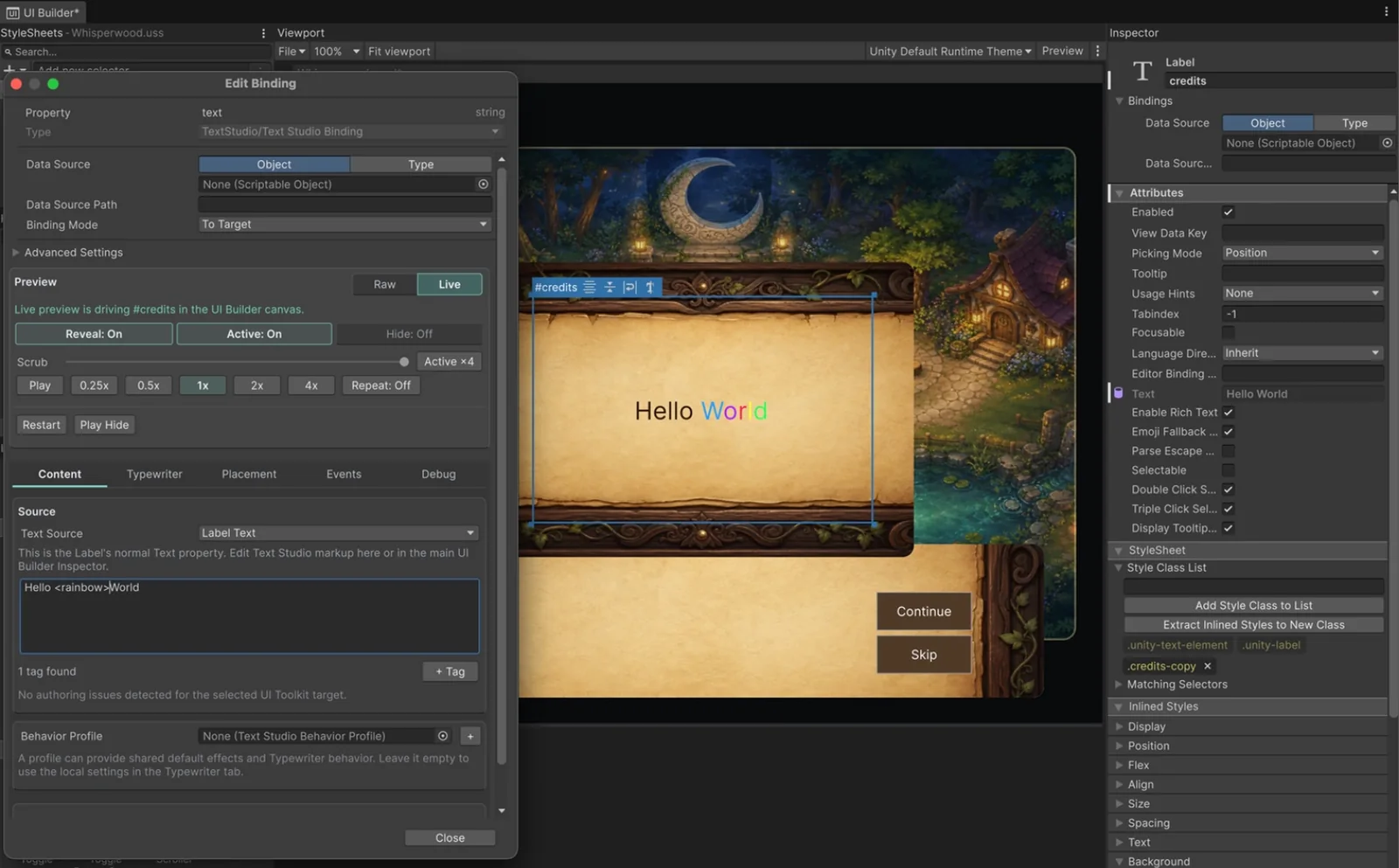
Once bound, the Label’s Text attribute shows a binding icon and displays the animated text read-only; edit the markup in the binding window’s Content tab. Text edits made there are written to the UXML, show up as unsaved changes and undo normally.
Or attach it from code
Label label = document.rootVisualElement.Q<Label>("welcome");TextStudioBinding binding = label.AttachTextStudio();binding.BehaviorProfile = profile;binding.SetText("Welcome <wave>back</wave>!");AttachTextStudio works on any Label or TextElement. For labels that change often, such as scores and timers, SetTextDeferred coalesces several updates until the next visual update, and plain text without Text Studio features skips markup work entirely.
What works on which Unity version
| Unity version | What the binding does |
|---|---|
| 2023.2 to 6.1 | Typewriter reveal, actions, waits, events and visible-prefix presentation |
| 6.2 or newer | Per-glyph reveal effects, tag effects, color and placement, matching TextMeshPro, plus Whole Text Cage styles |
| 6.3 or newer | Animate with Text Studio and Edit Text Studio Binding on the UI Builder canvas |
| 6.5 or newer | PanelRenderer hosts besides UIDocument, with the Advanced Text Generator as Unity’s default |
Unity 6.5 made the Advanced Text Generator the default text system for UI Toolkit. Text Studio supports it: on Unity 6.2 or newer, the binding’s Text Generator setting chooses Project Default, Standard or Prefer Advanced, and Prefer Advanced falls back to Standard when a panel disables Advanced Text. The article Animating UI Toolkit text from Unity 6.2 to 6.5 explains what changed underneath.
The same tags and profiles as TextMeshPro
A Behavior Profile applies to UI Toolkit labels exactly as it does to TextMeshPro: default effects, typewriter start modes, reveal and hide motion, timing, loops and skip policy. The Renderer Comparison sample shows one line on TextMeshPro, legacy UI Text and UI Toolkit side by side, and the Whisperwood Letters demo ships as both a Canvas and a UI Toolkit scene built from normal Labels with saved bindings.
The Recipes window (Tools > Text Studio > Recipes) has ready-to-copy patterns for complete UXML, code-created labels, ordinary Label bindings, hover restarts and focus reveals.
Clocks and updates
In Automatic mode, each binding owns one scheduled item, advances at most once per Unity frame, sleeps when nothing time-dependent is active and stops when its panel detaches. Manual mode hands the clock to you for deterministic stepping, custom schedulers or tests:
binding.UpdateFromHost(deltaTime); // Manual mode onlyLimits worth knowing
- Per-glyph effects need Unity 6.2 or newer. On 2023.2 to 6.1 the text reveals and its actions and events run, without per-glyph motion.
- The layered 2D looks (outlines, bevels, faux depth) render on TextMeshPro, not on UI Toolkit labels.
- A Label’s text property can hold one binding. If it already has another binding, remove it first.
The setup is also in the manual under Your First Animated Text, with the API in the Reference and Developer Appendix. For the typewriter itself, see the typewriter effect guide.
Frequently asked questions
How do I make a typewriter effect in UI Toolkit?
In UI Builder, right-click a Label on the canvas and choose Animate with Text Studio (Unity 6.3 or newer), or use Add Binding on its Text attribute and pick TextStudio/Text Studio Binding. Set the Typewriter tab, press Add Binding and save the document. In code, call label.AttachTextStudio().
Do I need a special Text Studio control?
No. Text Studio binds to the text property of an ordinary Label or TextElement, and the Label's text stays the markup source. There is no extra control in the Library.
Which Unity versions are supported?
Unity 2023.2 or newer reveals text and runs its actions and events. Unity 6.2 or newer adds per-glyph effects, color and placement. The UI Builder canvas command needs 6.3, and PanelRenderer hosts need 6.5.
Does it work with the Advanced Text Generator in Unity 6.5?
Yes. On Unity 6.2 or newer the binding's Text Generator setting chooses Project Default, Standard or Prefer Advanced, and Prefer Advanced falls back to Standard when a panel disables Advanced Text.
Style and animate every word in Unity.
Keep reading
 Use case
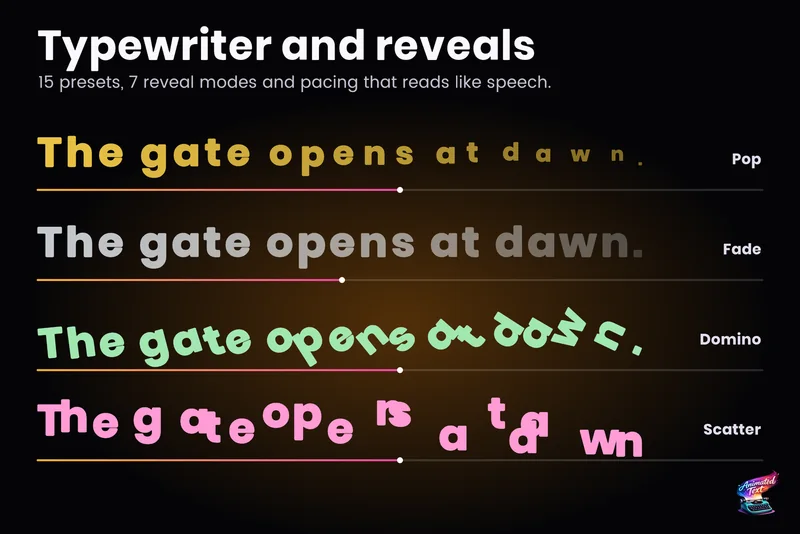
Typewriter effect for TextMeshPro and UI Toolkit
Reveal text by glyph, word or line with timing that understands punctuation, then add waits, skipping, sounds and events without writing a coroutine.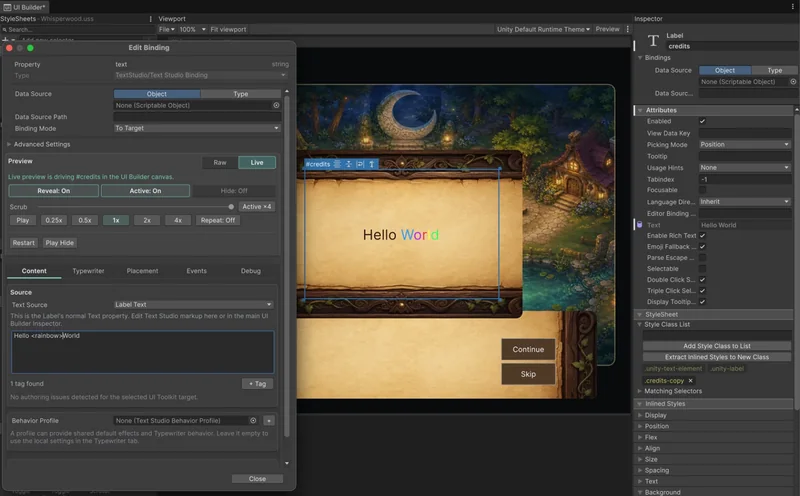 Article
Animating UI Toolkit text from Unity 6.2 to 6.5
PostProcessTextVertices gives UI Toolkit per-glyph access from Unity 6000.3, and Unity 6.5 made the Advanced Text Generator the default. What changed, the pitfalls for animation code, and how Text Studio covers 2023.2 through 6.5+. Use case