Wave, shake and rainbow text with tags
Make wavy, shaking, bouncing and rainbow text in Unity by wrapping words in tags. 40+ effects with live previews for TextMeshPro, UI Toolkit and legacy UI Text.
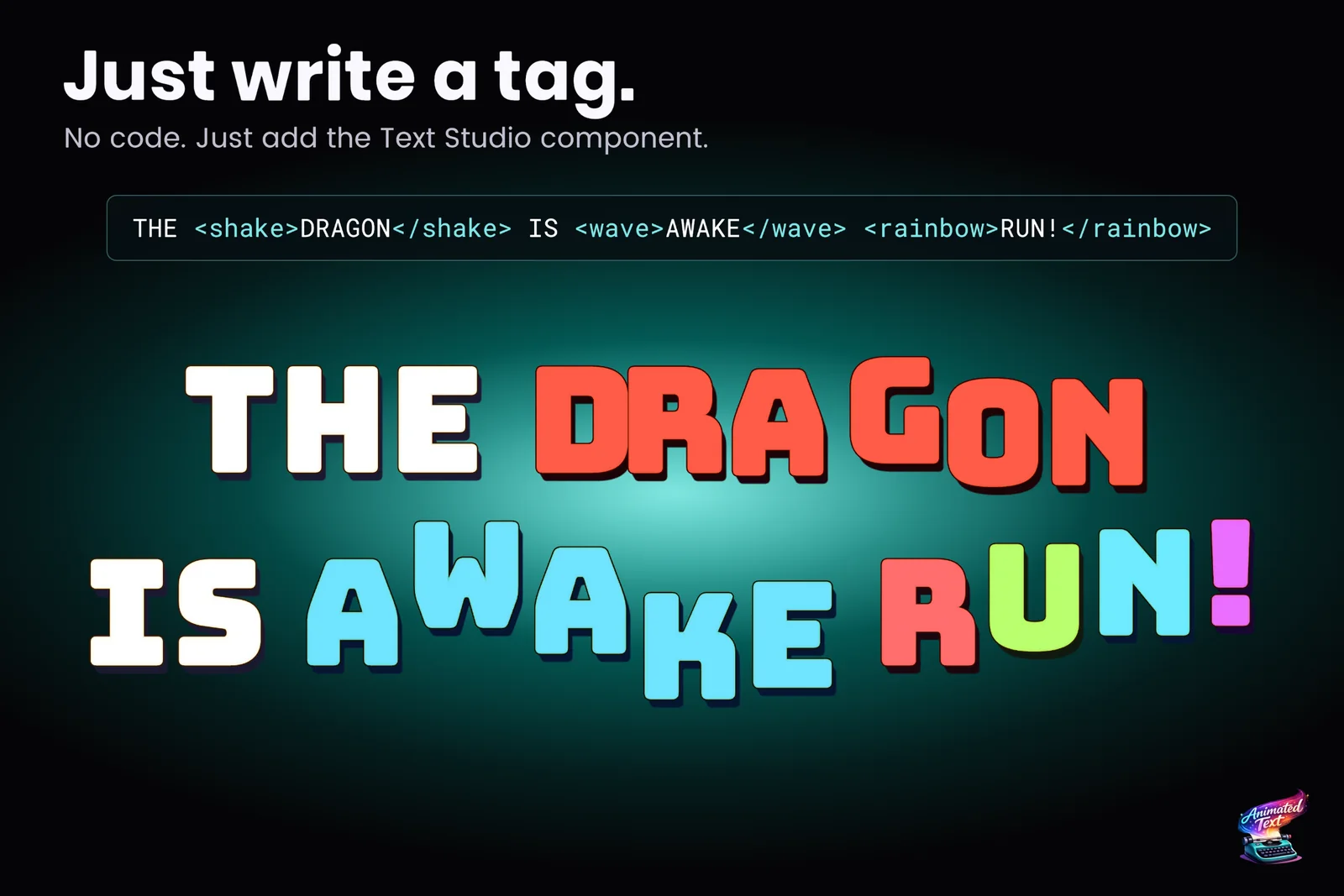
You want one word in a dialogue line to shake. The usual route is TextMeshPro’s vertex jitter example: loop over the mesh every frame, offset the vertices of the right characters, call ForceMeshUpdate, and invent a way to mark which word should move, often by abusing <link> tags. The Unity Discussions threads Creating Custom Rich Text Tag and Typewriter, jitter and wave effects at once? have about 19,000 and 15,000 views between them for a reason. Then the shake stops working on bold text, or the typewriter resets it.
With Text Studio, the word gets a tag and that is the whole job:
THE <shake>DRAGON</shake> IS <wave>AWAKE</wave> <rainbow>RUN!</rainbow>Write the tag, watch it move
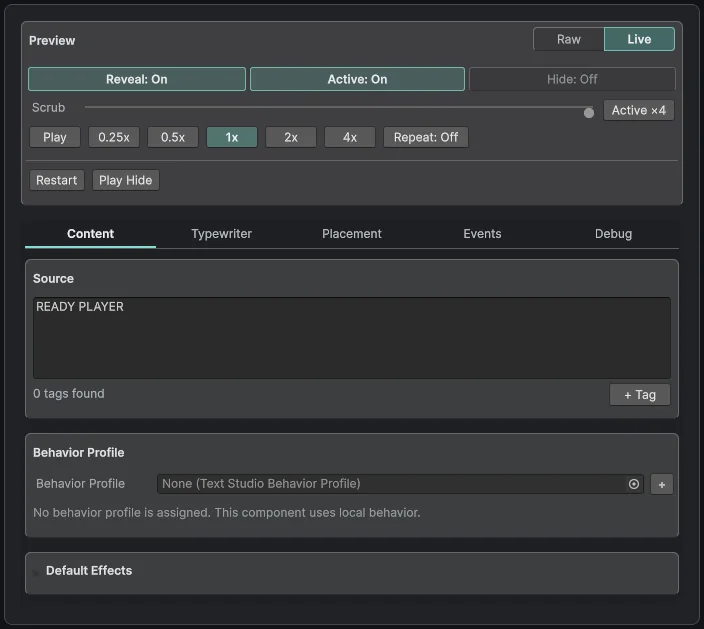
Type the line into Source on the Content tab of a Text Studio text. The preview runs in the Inspector and the Scene view while you type, so you tune the effect without entering Play Mode.
You do not have to memorize tag names. + Tag opens a searchable browser grouped into Styling, Actions, Effects and installed integrations. Search by name, alias, category or parameter, and the guided fields build valid markup around your selection. Authoring help also follows the caret: a partial name shows matching tags, a complete tag shows its syntax, and moving into a parameter shows its accepted values.
The effect catalog
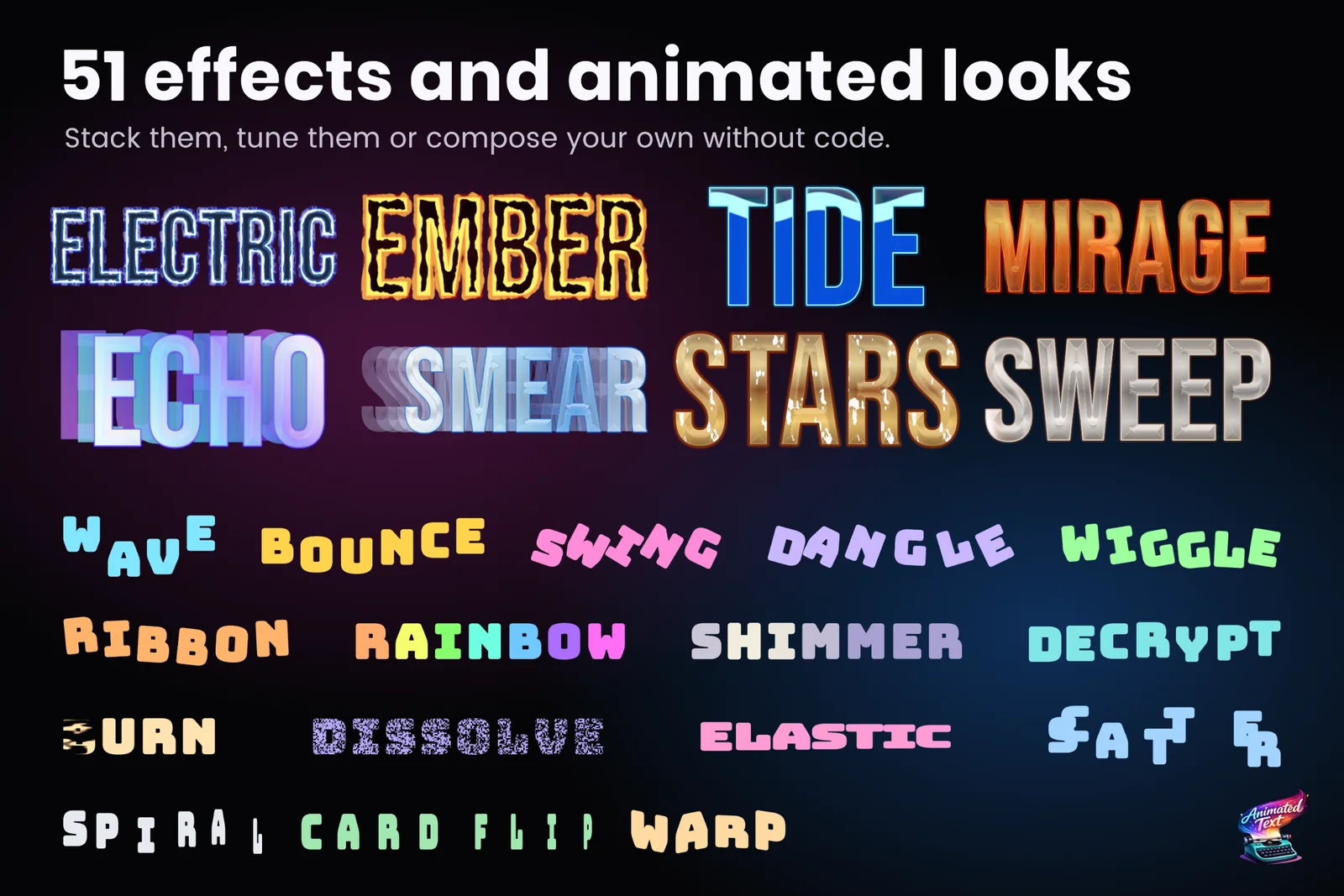
Text Studio ships 40+ built-in effects, each with a canonical tag:
- Motion and deformation:
<wave>,<shake>,<wiggle>,<bounce>,<swing>,<pendulum>,<dangle>,<float>,<elastic>,<squiggle>,<shear>,<cornerWarp>. - Attention:
<pulse>,<blink>,<emphasis>,<focus>,<tracking>. - Color and light:
<rainbow>,<colorPulse>,<gradientFlow>,<shimmer>,<surfaceSweep>,<outlineGlow>. - Arrival and departure:
<fade>,<size>,<pop>,<rotate>,<slide>,<expand>,<scatter2D>. - Characters and material:
<scramble>,<decrypt>,<glitch>,<chromaticGlitch>,<dissolve>,<burn>,<pixelGrid>.
Every effect plays as a real render in the Text Studio gallery, and the manual’s effect appendix lists each tag’s purpose, a starting example and its key controls. Inside the Editor, Tools > Text Studio > Text Gallery shows the same previews and applies a card to the selected text.
Parameters, areas and nesting
Named parameters are easiest to review later; short aliases keep a busy line readable:
<wave amplitude=.18 frequency=.65 speed=1.2>Named values</wave><wave a=.18 f=.65>Short aliases</wave><colorPulse from=#FF3355 to=#FFFFFF speed=1.7>Critical</colorPulse><bounce a=.28 s=1.8 stagger=.08>Fine-tuned</bounce><wave area=word group=2>Words move in pairs</wave>An effect can act on glyphs, words, lines, paragraphs or ranges, which is what area changes. Nest tags when two effects belong on the same words, and close the most recent one with </> in compact or generated markup:
<wave><colorPulse from=#42d9ff to=#d75cff>MAGIC</colorPulse></wave><wave><color=#66CCFF>Nested text</></>TextMeshPro’s own rich text, such as <b>, <color>, <size> and <sprite>, keeps working inside Text Studio ranges, so <wave><b>Important</b></wave> is fine.
Reuse a look as one tag
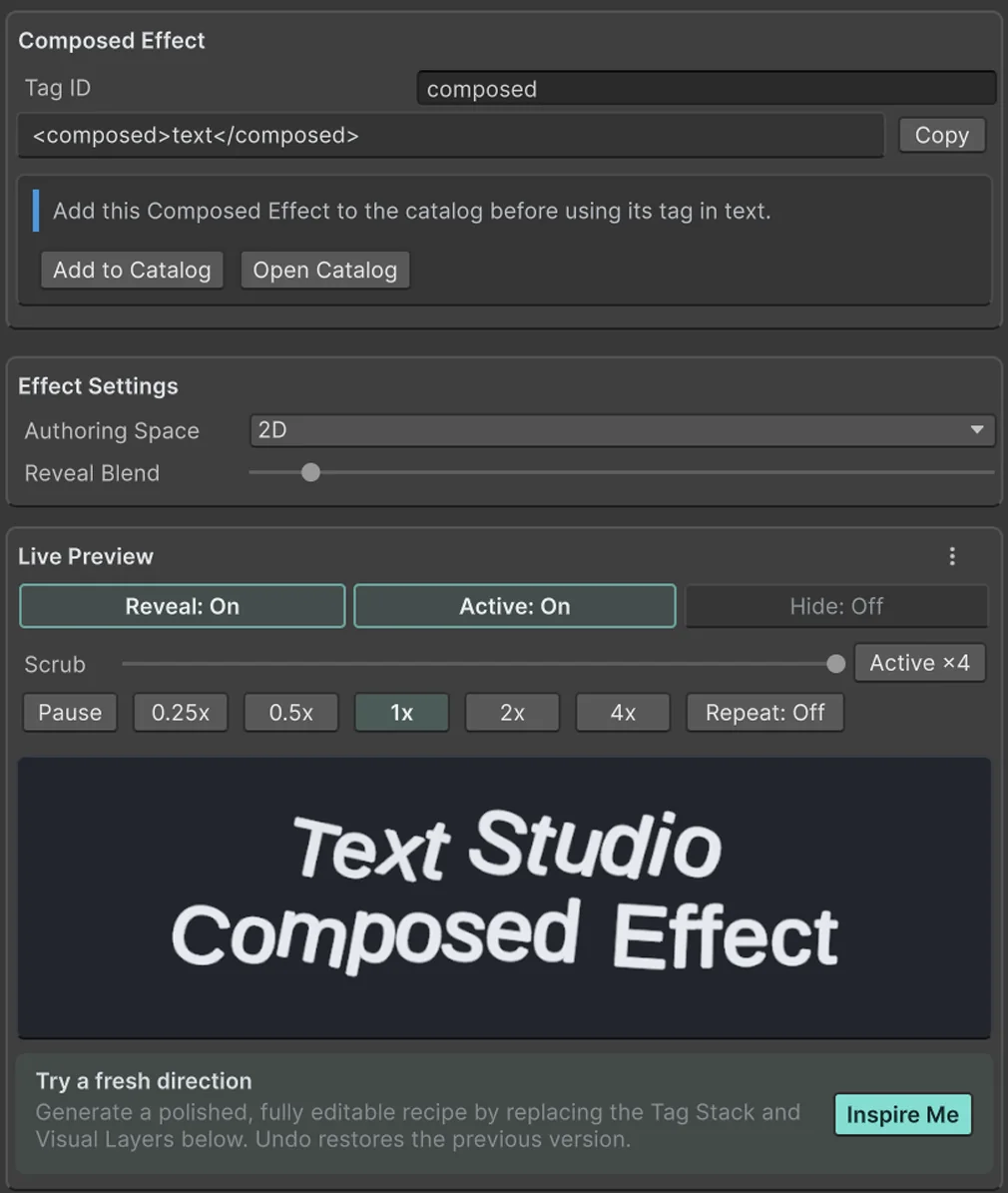
When a combination appears in many places, stop retyping it. A Composed Effect (Assets > Create > Text Studio > Animation > Composed Effect) stacks visual layers such as a line turn, a lift, a breath and a pulse, each with its own curve, scope, timing and playback. The Timing view shows how the layers cover the Reveal, Active and Hide phases, and Inspire Me generates an editable starting point when you want ideas. The finished effect has its own tag and can be shared between projects through Effect Code.
For writers, a Tag Expansion Sheet (Assets > Create > Text Studio > Text Authoring > Tag Expansion Sheet) is even simpler: register warning as <shake strength=.08><colorPulse from=#FF3344 to=#FFFFFF><emphasis> once, and <warning>Reactor unstable</warning> does the rest. Programmers who need something new can write a Code Effect with typed parameters; the five-minute custom effect tutorial walks through one.
Bringing tags from another tool
The default markup syntax, Compatibility, accepts Text Studio tags plus a supported set of Text Animator braces such as {fade} and a safe subset of TMPEffects tags, without either package installed. Unknown tags stay visible and produce a diagnostic instead of silently disappearing. Moving a whole project is covered in Move a project from Text Animator to Text Studio.
Keep it readable
Motion is a tool, not decoration. Project Settings and each text choose Full, Reduced or No Motion: Reduced lowers displacement, rotation and flashing while keeping emphasis, and No Motion keeps a stable readable result. Text Studio warns when authored flashing can exceed three flashes per second. Check every effect at the smallest size your game uses.
Limits worth knowing
- An unclosed effect tag runs to the end of the line. That is sometimes intended, so the Debug tab lists implicit ranges and mismatched closings.
- Renderers differ in what they can draw. Each tag’s compatibility details name the required channels, and per-glyph effects on UI Toolkit need Unity 6.2 or newer.
- Effects change presentation only. The authored text, its layout identity and marker positions stay intact, which is what keeps localization and the typewriter correct.
Start with the manual chapter Writing Effects Into Text, then Create Composed Effects when you want your own visual language.
Frequently asked questions
How do I make wavy text in Unity?
Add Text Studio to the text and wrap the words in a tag: <wave>moving</wave>. Parameters such as amplitude, frequency and speed tune it, with short aliases like <wave a=.18 f=.65> when the line is busy. The Inspector preview shows the result without Play Mode.
Can I combine several effects on one word?
Yes. Nest tags, for example <wave><colorPulse from=#42d9ff to=#d75cff>MAGIC</colorPulse></wave>. For a combination you reuse, build a Composed Effect once and apply it with one tag.
Can I create my own tags?
Yes. A Tag Expansion Sheet turns a short project tag such as <warning> into a reviewed stack of effects, and Code Effects let programmers add new effects with typed parameters.
Do the same tags work outside TextMeshPro?
Yes. The same markup runs on UI Toolkit labels and legacy UI Text. Per-glyph effects on UI Toolkit need Unity 6.2 or newer, and each tag's compatibility details list what a renderer supports.
Style and animate every word in Unity.
Keep reading
 Use case
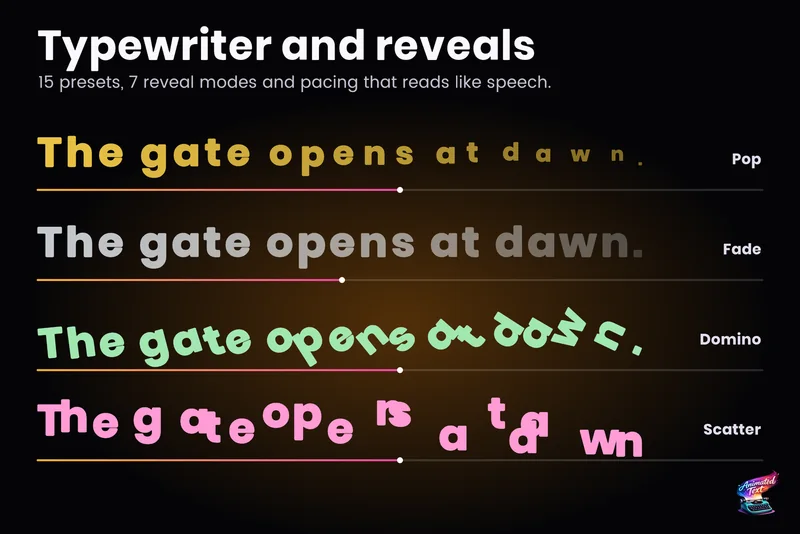
Typewriter effect for TextMeshPro and UI Toolkit
Reveal text by glyph, word or line with timing that understands punctuation, then add waits, skipping, sounds and events without writing a coroutine.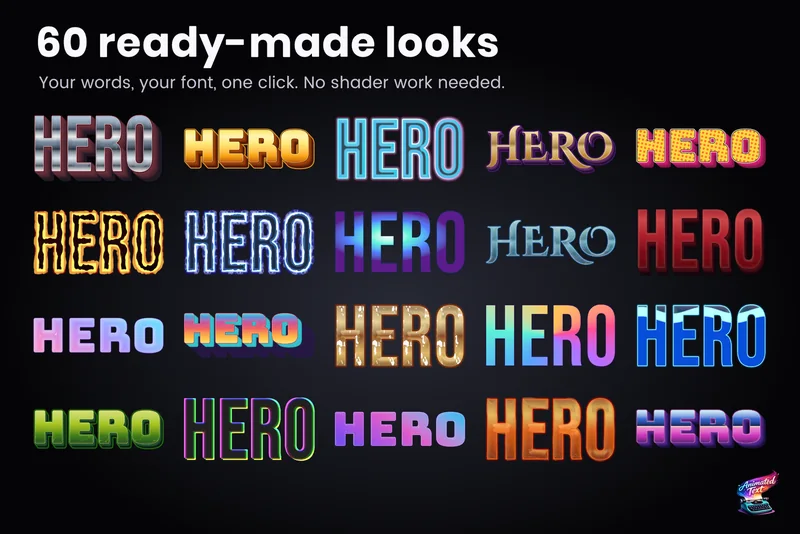 Use case
Outlines, glows, gradients and bevels for TextMeshPro
Layered 2D looks for TextMeshPro: outside and multiple strokes, glows, shadows, gradients mapped per word or line, bevels, materials and faux depth, from 60+ ready-made styles or your own stack.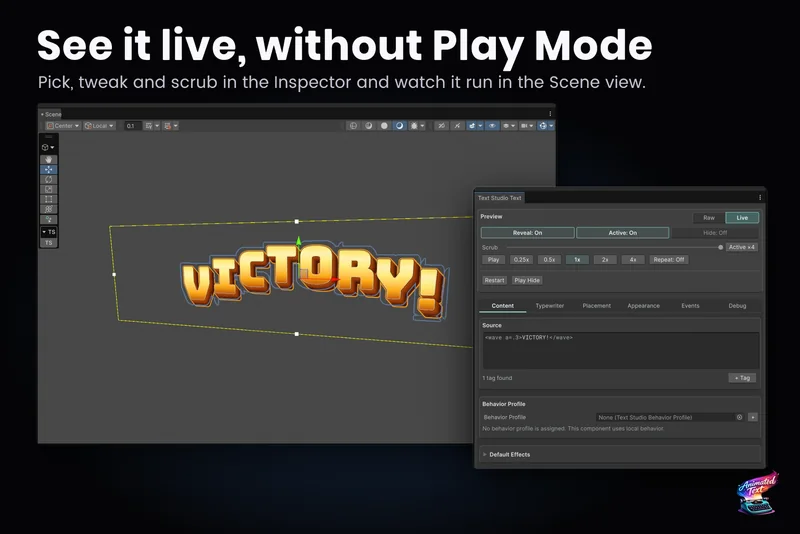 Article