Text effects for Yarn Spinner dialogue
Add wave, shake and color effects, typewriter timing and typing sounds to Yarn Spinner lines in Unity while Yarn keeps running story, options and presenters.

Your story lives in Yarn Spinner: nodes, options, variables, maybe localized lines. Now the captain’s order should shake, the whispered warning should fade in, and the line should pause for a breath after the comma. With Yarn Spinner alone, that means writing your own markup handlers and a custom typewriter, and keeping both in sync with Yarn’s presenter lifecycle.
Text Studio’s Yarn Spinner integration does that part for you. It becomes the typewriter and markup processor of Yarn’s own LinePresenter, so you write effects straight into your .yarn lines and Yarn keeps doing everything it already does.
What the integration does
The package adds two components that plug into Yarn Spinner’s standard presenter instead of replacing it:
TextStudioYarnTypewriteris a custom Yarn typewriter. It reveals the line with Text Studio and maps Text Studio’s reveal units back to Yarn’s character callbacks, so action markup keeps firing at the right letter.TextStudioYarnMarkupProcessorregisters Text Studio effect names with Yarn’s line provider, so[wave]in a Yarn line becomes a Text Studio effect. Yarn’s own markers, such as[b],[pause]or[character], are left alone.
The split of responsibilities is strict, which keeps one owner per job:
| Yarn Spinner keeps | Text Studio takes over |
|---|---|
| Yarn scripts and projects, the DialogueRunner, commands and variables | The visible line: reveal, effect tags and timing |
| Options and the OptionsPresenter, fades, character names | Markers, actions and typing sounds tied to the reveal |
| Localization and story advancement | TextMeshPro output and the line’s looks |
Set it up
- Install Yarn Spinner for Unity 3.2.4 or a later 3.x release, and Text Studio.
- Open Tools > Text Studio > Integrations and press Import Integration on the Yarn Spinner card. Importing the package activates it; there is no scripting define to add.
- Select Yarn’s standard LinePresenter in your dialogue UI and press Configure Selected on the same card.
Configure Selected adds TextStudioText to the presenter’s line text, adds TextStudioDialogueSource and the custom typewriter to the presenter, and puts the markup processor on the DialogueRunner. It then switches the presenter to the Text Studio typewriter without replacing the presenter itself. Your LinePresenter, OptionsPresenter and LineAdvancer stay as they are.
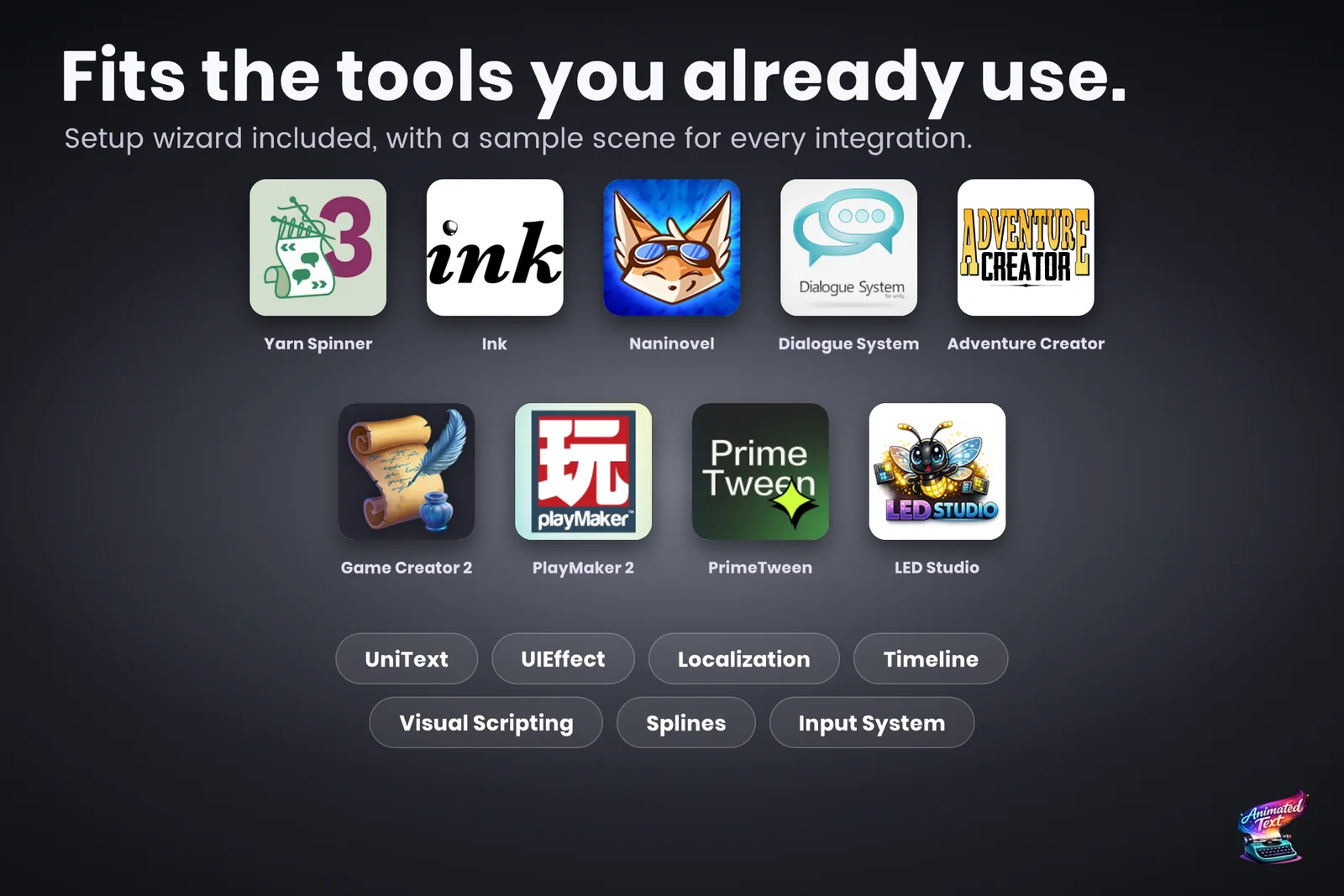 Yarn Spinner is one of 15+ integrations listed in the Text Studio Integrations window.
Write effects in your Yarn lines
Text Studio tags can live inside Yarn’s localized line text, written as Yarn markup:
Captain: [wave]Hold position.[/wave] [pause=250 /]The [pause] here is Yarn’s own action markup, and it keeps working: Yarn action handlers retain their normal per-character lifecycle, and Yarn substitutions are expanded before Text Studio processes the line. When an effect name clashes with markup your project already defines, use the explicit form:
Captain: [textstudio tag=wave amplitude=0.2]Hold[/textstudio] position.Existing Text Studio angle tags such as <shake> remain valid as well. The tag reference lists the effects and their parameters, and the effect gallery shows each one in motion.
You do not have to tag every line. A Text Studio profile can give all dialogue the same typewriter preset and default effects, so tags are only needed where a word deserves extra attention.
Typewriter, hurry-up and continue
Use Yarn’s normal hurry-up and next-content input. Hurry-up completes the Text Studio reveal; next-content dismisses the standard presenter and asks Yarn for the next line. The typewriter waits for scheduled action handlers before it skips the remaining reveal, and cancellation is posted so it never re-enters the typewriter while a handler is still running.
Pacing comes from Text Studio’s typewriter presets, with longer breaths at sentence ends and soft pauses on commas. Add a TextStudioAudioPlayer (Text Studio > Events > Audio Player) with an Audio Set for typing sounds that follow the visible letters. See build reveals and typewriter experiences and sound, input and events.
 A typewriter preset bundles reveal units, pacing, motion and skip behavior for every line that uses it.
The Forest Gate sample
Press Open Sample on the Yarn Spinner card to open Forest Gate.unity. It is a playable conversation backed by a saved Yarn project, using Yarn’s real DialogueRunner, built-in line provider, standard LinePresenter and LineAdvancer, with Text Studio assigned as typewriter and markup processor. The script uses substitutions, a native Open the gate option, pause action markup and Text Studio effect markup.
Continue / skip first completes the active reveal, then advances Yarn. Restart Yarn replays the node. Inspect presenter opens a setup panel whose actions select the actual LinePresenter, YarnProject, LineAdvancer and OptionsPresenter, so you can copy the wiring into your own scene.
Limits worth knowing
- The integration targets Yarn Spinner 3.x, from 3.2.4 up to, but not including, 4.0.
- Options stay with Yarn’s OptionsPresenter. The integration animates the line, not the option buttons.
- If dialogue advances before reveal handlers finish, check that the Text Studio typewriter is the presenter’s assigned typewriter and that no second presenter is racing it.
- Keep one visible writer per text field. The Yarn Spinner section of the manual has the full validation checklist.
For dialogue design beyond Yarn, such as voice blips, emotional emphasis and portraits driven by markers, see dialogue text effects.
Frequently asked questions
Do I have to replace Yarn Spinner's LinePresenter?
No. Configure Selected assigns Text Studio as the custom typewriter of your existing LinePresenter and adds a markup processor. The presenter, the OptionsPresenter, the fades, the DialogueRunner and the story flow all stay Yarn Spinner's.
How do I add an effect to a word in a Yarn line?
Wrap it in Yarn-style markup such as [wave]Hold position.[/wave]. When a Text Studio name clashes with markup your project already uses, write [textstudio tag=wave]Hold[/textstudio] instead. Text Studio angle tags such as <shake> also stay valid.
Which Yarn Spinner versions are supported?
Yarn Spinner for Unity 3.2.4 or a later 3.x release; the integration was tested with 3.2.8. Text Studio itself needs Unity 2023.2 or newer.
Can I use Text Animator with Yarn Spinner instead?
Yes. The Yarn Spinner team publishes a Text Animator add-on. Text Studio ships its own Yarn Spinner integration package with a sample scene, and the comparison page explains how the two tools differ.
Style and animate every word in Unity.
Keep reading
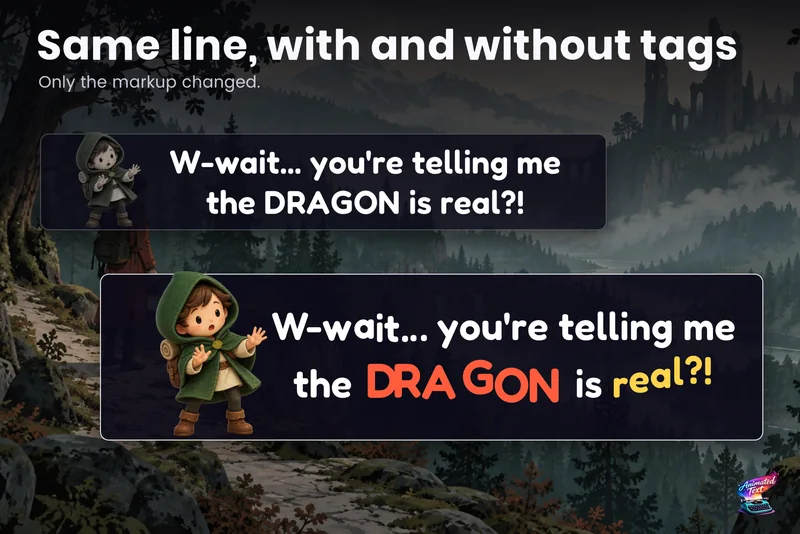 Use case
Dialogue text with typewriter, voice blips and emotion
Make a line sound nervous, excited or broken with a few tags, give each character a typing voice, and keep continue, skip, portraits and cameras in sync with the reveal.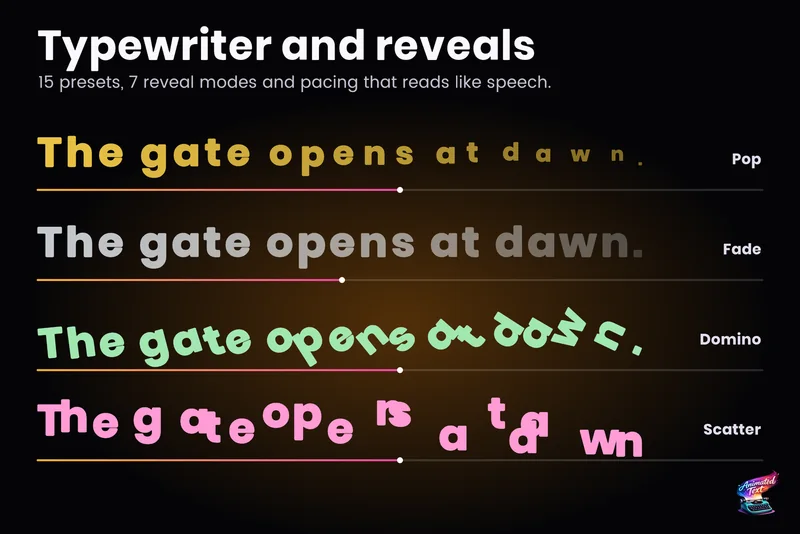 Use case
Typewriter effect for TextMeshPro and UI Toolkit
Reveal text by glyph, word or line with timing that understands punctuation, then add waits, skipping, sounds and events without writing a coroutine. Comparison