Where Unity stores Asset Store downloads, and how to move the cache
The Unity Asset Store cache location on Windows, macOS and Linux, how to move it to another drive, and what is safe to delete when the folder gets too big.
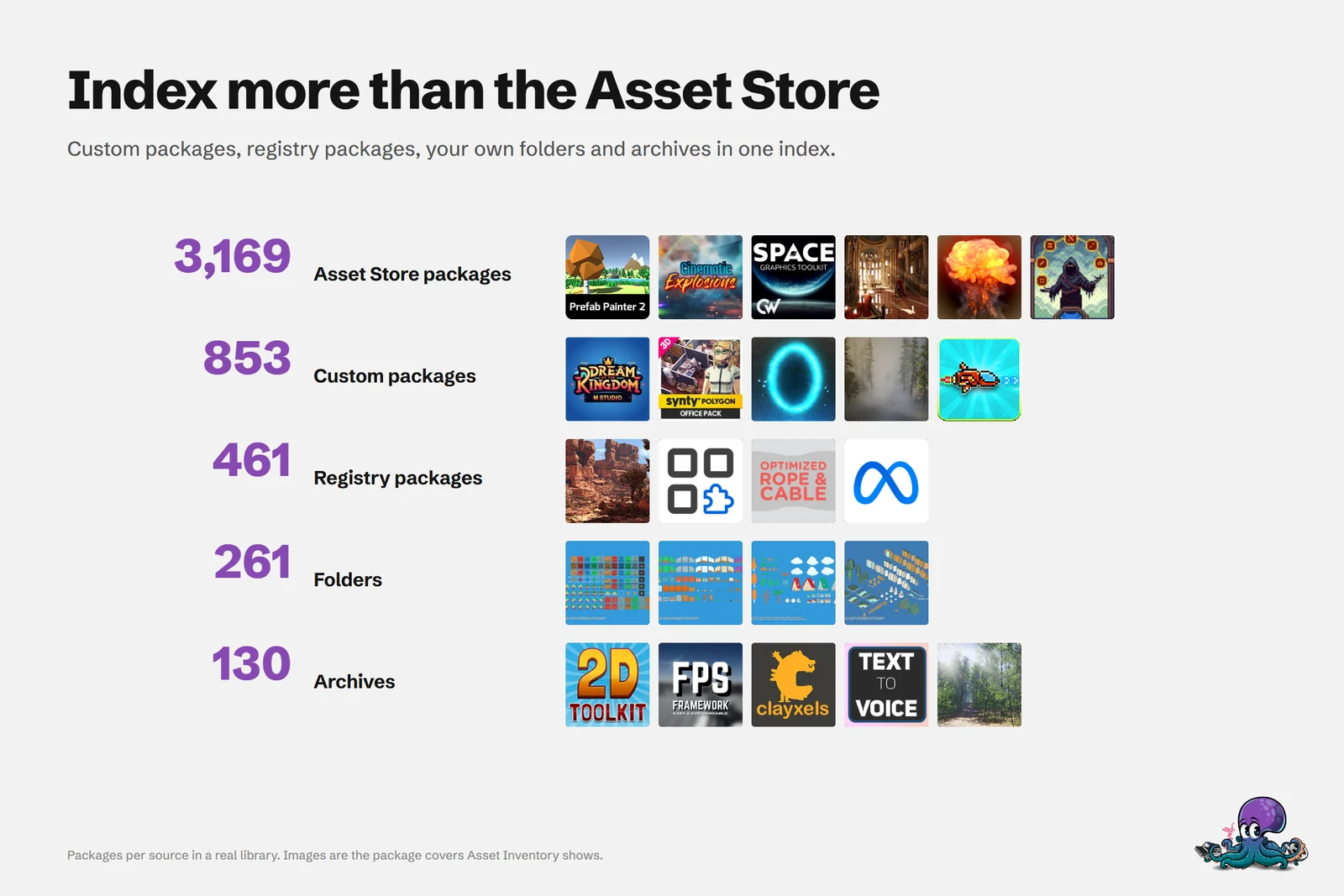
Every time you click Download on a purchase in the Package Manager, Unity saves the package as a .unitypackage file in a cache folder, and the file stays there until you delete it. Unity documents no size limit and no automatic cleanup for this folder, so it grows with every purchase, bundle and update you download. Art packs can be big on their own: the Lowpoly Township Set I use as an example in other articles is a 497 MB package.
This folder is also the main source that Asset Inventory indexes, so I have spent a lot of time in it. Here is where it lives on each operating system, how it is organized, how to move it to a bigger drive, and what you give up when you clean it out.
Default Asset Store cache folders on Windows, macOS and Linux
Unity keeps downloaded Asset Store packages in a folder that is still called Asset Store-5.x in Unity 6. These are the default locations from Unity’s documentation on downloaded asset packages:
| Operating system | Default Asset Store cache folder |
|---|---|
| Windows | C:\Users\YourName\AppData\Roaming\Unity\Asset Store-5.x |
| macOS | ~/Library/Unity/Asset Store-5.x |
| Linux | ~/.local/share/unity3d/Asset Store-5.x |
Unity points out that these paths can sit inside hidden folders. On Windows, the quickest route is typing %APPDATA%\Unity into the Explorer address bar. In Unity 2022.1 or later you can also open Preferences, select Package Manager and use the folder menu beside Cache Location under My Assets to show the folder in Explorer or Finder. That also tells you whether someone already moved it.
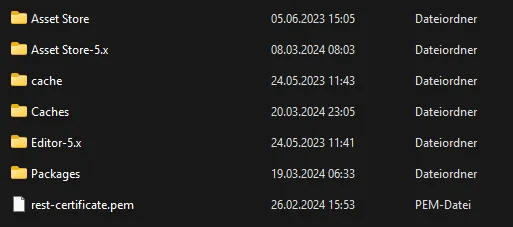 An example Unity cache root folder on Windows. Asset Store downloads live in Asset Store-5.x.
Only classic asset packages land here. Asset Store packages that ship in the UPM format go to the separate package cache described further down, and .unitypackage files you bought on publisher websites or in bundles never enter this folder at all. They stay wherever you saved them.
How the cache folder is organized
Inside Asset Store-5.x, Unity creates one folder per publisher. Unity’s documentation says the publisher determines the subfolders below that. In practice, the ones I see follow the store category, with category and subcategory written together without a separator, and the file carries the package’s display name. My own package sits here:
Asset Store-5.x/Impossible Robert/Editor ExtensionsUtilities/Asset Inventory 4.unitypackageA few consequences are worth knowing before you start cleaning up:
- One file per package. Downloading an update replaces the file, so the cache only ever holds the latest version you downloaded. Older versions are gone unless you copied them somewhere.
- Projects and cache are independent. Removing assets from a project does not delete the cached
.unitypackage, and deleting the cached file does not touch any project that uses its assets. - Finding a package by hand takes two names. To locate a file, you need the publisher name and the package’s display name, because those are the folder and the file name.
Move the Asset Store cache to another drive
From Unity 2022.1 on, the Preferences window can change the location, and Unity recommends this method because it is simple and permanent:
- Open Preferences, or click the settings icon in the Package Manager window and choose Preferences.
- Select the Package Manager category.
- Under My Assets, open the folder menu beside Cache Location.
- Choose Change Location and pick a folder on the new drive.
Unity keeps this setting for future sessions. It does not move anything, though: packages you already downloaded stay in the old folder, and Unity documents no step that moves them for you. The manuals for versions before 2022.1 describe no way to change the location.
The ASSETSTORE_CACHE_PATH environment variable
Unity also reads the ASSETSTORE_CACHE_PATH environment variable, documented from Unity 2022.1 on. It follows different rules than the Preferences setting, according to Unity’s page on customizing the asset package cache location:
- Unity describes the method as not permanent. You set the variable every time you launch Unity.
- Close the Unity Editor and Unity Hub first, set the variable, then start the Hub or the Editor from the same command prompt or terminal session.
- While the variable is in use, the Preferences window cannot change the location.
That makes the variable useful for special setups, such as starting one Unity session against a different cache, while Preferences remains the better choice for a permanent move.
The registry package cache is a separate folder
Registry packages, including Asset Store tools that ship in the UPM format, live in Unity’s global cache instead. It never contains .unitypackage files, and it behaves very differently:
| Asset Store cache | Global package cache | |
|---|---|---|
| Holds | .unitypackage files from the Asset Store | UPM packages from registries, including UPM-format Asset Store packages |
| Default on Windows | %APPDATA%\Unity\Asset Store-5.x | %LOCALAPPDATA%\Unity\cache\upm |
| Size limit | None documented | 10 GB for the db folder since Unity 2023.2.0f1 |
| Move it with | Preferences or ASSETSTORE_CACHE_PATH | Preferences, UPM_CACHE_ROOT or cacheRoot in .upmconfig.toml |
| Clean up | Delete .unitypackage files by hand | Lower the size limit and Unity evicts the least recently used content |
The global cache paths are the defaults Unity documents for Unity 6. On macOS it is ~/Library/Caches/Unity/upm, on Linux ~/.cache/Unity/upm. When the db folder reaches its limit, Unity evicts the packages you added to a project longest ago. They stay in the projects that use them, and Unity fetches them from the registry again the next time you add them somewhere else.
To move this cache, open Preferences, select Package Manager and use the folder menu beside Cache Location under Packages. The size limit can only be changed with UPM_MAX_CACHE_SIZE or the maxCacheSize key, both in bytes. Unity documents no manual cleanup procedure for this cache, so lowering the limit is the documented way to make it smaller.
Why the cache keeps growing, and what deleting costs
Nothing in Unity shrinks the asset package cache for you. Every package you download stays, whether you imported it once, removed it again or never opened it. Unity’s own advice for drive space is to move the cache or delete packages from it, and deleting is a manual file operation:
- In the Package Manager, select the package under My Assets and note the publisher name and the display name.
- Open the cache root through the folder menu beside Cache Location in Preferences.
- Open the publisher’s folder and the subfolder that contains the package.
- Delete the
.unitypackagefile with that display name.
Here is what that trade looks like:
- You keep everything already imported into your projects. Deleting the cached file does not touch them.
- You lose the ability to import the package without downloading it again, which needs an internet connection and time for large packs.
- You lose the exact version you had. A new download gets the version the Asset Store offers at that time, not necessarily the one you deleted, and once Unity disables a package it cannot be downloaded at all.
For packages that a shipped or long-running project depends on, keep a copy before you delete anything.
How Asset Inventory works with the cache
Asset Inventory reads the cache, so the two need to agree on where it is. It also changes what deleting a package costs you.
- Detection. If you set a custom cache location in Unity 2022.1 or later, Asset Inventory typically detects it on its own. Turn on Advanced mode with the eye icon to see the resolved path. If detection is wrong, switch Asset Cache Location to a custom folder and select the folder that ends in
Asset Store-5.x. A setASSETSTORE_CACHE_PATHvariable overrides the default location too. - It does not move anything. Asset Inventory cannot change where Unity downloads packages. Move the cache in Unity’s Preferences first, then let Asset Inventory pick up the new location.
- Index first, then delete. Once a package is indexed, it does not need to stay on disk for searching, only for importing. Its files, previews and metadata stay searchable, and when you import something from a deleted package, Asset Inventory downloads it on demand and then continues.
- Download and delete automatically. The Download & Index New Asset Store Packages action downloads purchases that are not in the cache, indexes them and deletes them again afterwards, unless you choose otherwise. It saves a lot of disk space at the cost of a potentially very long indexing run. Downloading also gives up the Asset Store’s easy refund, because Unity’s EULA ties automatic refunds to products that have not been downloaded. Run it once you are sure you are keeping your recent purchases.
- Back up the versions you rely on. Turn on Enable Package Backups under Settings > Backup and select the packages to keep. Asset Inventory copies them out of the cache, keeps several versions and turns the version label into a dropdown, so you can import an older one. The backup folder is rarely read, so it can live on a large, slow external drive.
Asset Inventory keeps its own data in three folders you should account for when you plan disk space:
- Previews holds the images for the catalog. The manual’s rule of thumb is about 200 MB per 30,000 files before upscaling.
- Extracted holds temporary files unpacked for browsing and importing. You can delete it at any time, and the size limiter under Settings > Locations caps it in gigabytes while skipping items marked to keep extracted.
- Backup is the default location for package backups.
The Setup Wizard shows a storage estimate before the first indexing run, so you can put the database and previews on a fast drive and backups somewhere big. If you also keep .unitypackage files outside the cache, for example from Humble Bundle or publisher websites, add those folders under Additional Folders and they join the same index. The settings documentation lists every location option, and if you are making room because a sale is coming up, my Asset Store sale checklist covers the other half of the problem.
Frequently asked questions
Where is the Unity Asset Store cache on Windows?
By default in C:\Users\YourName\AppData\Roaming\Unity\Asset Store-5.x, which you can reach by typing %APPDATA%\Unity into the Explorer address bar. If the cache was moved, Unity 2022.1 or later shows the current folder in Preferences under Package Manager, My Assets, Cache Location.
Can I move the Asset Store cache to another drive?
Yes, in Unity 2022.1 or later. Open Preferences, select Package Manager, open the folder menu beside Cache Location under My Assets and choose Change Location. Unity downloads to the new folder from then on, but packages you already downloaded stay in the old one.
Is it safe to delete the Unity Asset Store cache?
Deleting a .unitypackage from the cache does not change any project that already uses its assets. You do have to download the package again before you can import it, and you get the version the Asset Store offers at that time, not necessarily the one you deleted.
Does Asset Inventory need packages to stay in the cache?
Only for importing. Once a package is indexed, its files, previews and metadata stay searchable after you delete the .unitypackage, and Asset Inventory downloads the package again on demand when you import something from it.
Find any Unity asset you own. Import only what you need.
Keep reading
 Use case
Back up Asset Store packages and keep older versions
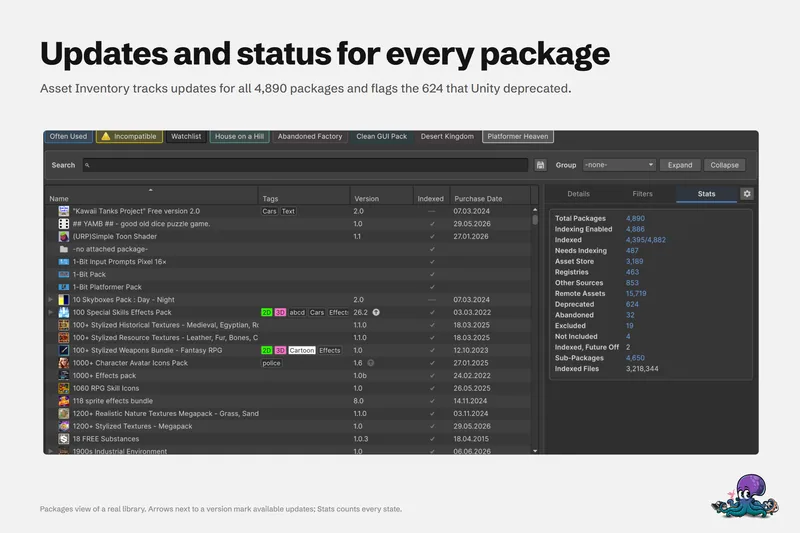
Asset Inventory copies your Asset Store downloads into a backup folder, keeps several versions per package and imports an older one from a dropdown, even after Unity deprecates or disables the package. Use case
Search inside every Unity package you own
The Package Manager searches package names. Asset Inventory indexes every file in every package you own, with filters, saved searches and Unity Search integration, so you search for the asset itself.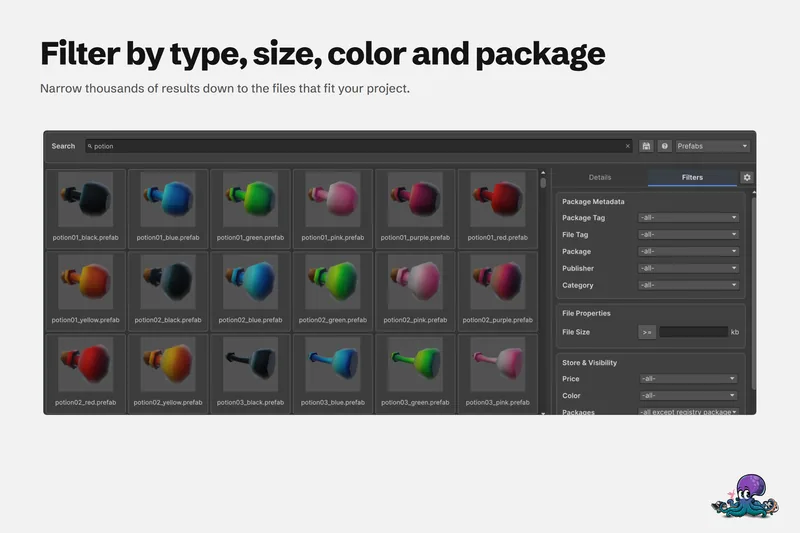 Article