How to organize Unity Asset Store downloads: six approaches compared
How to organize Unity Asset Store downloads with Package Manager labels, folders, spreadsheets, standalone managers, Unity Asset Manager or an index inside Unity.
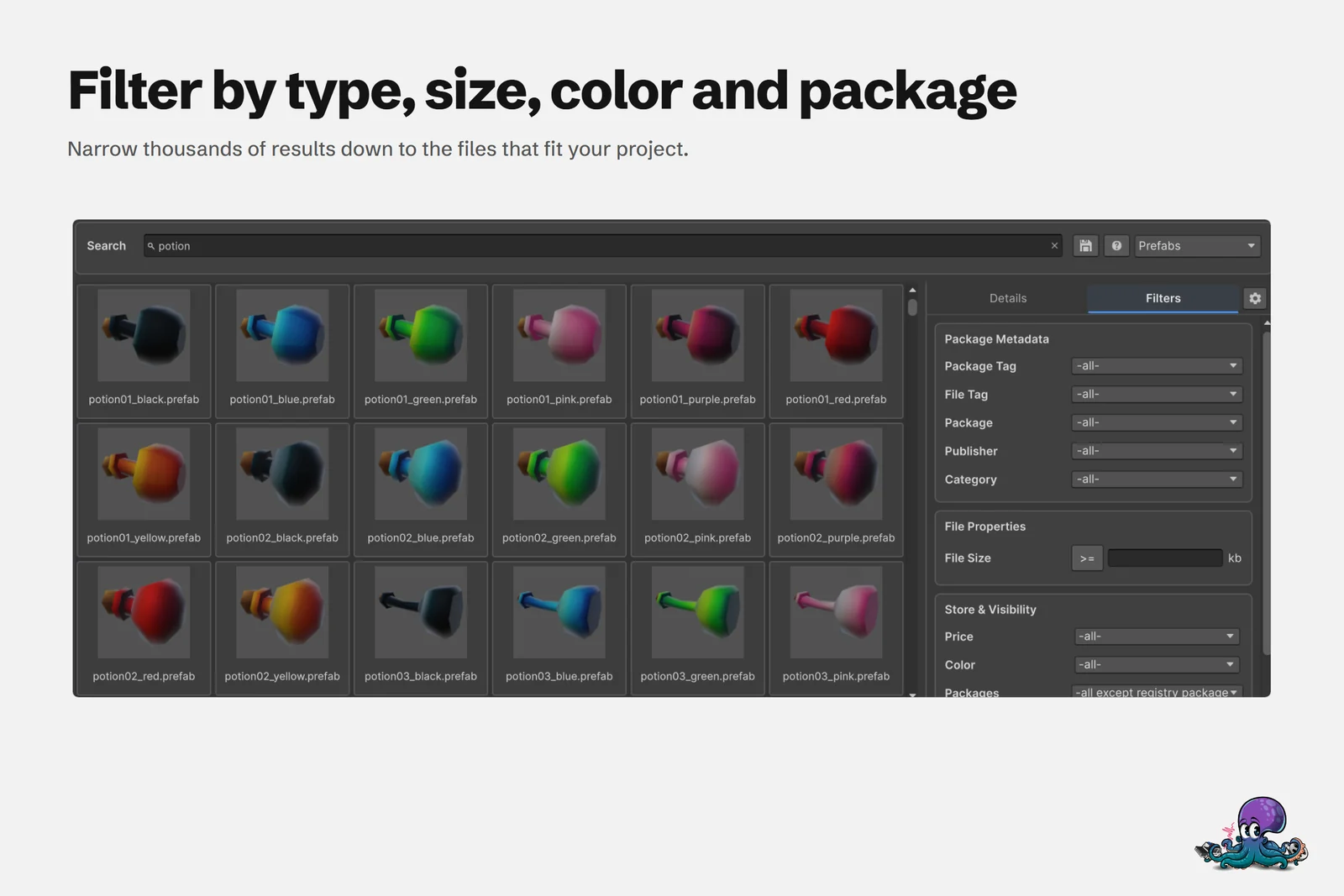
After a few sales and bundles, an Asset Store library holds more packages than anyone can remember. The Package Manager lists them by name, while the thing you need, a stone wall texture or a short UI click, is a file somewhere inside one of them.
There are several ways to keep such a library usable, and they combine well. I build one of these tools, so weigh my conclusions with that in mind. I will be specific about where each approach is the better fit.
What an organized library needs to do
I judge every approach below by five practical questions:
- Can you find an asset by its content, not only by the name of its package?
- Can you see a preview before you import anything?
- Does it cover everything you own, not only Asset Store purchases?
- Does your structure (tags, notes, collections) survive new purchases without manual upkeep?
- Can you get a single asset into a project without dragging the whole package along?
Approaches that need no extra tools
1. Package Manager My Assets with labels
Everyone has it, and in Unity 6 it covers the package lifecycle well: download, bulk download and update, import, and removing imported assets again. For organizing, it offers search, filters and labels:
- Search matches the package display name. It does not look at the files inside packages.
- Filters cover status (Downloaded, Imported, Update available, Unlabeled, Hidden, Deprecated), categories and labels, and you can sort by name, purchase date or recent updates.
- Labels are the only custom structure, and Unity says you can only create and apply them on the Asset Store website. Hiding packages also happens there.
- Previews are the publisher’s marketing images, audio and video. There is no preview of the individual files before import.
- My Assets needs a signed-in Unity account and lists only Asset Store purchases.
Good fit: downloading, updating and removing Asset Store packages, which you need to do anyway. Where it stops: anything inside a package, and anything you did not buy on the Asset Store. The Package Manager comparison goes into detail.
2. Folder conventions and a library project
The do-it-yourself approach: keep downloads from other sources in a clear folder structure (by type, style or publisher), and import packages into a dedicated library project to see what they really contain.
Good fit: Unity renders everything, so what you see is what you get, and you need no extra tools. Where it stops: every package you import into the library project costs import time and disk space, packages with scripts add compile time, and a single script that fails to compile keeps you out of Play Mode until you fix it. Finding things still means browsing folders. If you already keep such a project, Asset Inventory can index it as a media folder, so the work is not lost.
3. Spreadsheets and notes
A spreadsheet with one row per package: the project it is meant for, license notes, the price you paid, a rating, a link to the store page.
Good fit: any field you want, easy to share, and handy for team purchase decisions. Where it stops: it only knows what you typed. Every purchase means manual upkeep, and nothing in it can find a file inside a package.
If you like spreadsheets, generate them instead of typing them. Asset Inventory exports package metadata as CSV and orders as CSV or JSON, and you can define custom fields for packages, such as checkboxes, selection lists, text, numbers, links and dates.
Approaches with a dedicated asset manager
4. Standalone asset managers: AssetHoard and Eagle
Standalone apps run outside Unity and organize files from many sources.
AssetHoard is a local-first desktop app for Windows, macOS and Linux, built for game developers. It reads .unitypackage files without Unity, scans the default Asset Store cache, shows the thumbnails Unity stored inside packages, renders text-serialized materials on a preview sphere, shows audio waveforms, and offers local semantic search and an MCP server. It also covers Godot, Unreal and GameMaker content. For Unity work, its own documentation names the limits: prefabs are not parsed or rendered, only shown with a stored thumbnail when one exists, and to use an asset you import the package into Unity as usual. It sees what is already on disk, not your purchase list. It is in open beta, free during the beta and sold as a one-time purchase.
Eagle is a general visual asset library for Windows and macOS with a one-time price. It stores any file type and offers tags, smart folders, color search, browser extensions for collecting references and a local AI search plugin. It has no Unity integration, documents no way to look inside a .unitypackage, and FBX and OBJ previews need a third-party plugin. It is a good home for concept art, references, fonts and loose textures or sounds.
Good fit: libraries that span engines and file types, and browsing without Unity running. Where it stops: Unity-specific work, such as prefab and effect previews rendered by Unity, dependency-aware imports and Asset Store account data. See the comparisons with AssetHoard and Eagle.
5. Unity Asset Manager for cloud teams
Unity Asset Manager is Unity’s cloud asset management service for an organization’s own assets: projects and folders, metadata and tags, versions with statuses, roles and permissions, comments and review. Its Editor package browses, uploads and imports assets, and an import brings the full dependency tree.
Its Asset Store integration lists the purchases of your Unity ID and itemizes packs into individual assets with their dependencies, and Unity announced free storage for Asset Store assets when it launched. The integration currently covers the 3D, 2D and Audio categories, shows only the latest version of an asset and does not update automatically when a package changes on the store. Your own uploads count against the storage included in your plan, and offline use is limited: the Editor package notes that asset details might be incomplete or missing when you work offline.
Good fit: teams that want one governed, versioned library with review and permissions. Where it stops: content outside the supported categories, older package versions, and libraries that should stay on your own drives. The Asset Manager comparison covers both sides.
6. An index inside Unity: Asset Inventory
This is the approach I built Asset Inventory around. It indexes the contents of everything you own into a local database and searches it inside the Unity Editor: Asset Store purchases, custom and Synty packages, registry packages, Unity Asset Manager projects, folders, ZIP, RAR and 7z archives, and free online catalogs.
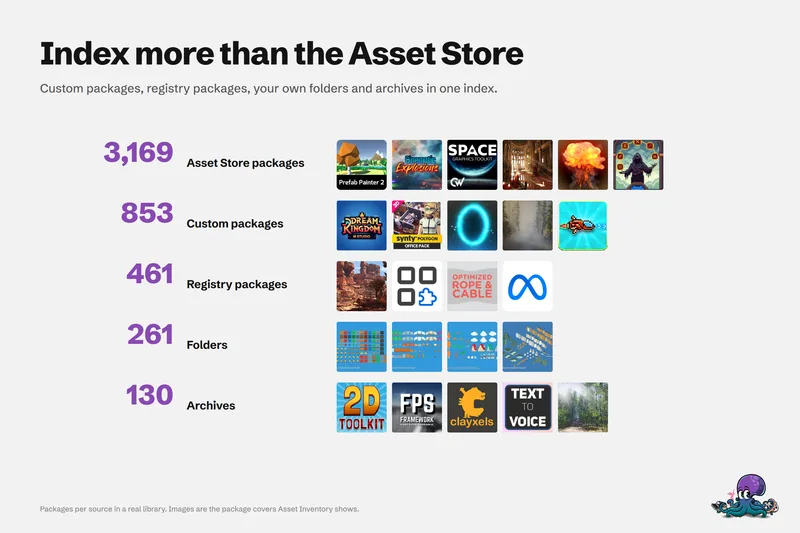
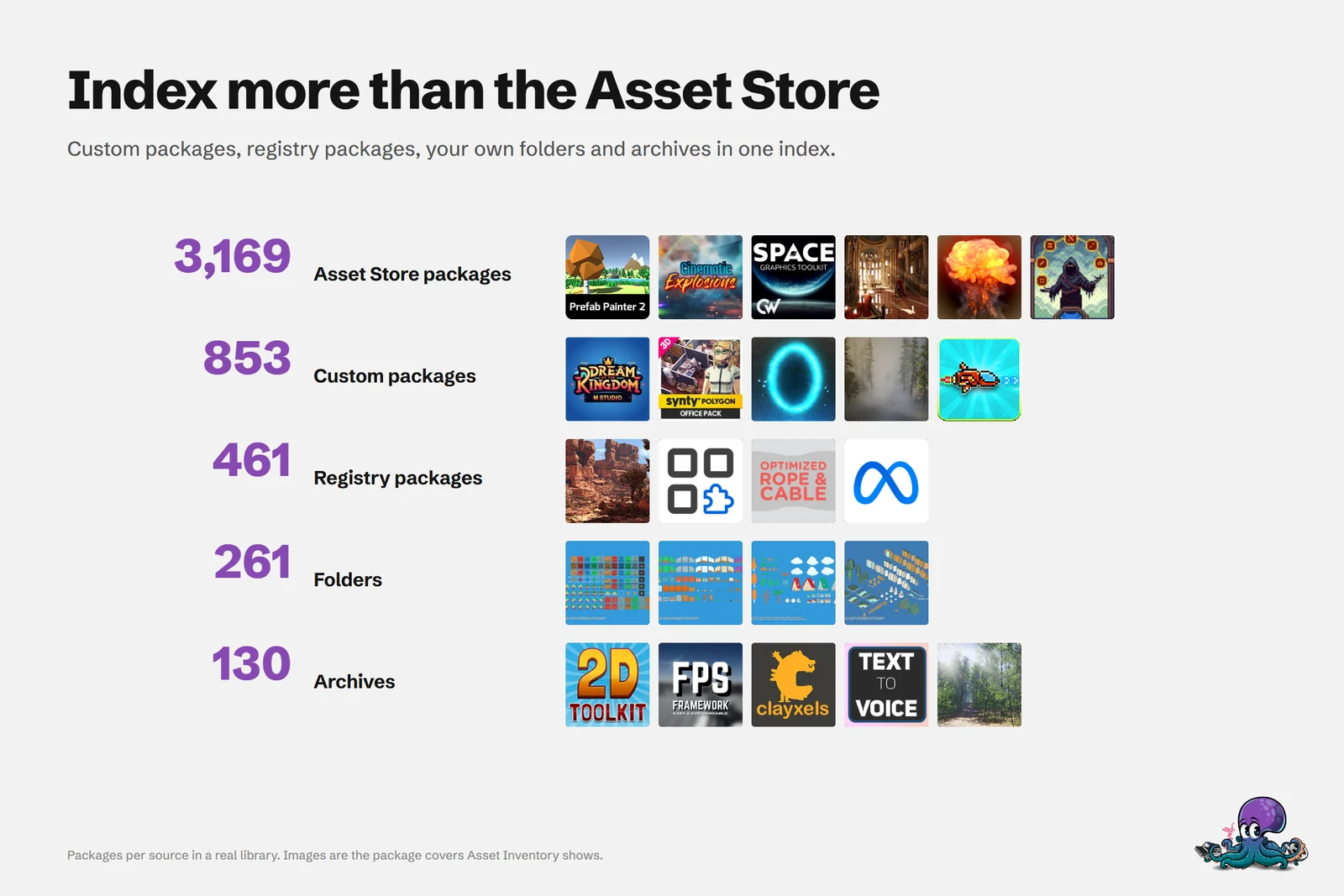 One index across all sources of a real library, not only the Asset Store.
Search looks at the files inside packages, with filters for type, size, color, package, publisher, category and tags, and with previews that Unity itself renders. You can save searches, import a single file with its dependencies and drag assets into the Project, Hierarchy or Scene. After indexing, the catalog works offline.
The limits are just as concrete. It runs inside the Unity Editor (2022.3 or newer), the first indexing run takes time and disk space for previews, dependency detection works only for text-serialized assets, and scripts are not imported with a prefab unless you choose a script import mode. It is a per-seat Extension asset on the Asset Store.
Good fit: large libraries from many sources and daily work in Unity. Where it stops: browsing without Unity, and governed team review, where Asset Manager is stronger.
Strengths and limits at a glance
| Approach | Strengths | Limits |
|---|---|---|
| Package Manager My Assets | Built in; downloads, updates and removals; filters and labels | Searches package names only; labels only on the website; Asset Store only |
| Folders and a library project | No extra tools; Unity renders everything | Import and compile cost; folder names are the only search |
| Spreadsheets and notes | Any field you want; easy to share | Manual upkeep; knows nothing about package contents |
| AssetHoard | Reads .unitypackage files without Unity; several engines; local semantic search | No prefab rendering; no dependency-aware import into Unity; beta |
| Eagle | General library for images, video, fonts and references | No Unity integration; does not browse .unitypackage contents |
| Unity Asset Manager | Governed team library with versions, review and permissions | Cloud storage quotas; Asset Store integration limited to 3D, 2D and Audio |
| Asset Inventory | Searches inside every source; Unity-rendered previews; imports with dependencies; offline | Runs inside Unity; initial indexing time; per-seat license |
The comparison hub goes into detail for each tool.
A practical setup with Asset Inventory
These approaches combine well. The Package Manager stays useful for downloads and updates, Unity Asset Manager for governed team assets and Eagle for references. This is how I would set up the index inside Unity on top of that:
- Install Asset Inventory and follow the Setup Wizard. It estimates the storage you need, so put the database and previews on a fast drive. Choose Index Everything Automatically, or Let Me Choose What to Index if you want to include packages one by one.
- Add the folders that hold downloads from other sources under Additional Folders, choosing Unity Packages, Media Files or Archives for each.
- Press Run Actions under Settings. Indexing can be stopped and resumed, and running the actions again picks up new purchases and files.
- Tag packages by purpose or project. Asset Store labels arrive as tags automatically, and you can add local tags to many packages at once, color them, give them hotkeys and nest them by dragging one tag onto another.
- Save the searches you repeat. A Saved Search stores the phrase and all filters, and its results come live from the database, so newly indexed assets show up without any upkeep.
- Hide the noise. Exclude removes a package from results, and Hide Content hides specific files, folders or extensions inside a package.
- Import selectively. Select a result and import it with its detected dependencies, or drag it into the Project, Hierarchy or Scene. By default, assets land under
Assets/ThirdParty.
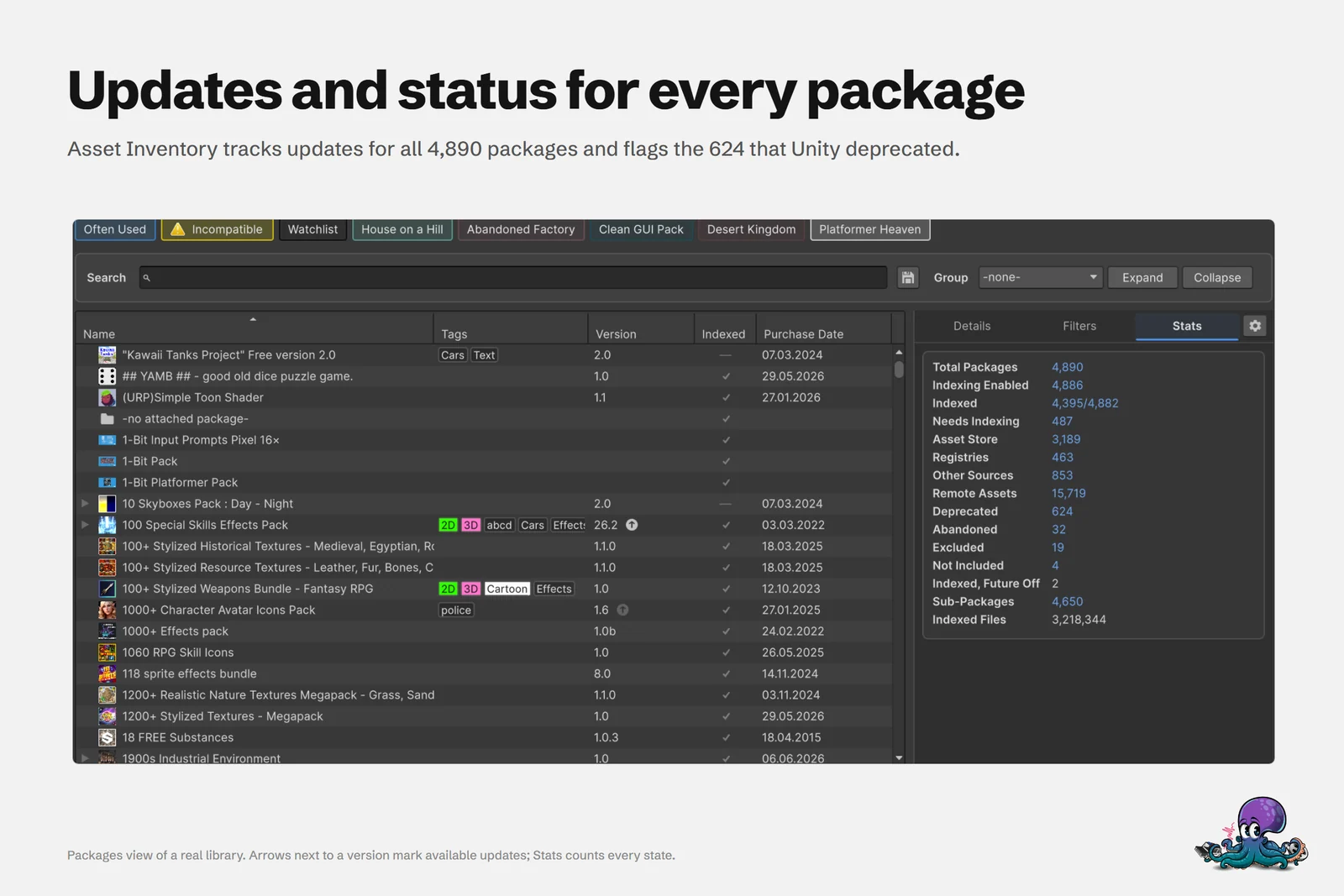 Tags and saved package searches in the Packages view of a real library.
The use case on organizing an Asset Store library walks through tagging and saved searches in more detail, and Getting Started covers installation.
Frequently asked questions
Can I tag Asset Store packages inside Unity?
Not in the Package Manager. Unity says labels can only be created and applied on the Asset Store website, and the Editor only filters by them. Asset Inventory imports those labels as tags and lets you add local tags to packages and to individual files inside Unity.
Does Unity Asset Manager organize Asset Store purchases?
Partly. Its Asset Store integration lists the purchases of your Unity ID and itemizes supported packs into individual cloud assets with their dependencies. It currently covers the 3D, 2D and Audio categories, shows only the latest version and does not update automatically when a package changes.
Can AssetHoard or Eagle look inside .unitypackage files?
AssetHoard reads .unitypackage files without Unity and shows the thumbnails stored in the package, but it does not parse or render prefabs. Eagle stores any file type, but it documents no way to look inside a .unitypackage.
What is the best way to organize a large Unity asset library?
Organize around what you search for, not around packages: index everything in one place, tag packages by purpose or project, save the searches you repeat and import single assets instead of whole packages. Folders and spreadsheets work for a few dozen packages but need manual upkeep for every purchase.
Find any Unity asset you own. Import only what you need.
Keep reading
 Use case
Organize every Asset Store purchase in one library
Asset Store purchases, custom and Synty packages, registries, folders, archives, catalogs and Asset Manager in one list inside Unity, with tags, update strategies, hiding, custom metadata and bulk actions.ComparisonAsset Inventory vs the Unity Package Manager
Everyone has the Package Manager, and since Unity 6 it handles updates and removals well. What it cannot do is look inside your packages. That is where Asset Inventory starts.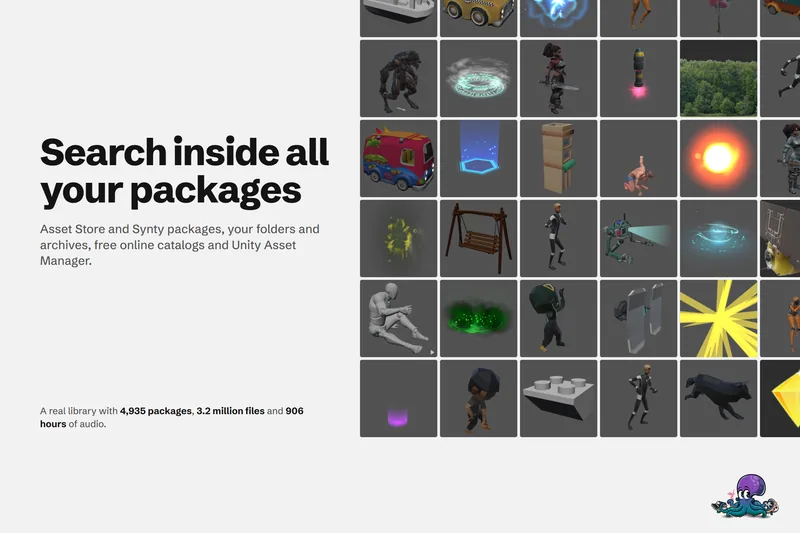 Use case