Smaller Unity projects: import assets, not packages
Reduce Unity project size and keep import and compile times down: why whole-package imports bloat projects, and how to import only the assets you use.
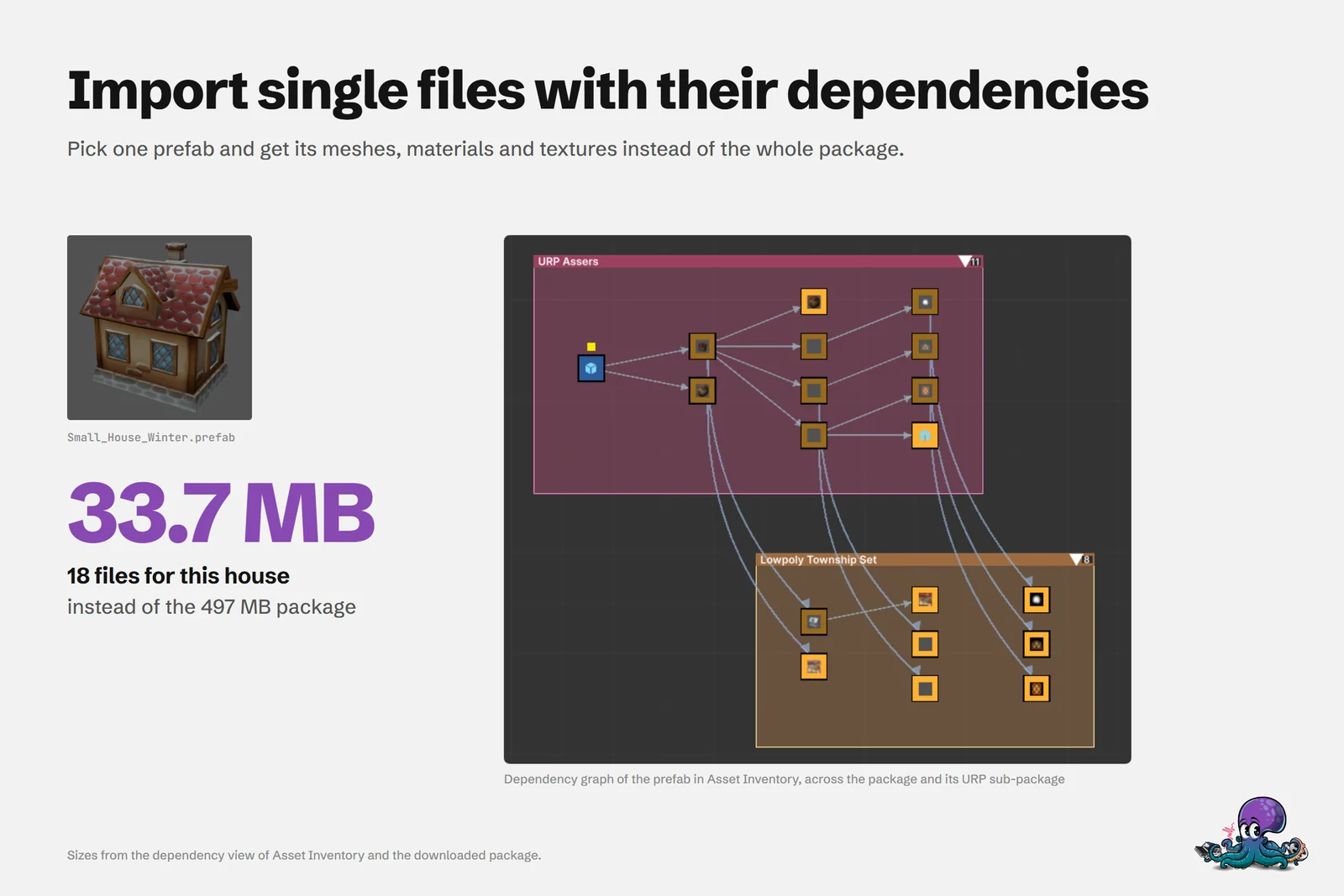
A lot of project weight arrives one package at a time. You need one house, so you import the town pack it came in, with every other building, the demo scenes, the sample scripts and textures for props you will never place. My favorite example is a winter house prefab from the Lowpoly Township Set: with everything it needs, the house is 33.7 MB. The package it comes in is 497 MB.
One Asset Store reviewer, Puggy, put the benefit this way: “…only import the parts you need so the editor doesn’t slow to a crawl.” This article covers where project size and slowness come from, the manual techniques that help, and how dependency-aware imports get you there with less work.
Where project size and slowness come from
Whole-package imports
Unity’s import window opens with every item selected. Accepting it brings in everything: demo scenes, every variant, high-resolution textures, documentation and sample code. Some of it gets used. The rest tends to stay, because finding out what is safe to remove takes longer than the import did.
Every file is imported into the Library folder
Unity imports every asset under Assets and keeps the result in the Library folder, which Unity describes as a local cache of imported assets and metadata. Unity recommends excluding Library from version control, so every fresh clone, new machine or deleted Library folder means Unity imports all of it again, unused files included. Asset Inventory’s own manual recommends deleting the Library folder of indexing projects regularly for the same reason: it becomes very big and slows down Asset Database operations.
Scripts and assembly definitions add compile time
Imported scripts are code Unity has to compile. Unity’s documentation on assembly definitions explains that by default almost all scripts go into the predefined Assembly-CSharp assembly, and every time you change one script there, Unity recompiles all the others. Sample scripts from a package without assembly definitions therefore join every recompile of your own code. Packages with their own assembly definitions are better contained, but they still compile on import, and a single script that fails to compile in your Unity version keeps you out of Play Mode until it is fixed or removed.
Unused content in source control
Whatever you commit stays in the repository history, even after you delete it. An evaluation import that slipped into a commit keeps costing every clone of the repository from then on.
Build size is a separate problem
It helps to separate two goals. Unity strips unused assets during the build and includes what your project references, with one exception: everything in a Resources folder ships. So a bloated project does not automatically mean a bloated build. The cost of unused assets is mostly time and disk space: imports, compiles, clones, backups and a noisier Project window. The exception matters, though, because packages that put content into Resources folders add all of it to your build.
The 497 MB package and the 33.7 MB house
Here is the example from the cover image. Small_House_Winter is one prefab from the Lowpoly Township Set. The downloaded package is 497 MB. The prefab with its meshes, materials and textures, some of them from the package’s URP sub-package, comes to 33.7 MB, less than 7 percent of the package.
Asset Inventory finds that set by following the GUID references from the prefab to its meshes and materials, and from the materials to their textures, then imports exactly those files. Multiply that difference by every pack you only need a few pieces from.
Manual techniques that keep projects lean
Clear unneeded items in Unity’s import window
Before you click Import, clear demo scenes, sample scripts, documentation and folders you know you won’t use. This works well for self-contained files such as textures and sounds. For prefabs, you have to know which meshes, materials and textures they need, because Unity documents no dependency check in that window. Anything you clear by mistake shows up later as a missing reference, for example a mesh without its material.
Import into a sandbox project first
Keep a scratch project per Unity version and render pipeline, import whole packages there, and move only what you need into the real project. Unity’s Exporting package dialog, opened from the Assets menu, has an Include dependencies option that selects the assets your selection uses, so you can export one prefab with its materials and textures as a small package. Unity notes that it cannot trace the full chain of script dependencies and only exports the scripts your selection directly depends on, unless you also enable Include all scripts. This is reliable but slow, because every package still goes through a full import, just in another project.
Remove what you don’t use
Since Unity 2023.1, the Package Manager can remove the imported assets of a package again, all at once or a selection. Unity warns you to make sure the project is not using the assets you remove, and notes that scenes depending on deleted assets are not reported as errors. In Unity 2022.3, the Package Manager does not track imported packages, so removal is manual. Third-party cleanup tools try to find unused assets for you. Whatever you use, commit first so you can roll back.
Keep version control lean
Exclude the Library folder, as Unity recommends. Large binaries such as textures, audio and models belong in Git LFS, which replaces them with text pointers inside Git and keeps the content on a remote server. LFS is not free storage, though: GitHub, for example, counts LFS storage for all objects associated with a repository, regardless of when they were uploaded, and meters download bandwidth. Evaluate packages in a sandbox, not on a branch you will push.
Dependency-aware imports with Asset Inventory
Asset Inventory does the sandbox work without the sandbox. It indexes the contents of your packages, so you search for the asset itself, look at its preview and import only that file with the dependencies it detects:
- Search for the asset and select it in the results. Previews come from the index, so nothing is imported yet.
- Check the dependency information in the details panel. Show lists every file with its size and whether it is already in the project, and the graphical dependency viewer shows how the files connect.
- Decide about scripts. By default, scripts are not imported (-Never Import-). Choose Direct Only, Extended Analysis or All Scripts when a prefab needs the code of its components.
- Import, or drag the asset into the Project, Hierarchy or Scene. By default it lands under
Assets/ThirdPartyin the package’s original folder structure, so its dependencies stay organized.
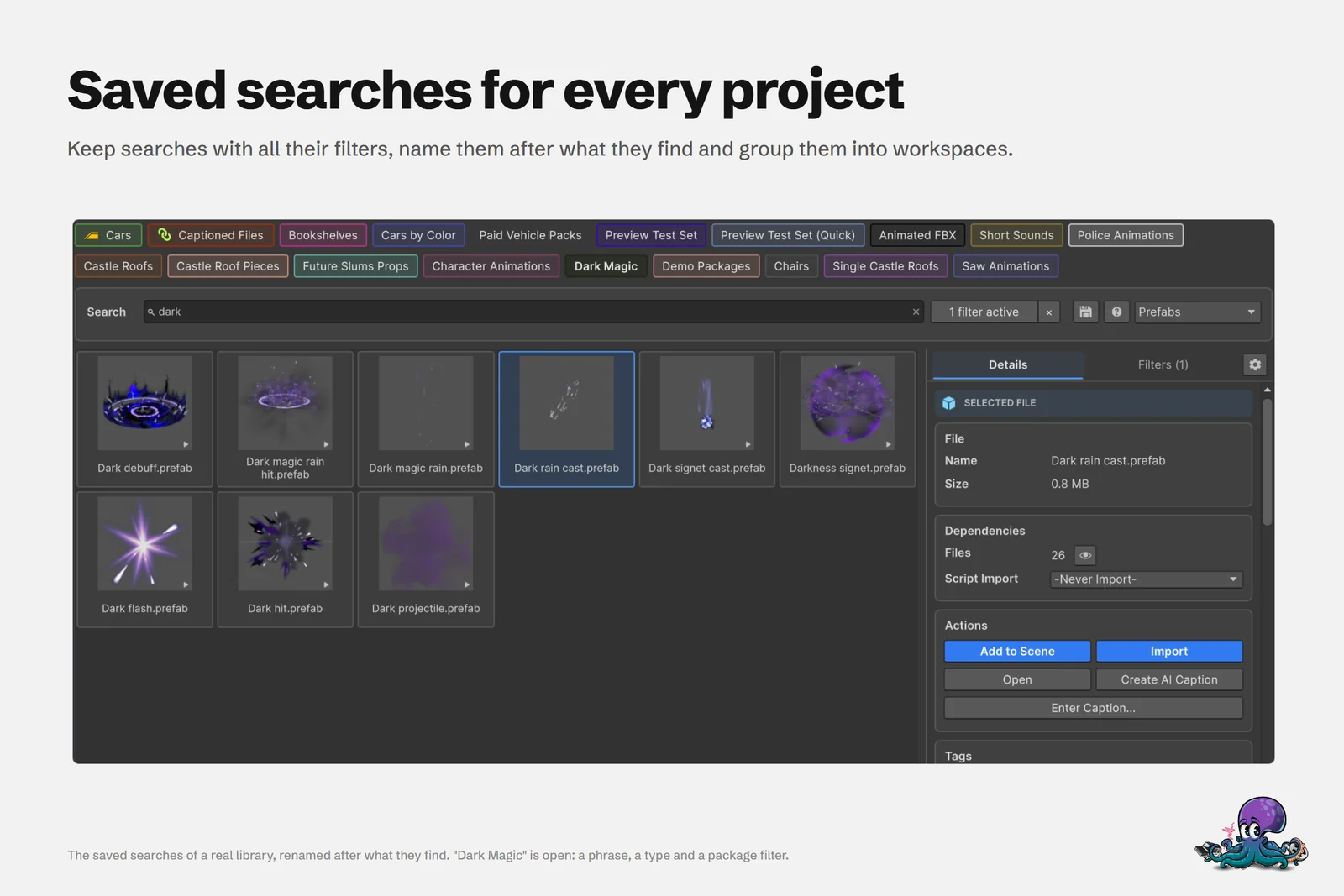 The details panel shows how many files an import brings and how scripts are handled before anything enters the project.
Two limits are worth knowing. Dependencies can only be calculated for packages that use text (YAML) serialization, and a few legacy packages still use binary serialization. In URP projects, Asset Inventory also picks up the files a package’s SRP support package provides and can run Unity’s Render Pipeline Converter after the import.
Remove leftovers safely: Reorganize and Uninstall Package…
For projects that already contain whole packages, three features help you get back to a lean state:
- Reorganize. Turn on Reorganize on Reimport in the import settings and reimport the asset you actually use. Asset Inventory moves it and all its dependencies into the target folder, out of the original package structure. Afterwards you can delete the full package, and only that asset and what it needs remain.
- Uninstall Package… For a package imported into the project, this lists every file it installed with its current location and analyzes which of them other files in your project use, with a warning if any are. You can then remove the package fully or partially. The same works for individual assets from the search results.
- Where-Used view. For an asset that is already in the project, it shows which other assets rely on it before you delete anything.
Commit before you clean up, so you can roll back anything an analysis could not see. The use case on importing single assets with dependencies and the search documentation cover the import options in detail.
Frequently asked questions
Does deleting unused assets make my Unity build smaller?
Usually not. Unity includes referenced assets and strips unused ones during the build, except for everything in a Resources folder. Removing unused assets mainly makes the project itself smaller and faster to import, compile, clone and back up.
Is it safe to delete the Library folder?
Unity's manual says you can delete it, for example to troubleshoot a project, and Unity regenerates it the next time you open the project. Expect a full reimport, which takes longer the more assets the project contains.
How do I import only part of a Unity package?
Unity's import window lists every file with all items selected, and you clear what you don't want, but you have to know which meshes, materials and textures a prefab needs. Asset Inventory imports a single file together with the dependencies it detects.
Does Asset Inventory import scripts with a prefab?
Not by default. Script import is set to -Never Import-; switch to Direct Only, Extended Analysis or All Scripts when a prefab needs the code of its components. Extended Analysis parses scripts and asmdef files and can, in rare cases, lead to compile errors.
Find any Unity asset you own. Import only what you need.
Keep reading
 Use case
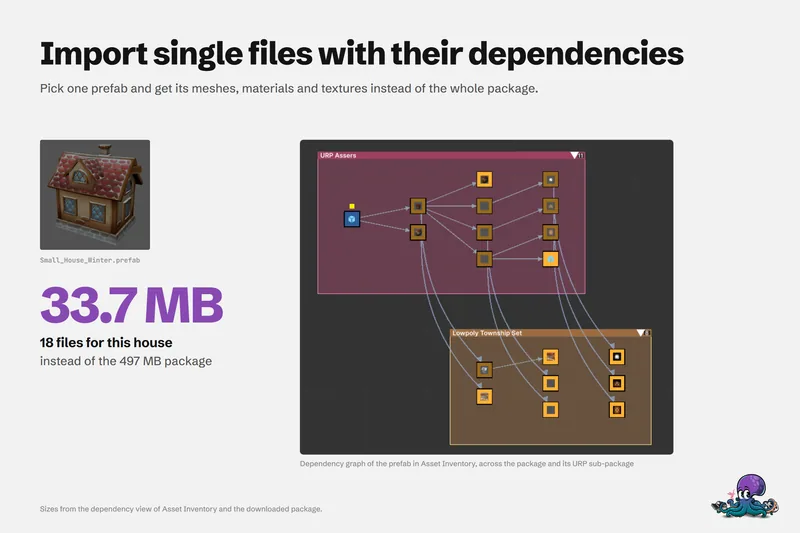
Import single assets from a package with their dependencies
Pick one prefab and get its meshes, materials and textures instead of the whole package: how the dependency analysis works, where files land, how scripts and render pipelines are handled, and where the limits are.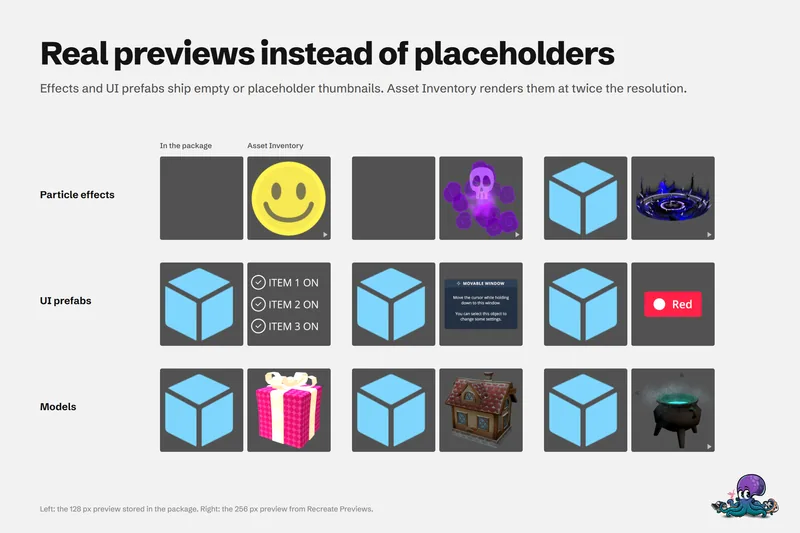 Use case
Preview Unity package contents without importing
Unity's embedded previews are small, often badly lit and missing for effects, UI and fonts. Asset Inventory indexes package contents and renders its own previews, animated where it helps, before anything is imported. Use case