Asset Search
Overview
Once an asset is indexed, it can be found in the search. Searching will automatically start when typing. By default, every word entered needs to match the search result but not necessarily in the same order. If the exact phrase should be matched, prefix the search with ~.
Basic examples:
- “car interior” will return results like “CarBlueInterior.fbx” and “InteriorCarDes.png”
- “~car interior” will not return the above but only results like “Car Interior.fbx”
- “car +interior -fbx” will return results that match “car” and “interior” but not “fbx”
There is also an expert search available (search starting with “=”) which is described later, where you have full database access.
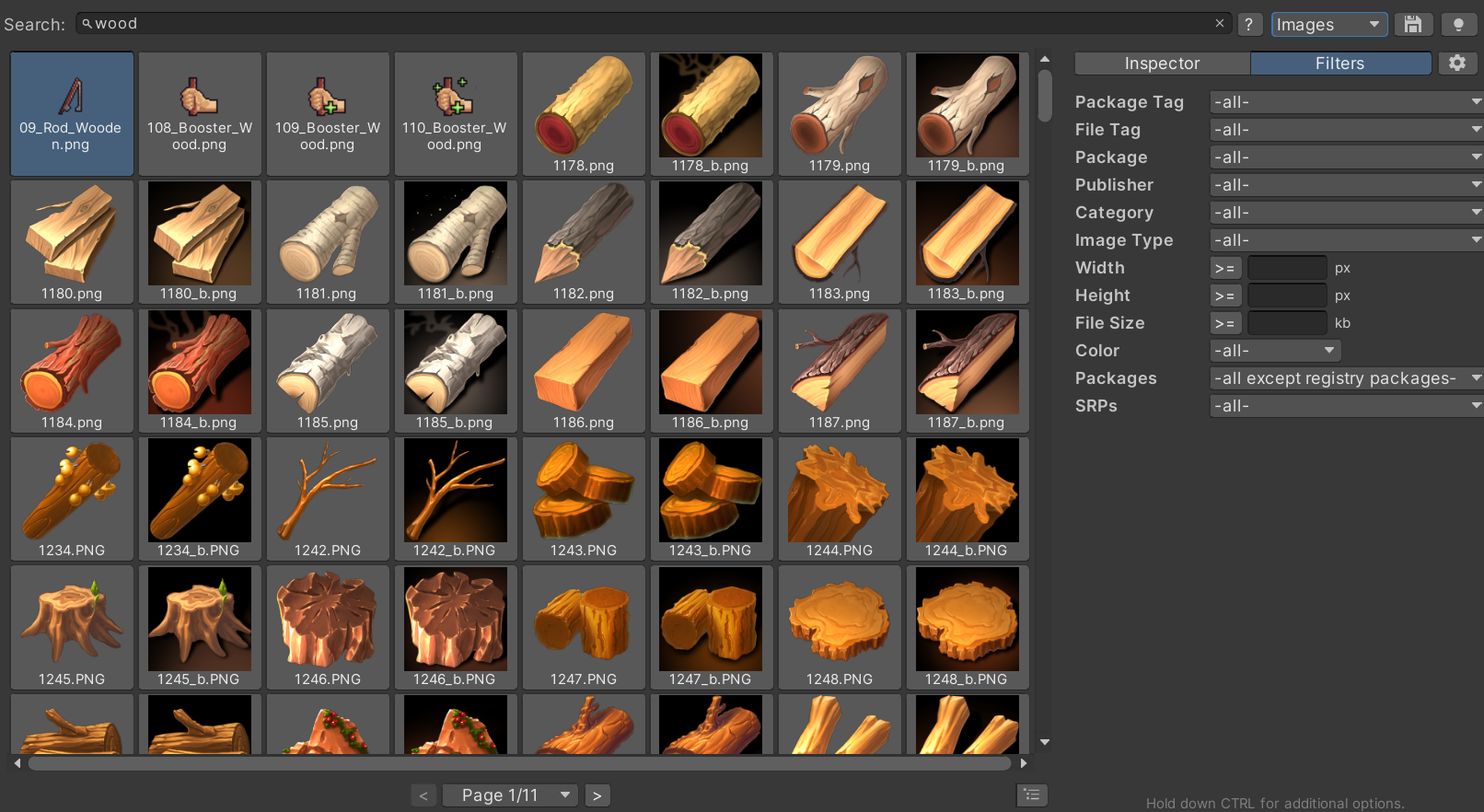
Additional filters can be selected to narrow down the results further. Once an asset is selected, details are shown on the right-hand side about the file and the package the file is contained in.
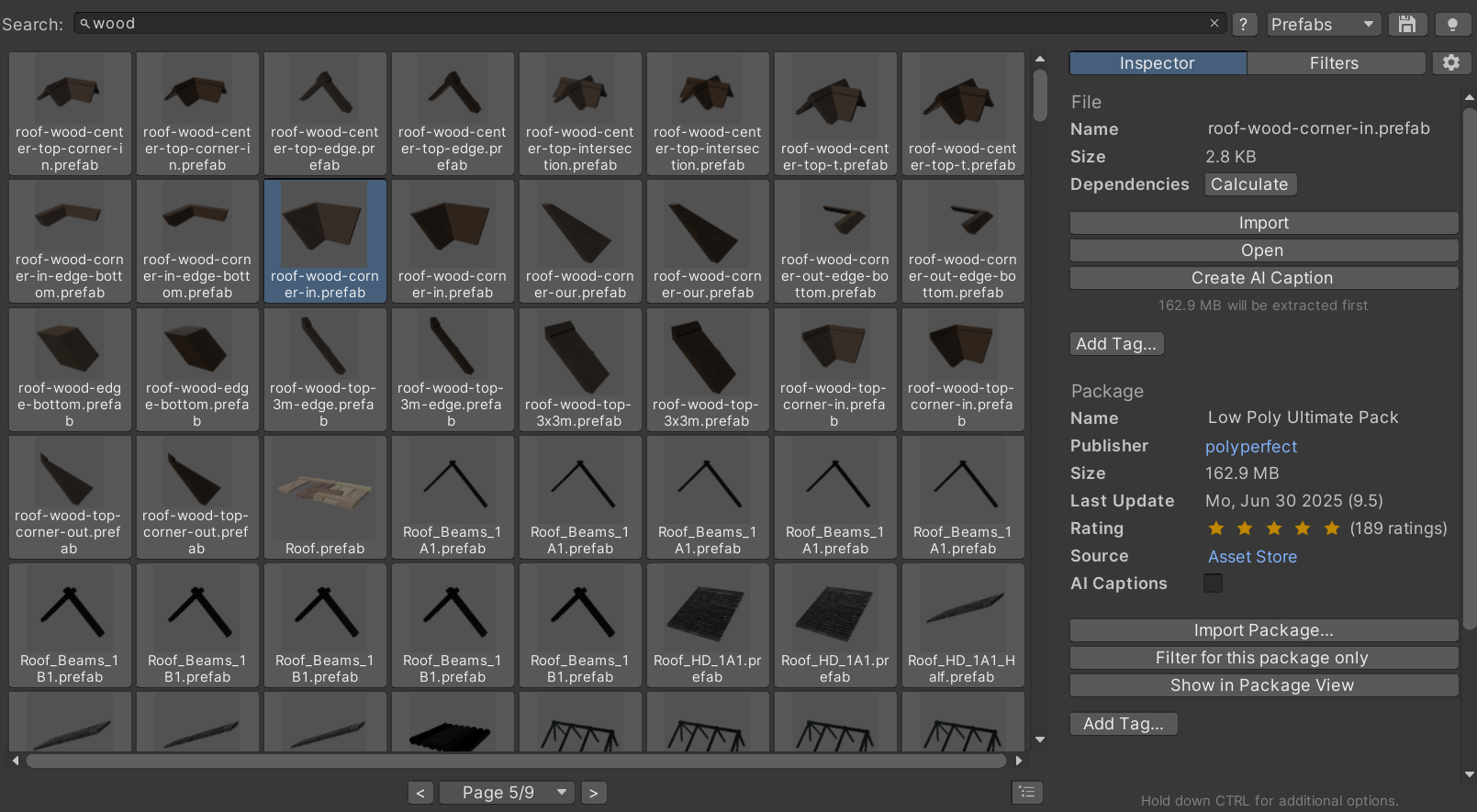
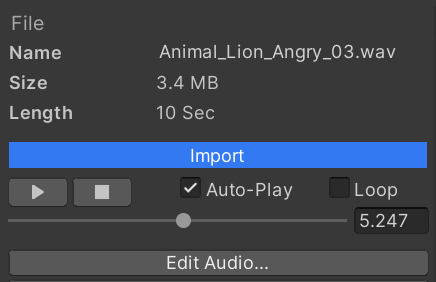
Selecting an audio file will automatically play it. This way it is easy to quickly preview audio files. Initial playback might take a while until the corresponding package is temporarily extracted.
Some results like animated FBX, videos, VFX and particle systems will be animated. A little play icon shows such previews. When selected they start playing automatically.
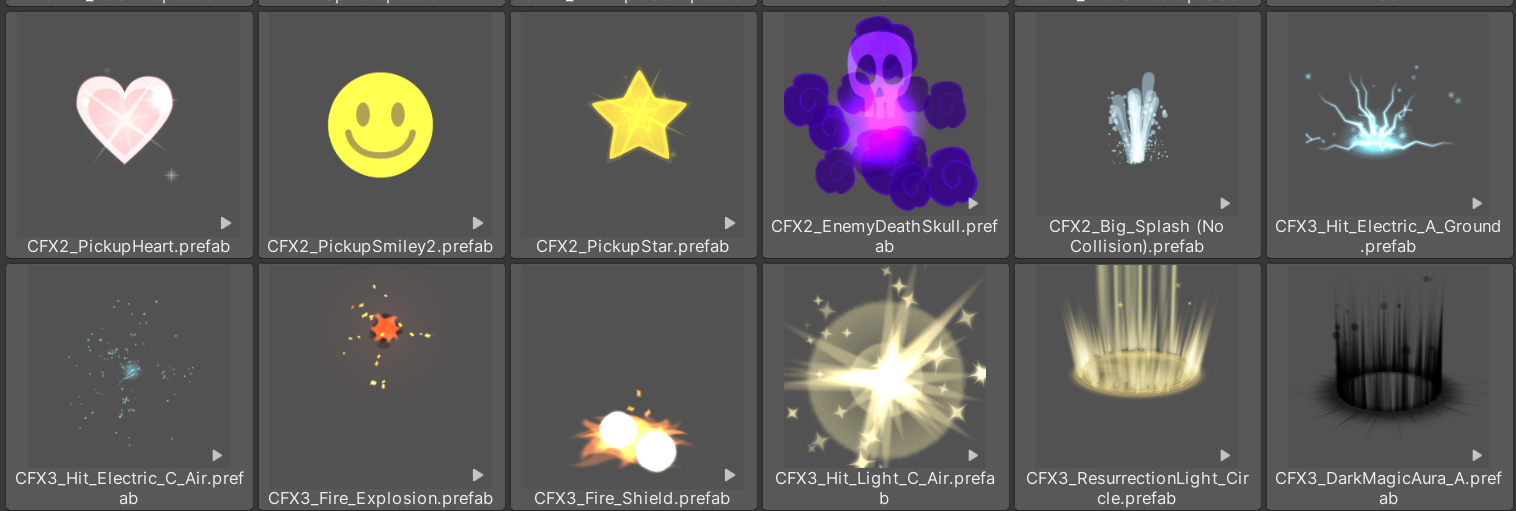
Per default one item plays at a time. To get a quicker overview you can press the play icon (using advanced visibility) in the lower left corner to automatically play all animations at once.

Multi-select is possible by holding down the Shift or Ctrl key. Selecting all results is done via CTRL + a.
Semantic Search
Semantic search is the natural-language version of Asset Search. Instead of only matching the words in a file name, it compares your query to the meaning of each indexed file. This is useful when you know what you want but not what it is called, for example stone doorway with moss, short UI click sound, or hand-painted snow icon.
To use it, select Ollama or LM Studio as the AI backend, choose an embedding model, enable the Update Semantic Index action, and run an update. The legacy Blip caption backend can create captions, but it cannot create embeddings for semantic search. The semantic index is local, separate from the main database, and can be rebuilt or deleted without changing packages, tags, captions, or metadata.
Asset Inventory builds the semantic meaning from file-specific information first: file name, folder path, file type, AI caption when available, dimensions, audio or video length, dominant color, file tags, and file metadata such as comments or custom fields. It also adds helpful package context such as package name, category, publisher, package tags, and package metadata. Package-level tags and metadata apply to every indexed file in that package, so use them for package-wide concepts and use file tags or file metadata for per-file meaning.
In the search field, normal words become the semantic query. Filters remain filters. Modifiers such as +required and -excluded, tag filters such as pt:, ft:, withallpt:, withnonept:, withallft:, and withnoneft:, plus the Filters tab still narrow the result set through the database. Prefix the search with ~ for exact text search or = for expert SQL search when you want to bypass semantic ranking.
For experts: semantic search stores embeddings, also called vectors, in a SQLite sidecar database per backend and embedding model profile. Search embeds the typed query, ranks vectors by similarity, then loads the real file and package details from the main database. Hybrid mode runs semantic search first and falls back to normal text search only when the semantic query succeeds but finds no suitable match.
Search Scope & Current Project
The search scope toolbar can limit searches to All, Project or Index. All combines the indexed database with assets found directly in the current Unity project. Project searches only the current project without indexing it first. Index searches only the database index and avoids scanning the project, which is the fastest option for large projects.
Project results support most regular search tools and respect hidden extension settings. Some index-only filters, such as package metadata filters, apply only to indexed database results because those fields do not exist for loose project assets.
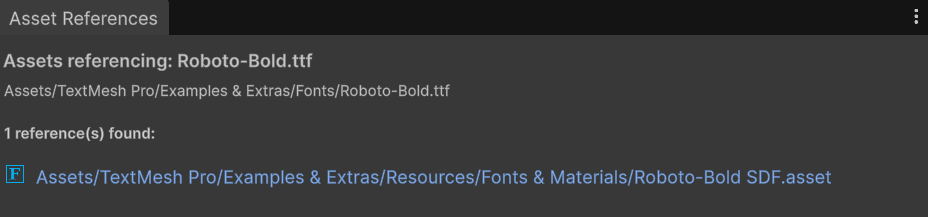
For assets already inside the current project, use the Where Used action to open the Asset References window and see which project files reference the selected asset.
Advanced Filters & Settings
The Filters tab contains additional filters and media-specific properties to filter for specific image dimensions or audio length. Using the buttons in-front of each value toggles if results match that are bigger or smaller than entered. The filter dropdowns will only show values if respective assets are available. If the search type is limited (e.g. to Images), some filters might not show up (e.g. length) as they are only applicable to other types.
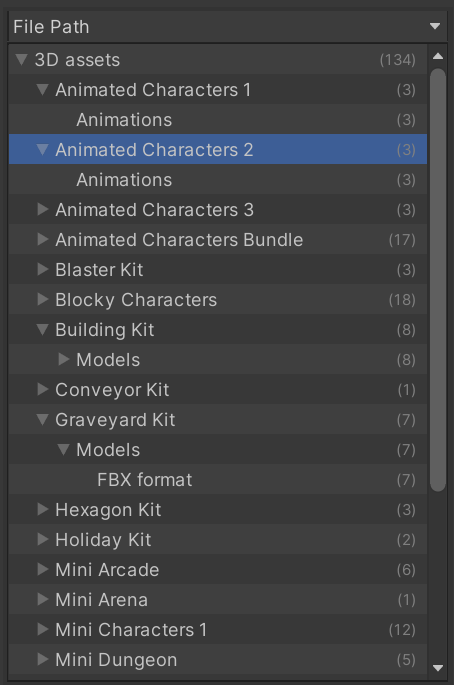
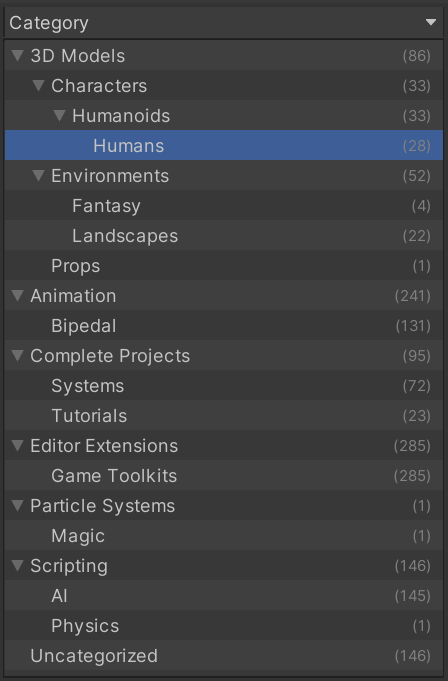
To get a better overview how the search results relate to different packages, categories, publishers, folders or file types, you can open the hierarchy browser on the left. It will show additional information for the currently shown search results and can be used to filter quickly to the files you need.
The browser is toggled with the little icon in the lower left corner.
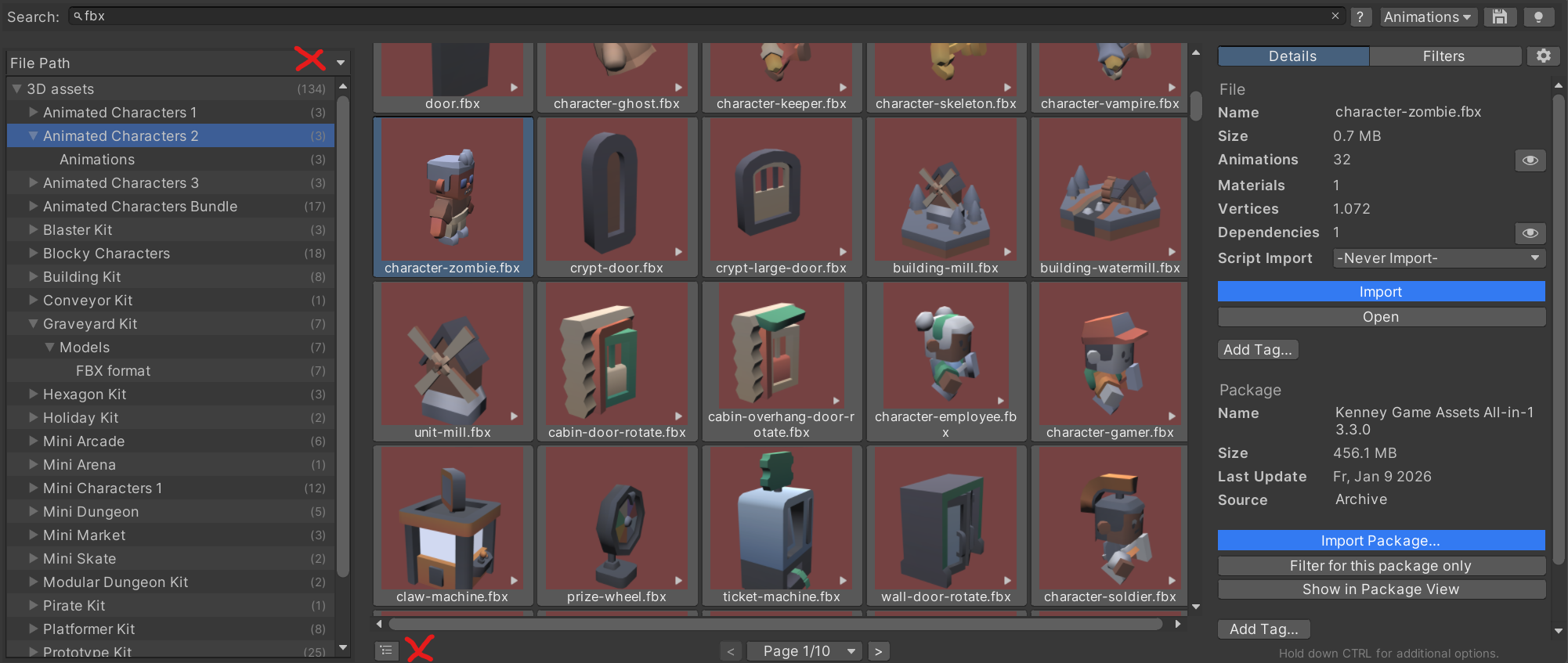
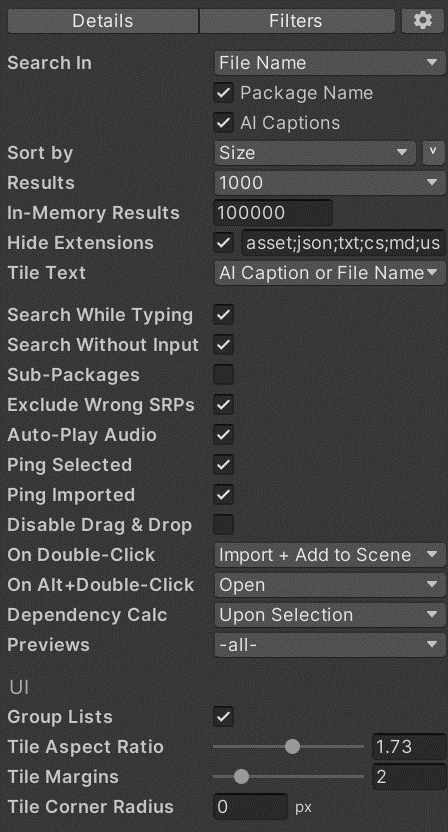
The Settings tab contains many properties that influence how the search results are collected, ordered and visualized. Specify the tile size, which text to display on the tiles and if assets should be pinged automatically upon selection.
Saved Searches
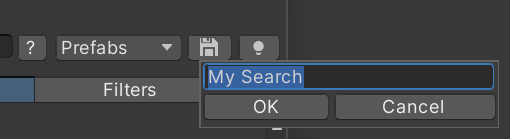
Once you have a search and filters setup you can save these input as a Saved Search. This allows you to later recall these easily. The search phrase and all filter settings will be stored. The results are not persisted but instead live from the database each time so any newly indexed items will also appear.
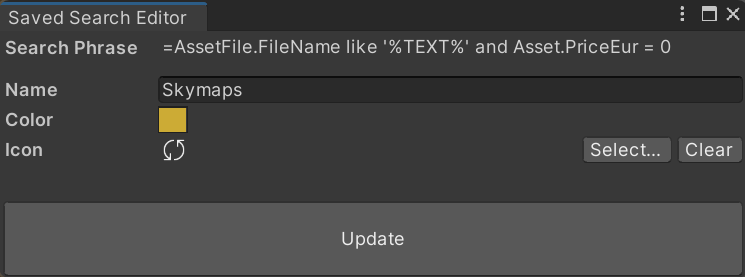
If you want to update a saved search with new search settings, select the dropdown next to the saved search and select “Override with Current Search”.
High-Speed/In-Memory Mode
Browsing through search results, especially with many pages or complex queries, can be time consuming since many database operations are involved. When activating high-speed mode, all result pages will be loaded immediately and browsing and subsequent filtering by keywords will become lightning fast.
Once active, searching will only be done inside the initial search result, refining it further. The usual fuzzy search, +, - and ~ searches will be available but no extended features. Switching to a different saved search will retain in-memory mode.

Importing Assets
Assets can be imported individually or with all detected dependencies (default). The original directory structure of the files will be retained.
Dependencies
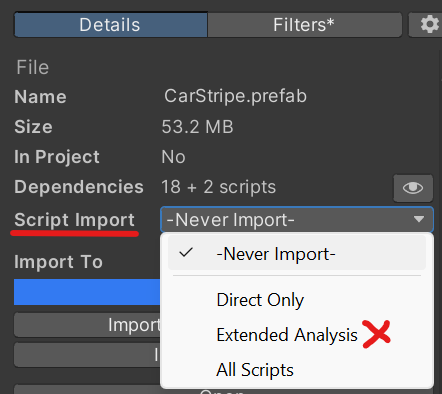 In case there are script dependencies these can also be imported. A lot of effort has been invested to parse script dependencies, syntax, asmdef files and more when in Extended Analysis mode. This will work in a lot of cases but due to unforeseen dependencies in scripts, there might be compilation errors in rare cases.
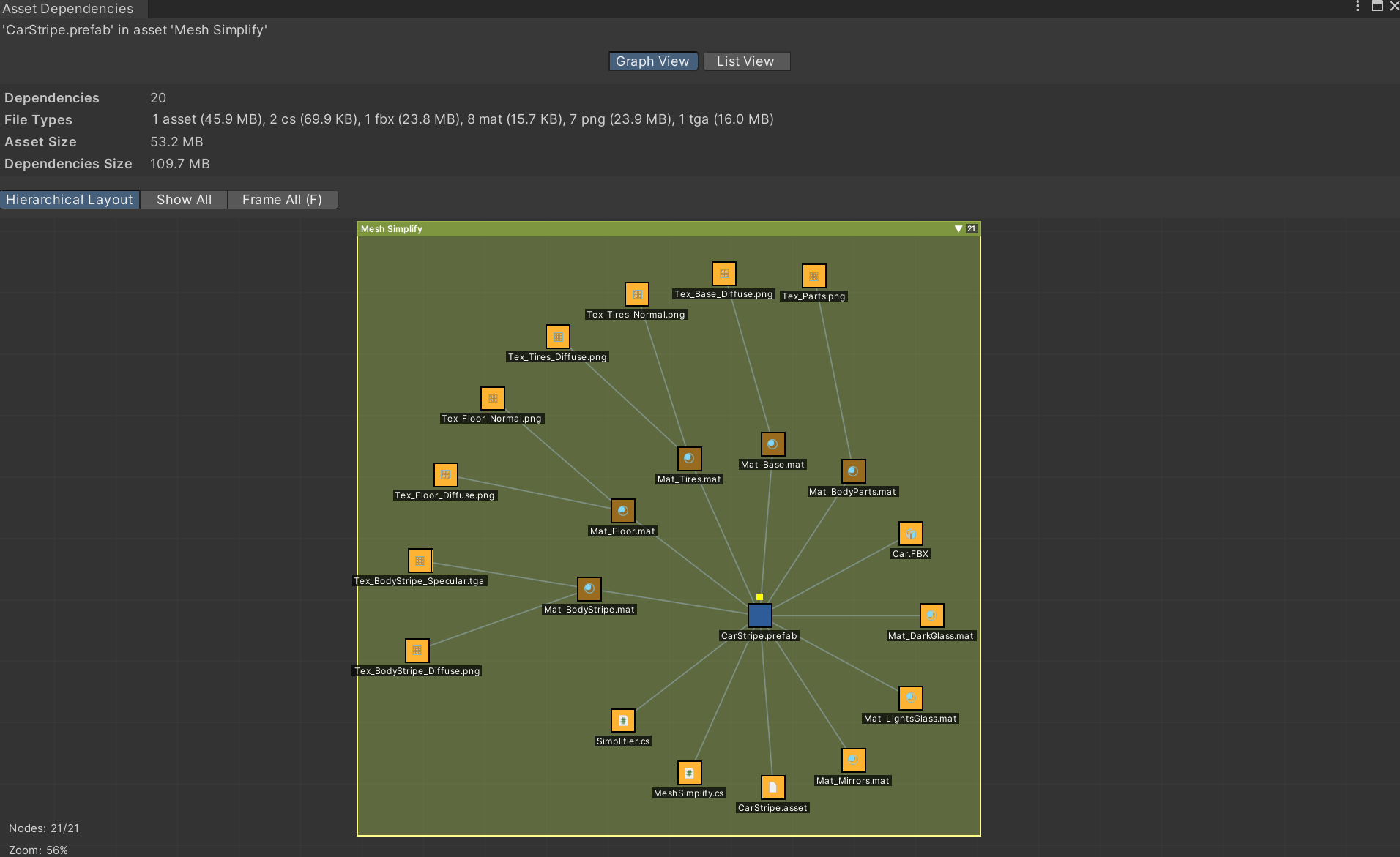
All dependencies and their relations can be seen in the graphical dependency viewer.
Import can also be triggered by double-clicking on an item (if activated in Search settings) or by dragging it into the Project, Hierarchy or Scene Window.
If an item already exists in the project, a Where-Used view can be opened to see which other assets rely on the selected asset.
It can also be reimported to restore the original in case it was modified. Reimport is also useful to reorganize assets. Assume you have imported a full package of UI components but only need a specific button. Since the button depends on textures and other files it is cumbersome to identify all these components.
The easier way is to reimport the button with the reorganize flag (Settings/Import) active. This will move the button and all dependencies into the new target folder, extracting it from the original directory. Afterwards you can safely delete the full package and only the button will remain.

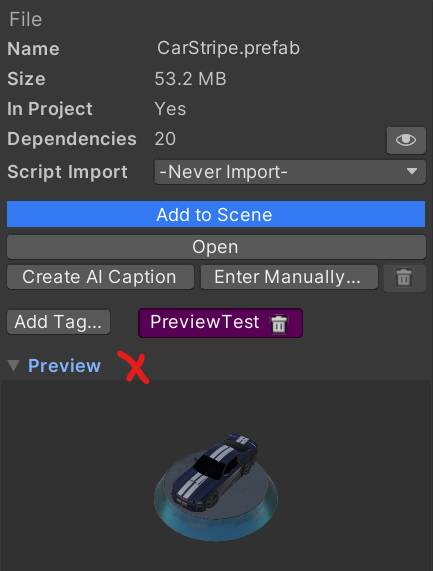
There is an inline preview available after import which allows to rotate 3d models.
Audio Files
The tool has many additional capabilities specifically for audio files. When an audio file is selected, the Editor Audio… button will be shown. There you can select only parts of the audio to be imported and trim away silence.
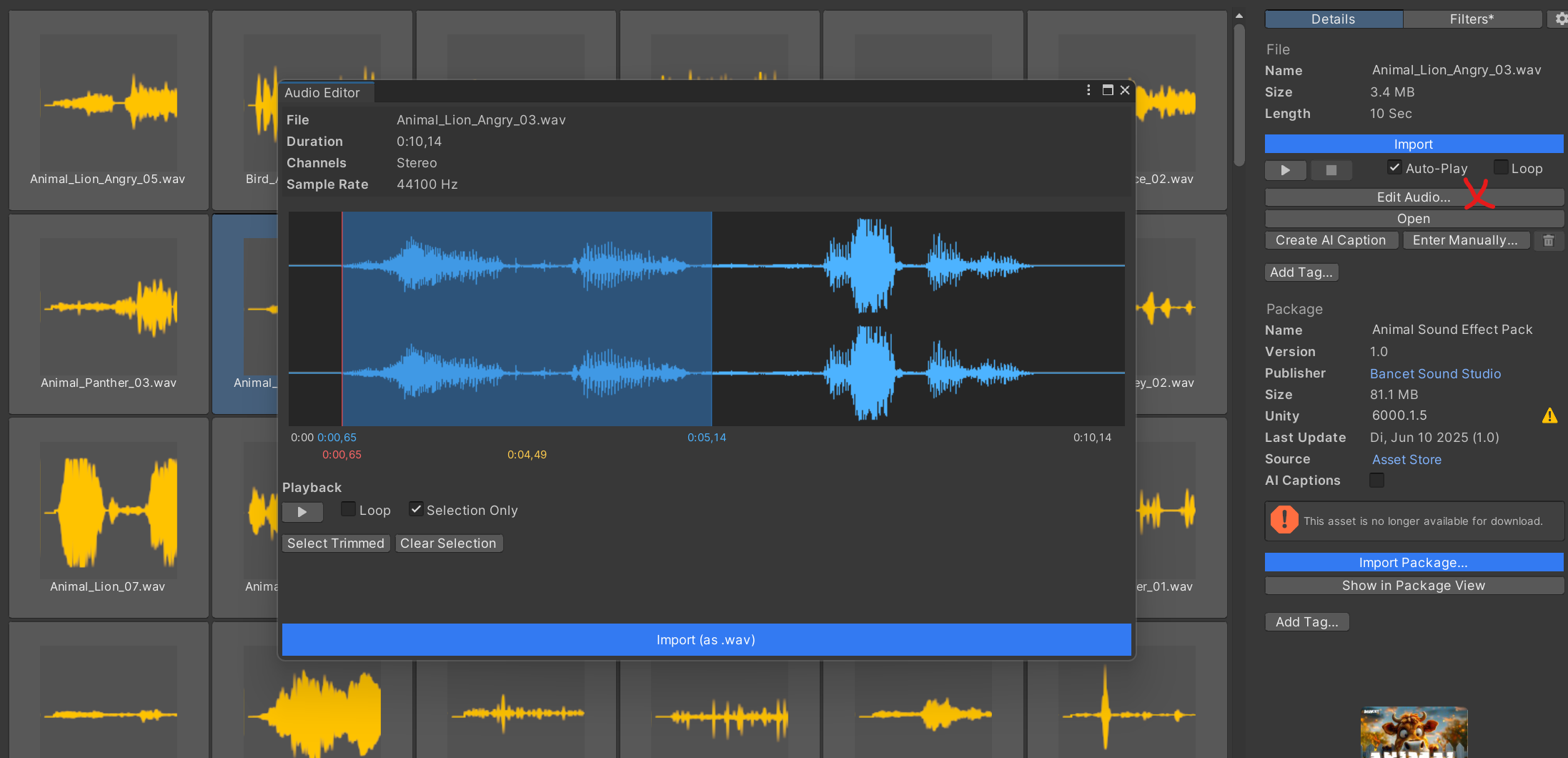
Audio imported this way will always be in wav format.
Import Location, Folder Layout and Post-Import Actions
By default all assets will be imported under Assets/ThirdParty. This results in a clean root folder for your project. Most assets support this but a few might cause issues since they expect to find their files in the root. In that case either move them in the Project View or select a different import destination. The tool offers three options:
- Selected folder in Project View
- Asset Root
- Specific Folder (e.g. ThirdParty)
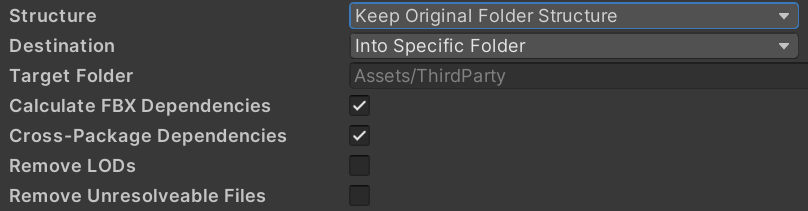
You can also specify the intended target structure:
- By default even when importing single files they will materialize in the original folder structure of the asset. This is typically a good choice when importing multiple files or if files have dependencies like prefabs that will materialize model, material and other folders potentially.
- You can also select to have them all materialize in the same folder.
- Alternatively, files without dependencies can also be dragged into a target folder directly which will not create any additional structure.
Once items are imported, post-actions can be executed:
- Remove LODs will scan imported prefabs for LOD group components and remove it and all LODs except the first one.
Scriptable Render Pipeline (SRP) Support
When working in an SRP project, materials can appear with the pink error shader due to incompatibility. The tool provides extensive support for SRP projects to fix this. Two modes are available which can be combined for maximum coverage:
- Many packages bring dedicated SRP support packages with them which contain additional files that need to be installed when working in a URP or HDRP project. These support packages will automatically be detected and when importing an asset, the tool will check which additional files are required from the support package. You will see the full dependency resolution in the dependency UI.
Expert Search
A token is a name/value pair separated by a colon. A token can be put anywhere in the search field and will apply to basic and expert searches. They act as a shortcut to express sophisticated filter conditions. Use ‘ or “ to escape token values containing spaces.
Available tokens:
- pt: Package tag
- ft: File tag
Behind a token one or multiple values can be stated, separated by coma. Tokens can be repeated and tokens can be combined through multiple ways (shown for ‘ft’ but use analog for ‘pt’).
- ft, WithAnyFt: At least one value should match
- WithAllFt: All values must match
- WithNoFt: No values must match
Examples
“red pt:car” will search for all files that contain the word “red” and have the package tag “car”.
“highres nature ft:’asset management’” will search for all files that contain the words “highres” and “nature” and have the file tag “asset management”.
“red withanypt:boat,vehicle withnopt:aircraft” will search for all files that contain the word “red” and have the package tags “boat” or “vehicle” and no package tags “aircraft”.
It is possible to use nearly the full feature set of SQLite 3 to search. This mode is activated when starting the search with “=”. Afterwards the database fields and conditions can be stated.
Examples
=Asset.PackageSize > 0 and AssetFile.Type=”wav”
=AssetFile.Width > 3000 and AssetFile.FileName not like "%Normal%" and Asset.DisplayName like "%icon%"
Parameters
SQL searches can require specifying text values multiple times or the query can become more complex. Parameters offer a way to simplify such queries and also make them more usable, especially when combined with Saved Searches.
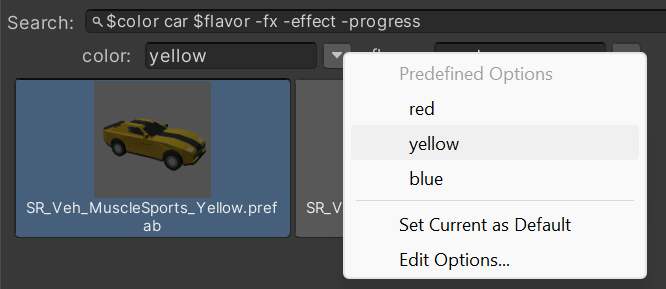
To specify a parameter, simply prefix any word with $, e.g. $color. This will result in a new text field appearing under the search field where you can now enter the actual value for $color. This will then replace every occurrence of $color in the search with that value.
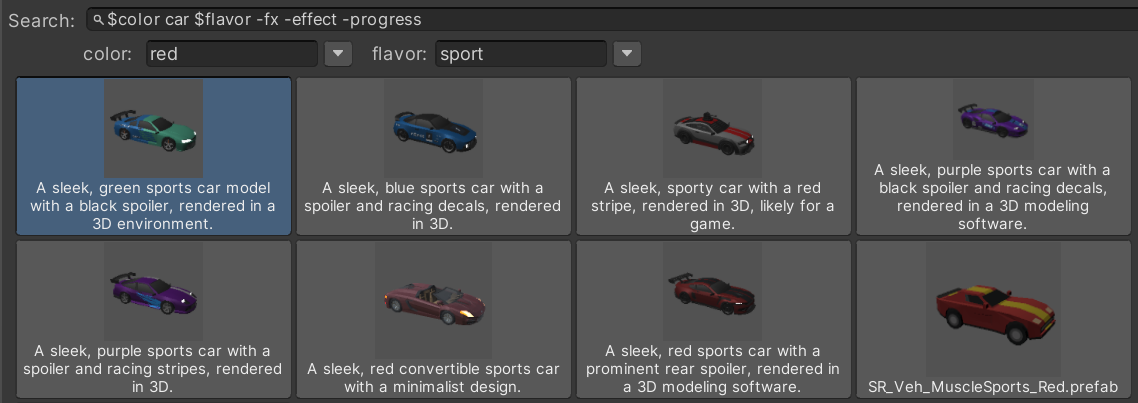
If you save such a search, you will now get the option to go even further and specify a default value and predefined values to select from via the dropdown menu which are then persisted in the Saved Search.
Code Search
Code Search is a separate tab for finding scripts, shaders, includes, and other source files. It is meant for developers who need to find an API call, class, shader keyword, or copied snippet across the current project and indexed packages without importing every package first.
Enable the Update Code Search Index action, choose whether to index current project files, package files, or both, and run an update. The code index is a separate local sidecar; rebuilding it does not change the main Asset Inventory database. Package files are indexed only for packages marked for code indexing, while project files follow the project-file setting and can be tracked incrementally when Auto Track Project Changes is enabled.
Code search is lexical by default: it looks for the actual words and phrases in code, comments, symbols, and paths. It does not need Ollama, LM Studio, AI captions, or the semantic asset index. Use semantic asset search when you want meaning-based art, audio, model, texture, or prefab results; use Code Search when you need source text.
Type words normally to require them all. Put a phrase in double quotes to search for those words together. Use filters to narrow the source: path:Editor, ext:cs, symbol:UpdateIndex, package:Inventory, source:project, or source:package. The Project and Packages toggles above the results are an additional source filter.
Examples: MaterialPropertyBlock ext:cs source:package finds package code mentioning MaterialPropertyBlock in C# files. "Update Semantic Index" source:project searches project files for the exact phrase. symbol:OnGUI path:Editor finds indexed chunks with that symbol under editor paths.
For experts: the current implementation uses an FTS5 sidecar when available and falls back to token/LIKE search otherwise. Files are split into bounded chunks with line ranges and symbol hints, so results can jump to the matching area instead of only listing the file. The reserved Semantic Rerank setting is for future code embeddings; current code search ranking is lexical.
Asset Browser & Workspaces
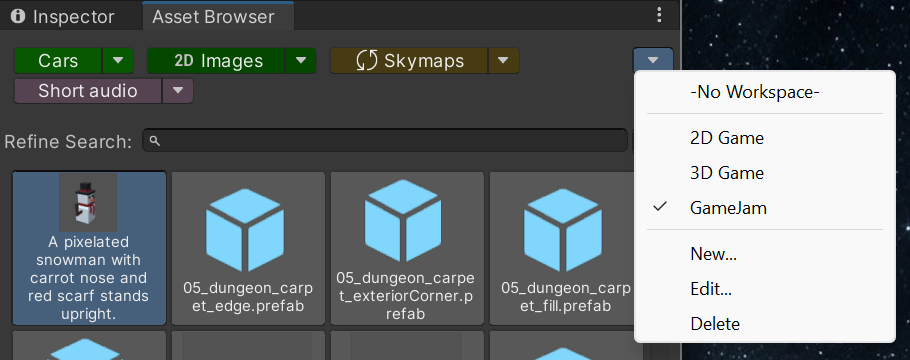
When you are only focusing on bringing assets into your project, the normal window with the packages list, settings and more can be too big or cumbersome to work with. There is a dedicated Asset Browser window that is streamlined and highly optimized for quickly brining in assets.
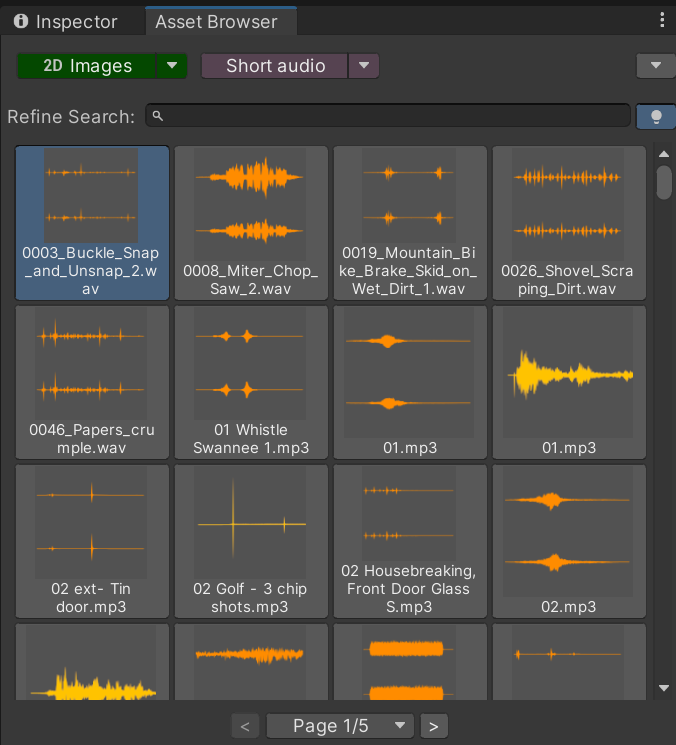
It is utilized best in combination with saved searches as it will automatically load the first saved search and always activate in-memory mode.
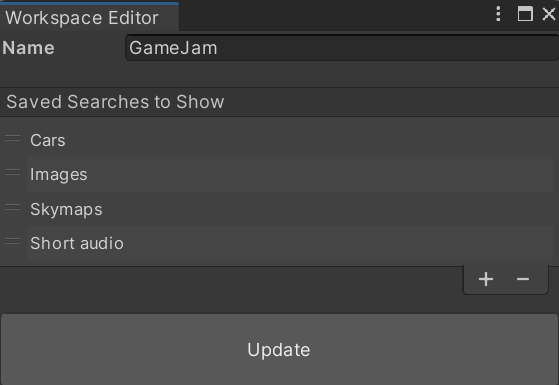
Since not all saved searches might apply to the current project you are working on, it is possible to group these into workspaces.