Find your Unity Asset Store orders and invoices in one place
Search your Unity Asset Store invoices and order history inside Unity, export orders to CSV or JSON for accounting, and see what you really paid per package.
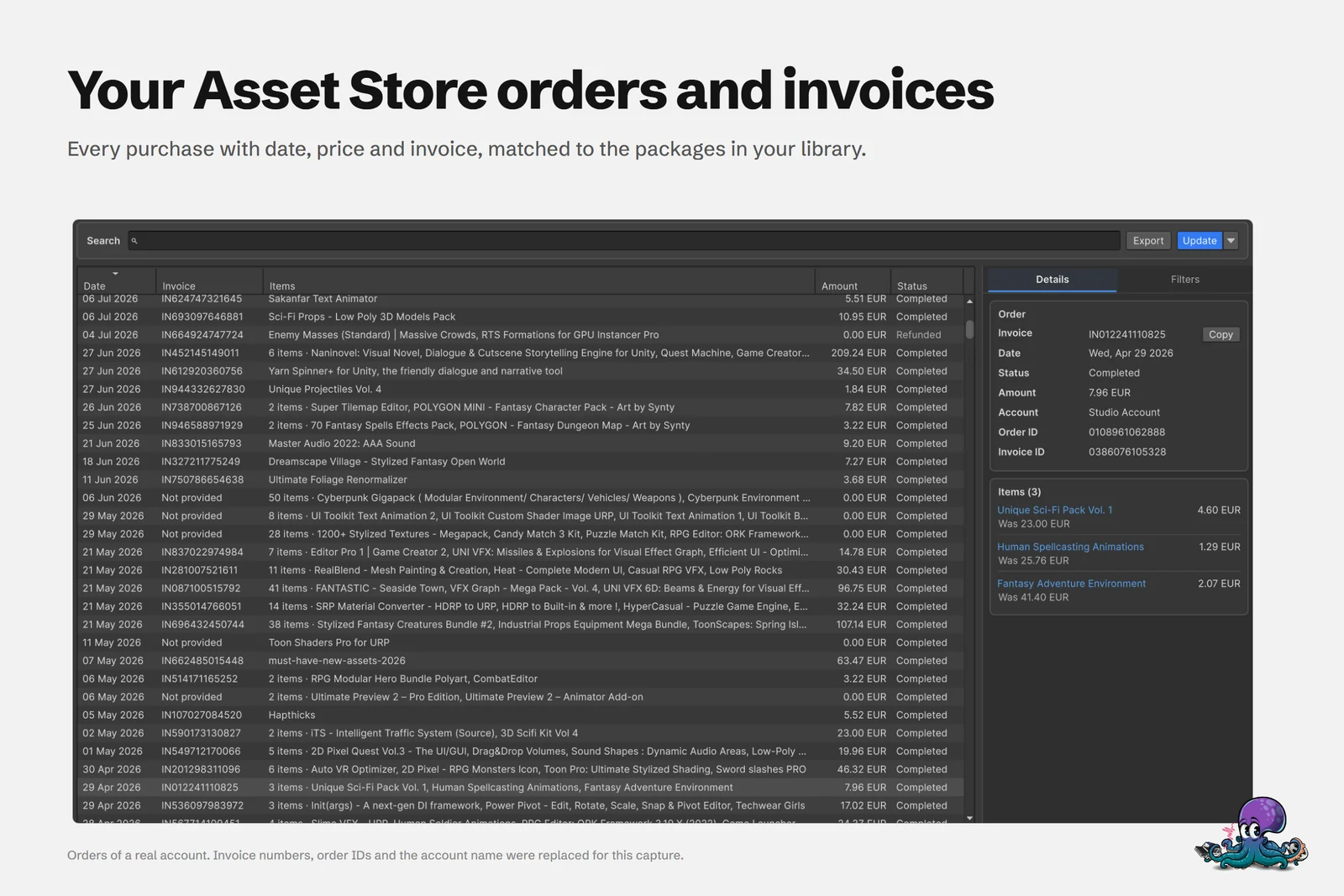
Years of Asset Store purchases add up to hundreds of orders: sale bundles, free claims, a tool bought for one project, a sound pack bought on a whim. Sooner or later someone needs the paper trail. Your accountant asks for invoice numbers, a client wants to know what the assets in their project cost, or you want to know whether last year’s sales were really worth it. Asset Inventory loads your order history into Unity, makes every order searchable, exports it for accounting and records what you actually paid for each package.
Load your order history
- Open Tools > Asset Inventory > Orders.
- Choose Load Orders for the first load. Asset Inventory reads the order history of the Unity account signed into the Editor. Orders already in the cache stay visible while more rows load, and Stop keeps the rows loaded so far.
- Later, choose Update to fetch new orders. The menu beside it offers Reload All Orders when you want to refresh the full history.
Keeping the history current needs no extra step. The built-in Fetch Asset Store Orders action synchronizes new orders during regular updates, right after the Asset Store details, so the history stays current whenever you click Run Actions.
Search by invoice, order, package or publisher
One search field covers invoice numbers, invoice IDs, order IDs, package names and known publishers. Paste an invoice number from an accountant’s question, or type a publisher’s name to see every order that included their packages. The account, status, currency and other filters narrow the list further, which matters once you have bought in more than one currency or with more than one account.
Selecting an order shows its invoice, purchase details and items, and the invoice can be copied straight from the details. The cover shows what that looks like: an order of three items, each with the price actually paid.
Export orders for accounting
The Export menu writes exactly what the list shows, using the current search and filters:
| Export | Contains | Typical use |
|---|---|---|
| Shown Orders (CSV) | The orders in the list | Bookkeeping, tax records, expense reports |
| Shown Order Items (CSV) | The items in those orders | Cost per package, publisher or project |
| Shown Orders and Items (JSON) | Orders together with their items | Scripts and your own tools |
The footer shows paid totals for the shown orders, or for the orders you selected, and keeps every currency separate instead of mixing euros and dollars into one meaningless number.
See what you paid for each package
Store prices change all the time, and what you paid in a sale says more about your spending than today’s list price. When purchase information is available, package details show the recorded Purchase Price, the Current Price and an Order History link. The purchase rows are advanced features, so switch to Advanced mode with the eye icon in the toolbar to see them.
Select several packages, for example everything you tagged for one client project, and the bulk details show Total Paid. It uses the latest completed recorded price for each distinct Asset Store package in the selected account, counts local versions and sub-packages once, keeps currencies separate and reports packages without a recorded price as unavailable. Order-level tax is not allocated to these package totals, so treat them as package prices and take tax figures from the orders.
The package filters include the purchase date, which finds everything you acquired in a period even when those packages have not been updated since. Combined with Total Paid, that gives a quick pre-tax answer to “what did I spend on assets this quarter” without leaving Unity.
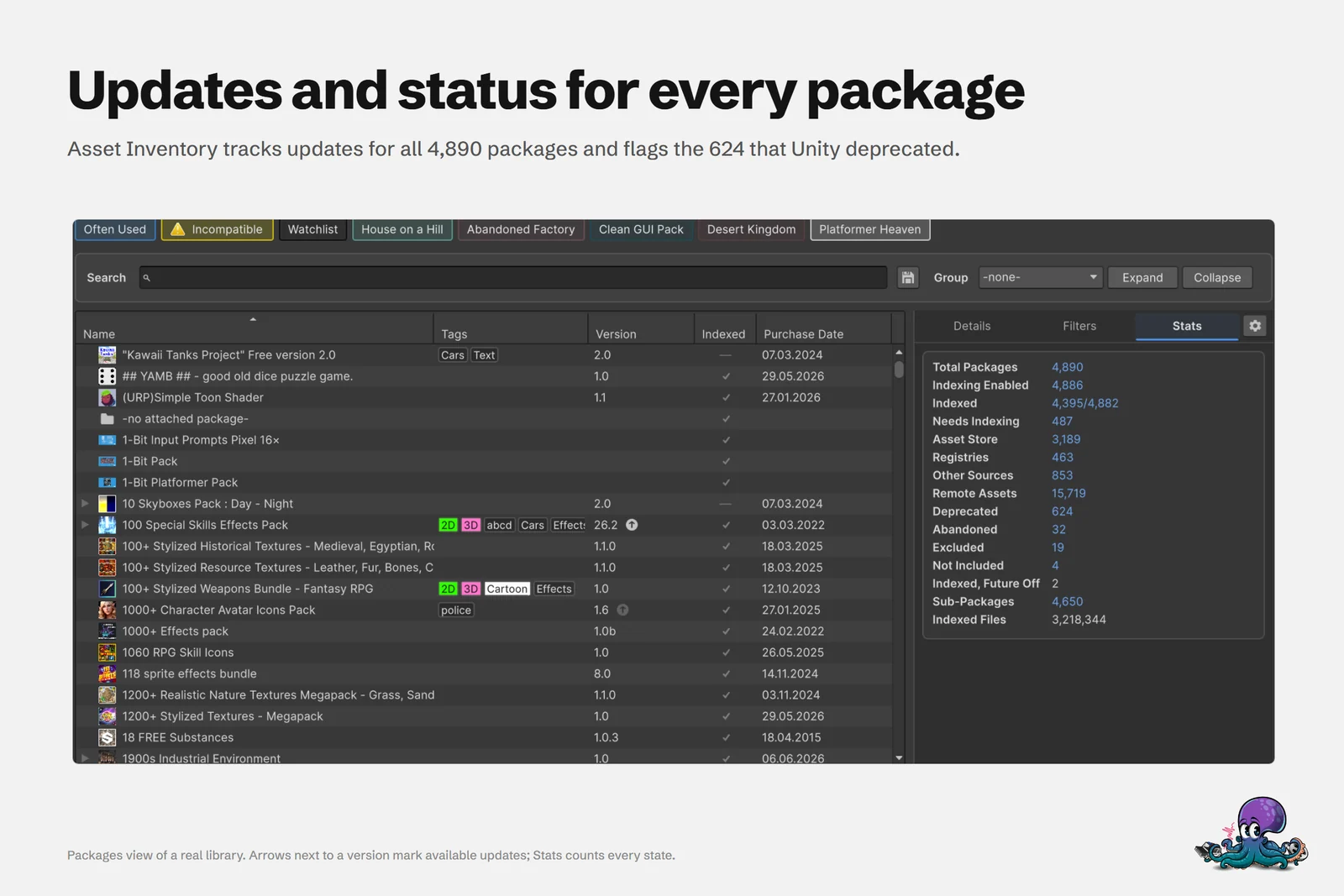 The Packages view lists purchase dates; package details add the recorded purchase price and the order history.
Query orders from scripts and coding assistants
On Unity 6.3 or newer, the same history is available through Unity Pipeline and Unity AI Assistant. Five tools cover it: listOrders and getOrder read the cached history, refreshOrderHistory and getOrderRefreshStatus update it, and exportOrders writes the files. A request like “find the order behind this invoice number and list its items” then works from a coding assistant or a script. Reading needs no confirmation; refreshing the history starts as a dry run, like every change.
Order data is personal financial information. If you let a cloud-hosted assistant read it, those invoice numbers and amounts go to that assistant’s provider, so decide deliberately which assistant gets access.
What the Orders window needs
- The Unity account signed into the Editor. Asset Inventory uses that sign-in rather than a login of its own.
- An internet connection to load and update orders. Loaded orders stay in the local catalog and remain searchable offline.
- Unity 2022.3 or newer, like the rest of Asset Inventory. The script and assistant tools need Unity 6.3 or newer.
The orders also feed other workflows: knowing what you already paid for helps when you check your library before buying. Bundles are worth a second look too. Some purchases entitle you to other packages for free or at a discount, and the freebie scanner in Reporting lists linked packages from your purchases’ descriptions so you can verify and claim them on the Asset Store. The packages documentation covers every order and price field.
Frequently asked questions
How can I see all my Unity Asset Store invoices in one list?
In Asset Inventory, open Tools > Asset Inventory > Orders and choose Load Orders. It loads the order history of the Unity account signed into the Editor, searchable by invoice number, invoice ID, order ID, package or publisher.
Can I export my Asset Store order history to Excel?
Yes. The Export menu writes the shown orders or their items as CSV, or both as JSON, using the current search and filters. CSV files open in Excel and other spreadsheet tools.
How do I find out what I paid for an Asset Store package?
Package details show the recorded Purchase Price and a link to the order history when purchase information is available; these rows appear in advanced mode. Selecting several packages shows Total Paid, based on your orders rather than today's price.
Does the Orders window work offline?
Loading and updating orders needs the internet and the Unity account signed into the Editor. Orders that are already loaded stay available in Asset Inventory's local catalog.
Find any Unity asset you own. Import only what you need.
Keep reading
 Use case
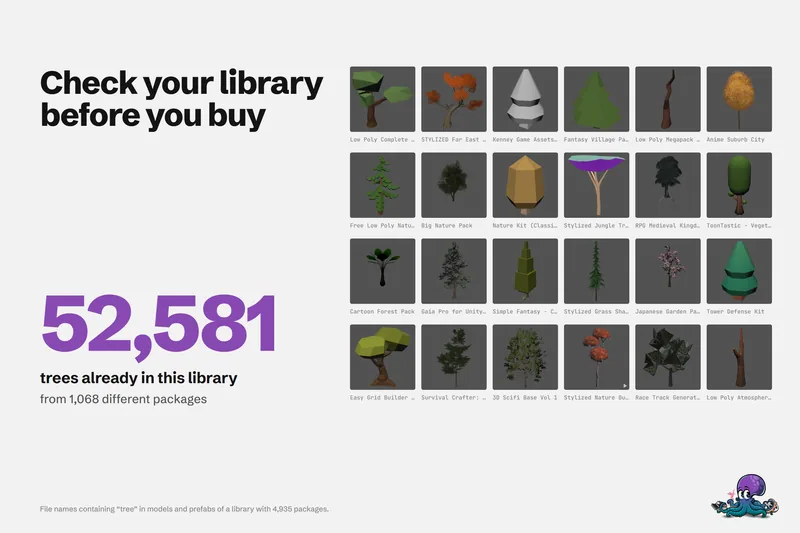
Check if you already own an asset before you buy
One real library holds 52,581 files with tree in their name. How to search what you own, find badly named files, check free catalogs and unclaimed freebies, and see what you paid before you add to the cart.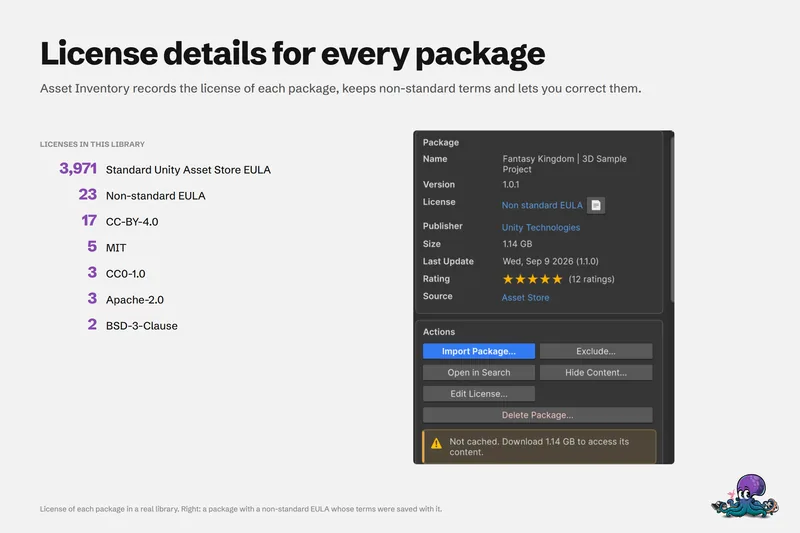 Use case
Create a license report for the assets in your Unity project
Shipping means knowing what you used and under which terms. Asset Inventory identifies the packages behind your project files, shows each license with its agreements, and exports a Third Party Licenses file in Markdown.Article