Automate Unity project setup with reusable actions
Automate Unity project setup: create your folder layout, set company and project settings, and install your essential packages in every new project with one action.
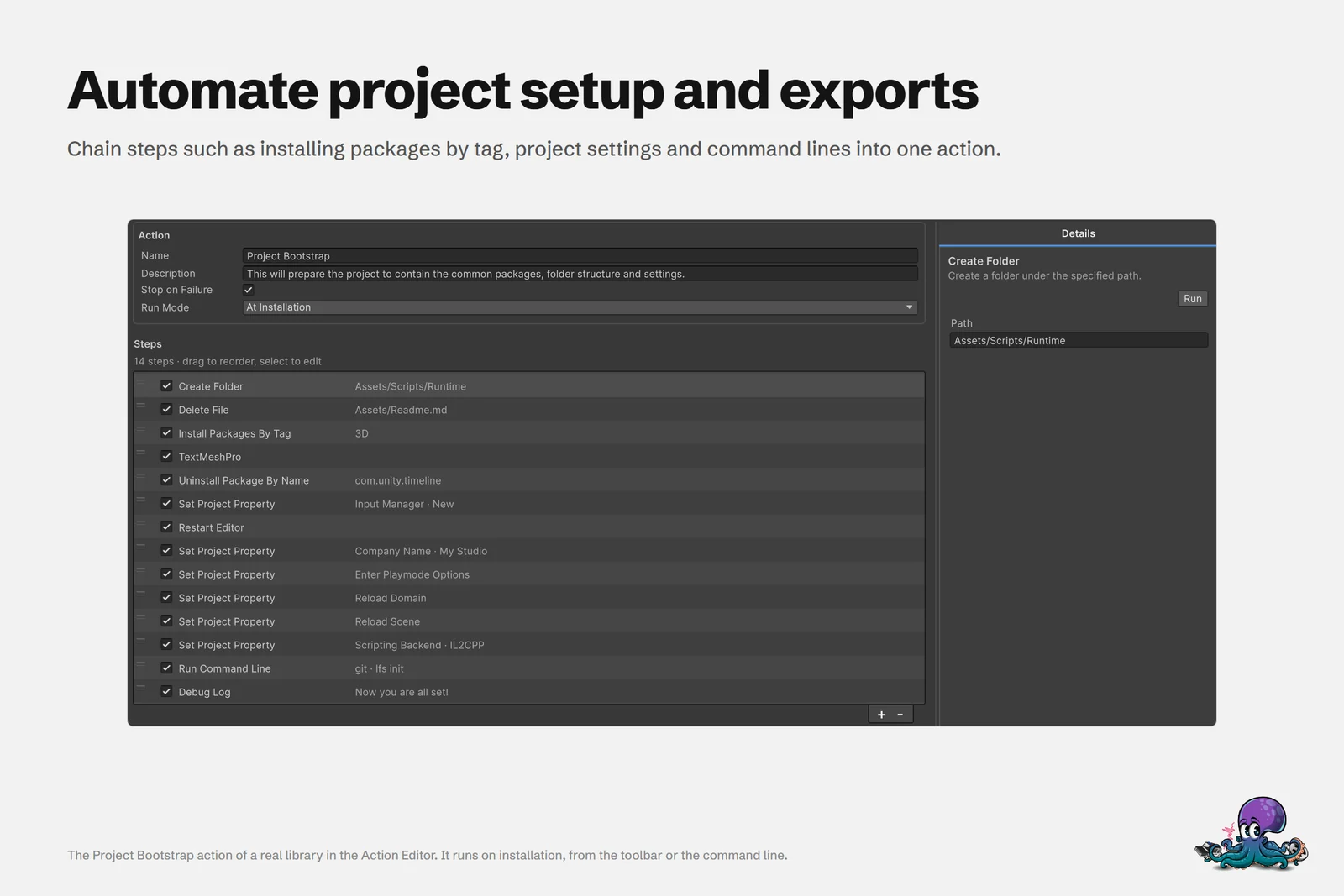
Every new Unity project starts with the same routine: create the folder structure, enter the company and product name, switch the input handling, open the Package Manager, find the editor tools you always use, import them one by one, add the TextMeshPro resources, install the same registry packages. It takes twenty minutes, teaches you nothing, and something usually gets forgotten. Asset Inventory turns that routine into an action you define once and run in every project. Set it to run at installation, and it offers itself the moment Asset Inventory arrives in a new project. One reviewer on the Asset Store calls it the “First asset to import to any new project” (chapp007), and an action makes that first import set up the rest.
Example: install your essentials in every new project
- In Packages, select the packages every project needs and add the tag
essentials. Bulk tagging works on many selected packages at once. - In Settings > Actions, create a custom action, for example “Project Bootstrap”.
- Add an Install Packages By Tag step with the tag
essentials. Tag names match without case sensitivity. - Add a TextMeshPro step to install the TMP add-ons, and Install Package By Name steps for registry packages you always want.
- Set the run mode to At Installation.
- Use Save & Run to save the action and test it in the current project.
From now on, adding Asset Inventory to a fresh project brings up a dialog that lists your At Installation actions and runs them on confirmation. Actions live in Asset Inventory’s central data rather than in a project, so every project sees the same ones. If you manage many projects, you can also reference one Asset Inventory installation from each project’s manifest with a file: entry, as described in the configuration documentation, so new projects pick up the same tool version without installing it again.
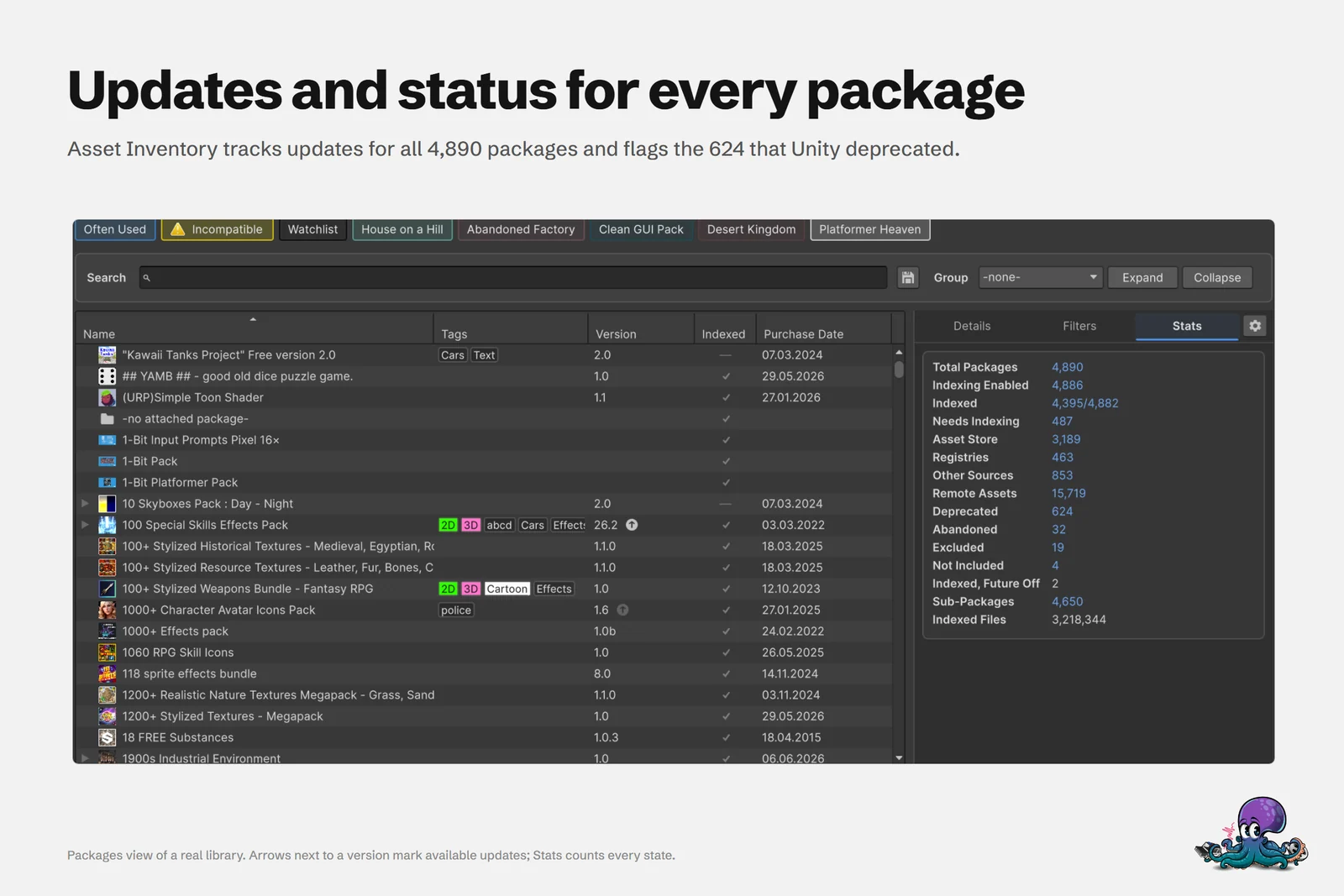 Tags in the Packages view decide what Install Packages By Tag installs.
Example: create your folder layout and project settings
Packages are half of a project’s starting point. The other half is the folder structure your team agreed on and the settings you change in every new project. Add these steps to the same action, or put them in a second action and call it with Run Action:
- A Set Text Variable step sets
roottoAssets/_Project, so the layout is defined in one place. - Create Folder steps create
$root/Art,$root/Audio,$root/Prefabs,$root/Scenesand$root/Scripts. Paths are relative to the project root. - Copy File steps bring in shared files from your drive or a network share, for example a
.gitignore, an.editorconfigor a prepared assembly definition. - Set Project Property steps enter the Company Name, Product Name and Version, choose the Scripting Backend and the Input Manager (old, new or both), and switch the Splash Screen, Incremental GC, Enter Playmode Options, Reload Domain and Reload Scene on or off.
- Add Define Symbol steps add the scripting defines your code expects.
- A final Restart Editor step reopens the project, so settings that need a restart, such as the input handling, take effect.
Run Command Line calls any other tool you use during setup, and Message Dialog can tell whoever runs the action what to do next.
Why an action instead of a project template
Since Unity Hub 3.18, you can save a project as a custom template and start new projects from it. A template is a snapshot, though. According to Unity’s announcement, the Hub keeps the package versions from the template’s manifest and ties the template to the Editor version it was created with, and it cannot yet move a template to a newer Unity version and upgrade its packages. For that, you upgrade the source project and save the template again.
An action is a recipe instead. It runs in whatever supported Unity version a project uses, installs the version of each registry package that Unity recommends for that Editor unless you pin one, and applies settings through Unity’s own API. The same action sets up a Unity 2022.3 project and a Unity 6.3 project, and when your layout or package list changes, you edit one step instead of saving a new template for every Editor version. The two also combine well: create the project from Unity’s template for your render pipeline, then let the action add everything that is specific to your studio.
Steps you can chain
Each action is an ordered list of steps. Every step has an enabled flag, so you can leave one out temporarily without losing its settings, and the whole action defines what happens when a step fails.
| Area | Steps | Typical use |
|---|---|---|
| Packages | Install Packages By Tag, Install Package By Name, Install Package By Path, Update Package, Uninstall Package By Name, Uninstall Feature By Name, TextMeshPro | Project setup and cleanup |
| Folders and files | Create Folder, Copy File, Move File, Move Folder, Delete File, Delete Folder, Reveal Folder | Project layout and shared files |
| Project settings | Set Project Property, Add Define Symbol, Remove Define Symbol, Add Compiler Arg, Remove Compiler Arg, Restart Editor | Company and product name, version, input handling, scripting backend, play mode options |
| Selection and tags | Load Assets, Load Files, Add Package Tag, Remove Package Tag, Add File Tag, Remove File Tag | Organizing the catalog in bulk |
| Exports and archives | CSV Export, Template Export, Compress Folder, Extract Folder | Reports, HTML catalogs and archives |
| Publishing | FTP Upload, FTP Delete | Uploading results over FTP, FTPS or SFTP |
| Flow | Set Text Variable, Run Action, Run Command Line, Message Dialog, Debug Log | Reusing values, chaining actions and calling other tools |
Install Packages By Tag works with any tag in Asset Inventory, including labels imported from the Asset Store. Local tags are not synchronized back to the store, so you can keep separate sets such as essentials, 2d-starter or vr-rig and give each project type its own action. FTP connections are managed under Settings/Locations; passwords are stored encrypted in the configuration file and are only readable on your machine.
Reuse values with variables
Longer actions repeat the same folder names, server paths or labels, and every repetition is a chance for a typo. A Set Text Variable step defines a value once, and later steps use it as $name. Variables that cannot be resolved are marked with an exclamation mark, so mistakes show up in the editor before the action runs.
Predefined variables follow the pattern group.value and come from Application, SystemInfo, Environment, Config, DateTime, PlayerSettings, EditorApplication, QualitySettings, Screen and BuildTarget. Values such as PlayerSettings.companyName, DateTime.Now or Environment.MachineName let an action name an export after the company, stamp it with the date or adapt to the machine it runs on.
Built-in actions keep the catalog current
Asset Inventory itself is organized as actions. Run Actions runs every checked action from top to bottom, including Fetch Asset Store Purchases, Index Store Assets, Index Additional Folders, Update Remote Catalogs, Create Backups and Fetch Asset Store Orders. Nearly all of them are incremental, so you can stop a run and continue later. A custom action in Manual mode can run the same way, as part of the selected actions, or on its own with the Play control beside it.
Check a custom action next to the built-in ones and the same Run Actions click that updates your index also writes a CSV report or publishes the catalog as a website.
Run actions from scripts and coding assistants
On Unity 6.3 or newer, ten tools expose actions to the Unity Pipeline CLI, its MCP server and Unity AI Assistant: listActions, getActionDetails, createAction, updateAction, deleteAction, runAction, listActionStepTypes, addActionStep, removeActionStep and updateActionStep. Every change starts as a dry run that returns a confirmation token, and only the repeated call with that token executes it. The manual’s example prompt shows the intended rhythm: “Create an Asset Inventory action called Prepare Build, add the appropriate steps, show me the dry-run preview, and wait for confirmation before executing it.” The coding assistant guide covers the setup.
Limits worth knowing
- Actions run inside the Unity Editor. Starting them through the CLI or MCP also needs a live Editor with the project open; batch mode and headless runs are not supported, so actions belong at your desk rather than on a build server.
- At Installation triggers once per project, when Asset Inventory is installed there. In existing projects, run the action yourself.
- Copy File and Move File replace an existing target, and the delete steps do not ask for confirmation, so try a new action in a scratch project first.
- Package steps install from your catalog. Packages that are not downloaded yet are fetched first, which needs the internet and, for Asset Store packages, the Unity account signed into the Editor.
- Encrypted FTP passwords are only readable on the machine that saved them, so enter them again on a second computer.
The settings documentation lists every predefined variable group with links to the Unity and .NET references.
Frequently asked questions
Can an action create my Unity folder structure and project settings?
Yes. Create Folder steps build your layout relative to the project root, Copy File brings in shared files such as a .gitignore, and Set Project Property sets the company name, product name, version, input handling, scripting backend and play mode options.
Is a custom action better than a Unity project template?
For setup that should survive Unity upgrades, usually. Unity Hub ties a custom template to the Editor version it was saved from and keeps its package versions. An action runs in whichever supported Unity version you open, and you change it by editing one step.
How do I install the same packages in every new Unity project?
Tag the packages in Asset Inventory, create a custom action with an Install Packages By Tag step and set its run mode to At Installation. When you add Asset Inventory to a new project, it offers to run the action.
Can Asset Inventory actions run without opening Unity?
No. Actions run inside the Unity Editor. You can start them from the window, through Run Actions, or with the Unity Pipeline CLI and MCP tools, which also need a running Editor with the project open.
Which protocols does the FTP Upload step support?
FTP, FTPS and SFTP. Connections are managed under Settings/Locations, and passwords are stored encrypted in the configuration file, readable only on your machine.
Can a coding assistant create actions for me?
Yes, on Unity 6.3 or newer, through tools such as createAction, addActionStep and runAction. Each change starts as a dry run and only executes with the returned confirmation token.
Find any Unity asset you own. Import only what you need.
Keep reading
 Use case
Let coding assistants search and import the Unity assets you own
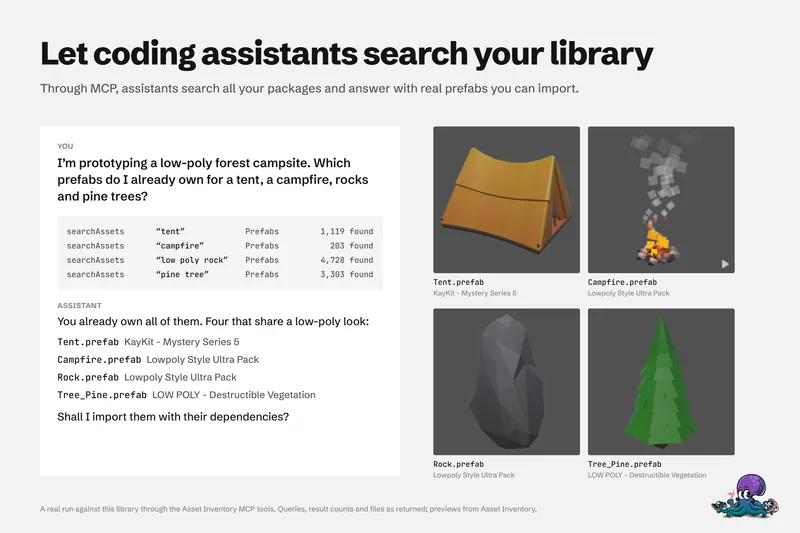
Connect Claude Code, Codex or Unity AI Assistant to Asset Inventory. 41 tools let an assistant search every package you own, import prefabs with dependencies and place them, with a dry run before every change.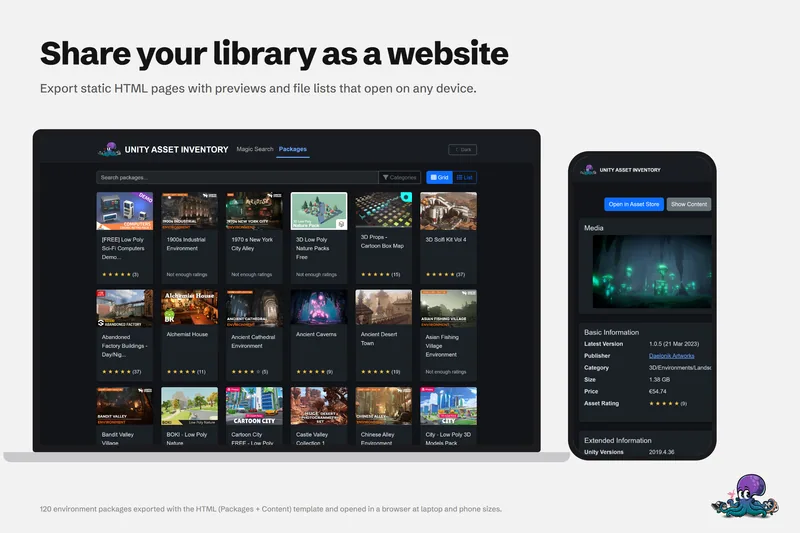 Use case
Share your Unity asset library as a website
Template exports turn your Asset Inventory catalog into a static HTML site with file search, package pages and light and dark themes, ready for any web server or CDN. CSV, Markdown and custom formats work too. Use case