Back up Asset Store packages and keep older versions
Backup Unity Asset Store packages automatically, keep several versions of each, and import an older or deprecated version when an update breaks your project.
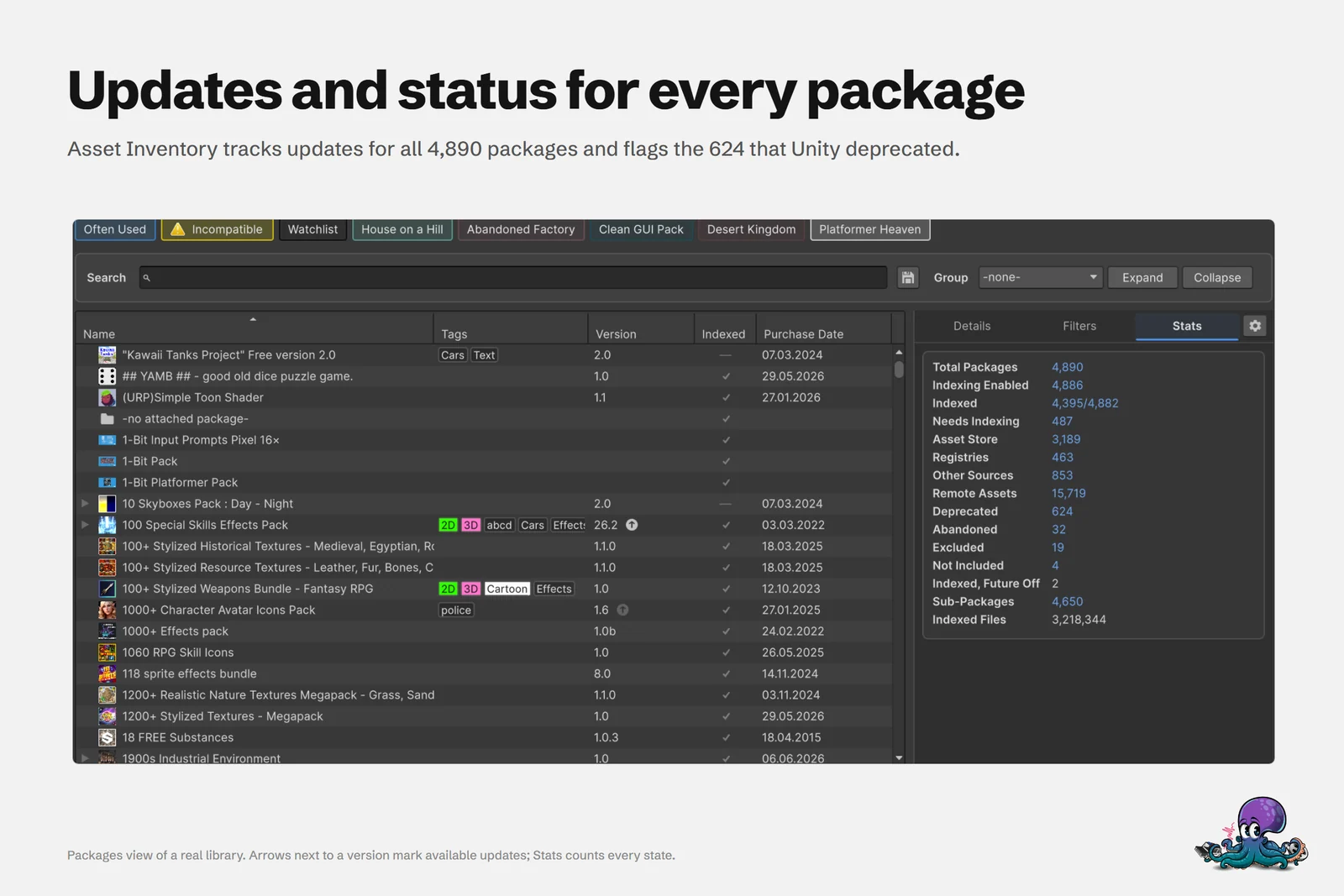
An Asset Store purchase feels permanent, but the file your project depends on is not. The store keeps no version history for you to pick from: you get the latest release for your Unity version plus whatever still sits in your local cache, and downloading an update replaces the cached copy. Packages also reach the end of their life. In the library on the cover, Unity has deprecated 624 of 4,890 packages, and a package that gets disabled cannot be downloaded at all anymore. Add an update that changes something incompatibly, and the version that worked is gone exactly when you need it.
Package backups in Asset Inventory keep your own copy of the versions you download, on a drive you choose, and let you import an older one whenever you need it.
Turn on package backups
- Open Settings > Backup and turn on Enable Package Backups.
- In Packages, choose what to back up: switch backups on in a package’s details, or for many selected packages at once through the bulk actions.
- Keep the Create Backups action checked so that every Run Actions copies newly downloaded versions. The checkbox only schedules the regular runs; your package selection decides what gets copied.
- Check the backup location before the first run, ideally on a large drive (see below).
Backups copy the downloaded package files out of the cache into a dedicated folder. The tool handles the life cycle from there: it compares versions, adds new ones and removes the ones you no longer want to keep.
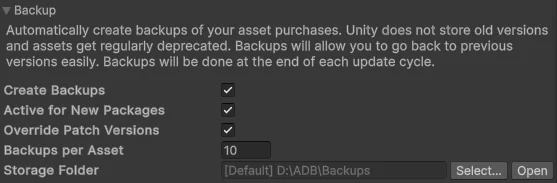 Backup settings (earlier interface)
Decide how many versions to keep
By default Asset Inventory keeps up to five versions per package, and within one minor version only the latest patch release. When one package deserves a different limit, such as more versions of a framework your project is built on or fewer of a huge environment pack, add the reserved Max Backups field to its package metadata. It overrides the global setting for that package only.
The patch rule is what keeps the folder manageable. In the folder below, Asset Store Publishing Tools 11.1.0, 11.2.1, 11.3.1 and 11.4.0 sit side by side, while 11.3.0 was cleaned up once 11.3.1 arrived.
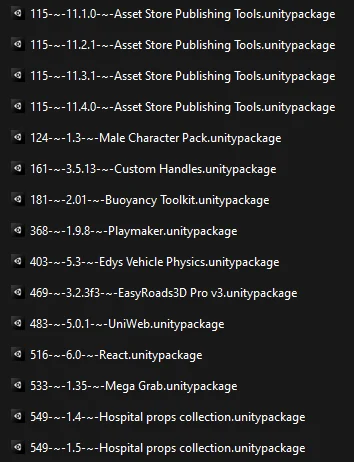 Several versions of the same package side by side in the backup folder (earlier screenshot)
Import an older version
Once a package has backups, its version in the package details becomes a dropdown. Pick the version you want and import it: to roll back after an update broke your project, to stay on a release that still works with your Unity version, or to install a package that Unity has since disabled. The packages documentation covers the import options.
Backups are ordinary .unitypackage files, so they also work without Asset Inventory. Unity 6.3 imports one through Assets > Import Package > Custom Package; Unity 6.6 renamed the menu to Assets > Import Asset Package.
Registry packages work differently. Their registry keeps older versions available, and Asset Inventory manages them with an update strategy per package: recommended, latest stable compatible, latest compatible, or manually.
Keep backups on a large, slow drive
Backups go to the Backup folder inside Asset Inventory’s data folder unless you choose another location. The Setup Wizard asks for it and estimates the space you need. Backups are rarely read, so they are the last thing that deserves an SSD; a cheap, large external drive or network storage is fine.
Files are stored flat in one folder by default. If you replicate backups somewhere else and need structure, move files into sub-folders: Asset Inventory notices and puts new revisions of a package into its sub-folder. When a backup matches a package’s current version, Asset Inventory also uses it to recreate previews instead of downloading the package again.
Separately, Asset Inventory backs up its own database and configuration into the same backup location. This is on by default, runs weekly and keeps the last two copies, and it currently works with the SQLite database.
Find deprecated packages and updates early
Package tiles highlight deprecated and disabled Asset Store packages by default, and the Deprecation filter in Packages lists only the deprecated ones. Review that list against your backups while the downloads still work. Unity’s Package Manager can also filter My Assets by a Deprecated status; the backup is what lets you act on that list later.
The Packages view shows Asset Store and registry updates in one place, so you can decide per package whether an update is worth the risk. When a new version was downloaded but not indexed yet, an indicator appears in the version column, and Run Actions indexes it and, for packages you back up, copies it into the backup folder. Because a download replaces the cached copy, the previous version is only safe if it was backed up before, which is why backups pay off when you turn them on early.
What backups cost
- Disk space: every kept version is a full copy. Five versions of a 497 MB package can take around 2.5 GB, which is why the per-package limit exists.
- Only what you downloaded: a backup is made from a download, so a version you never downloaded, or a package disabled before you downloaded it, cannot be backed up afterwards. Download the packages you depend on while they are available.
- Your responsibility: the backups live on your drives, so include the backup folder in whatever you use to protect the rest of your data.
If you are short on space for the Asset Store cache itself, see where Unity stores Asset Store downloads.
Frequently asked questions
Can I download an old version of an Asset Store package?
Not from the Asset Store, which delivers the current version for your Unity version. If Asset Inventory backed up an earlier download, the version in the package details becomes a dropdown and you can import the older version from there.
What happens when Unity deprecates or disables a package I own?
Asset Inventory highlights deprecated and disabled packages and can filter for deprecated ones. A disabled package cannot be downloaded anymore, so a backup made while it was available is the copy you can still import.
How much disk space do package backups need?
Every kept version is a full copy of the package file. By default Asset Inventory keeps up to five versions per package and only the latest patch per minor version, and a Max Backups field changes that per package.
Can I use the backups without Asset Inventory?
Yes. The backups are ordinary .unitypackage files in a folder you choose, so Unity can import them directly like any custom package.
Find any Unity asset you own. Import only what you need.
Keep reading
 Article
Where Unity stores Asset Store downloads, and how to move the cache
Every Asset Store download stays in one cache folder until you delete it. Where that folder lives, how to move it, what cleaning it up costs, and how Asset Inventory keeps deleted packages searchable.Use caseOrganize every Asset Store purchase in one library
Asset Store purchases, custom and Synty packages, registries, folders, archives, catalogs and Asset Manager in one list inside Unity, with tags, update strategies, hiding, custom metadata and bulk actions. Article