Import single assets from a package with their dependencies
Import a single asset from a unitypackage with its dependencies: Asset Inventory follows GUID references and brings only the meshes, materials and textures it needs.
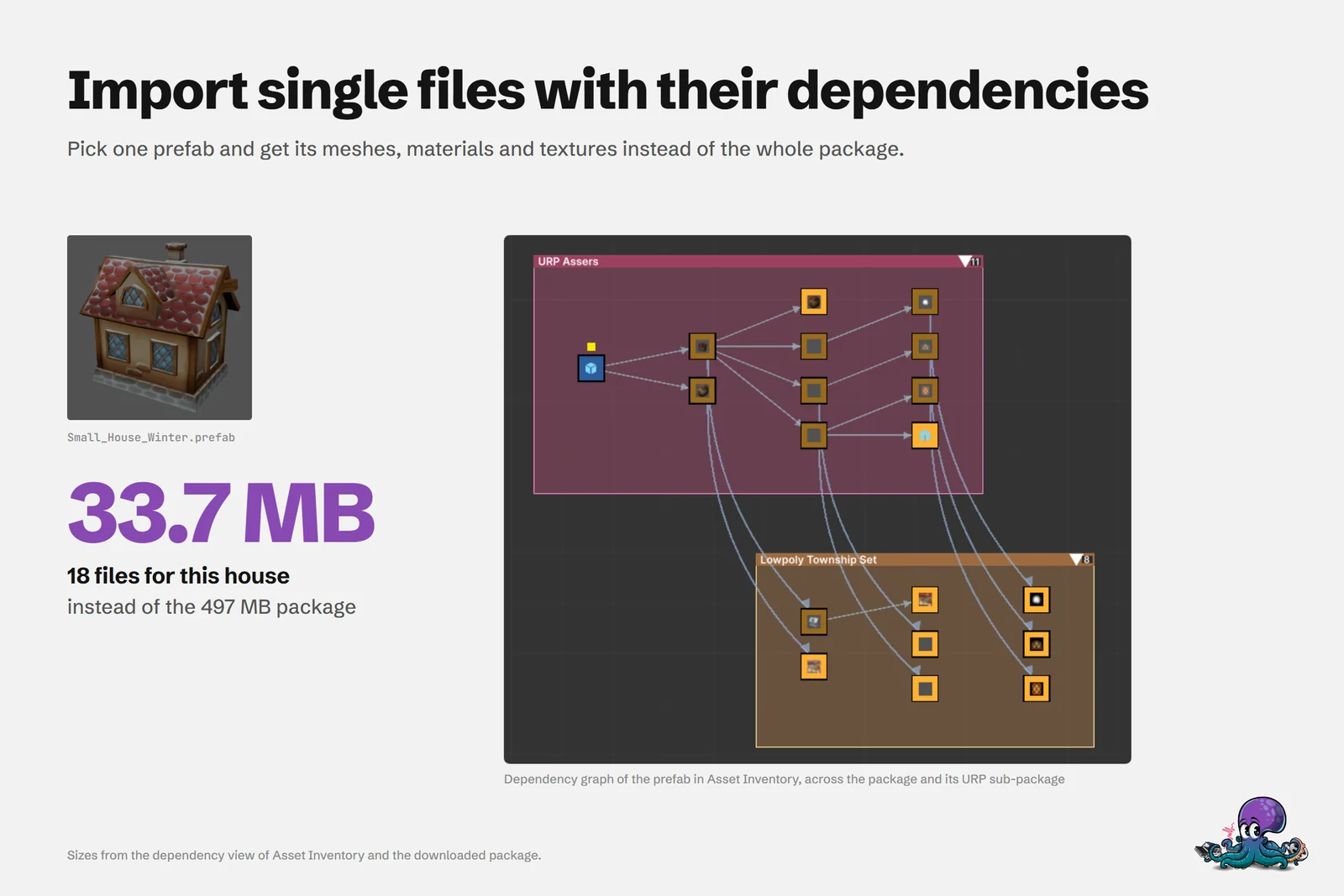
You need one house for a winter scene. The package that has it weighs 497 MB, and importing all of it means a long import, a bigger repository and a pile of files you will never touch. In the example above, the Small_House_Winter prefab from Lowpoly Township Set arrives with its meshes, materials and textures at 33.7 MB.
Asset Inventory makes that the default: pick a file, and it imports the file plus everything it depends on, nothing more. One Asset Store reviewer, Puggy, likes that you can “…only import the parts you need so the editor doesn’t slow to a crawl.”
Why Unity’s import dialog is not enough
Unity’s import window opens with every file ticked, and you untick what you do not want. That works if you know exactly which meshes, materials and textures a prefab uses; Unity’s documentation describes no dependency check for this dialog. Miss one file and the prefab arrives incomplete; keep too many and you are back to the whole package.
Unity Asset Manager is the exception among Unity’s own tools. Its Asset Store integration splits supported purchases into individual assets, and its Editor package imports single assets with their dependency trees. It covers the 3D, 2D and Audio categories, shows only the latest version of each asset and runs as a Unity Cloud service. If your team already works there, it is a good option. Asset Inventory does the same locally for every package you own, including custom packages from bundles and other stores. The Asset Manager comparison goes deeper.
How the dependency analysis works
Every file in a Unity package comes with a .meta file that holds a unique GUID, and prefabs, materials, scenes and other assets serialized as text reference each other through those GUIDs. Asset Inventory reads these references from the indexed package and follows them: the prefab points to meshes and materials, the materials point to textures and shaders. The result is the complete set of files the asset needs, known before anything touches your project.
The details panel sums up the dependencies with their count and size. Show opens the full list, and a graphical dependency viewer draws how the files connect. You can open any related file from the graph or the list to inspect it first.
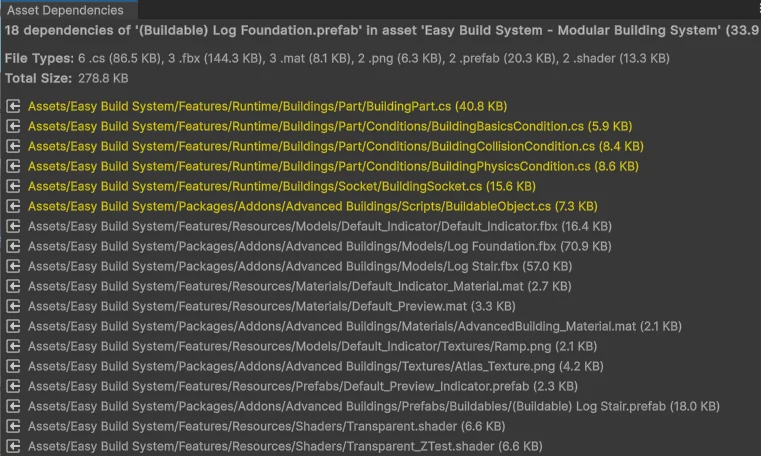 The dependency list shows every file, its size and whether it is already in the project.
Many packages ship render pipeline support packages with extra files for URP or HDRP. Asset Inventory detects them automatically and adds the files the import needs from there; in the cover example, the dependencies span the package and its URP sub-package.
Scripts are opt-in
Scripts are where selective imports can go wrong, so Asset Inventory leaves them out unless you ask. The script import setting in the details panel has four modes:
| Mode | What comes along |
|---|---|
| -Never Import- (default) | Meshes, materials, textures and other media, no scripts |
| Direct Only | Plus the scripts the asset references directly |
| Extended Analysis | Plus the scripts those scripts need, found by parsing code, syntax and assembly definitions |
| All Scripts | Plus every script in the package |
Extended Analysis handles many cases, but scripts can depend on each other in ways no parser foresees, so a compile error is possible in rare cases. For art assets, the default is usually what you want.
Choose where the files land
By default, imports go to Assets/ThirdParty and keep the package’s original folder structure, so your Assets root stays clean. You can send files to the folder selected in the Project view, to the Assets root or to a specific folder instead, and put all files into one folder rather than the original structure. Files without dependencies can also be dragged straight into any Project folder without extra structure. If the destination already holds a file with the same name, Asset Inventory renames the incoming file, warns and skips it, or overwrites it, depending on your import settings.
The import itself:
- Search for the asset and select it.
- Check the dependency count and size in the details panel; Show lists every file.
- Set the script import mode if the asset needs code.
- Click Import, or drag the result into the Project, Hierarchy or Scene window. Add to Scene places it in the open scene, under the current selection if there is one.
Several prefabs dragged into a scene together stay siblings instead of nesting. A few packages expect their files in the Assets root, for example because of hard-coded paths; choose the Assets root as destination for those.
Render pipelines and post-import steps
In a URP or HDRP project, a package’s own render pipeline files come first. Where none exist, materials can be converted after import:
- Unity’s Render Pipeline Converter runs automatically after each import when you activate it under Settings in a project with URP 14 or newer. It converts all project materials, which costs a little time.
- The custom converter only converts the imported assets and is faster.
- TextMesh Pro materials are preserved, and Assets > Convert to Current Render Pipeline converts later if needed.
Remove LODs strips LOD groups from imported prefabs and keeps the first level. For sounds, Edit Audio… imports only the part you select, trimmed and saved as WAV.
Reimport, reorganize and remove
Once an asset is in the project, Asset Inventory still knows where it came from:
- Reimport restores the original files from the indexed package, overwriting local changes and keeping their asset identities.
- With Reorganize on Reimport active, a reimport also moves the asset and all its dependencies into your target structure. That is the way out of an old full import: reimport the one button you use from a UI kit, then delete the kit.
- Remove from Project… and Uninstall Package… show what would be removed and warn when other project files still use it.
- Where Used lists the project files that reference an asset.
The article on how to reduce Unity project size puts these steps together for an existing project.
Limits to plan for
- Text serialization only. Dependencies resolve for assets serialized as text (YAML). A few legacy packages use binary serialization, and their prefabs show no dependencies.
- No scripts by default. Code comes along only in the modes above, and Extended Analysis can occasionally cause compile errors.
- Imports need the files. Search works from the index, but importing needs the package on disk. Asset Store packages that are missing can be downloaded on demand.
- Hard-coded paths. Packages that expect the Assets root need that destination.
The Asset Search documentation describes every import setting.
Frequently asked questions
Can I import only part of a unitypackage?
Yes. Unity's import dialog lets you untick files by hand. Asset Inventory goes further: pick one file and it adds the files that file references, such as meshes, materials and textures, then imports just that set.
Are scripts imported together with a prefab?
Not by default. Script import starts at -Never Import-. Direct Only, Extended Analysis and All Scripts bring code along; Extended Analysis parses scripts and assembly definitions and can, in rare cases, lead to compile errors.
Why does a prefab show no dependencies?
Dependencies can only be read from assets serialized as text (YAML). A few legacy packages still use binary serialization, so their prefabs show no dependencies. Import the files you need by hand or the whole package in that case.
Does the package have to be on disk to import from it?
Yes. Search works from the index alone, but an import needs the package files. If an Asset Store package is not downloaded, Asset Inventory can download it on demand and continue with the import.
Find any Unity asset you own. Import only what you need.
Keep reading
 Article
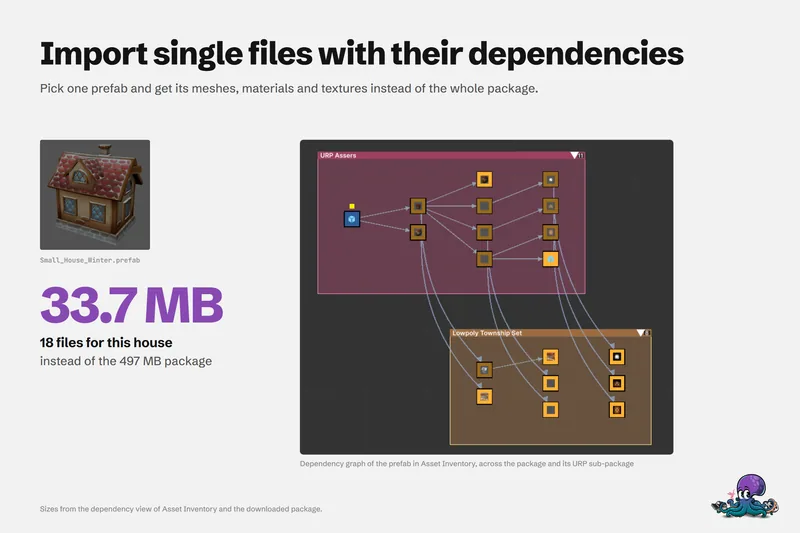
Smaller Unity projects: import assets, not packages
Most project bloat starts with importing a whole package for one asset. Where size and slowness come from, the manual ways to stay lean, and dependency-aware imports that bring 33.7 MB instead of 497 MB. Use case