Preview Unity package contents without importing
Preview unitypackage contents without importing: Asset Inventory renders real previews for prefabs, effects, UI and fonts, animates clips and plays sounds in Unity.
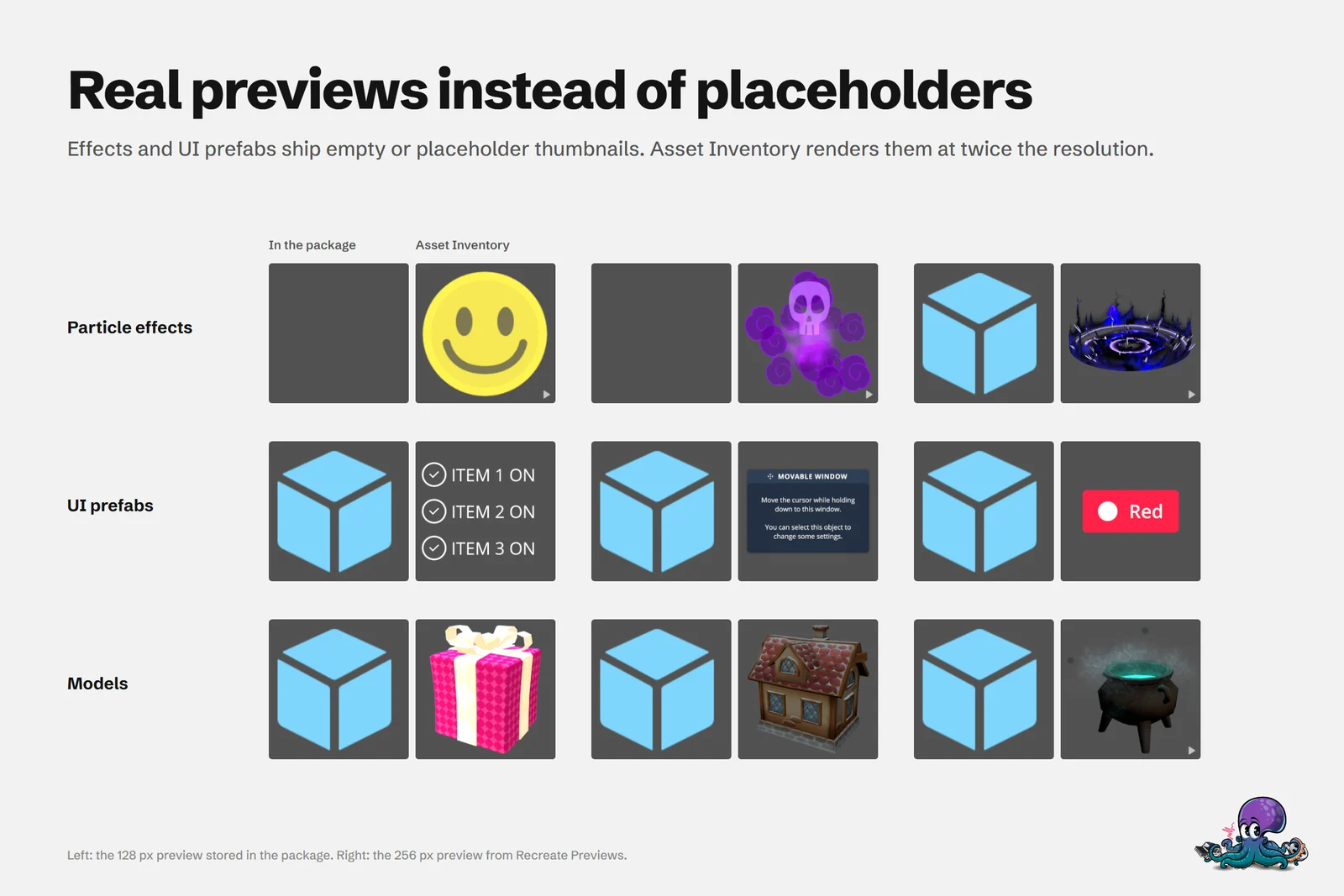
A store page shows a handful of marketing images. The files inside a .unitypackage carry whatever preview Unity stored when the publisher exported it: a 128 px thumbnail at best, an empty tile or a generic prefab cube at worst. Particle effects, UI prefabs and fonts are the usual victims. So the common way to see what you bought is to import it, look, and delete it again, which costs import time and leaves clutter behind.
Asset Inventory indexes the package contents instead and has Unity render its own previews, animated where motion matters. You see what a file looks like before anything enters your project.
Why the previews inside a package fall short
Unity’s built-in previews have three limits:
- They are 128 by 128 pixels, often with poor lighting, especially in projects using a scriptable render pipeline.
- UI, fonts, videos, particle systems and VFX get no preview at all.
- Nothing moves, so a walk cycle or an explosion is a single still frame.
The previews stored in a package were made by the Asset Store tooling when the publisher uploaded it. Some came out empty, and their look varies with the Unity version used. Unity offers no way around this before import: the Package Manager shows a package’s marketing images, audio and video, and Unity’s scripting API has no public call to list what a package contains.
How Asset Inventory creates its previews
Previews come from three sources:
- Provided: the preview that ships in the package.
- Recreated during indexing: files without dependencies, such as textures and models, get a new preview automatically.
- Recreated on demand: prefabs and materials get previews too, but this takes much longer because all their dependencies have to be materialized first.
Image files bypass Unity: common formats are processed directly, which is much faster, and upscaled during indexing. For other files, Asset Inventory copies the file into the current project for a moment, lets Unity create the preview and removes it again.
A custom preview pipeline adds what Unity lacks: lit, high-resolution previews for prefabs, FBX models and animations, animation clips, materials, UI prefabs, fonts (shown with a pangram), particle systems, VFX Graph and videos. Its settings cover lighting, environment and background. Particle and VFX previews can wait a minimum playback time so effects that need a warm-up show their important frame, and video previews skip black or faded frames. With upscaling on, the default, previews target 256 px, twice the size Unity stores.
Render pipelines get dedicated handling for Shader Graph, particle shaders and render pipeline conversion, and a verification step flags previews that came out pink. Indexing in a URP project captures both Built-in and URP content well.
After you import an asset, Asset Inventory also replaces Unity’s preview in the Project window, animated ones included. Two buttons at the lower right of the Project window turn this on or off.
Animated previews and instant audio
Animated FBX files, videos, particle systems, VFX, sprite sheets and animation clips show a small play icon in the results. Select one and it plays; in Advanced mode, a play button in the lower left corner starts every animation in the grid at once.
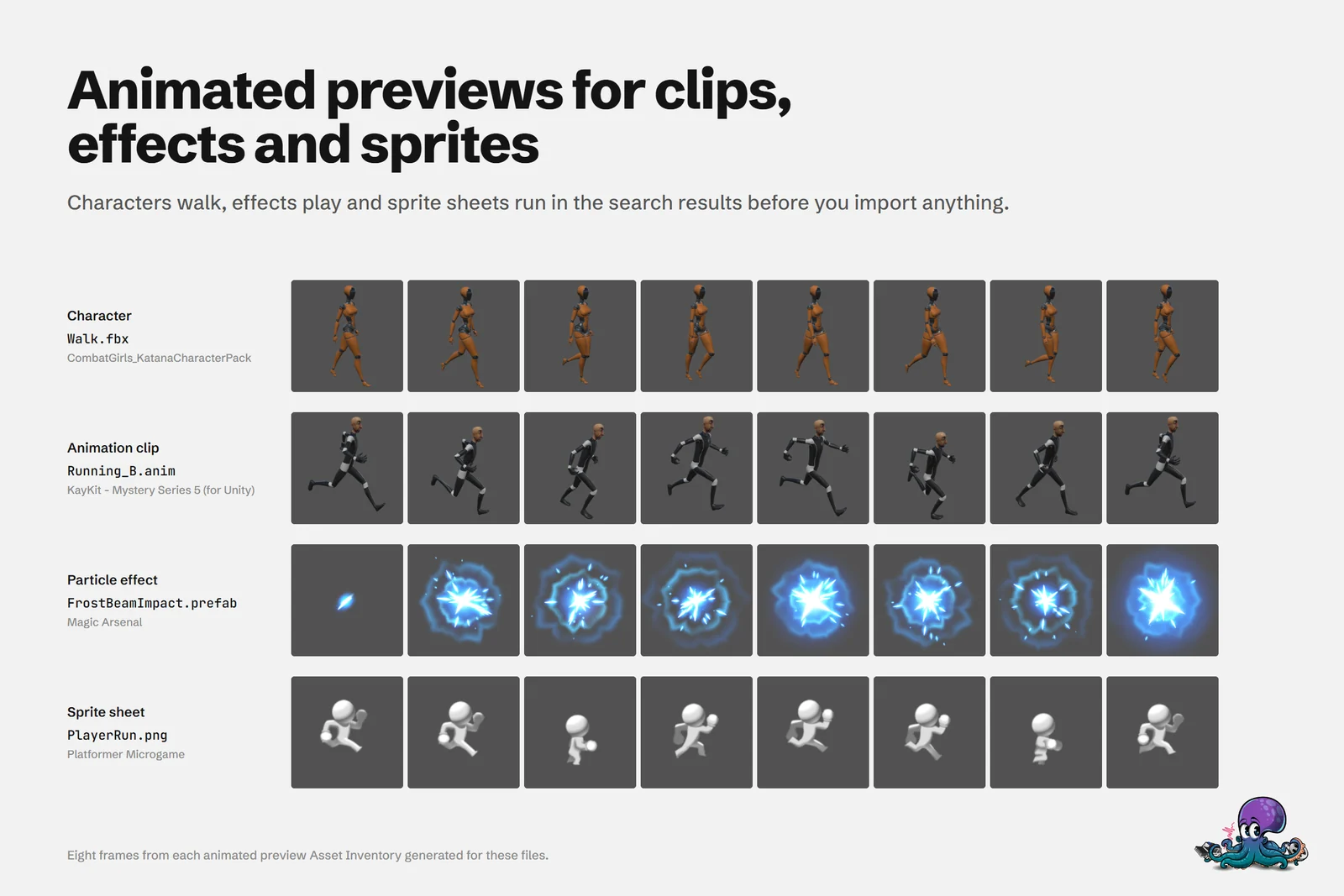 Eight frames from four animated previews: an FBX walk, an animation clip, a particle effect and a sprite sheet.
Sounds play as soon as you select them, with Auto-Play, Loop and scrubbing. The first playback from a package can take a moment while Asset Inventory extracts it temporarily. Edit Audio… trims a sound before import if you only need part of it. For large audio libraries, see searching a sound effects library.
Fill the gaps with the Previews Wizard
Indexing creates previews for textures and models along the way. For the rest:
- Open the Previews Wizard from a package’s actions, or from the maintenance tools in Settings for the whole library.
- Let it create the missing previews, including prefabs and materials. Complex prefabs take a while.
- Verify the results so pink or empty previews stand out.
- Where the publisher’s own previews look better, switch back to the provided ones in the wizard.
- For a single file, use Recreate Preview on the search result.
The cover above shows the difference: on the left the 128 px preview stored in the package, on the right the 256 px preview Asset Inventory recreated.
What some previews need
Most previews work out of the box. A few file types depend on your setup:
| Content | Needs | Why |
|---|---|---|
| VFX Graph effects | Unity 6 (6000.0) or newer | The rest of Asset Inventory runs on 2022.3 |
.blend models | Blender installed | Unity calls Blender to read the file |
| UI prefabs | TextMesh Pro | Required for correct UI previews |
| glTF and GLB | glTFast or UnityGLTF | One of these importers reads the file |
| PSB files | 2D PSD Importer | Installed with one click |
| Prefabs and materials | Time | Rendered on demand with all dependencies |
When a browser viewer is enough
To peek into a single .unitypackage without installing anything, our free Unitypackage viewer opens it in the browser. Standalone tools such as AssetHoard, EasyExtract, UView or Packyderm also browse or extract package contents outside Unity, some with thumbnails for images and 3D formats. They are good for a quick look or for pulling out one file.
Asset Inventory differs in where the preview comes from and what happens next. Unity itself renders prefabs, materials, particle systems and UI with their dependencies, the way they will look in your project, across every package you own, and the next step is an import with dependencies. The comparison of unitypackage viewers covers the options in detail.
Time and disk space
- Prefabs and materials are slow. Their previews need every dependency materialized first. Run big preview jobs in a new, empty project and let them work.
- Previews take space. Plan about 200 MB of previews per 30,000 files plus about 20 MB of database, before upscaling. If you have an SSD, put the database there first and the previews second.
- Audio previews stay as provided. Recreating them takes a long time for little benefit, so it is off by default; the Exclude Extensions setting changes that.
- A temporary folder appears. While previews are created, a folder under Assets shows up briefly and is removed again when done.
The settings documentation lists every preview option.
Frequently asked questions
Can I see what is inside a .unitypackage without importing it?
Yes. Asset Inventory indexes the contents of every package you own, so each file appears in search with its path, size and a preview, and nothing enters your project until you import it. For a quick look at a single file, our free browser-based Unitypackage viewer is enough.
Why are some previews in a package empty or gray?
The Asset Store tooling sometimes fails to create a preview when a package is uploaded, and Unity cannot preview UI, fonts, videos, particle systems or VFX at all. Asset Inventory recreates such previews with Unity in your own Editor.
How much disk space do the previews take?
As a rule of thumb, about 200 MB of previews per 30,000 files plus about 20 MB of database, before upscaling. Upscaled previews take more space.
Which Unity version do VFX Graph previews need?
VFX previews need Unity 6 (6000.0) or newer. Asset Inventory itself runs in Unity 2022.3 and newer.
Find any Unity asset you own. Import only what you need.
Keep reading
Asset Inventory vs free .unitypackage viewers
Several tools open a .unitypackage without Unity. They all work one package at a time with the previews that ship inside. When that is enough, and when an index of every package is the better tool.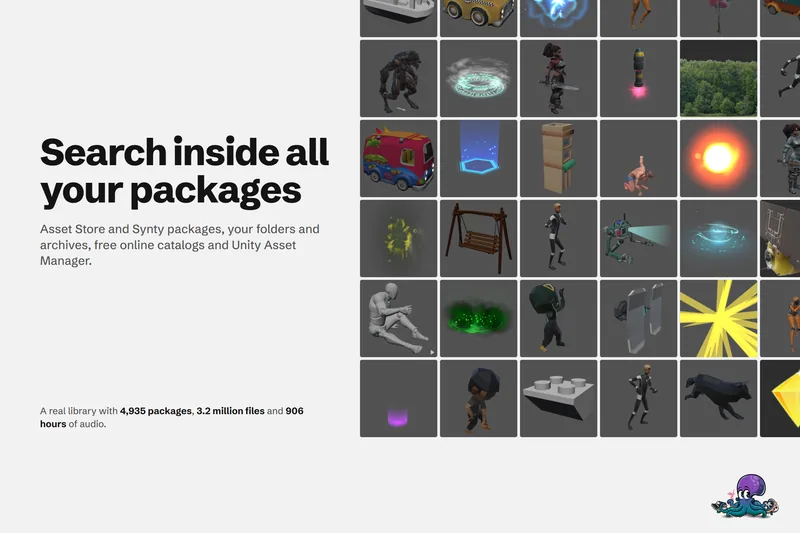 Use case
Search inside every Unity package you own
The Package Manager searches package names. Asset Inventory indexes every file in every package you own, with filters, saved searches and Unity Search integration, so you search for the asset itself.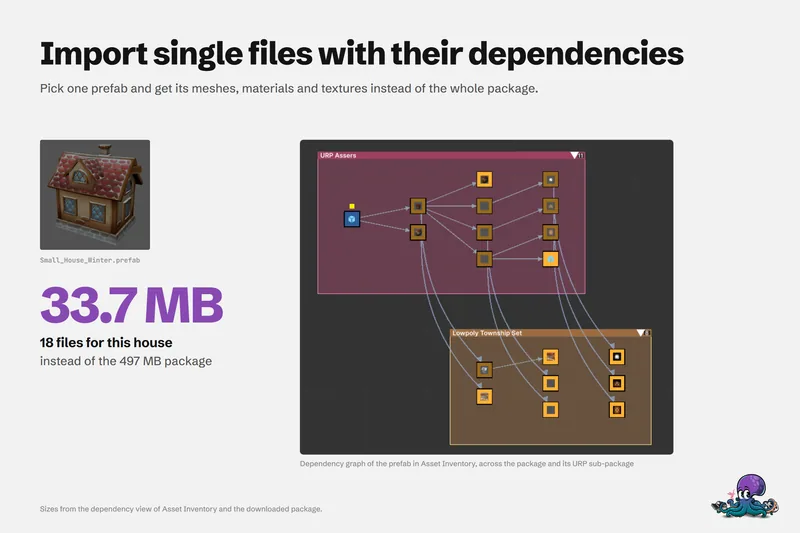 Use case