Search inside every Unity package you own
Search inside Unity packages without importing them. Asset Inventory indexes every file you own, so you find the model, sound or texture instead of a package name.
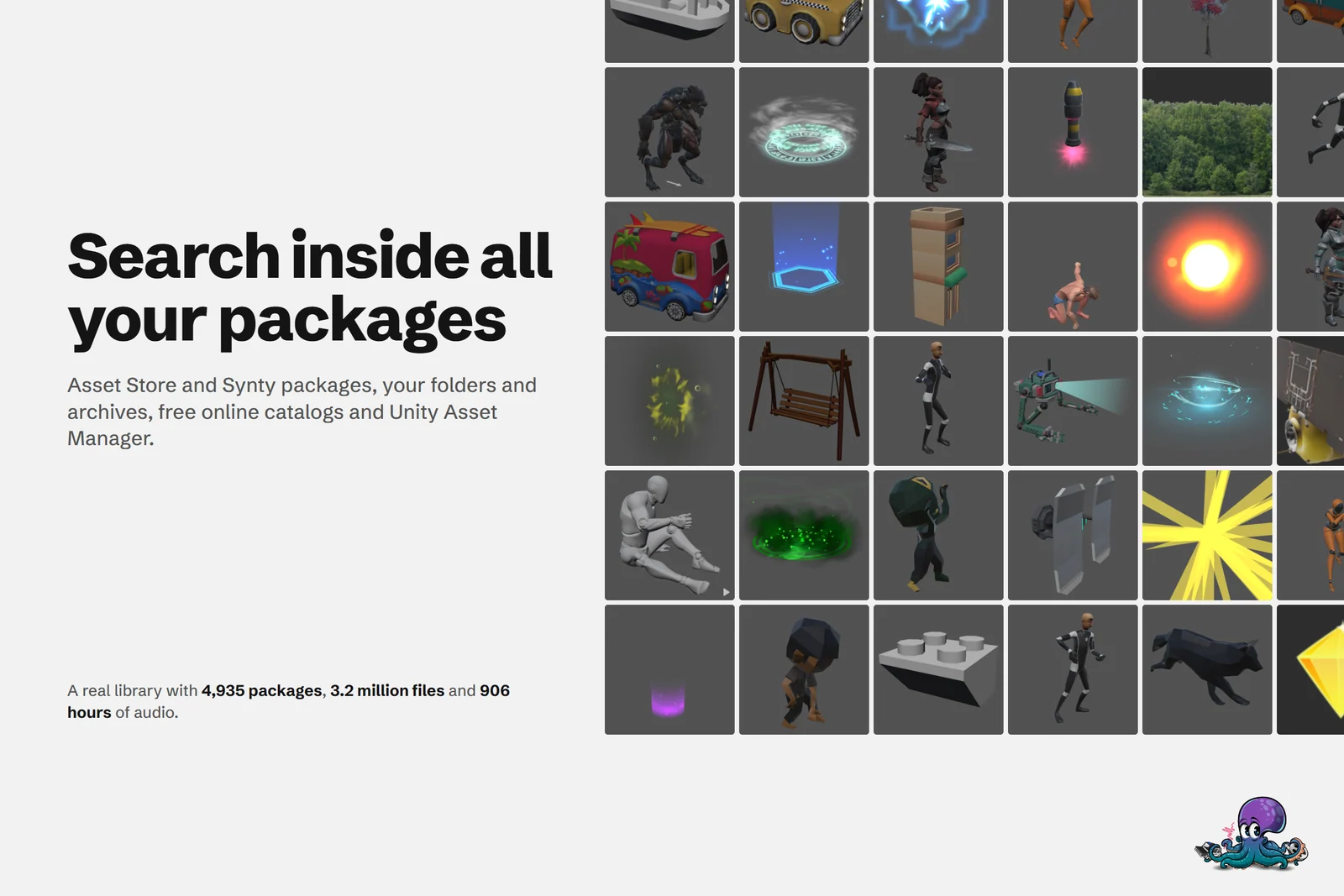
You need a wooden door for a cabin scene, and you are fairly sure one of your packages has one. In the Package Manager, the My Assets search matches package names, and package details show marketing images, not the files inside. So you guess a package, import it, look around and delete it again.
Asset Inventory turns this around. It indexes every file in every package you own into a local database, so you search for the door and the package follows. The library behind the screenshots on this page holds 4,935 packages with 3.2 million files and 906 hours of audio, and one search covers all of it.
Why package names are not enough
Package names say little about their contents. In that same library, 52,581 model and prefab files have “tree” in their name, spread over 1,068 packages: city builders, survival kits and tower defense sets as well as nature packs.
Unity’s own tools mostly stop at the package level. The Package Manager filters My Assets by status, category and label. Unity Asset Manager goes further for teams: its Asset Store integration splits supported 3D, 2D and audio purchases into individual cloud assets you can search by name and tag. Asset Inventory indexes every package you own, from every source, on your own machine, and filters the files by what they are. See the comparisons with the Package Manager and Unity Asset Manager.
What Asset Inventory indexes
Asset Inventory reads packages where they already are, without importing them:
- Asset Store purchases in Unity’s local package cache
- Registry packages, Unity Asset Manager projects and Synty Importer downloads
- Additional Folders you add:
.unitypackagefiles from publisher sites and bundles, development packages, media folders with textures, models, audio or whole Unity projects, and ZIP, RAR and 7z archives
For every file it stores name, path, type and size, plus type-specific data such as image dimensions, audio length, FBX vertex and triangle counts, and a preview. To set it up:
- Open Tools > Asset Inventory > Asset Inventory.
- In the Setup Wizard, choose where the database and previews live, then pick Index Everything Automatically or Let Me Choose What to Index.
- In Settings, add your download folders under Additional Folders.
- Press Run Actions. Indexing is incremental, so you can stop and continue later.
Search syntax: words, phrases, tokens and SQL
Search starts while you type, and every word has to match, in any order. A few prefixes make it precise:
| Syntax | Example | Finds |
|---|---|---|
| Plain words | car interior | CarBlueInterior.fbx and InteriorCarDes.png |
~ exact phrase | ~car interior | Car Interior.fbx, but not the two above |
+ required, - excluded | car +interior -fbx | files matching car and interior, without fbx |
pt: package tag, ft: file tag | red pt:car | files with red in packages tagged car |
= expert search | =AssetFile.Width > 3000 and Asset.DisplayName like "%icon%" | files wider than 3,000 pixels in packages with icon in the name |
Expert search accepts nearly the full SQLite WHERE syntax, with a dropdown that lists the database fields. Tokens combine as well: red withanypt:boat,vehicle withnopt:aircraft finds red files in packages tagged boat or vehicle but not aircraft. In expert searches, prefix any word with $ to turn it into a parameter, and a saved search can keep a default value and a list of predefined values for it.
Filter by type, size, color and package
Pick a type group first: Audio, Images, Videos, Prefabs, Materials, Shaders, Models, Effects, Animations, Fonts, Scripts, Libraries, Documents or Scenes. The Filters tab then offers what fits that type:
- File Size, Width and Height, each with a toggle for bigger or smaller than the value
- Length for audio and Vertices for models
- Color, after the Extract Colors action has analyzed the previews, and Image Type, which finds albedo, normal, roughness, mask and other texture maps by their names
- Package, Publisher, Category, Price, Package Tag and File Tag
- In Project and Hidden Files
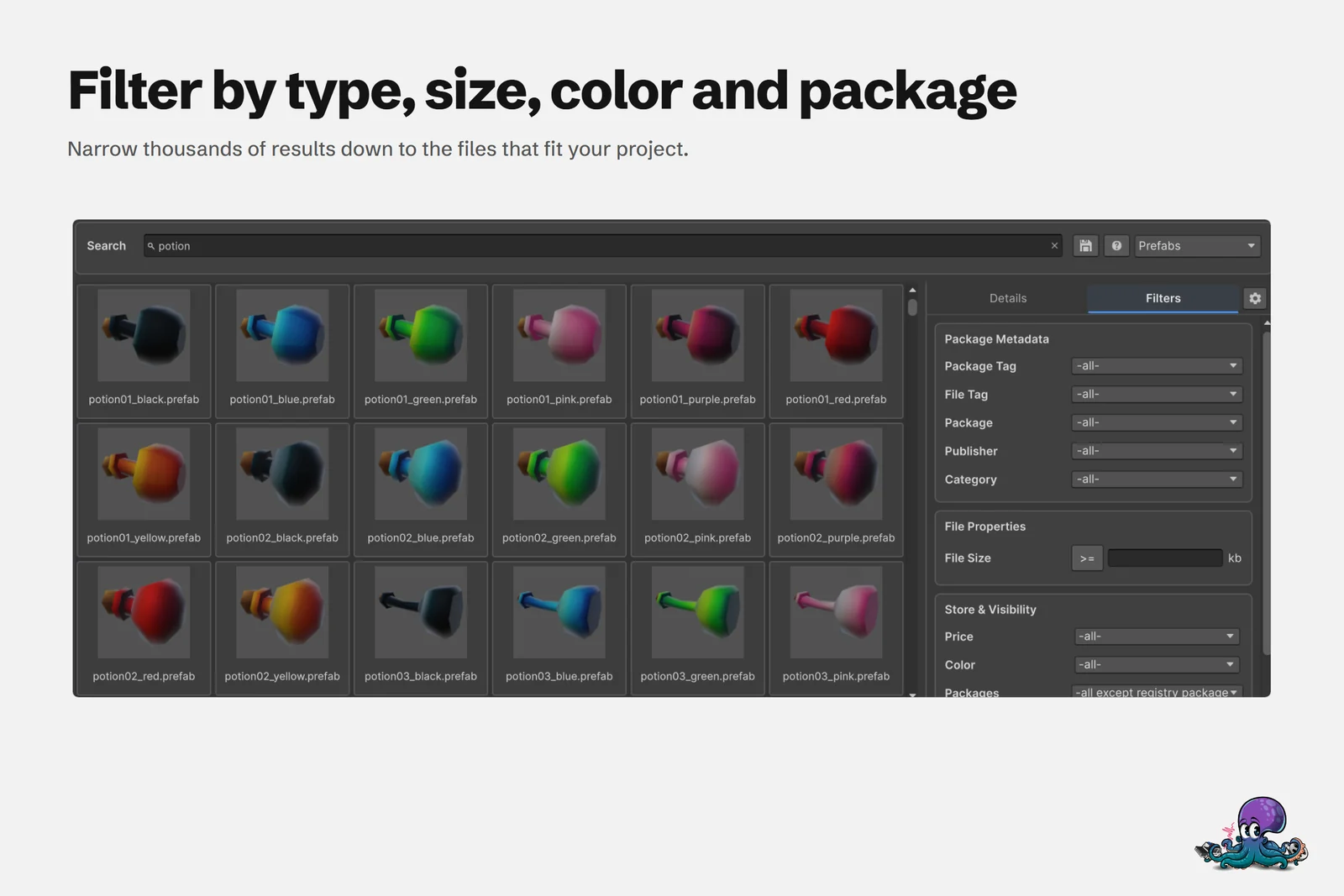 A search for potion, limited to prefabs, with package, tag, size, price and color filters at hand.
Dropdowns only list values that exist in your library, and filters that do not apply to the chosen type stay hidden. The hierarchy browser on the left groups the current results by package, category, publisher, folder and file type. Sorting by Relevance puts the strongest file-name matches first.
Scopes, saved searches and Unity Search
The scope bar above the results decides where to look:
- All combines the index with the assets in the open project.
- Project searches only the current project, without indexing it first.
- Index searches only the database, the fastest option in large projects.
- Remote searches only the online catalogs you enabled, such as Poly Haven and ambientCG. See free asset catalogs in Unity.
A search you repeat belongs in a saved search. It stores the phrase and every filter, and its results stay live, so newly indexed files appear next time. Override with Current Search in its dropdown updates it. Workspaces group saved searches, for example per project, and the streamlined Asset Browser window opens the first one in high-speed mode with all result pages loaded at once.
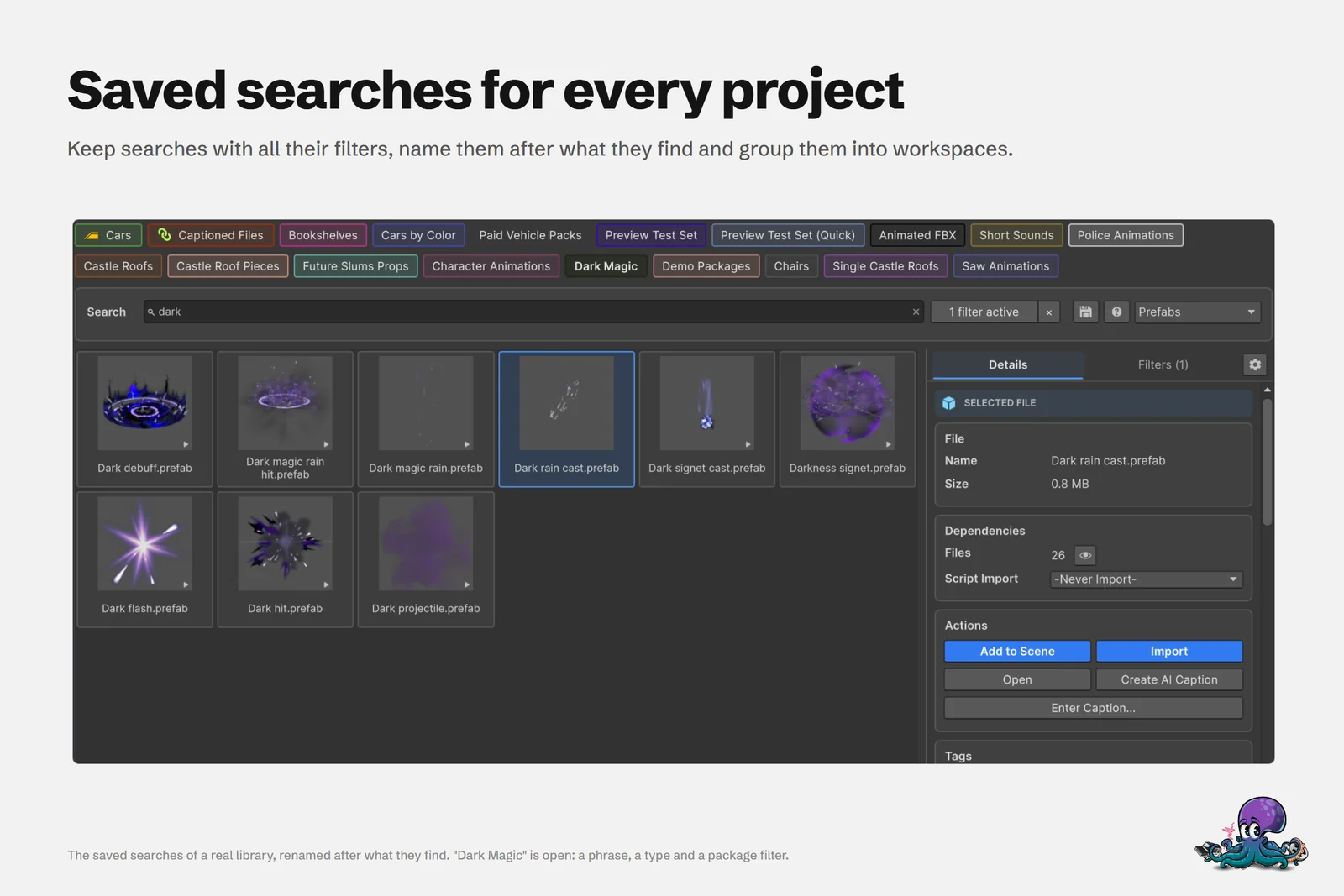 Saved searches named after what they find. Dark Magic combines a phrase, a type and a package filter.
Asset Inventory also adds a provider to Unity Search: press Ctrl+K, type assetinv: and your query, then add a result to the scene, open it, or continue in Asset Inventory. This needs Unity 2022.2 or newer.
From search result to project
Select a result and the details panel shows the file and its package, while sounds play and animated previews move right away. Then act on it:
- Import brings in the file with all detected dependencies, or alone if you prefer.
- Drag the result into the Project, Hierarchy or Scene window, or use Add to Scene.
- For files already in the project, Where Used opens the Asset References window to show what uses them.
Details are in import single assets with their dependencies. One Asset Store reviewer summed up the search as “Google for your asset library!” (tolo05).
Limits worth knowing
- The first run takes time. Index a large library in a new, empty URP project on the newest stable Unity release; later runs only process what changed.
- Asset Store packages must be downloaded once. Download purchases without importing them, in bulk if you like, or let Download & Index New Asset Store Packages download them for indexing and delete them afterwards. Downloading an item revokes the right to easily return it through the Asset Store, so only automate this for packages you intend to keep.
- Search needs the index, import needs the files. An indexed package can leave your drive and stays searchable. When you import from an Asset Store package that is no longer on disk, Asset Inventory downloads it again on demand; other packages need their files back in place.
- Disk space. Plan about 20 MB of database and 200 MB of previews per 30,000 files before upscaling.
- Some parts need a connection. Searching what you indexed works offline; fetching purchases, downloads and online catalog searches do not.
Asset Inventory runs in Unity 2022.3 or newer and is actively tested on Windows and macOS. The Asset Search documentation has the full syntax reference.
Frequently asked questions
Can I search inside Unity packages without importing them?
Yes. Asset Inventory indexes the files inside each package into a local database, so you can search, filter and preview them without importing anything. You import only the files you pick.
Do Asset Store packages need to be downloaded before I can search them?
Yes, once. Asset Inventory indexes packages from Unity's local cache, or its Download & Index New Asset Store Packages action downloads purchases for indexing and deletes them afterwards. Downloading an item revokes the right to easily return it through the Asset Store.
Does the search work offline?
Yes, for everything already indexed: searching, filtering and previews run from the local database. Fetching purchases, downloading packages and searching online catalogs need a connection.
How large can the library get?
The default SQLite database handles millions of records. As a rule of thumb, plan about 20 MB of database and 200 MB of previews per 30,000 files before upscaling. The library on this page holds 3.2 million files.
Find any Unity asset you own. Import only what you need.
Keep reading
 Use case
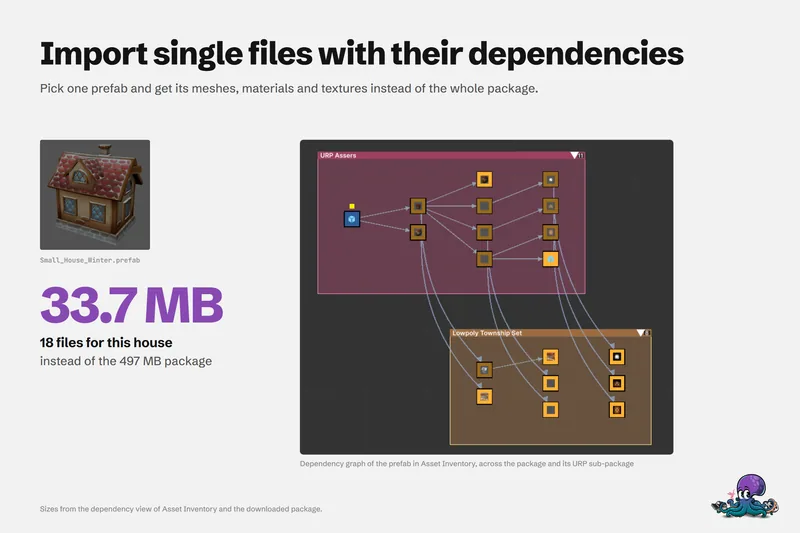
Import single assets from a package with their dependencies
Pick one prefab and get its meshes, materials and textures instead of the whole package: how the dependency analysis works, where files land, how scripts and render pipelines are handled, and where the limits are.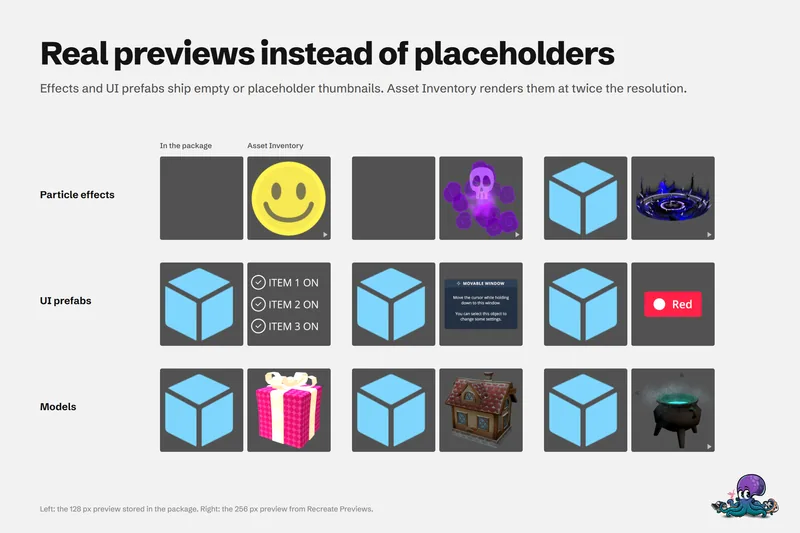 Use case
Preview Unity package contents without importing
Unity's embedded previews are small, often badly lit and missing for effects, UI and fonts. Asset Inventory indexes package contents and renders its own previews, animated where it helps, before anything is imported. Use case